


Introduction
Every thriving community has its experts, but traditional metrics like post count and join date don't truly reflect who is helpful, trustworthy, or worth looking up to. Invision Community identifies these individuals through meaningful signals like solutions provided, helpful votes, and response speed, recognising expertise at a topic level so that the right people are highlighted in the right areas. Once identified, experts can choose to display their status publicly and stay on top of unanswered questions in their speciality.
How it works
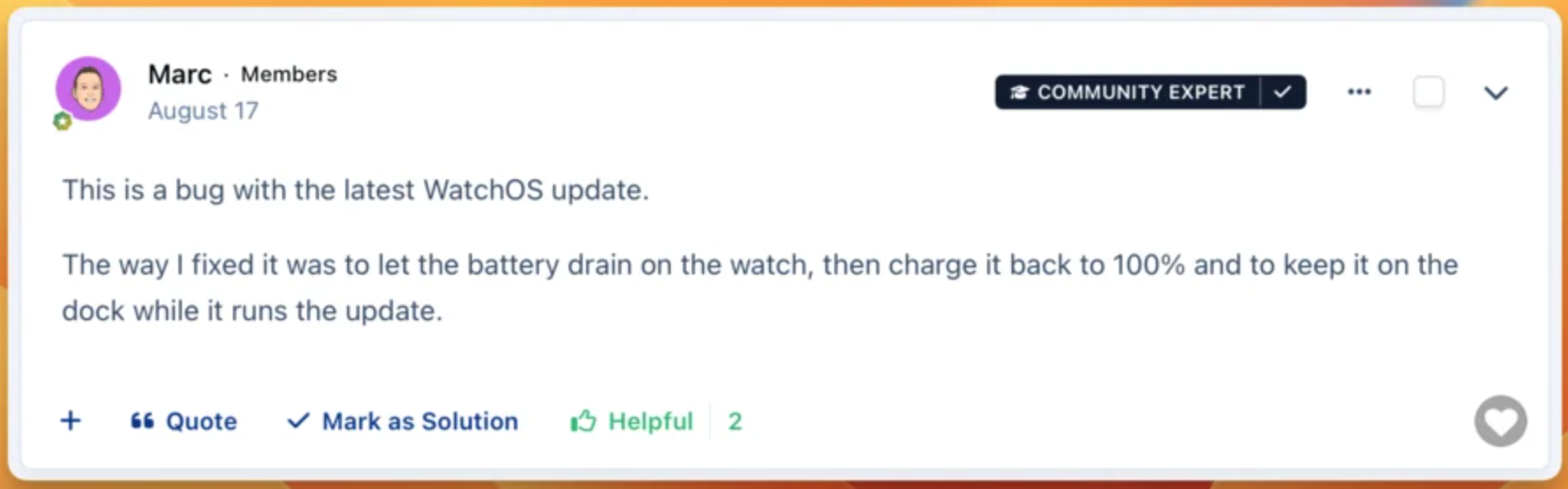
Expert status is recalculated every few months to reflect how communities naturally grow and change. Keeping things current means inactive members won't hold a spot they no longer earn, and it gives rising contributors a reason to stay engaged and keep up the good work. They are recognised with a badge displayed alongside their posts, and other members can choose to follow them directly. Encouraging newer members to follow these trusted individuals is something that should sit at the heart of any good community strategy.
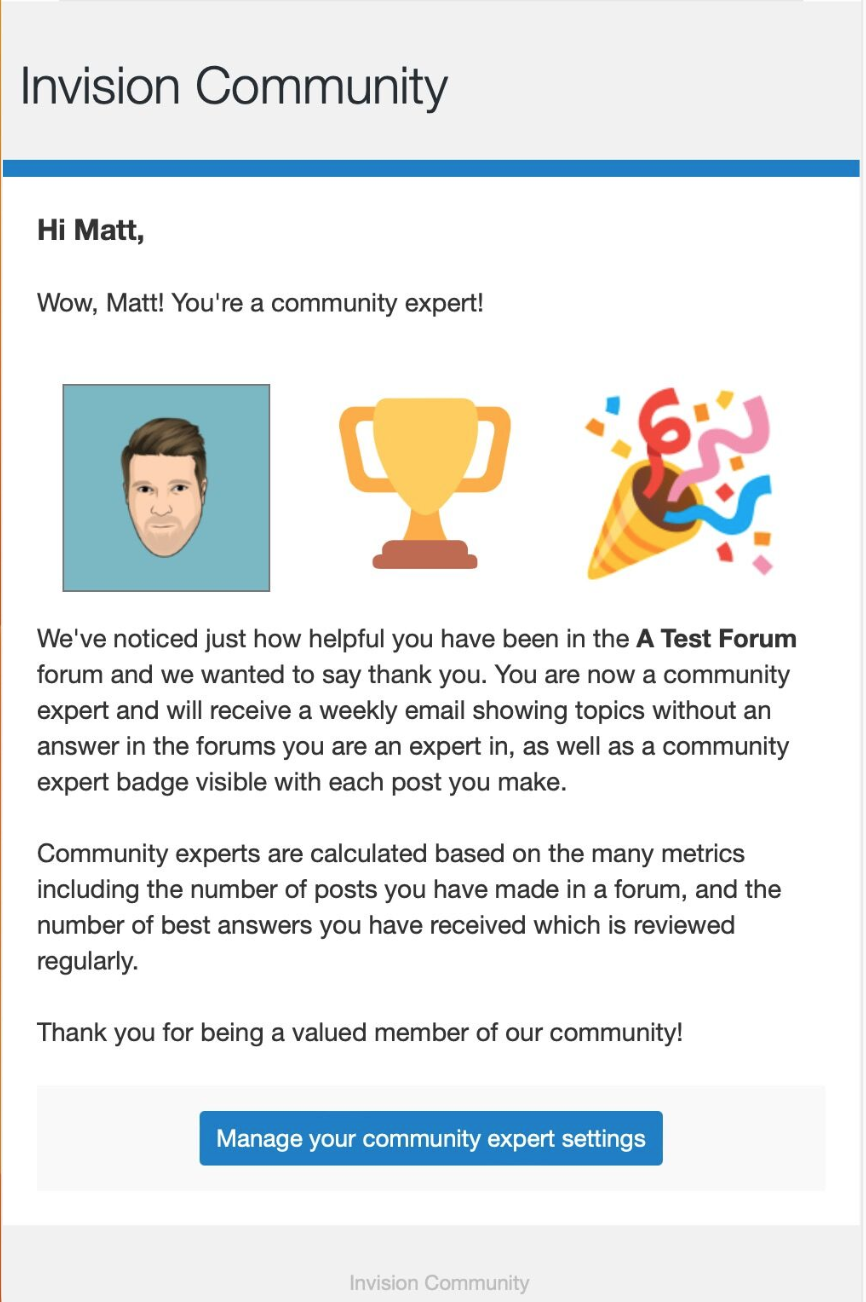
When a member earns expert status, they'll receive an email letting them know, as shown in the image below.
Email Notification to Show Experts
Encouraging members to follow trusted experts should be at the core of any community strategy, and with expert status clearly visible throughout the community, identifying those individuals has never been easier.
Badge Showing to Others on Content
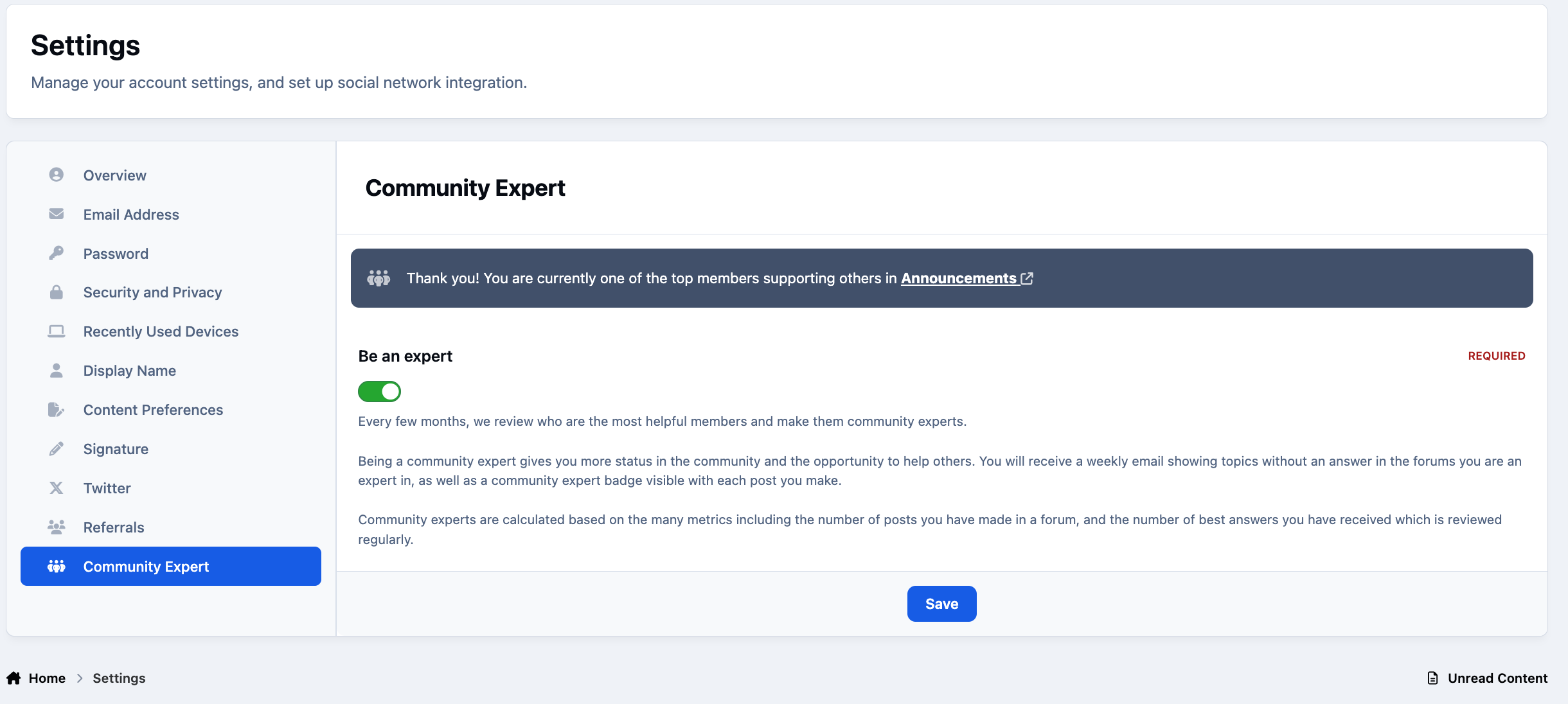
If a member prefers not to have their expert status displayed, they can easily manage this through their account settings by selecting the following on the front end
{name} → Account Settings → Community Expert.
here they can switch this off, and also see a list of items which are awaiting an answer, if they wish to look at those. This list is also periodically sent as an email to community experts in each area
Here they can toggle their expert status off, and also browse a list of unanswered questions in their area should they wish to. This list is also periodically sent to experts via email, keeping them in the loop without needing to check in manually.
Front End Settings
Admin Settings
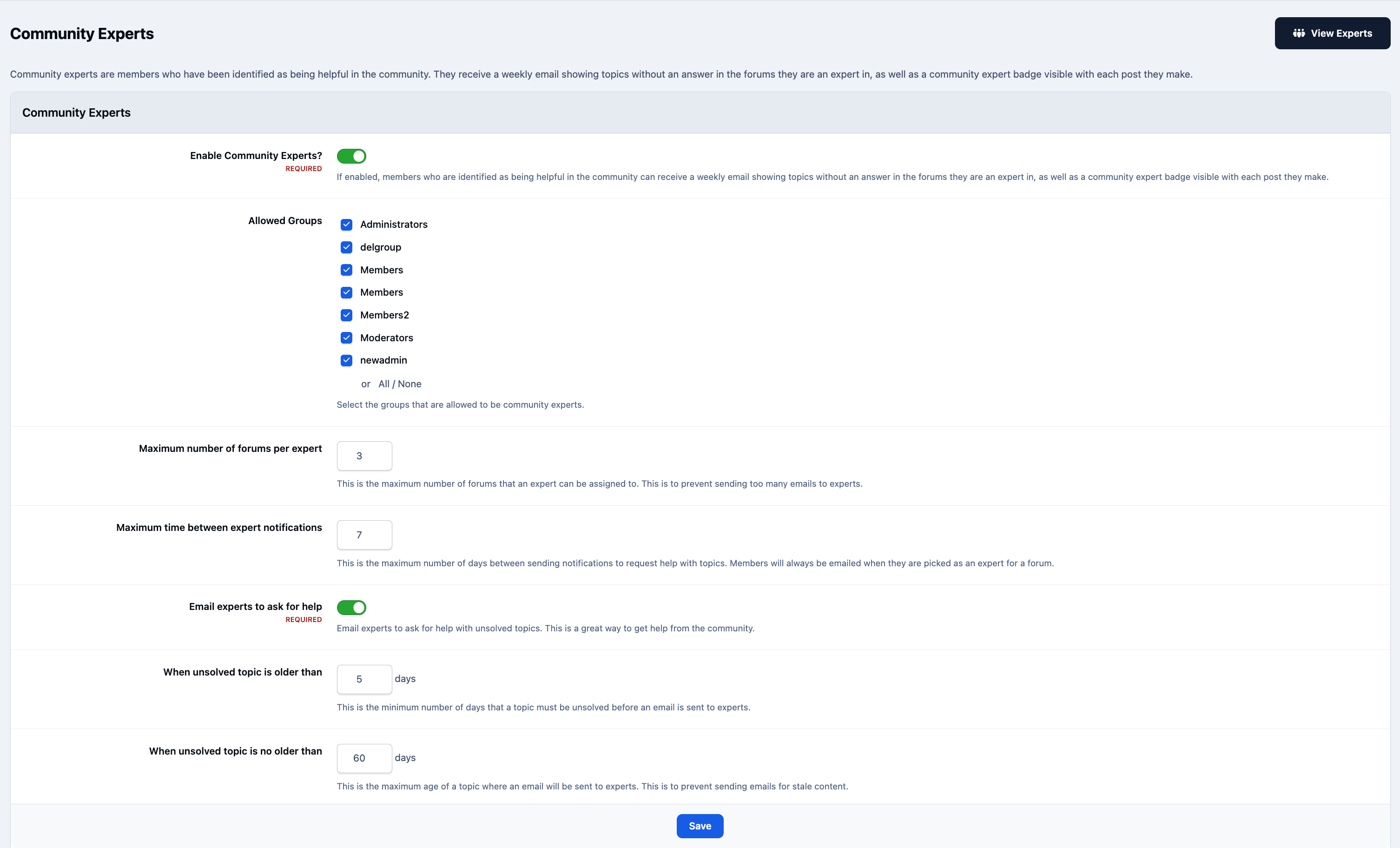
Within the Admin CP, you can configure how the Community Experts feature works for your community. This includes setting which member groups are eligible to become experts, how many forums each member can hold expert status in, and more. These can be found within the following location
Community → Forums → Community Experts
Admin Settings
Recommended Comments