


Default Application
Your default application controls what is displayed when someone visits your site’s main URL. For example, if you change the default application to Gallery, visitors will be taken straight to the gallery homepage instead of the forums.
By default, your community is set up so that the Forums application is shown when visitors access your site. However, you may decide that a different application, such as Pages, Gallery, or Commerce, should be the first thing members see. This can be changed at any time.
Changing Your Default
You can change the default application from within the Admin CP. To do this, navigate to the following loication:
System → Site Features → Applications
You’ll see a screen similar to the one shown below.
Applications List
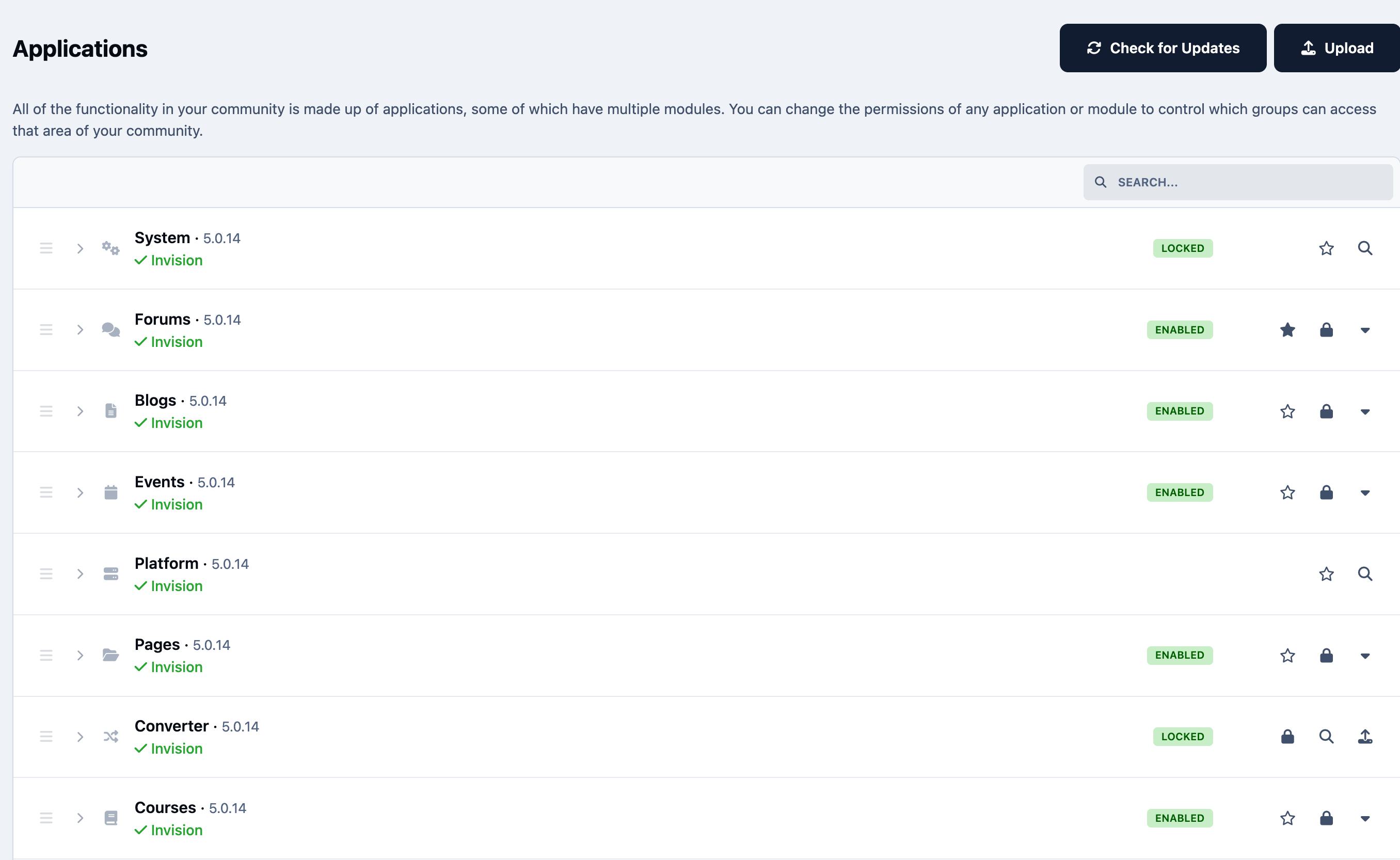
Each application has a star icon on the right-hand side. The selected star indicates which application is currently set as the default. To change this, simply select the star next to the application you would like to use instead.
Default Modules
Applications are made up of modules. In many cases, there may only one module — for example, the Forums application contains a single forums module. Other applications, such as Commerce or System, include multiple modules.
This allows for more granular control. For example, you might set Commerce as your default application, but choose the Subscriptions module as the page that is shown when Commerce is accessed.
The System application works in the same way. While it can be set as the default application, you’ll also need to choose which module is shown. A common example of this, is wanting to show the content discovery module as the default, so you see "All Activity" as the start page.
Setting a Specific Module As Default
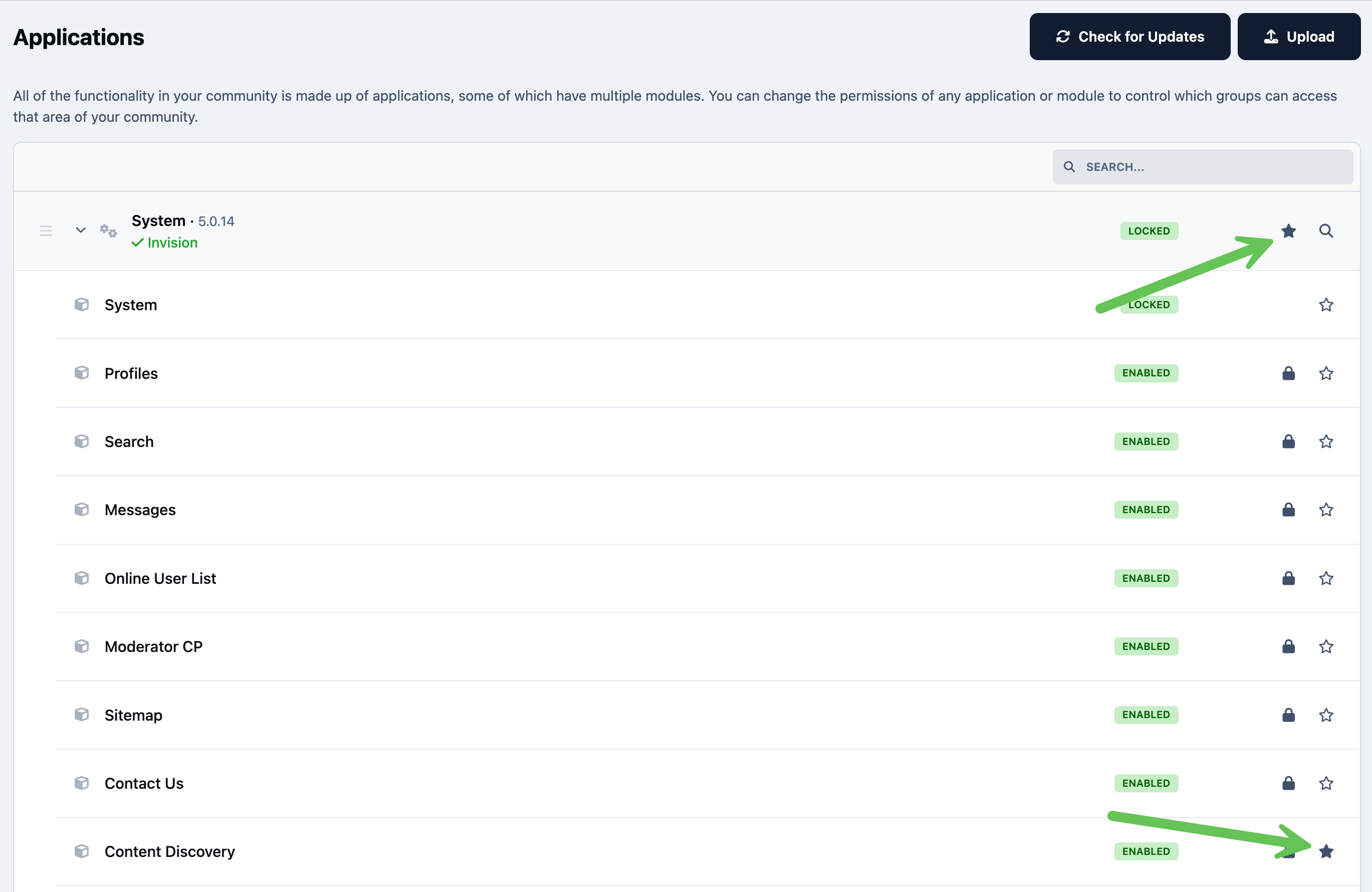
This approach gives you full control over what your members see first when they visit your community.




Recommended Comments