


There are several global settings within the Forums application in the Admin CP that you may want to review. These settings apply to all member groups across the community.
An overview of these sections is explained below, along with an overview of what the available settings control and how they affect your forums.
Forum Settings
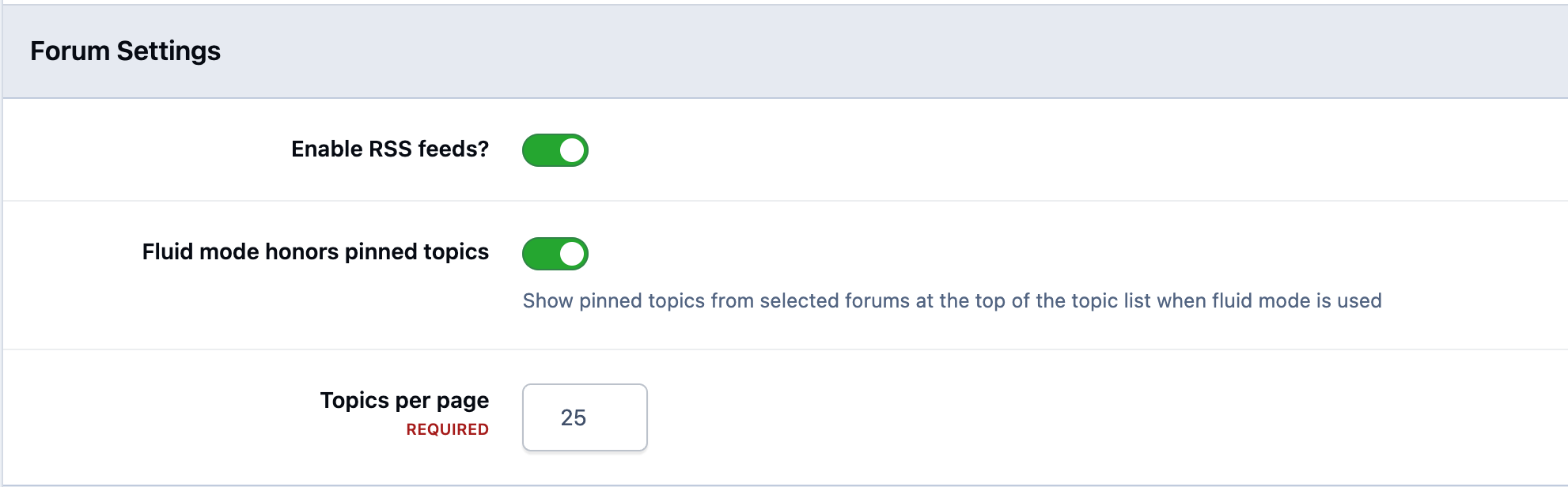
The first set of options are the 'Forum Settings'. These control how forums behave and are displayed outside of individual topics, affecting the overall forum browsing experience for members.
One example is 'RSS feeds', which enable members to subscribe to forum activity using an RSS reader. When enabled, this allows users to receive updates about new topics or posts in your forums without needing to visit the site directly, helping them stay informed about ongoing discussions.
General Forum Settings
Topic Settings
'Topic Settings' control how individual topics are displayed and how they function for members, influencing the overall reading and interaction experience within discussions.
Topic Settings
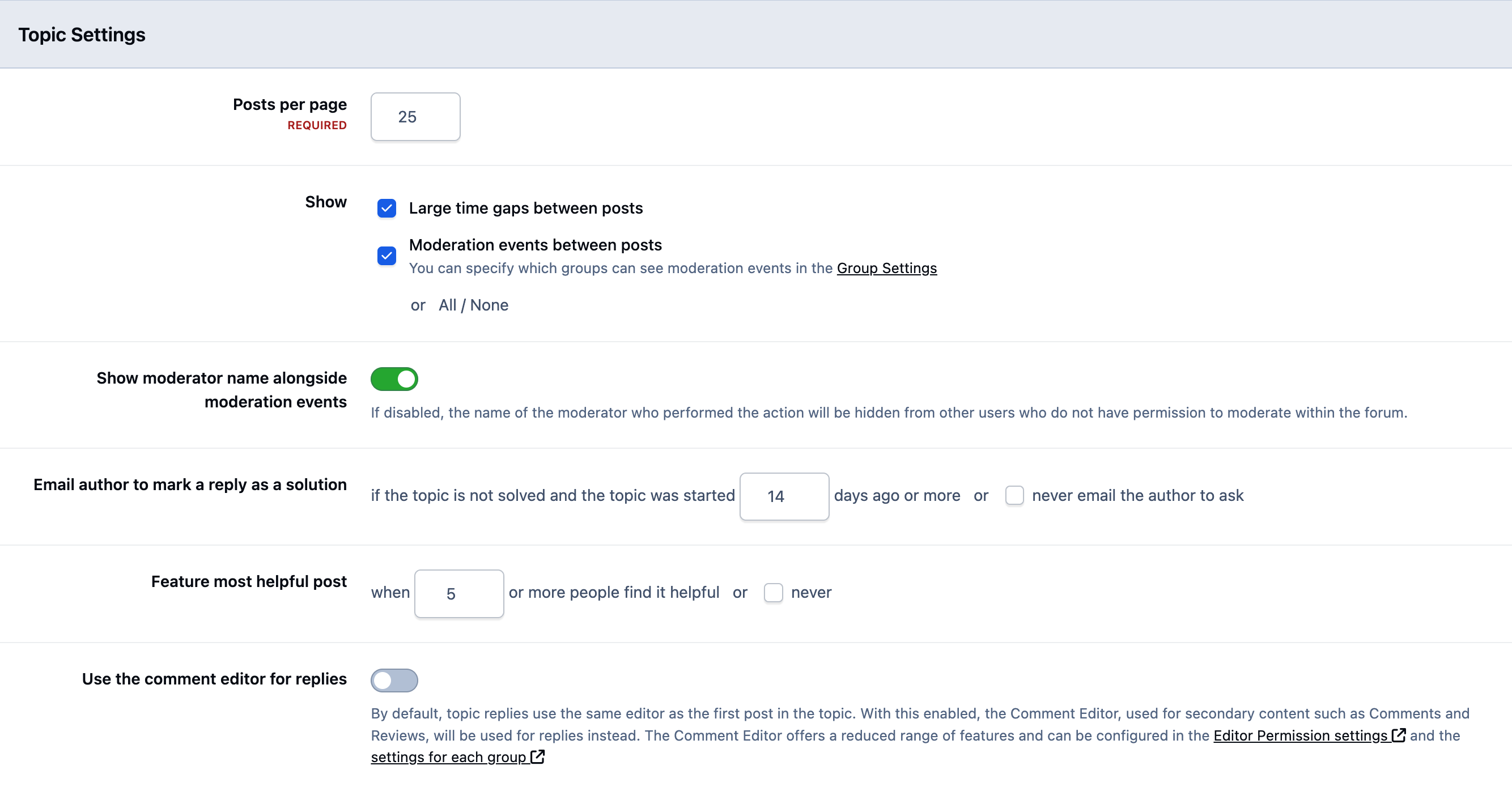
Features such as 'Feature most helpful post' and 'Email author to mark a reply as a solution' can be extremely valuable when your forums are used as a support tool for customers.
These options help highlight useful answers, encourage resolution of topics, and promote a more crowd-sourced support model. In turn, this can reduce support response times, minimize repeated questions, and make it easier for members to find solutions to common issues.
Topic Overview Settings
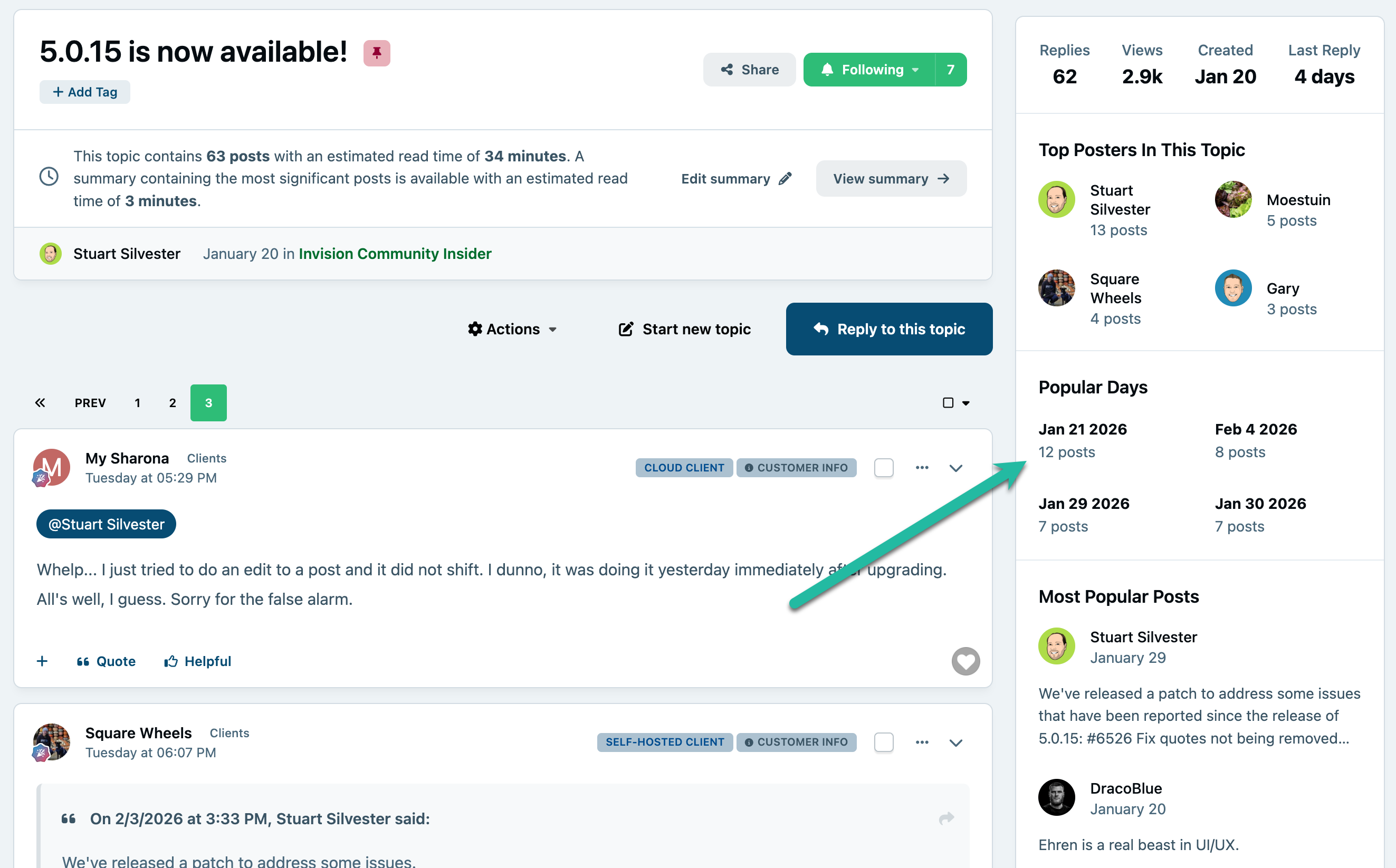
The 'Topic Overview' section allows you to display a summary for topics that meet criteria you define. For example, you might choose to show a summary of the most helpful or most positively rated posts on any page other than the first page of a topic.
Overview Settings
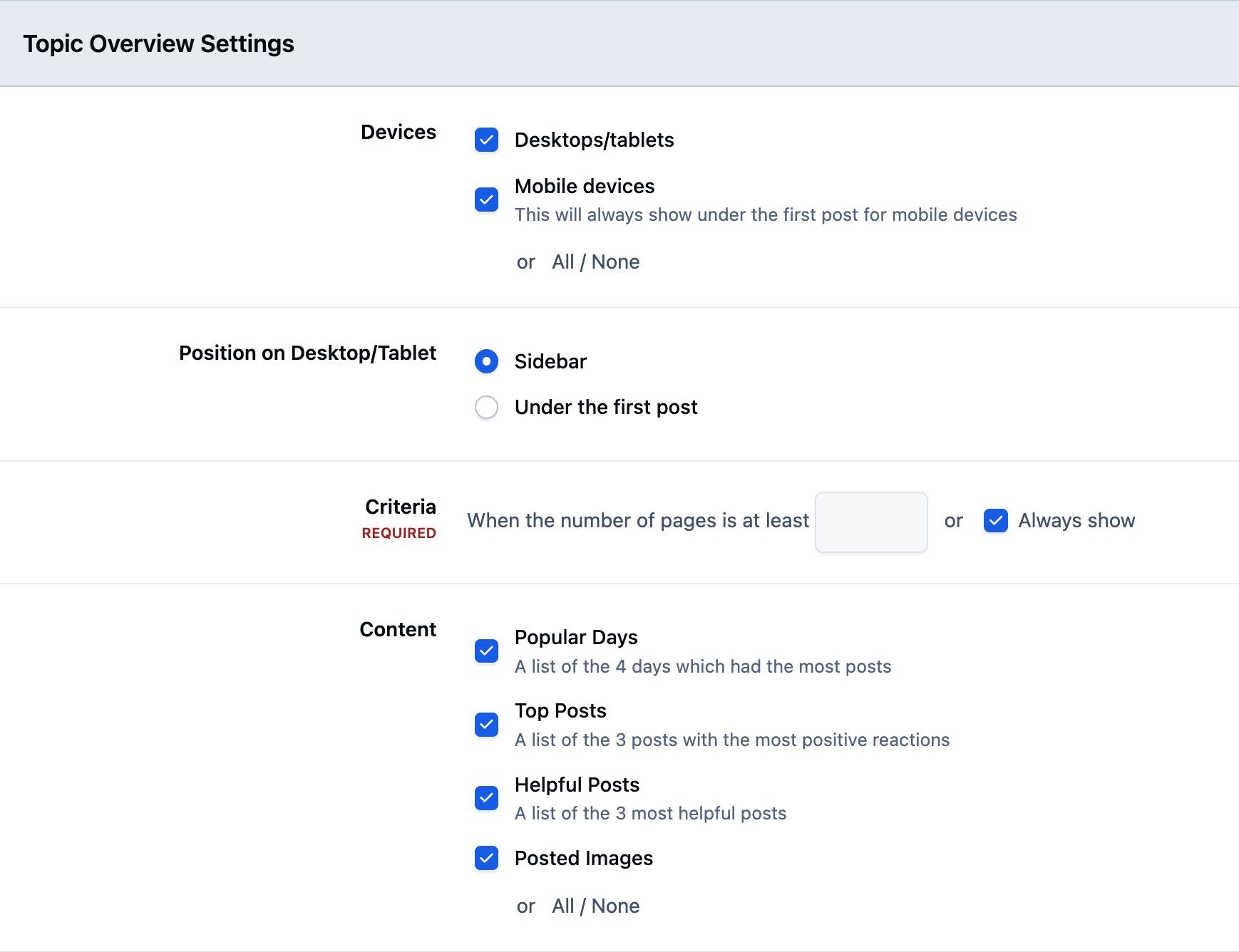
This can help readers quickly catch up on longer discussions without needing to read through every reply.
Example of Topic Overviews
Archiving
Archiving older topics on larger sites can help keep your community running smoothly and prevent members from reopening or rehashing outdated discussions.
Archived topics are read-only, meaning they cannot be replied to or edited, and they are excluded from search results. This helps keep active discussions current while still preserving older content for reference.
Archiving On Cloud
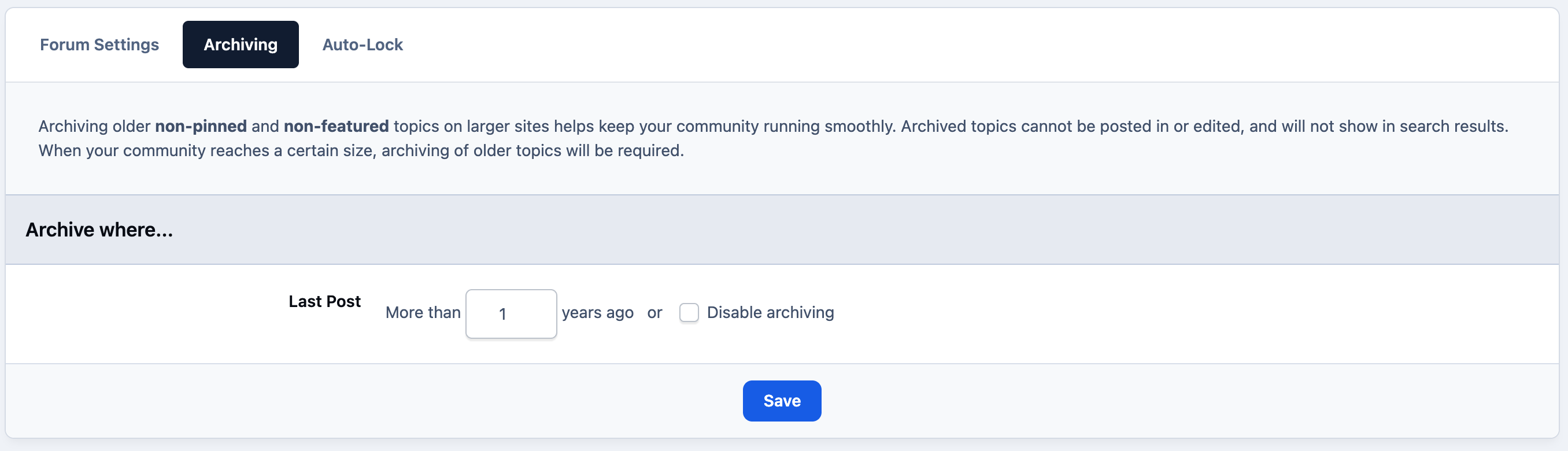
By default, archived topics are included in sitemaps and therefore submitted to search engines for indexes. A setting to Instruct search engines not to index archived content, can be found in the ACP under Community -> Forums -> Settings. When both archiving and the new setting are enabled, all archived topics will be excluded from the sitemap.
Notes for Classic
Customers using the Classic platform and hosting their own site have a few additional options available. These are designed to help accommodate less powerful hosting environments and ensure the site continues to run smoothly.
Auto-Lock
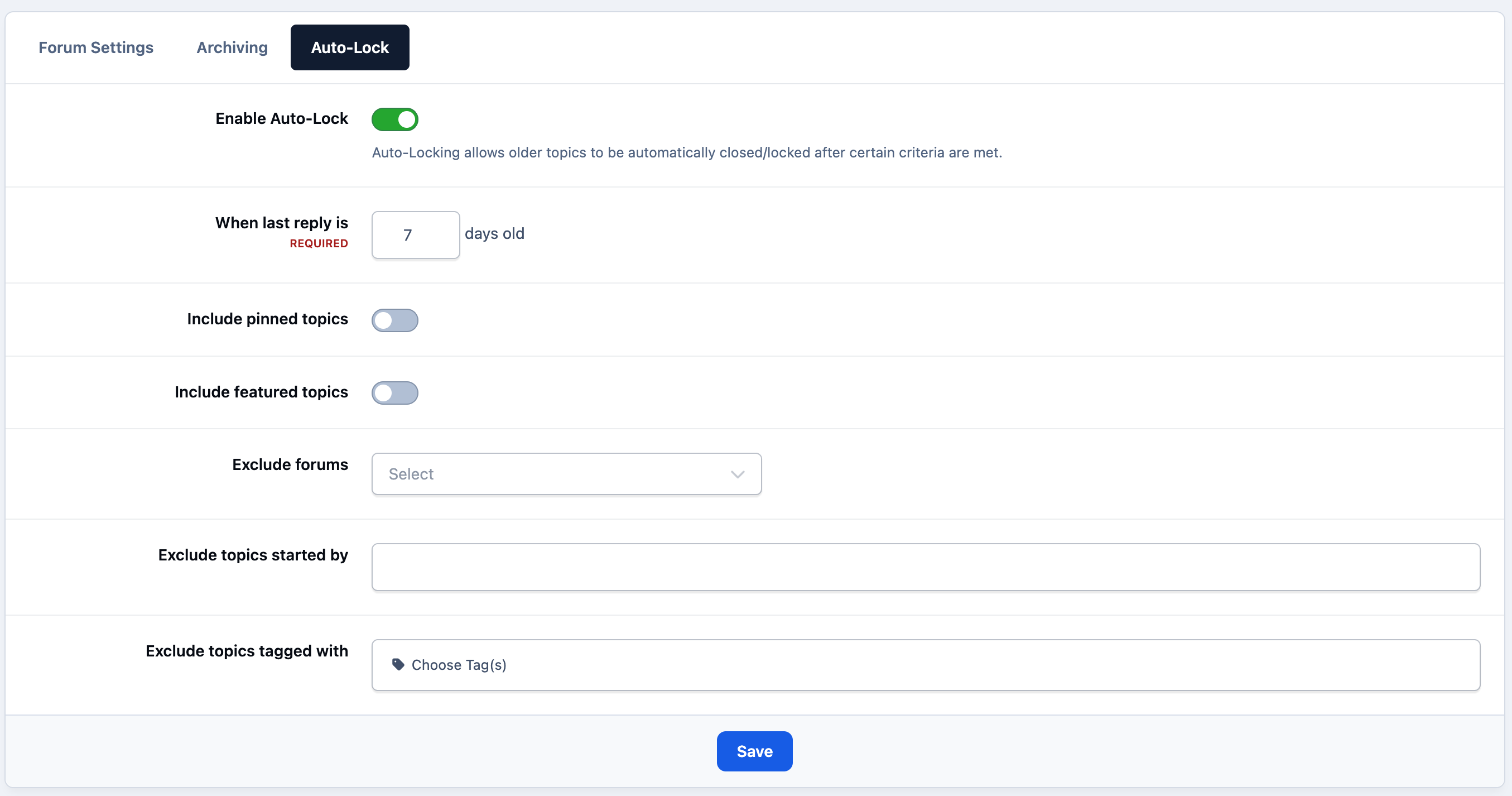
Invision Community allows you to automatically lock topics once specific criteria are met. Simply enable this setting, define the conditions you want to apply, and let the software handle it automatically.
Settings For Auto-Lock
Recommended Comments