


With the Calendar application, you can also create events automatically using iCalendar feeds if you choose to do so.
To set this up, navigate to the following location in the AdminCP:
Community → Calendar → iCalendar Feeds
When you open this section, you’ll be presented with a screen similar to the one shown below.
List of Feed Imports

Importing From Files
From this screen, you’ll see that there are two ways to add feeds to your calendar.
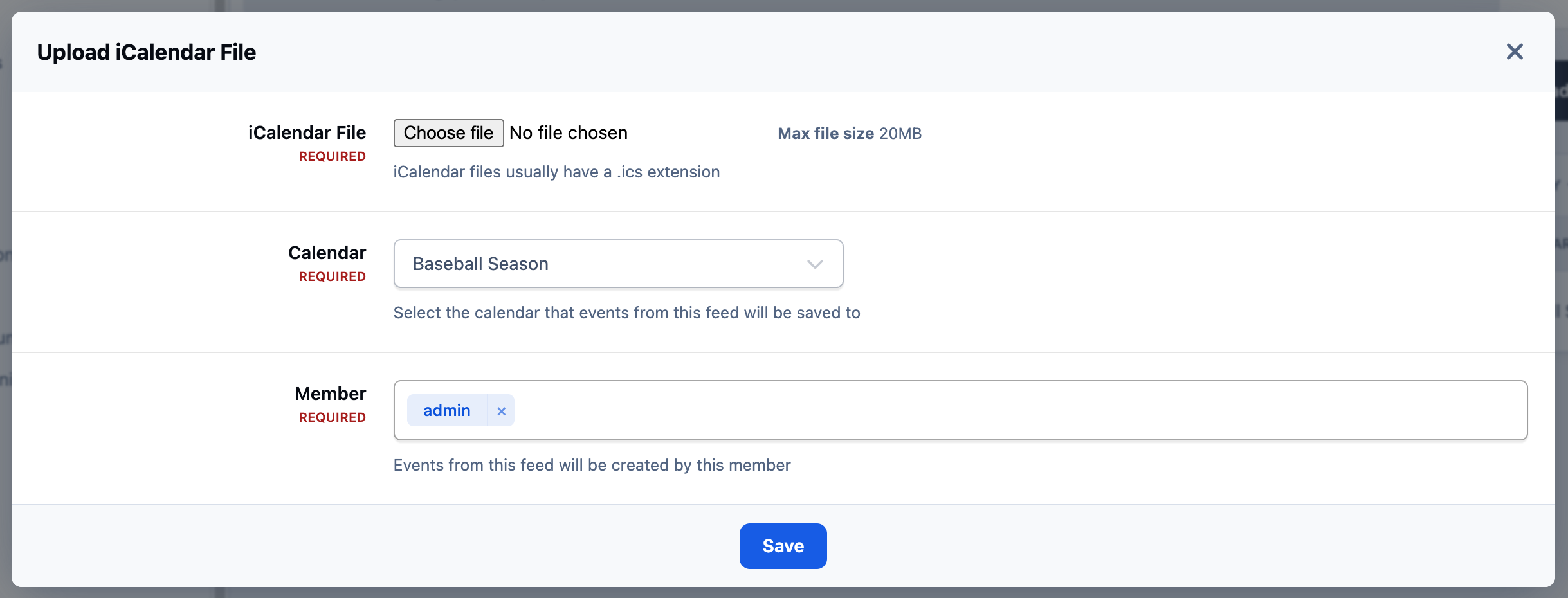
The first option is to select the “Upload iCalendar File” button. This allows you to upload an iCalendar file directly, choose which calendar the events should be added to, and select the member account that the events will appear to be posted by.
Importing From an iCalendar File
Pulling From a Feed
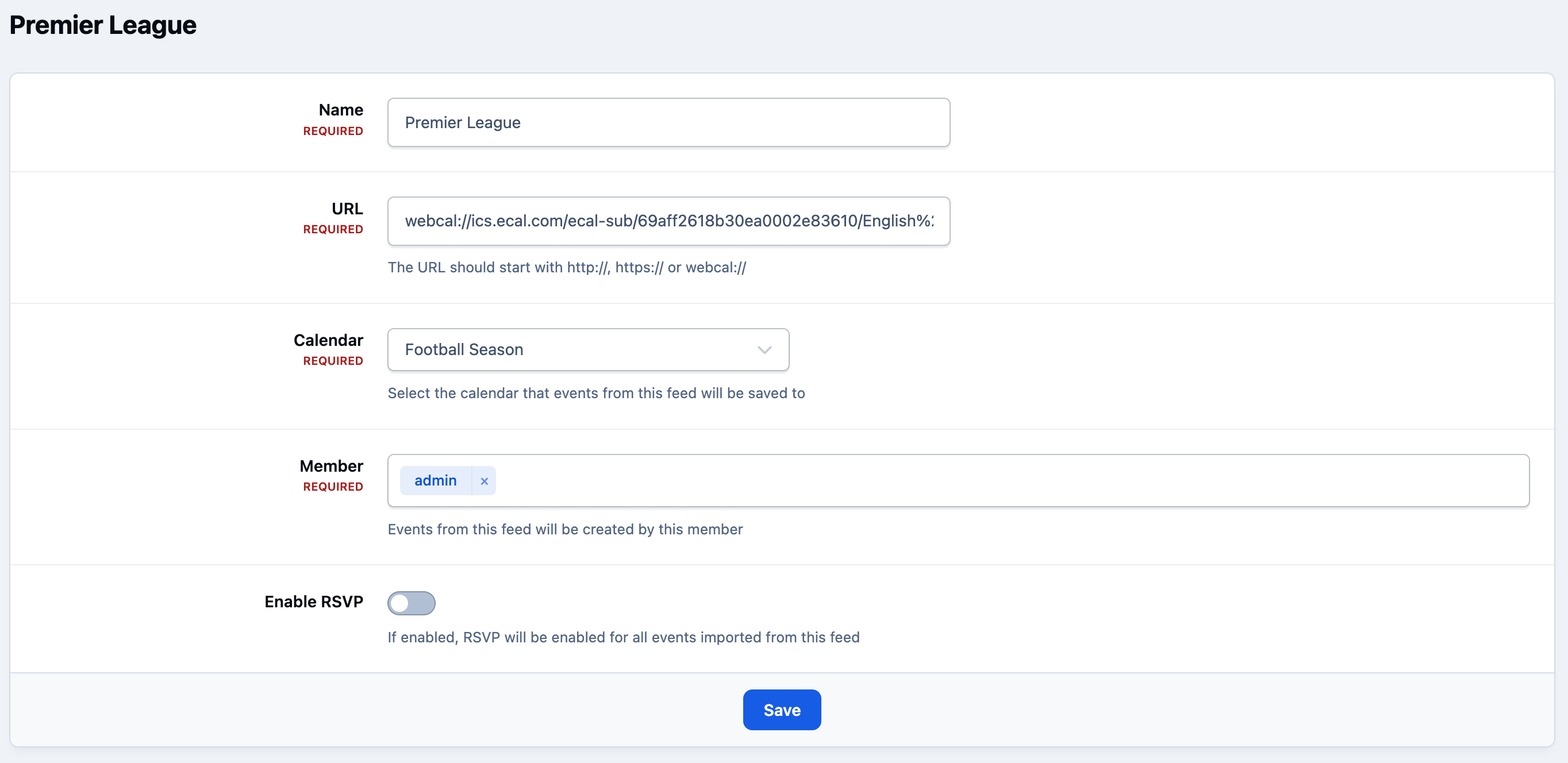
The second method is to add events from an external calendar feed. This can be done by selecting the “Add iCalendar Feed” button and entering the required details for the feed.
Importing From a Feed
Recommended Comments