


Creating calendar events is a straightforward process while still offering a wide range of features.
Below are the basic tools available when creating events within your calendars.
How To Create an Event
Creating an event is done by clicking the “Create Event” button, as shown in the image below.
Create New Event Location
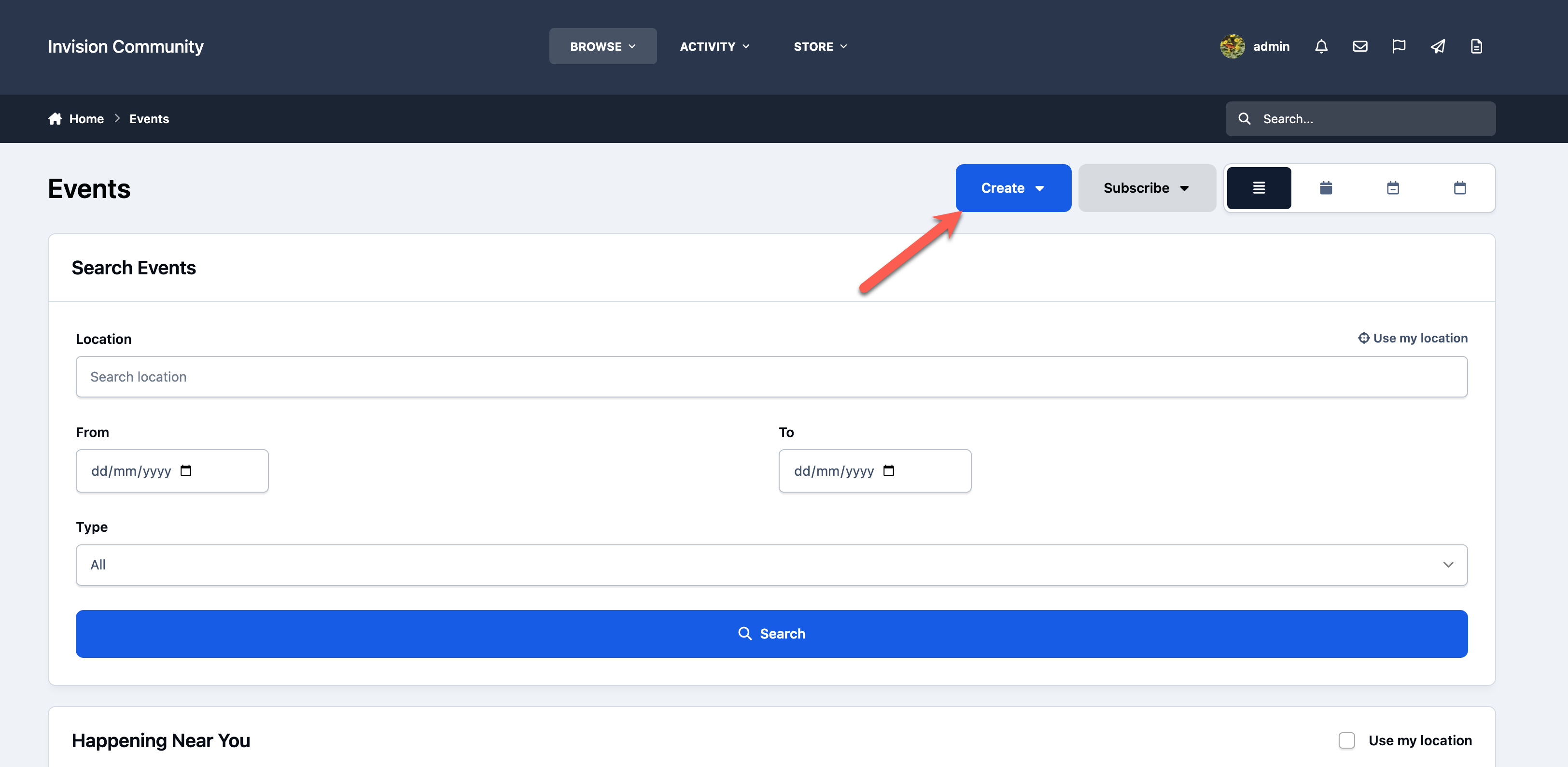
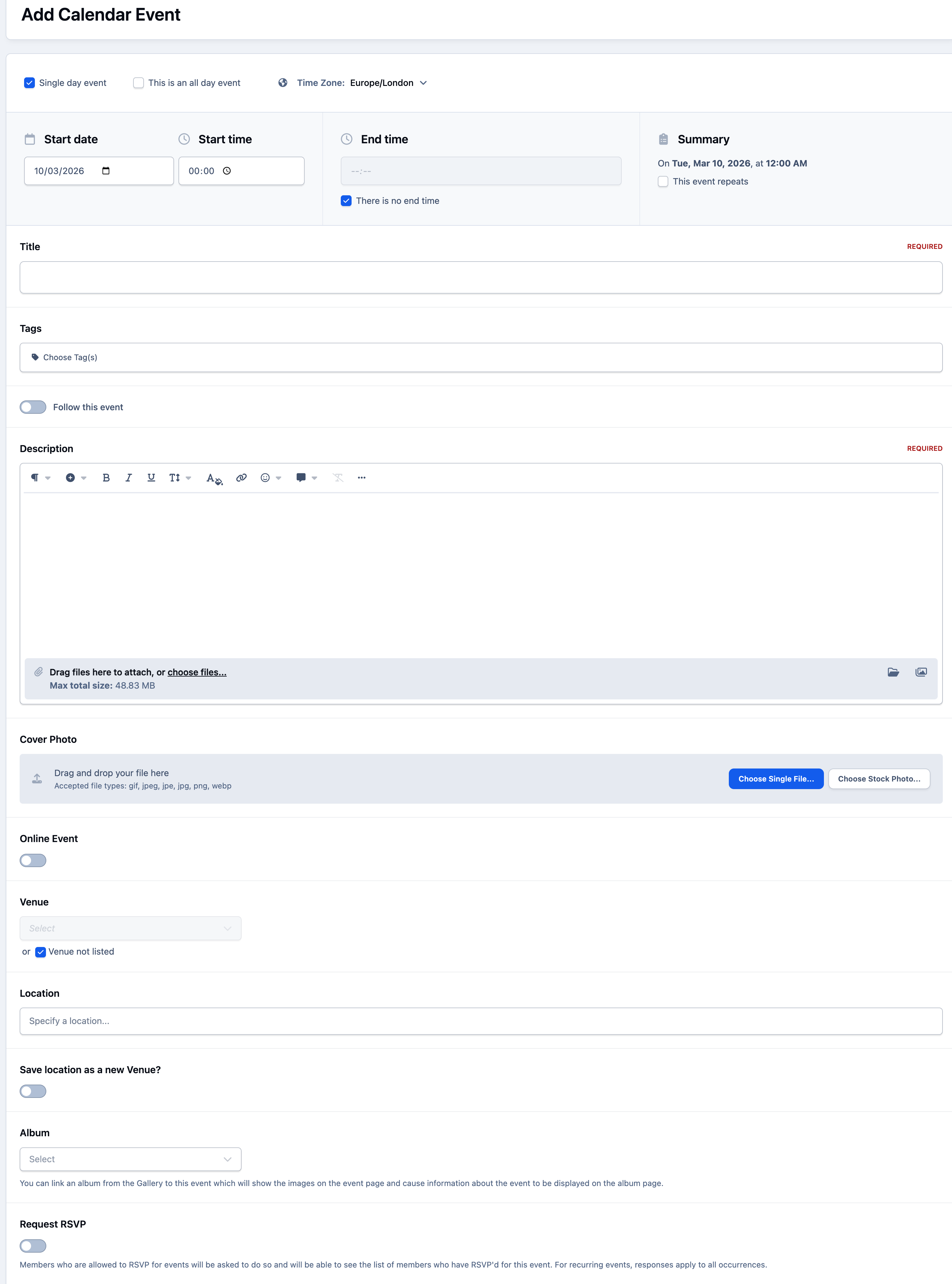
Once selected, the event creation screen will appear.
Complete the form with the relevant details for your event to create it. Some of the more detailed options available on this page are explained below.
Add Event Form
Timezones
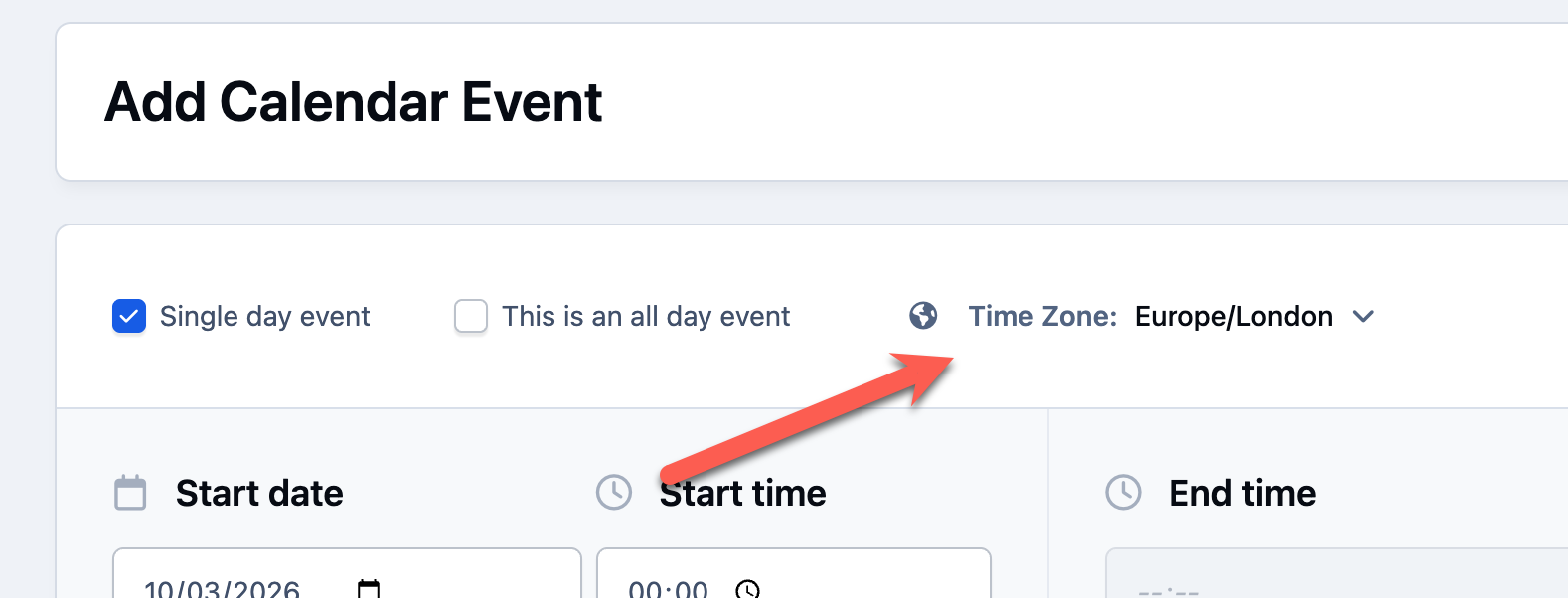
You may also notice the option in the bottom-left corner to select a time zone. This is useful if your event is taking place in a different part of the world and you are not currently in that location. By selecting the appropriate time zone, the event time will display correctly for those viewing it.
Timezone Selection
Repeating Events
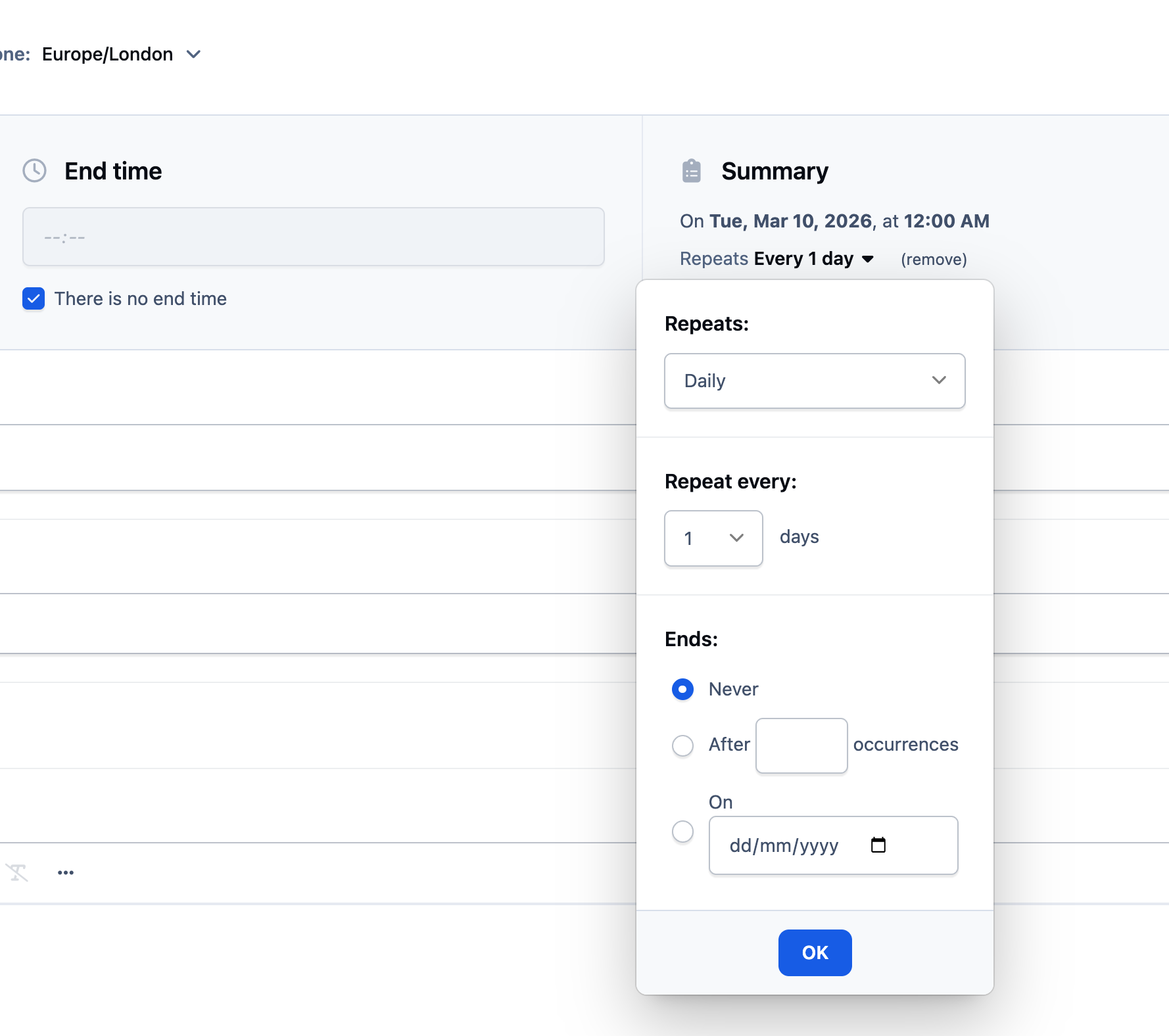
You will see an option labeled “This event repeats” above the event details. Selecting this checkbox will display additional settings that allow you to create repeating events.
These options provide a flexible way to schedule recurring events, with multiple patterns available for how and when the event should repeat, as shown in the image below.
Setting an Event to Repeat
Event Locations
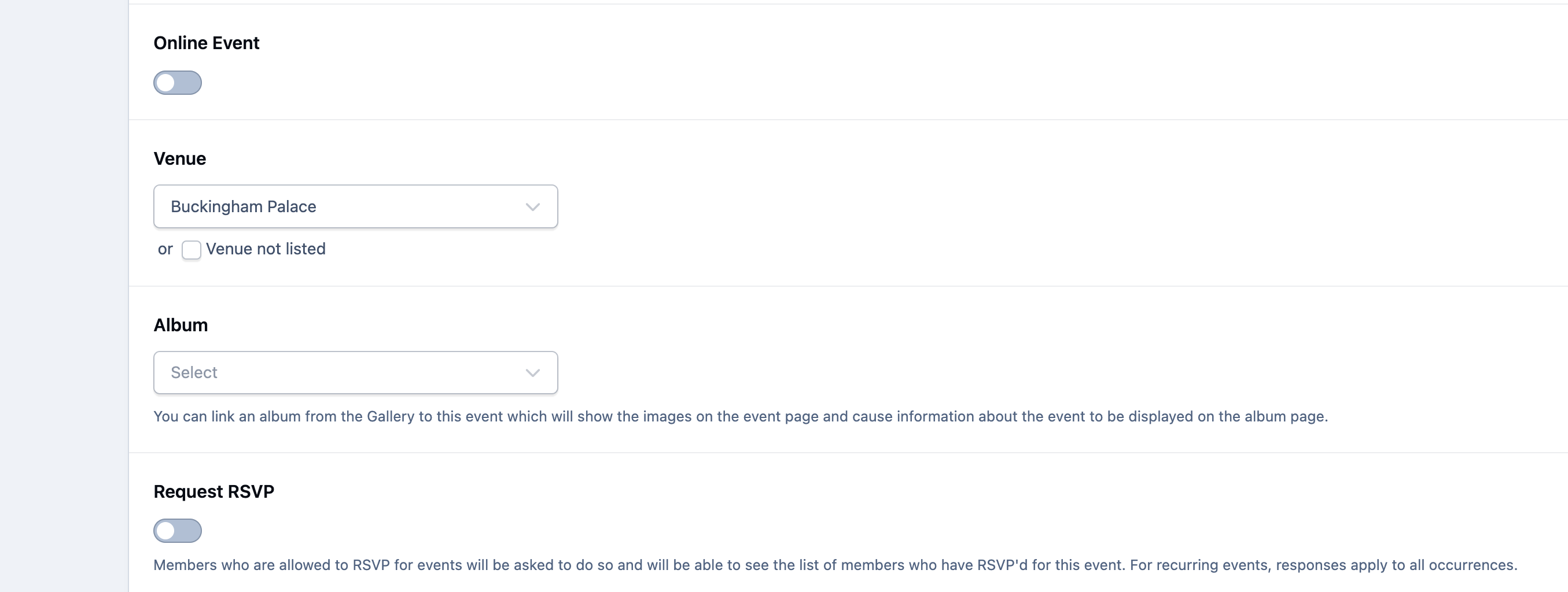
You can optionally add a location for the event (or select from a list of venues), as well as link an album that contains images related to it. When a location is added, a map will automatically appear showing where the event is taking place. If your community regularly uses the same locations, you can also create predefined venues within the AdminCP for easy selection.
You can also enable RSVPs, allowing members to indicate whether or not they plan to attend the event.
Selecting an Event Location
Note
A venue has been selected above. If you select "Venue not listed", you can enter a full address
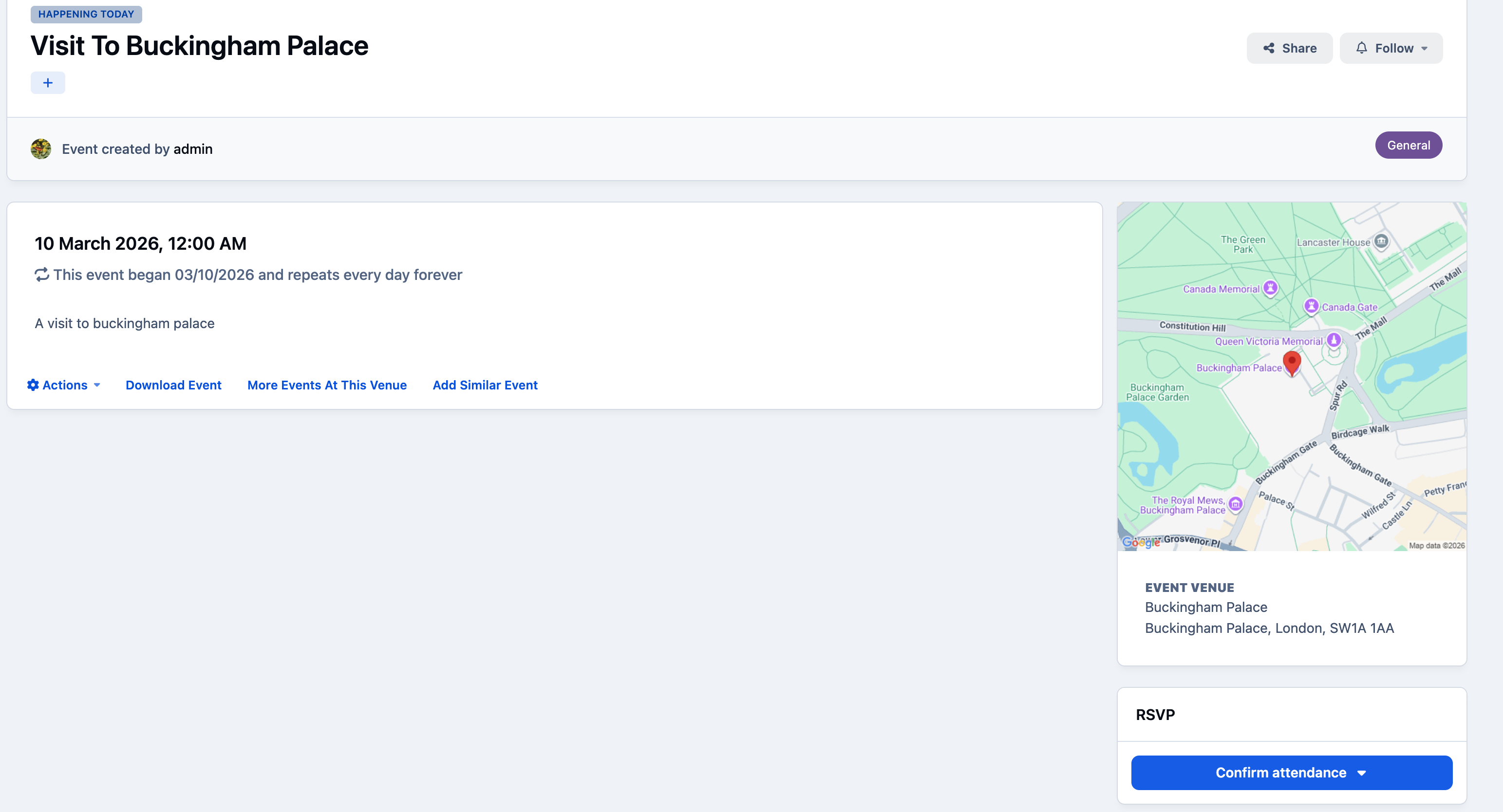
When a location is added to an event, a map will be displayed showing where the event is taking place. Note that mapping must be enabled in your integrations for this feature to work.
Event Showing Map
Similar Events
If an event has already been held in the past, you can save time by creating a new event based on it.
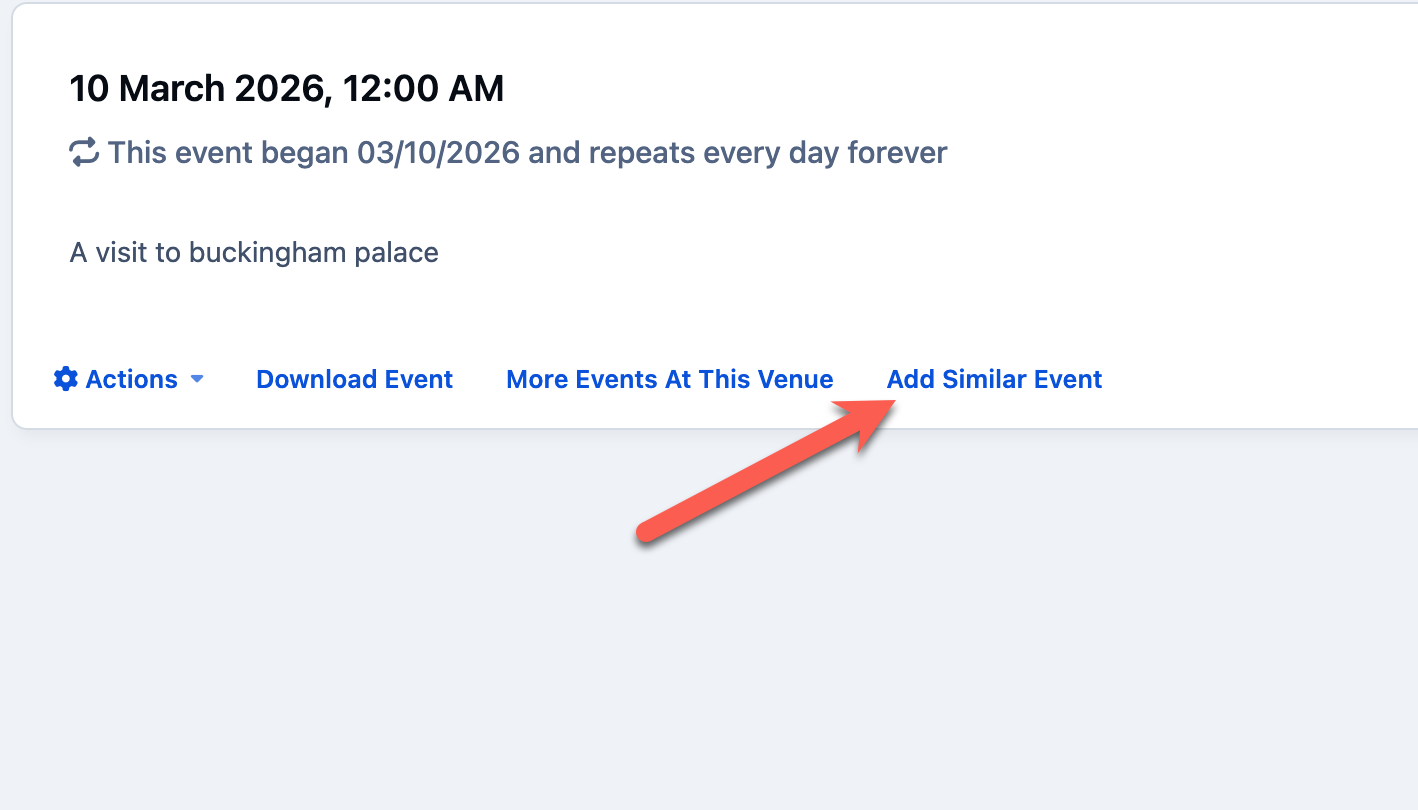
Each calendar event includes an option to create a similar event. Selecting this will open the event creation form with the details from the original event already filled in, allowing you to quickly adjust any information as needed.
Creating Similar Event
Recommended Comments