


Within Downloads, there are a number of additional global settings that control how the downloads area functions across your site. There are also settings available for paid files, allowing you to configure how files can be sold or accessed through purchases.
Important
Paid files will not be available if the Commerce application is not installed, as this feature relies on the integration between Downloads and Commerce.
All of the sections described below can be found in the following area of your AdminCP:
Community → Downloads → Settings
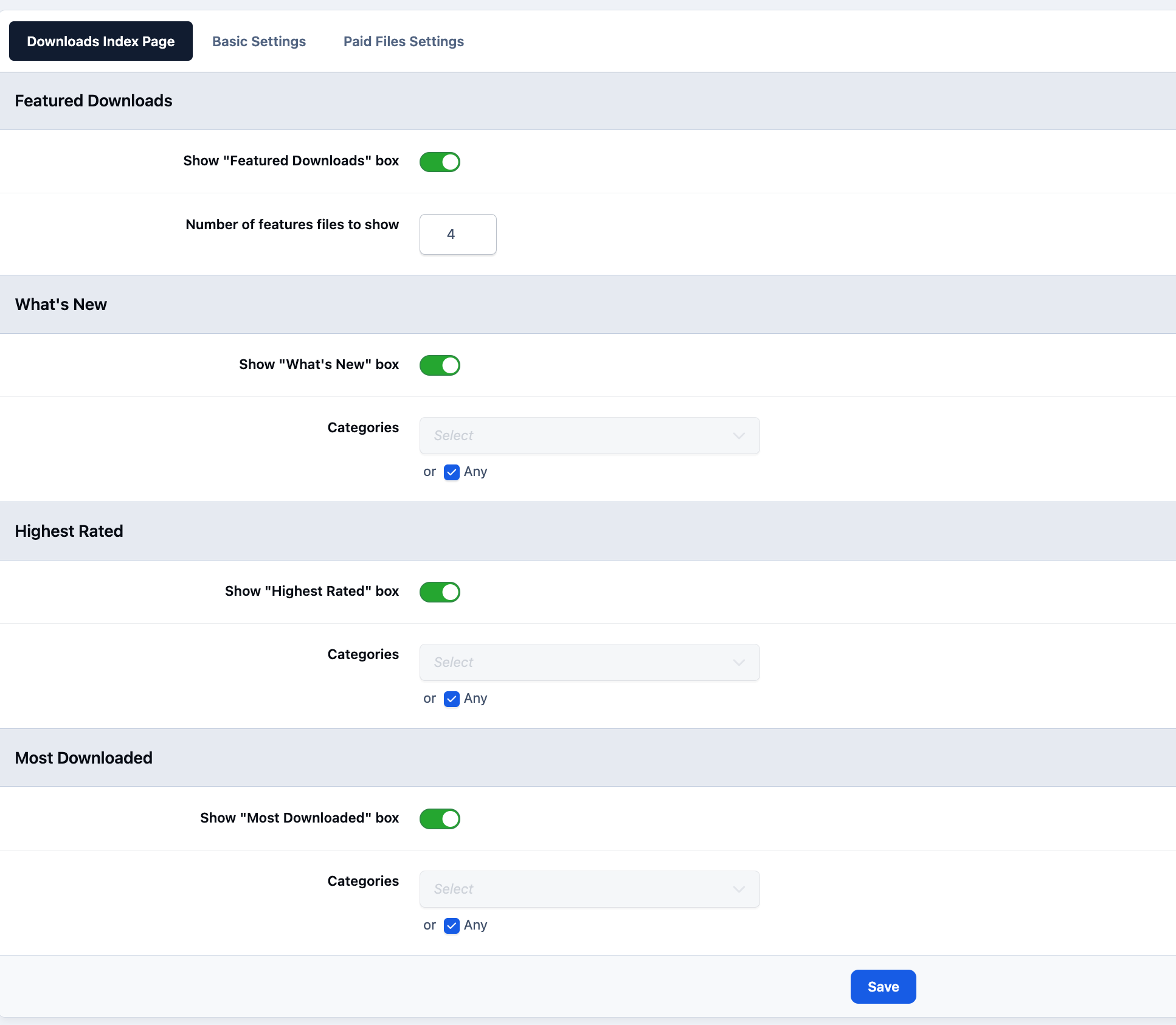
Downloads Index Page
On the first tab, you can configure which items appear on the index page of your downloads section. By default, all options are enabled and content is shown from every category. If preferred, you can adjust these settings to display only selected categories or specific sections, depending on how you want the page to appear.
Downloads Index Page Settings
Basic Settings
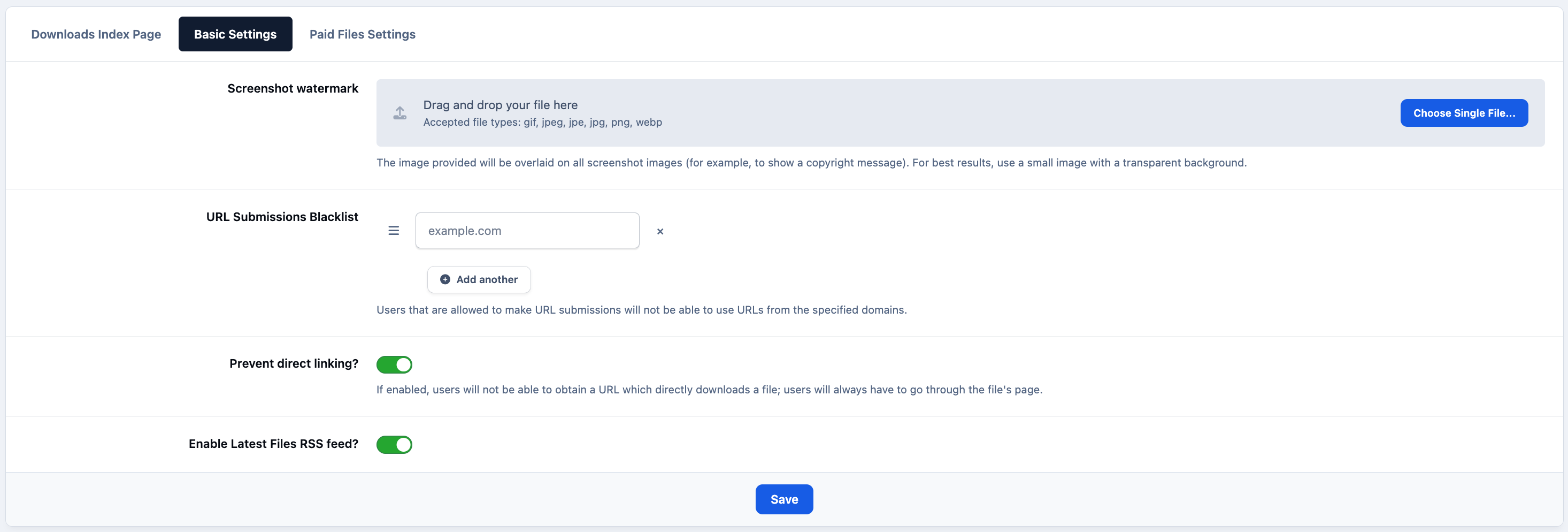
Within the basic settings, you can control options such as whether watermarks are applied to uploaded screenshots, along with other global preferences. These include settings like allowing files to be linked directly from external sites instead of requiring them to be uploaded.
Other Basic Settings
Paid Files Settings
Within the basic settings, you can configure whether watermarks should be applied to uploaded screenshots, along with other global options such as allowing direct linking to files hosted on external sites.
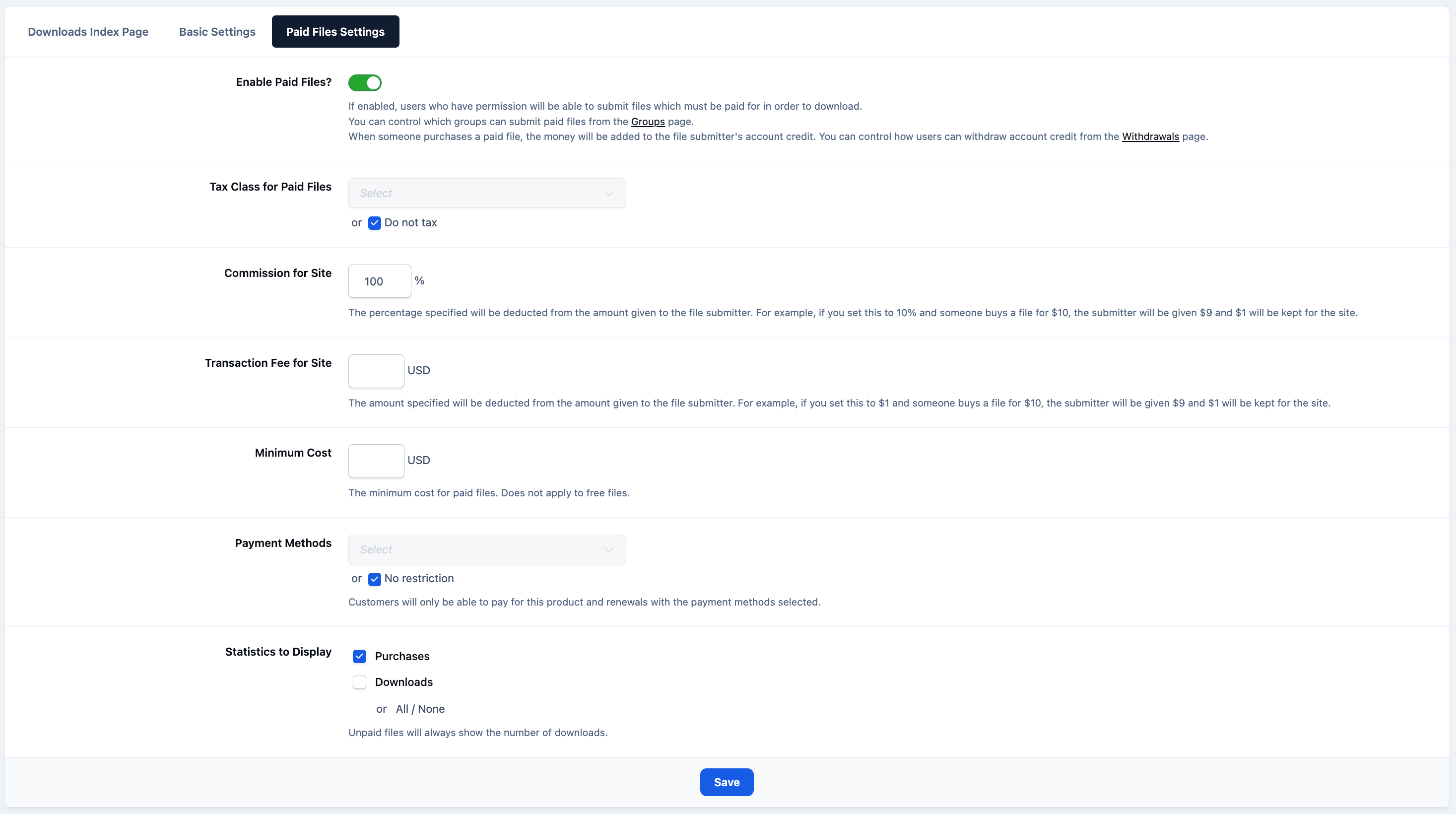
If you have the Commerce application installed, you can also enable the option for users to submit paid files within the downloads area. These settings can be found at:
Community → Downloads → Settings → Paid Files Settings
From here, you can configure options related to paid downloads, including setting a commission rate for your site. This allows your community to earn a percentage of each sale made by users within your downloads section, which can provide an additional source of revenue.
Paid File Settings
Recommended Comments