


Within the Downloads system, you can allow files to be submitted using external URLs, as well as link directly to files stored on your own file system.
These permissions can be controlled on a group-by-group basis. To configure them, edit a member group and open the Downloads tab, where you will find several options that determine what members of that group are allowed to do within the downloads area.
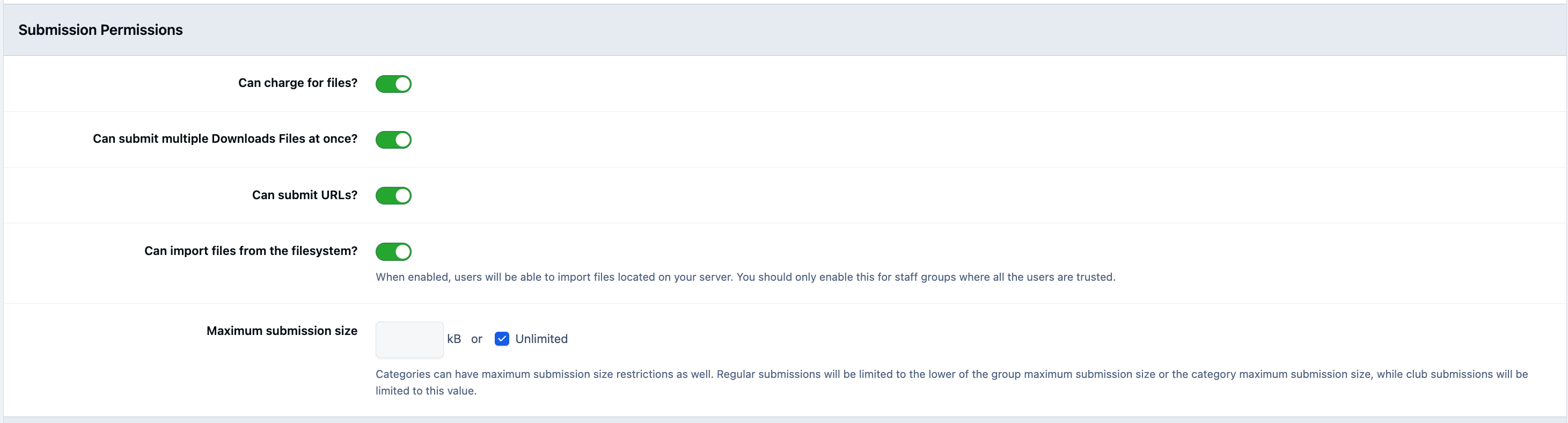
Charging For Files
If the Commerce application is enabled, you can allow users to charge for files they submit. This works in a similar way to the system used in the Marketplace on our own site, where creators can sell their files directly through the downloads section.
You can find more details on setting this up in the following guide.
{linkToGuideHere}
Can Submit URLs
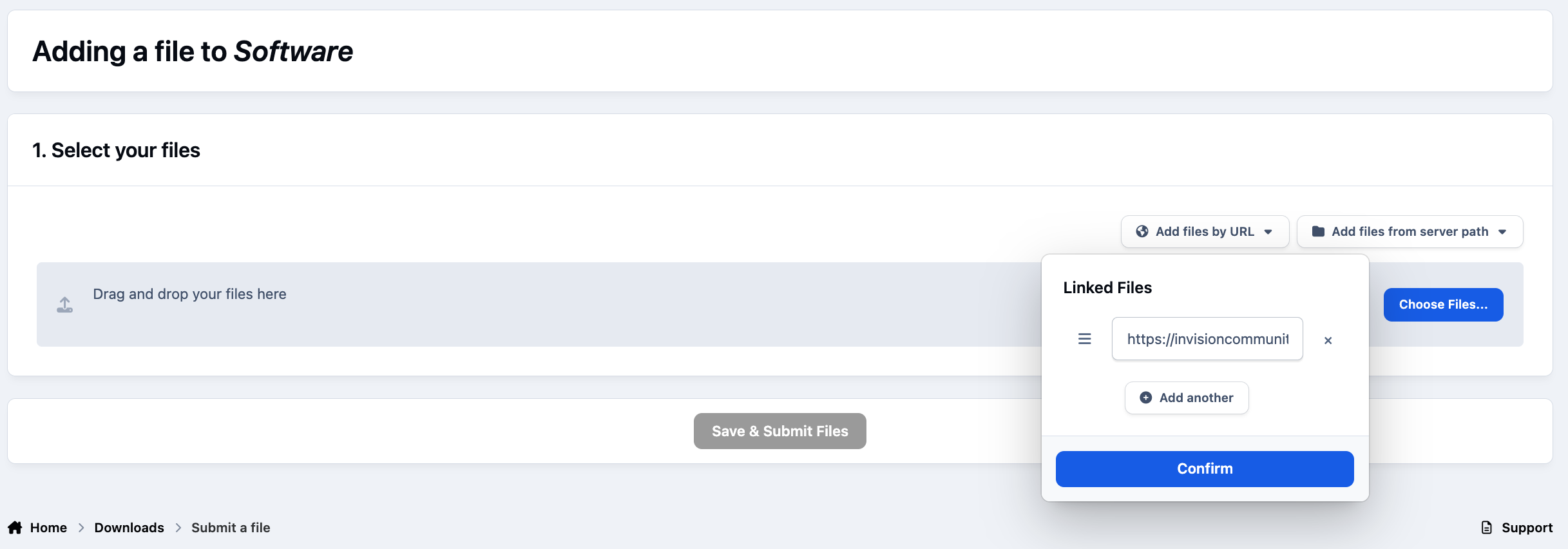
This option allows users to submit a file using a URL instead of uploading the file directly.
Keep in mind that linking to an external URL will only be possible if this feature has been enabled in the main Downloads settings.
Linking Files From URL
Security Considerations
Be aware that enabling this functionality allows members of that group to link directly to files outside of your site. For this reason, you should carefully consider which groups are permitted to use this option.
Can Import From The File System
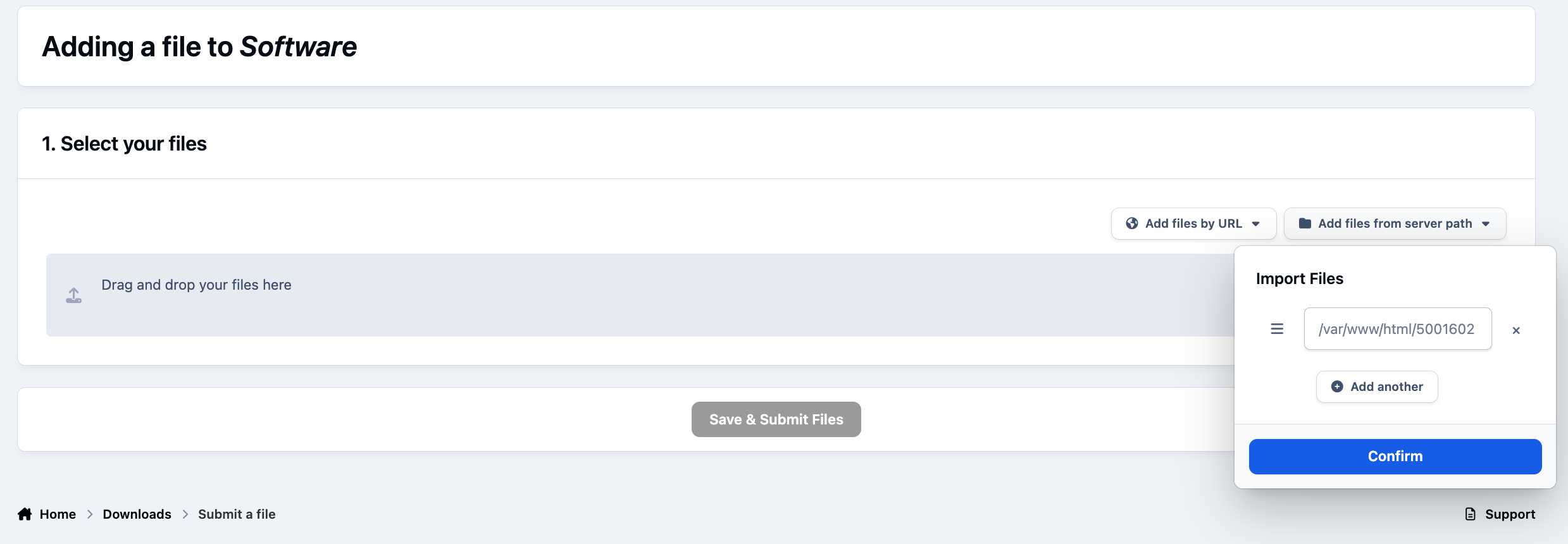
This option allows users to link to files that are already stored on your server using the server’s internal filesystem. Because this provides direct access to server files, it should only be enabled for trusted groups such as staff.
When additional submission methods are enabled, such as URL submissions or filesystem linking, users will see extra options above the upload area. These allow them to choose the preferred method for submitting their file, as shown in the screenshot below.
Adding Files From The Server
Recommended Comments