


The first step when setting up Downloads is to create your categories. These allow you to organise files and make it easier for members to browse and find what they’re looking for.
You can create and manage categories from the following location in the AdminCP:
Features → Downloads → Categories
Creating a Category
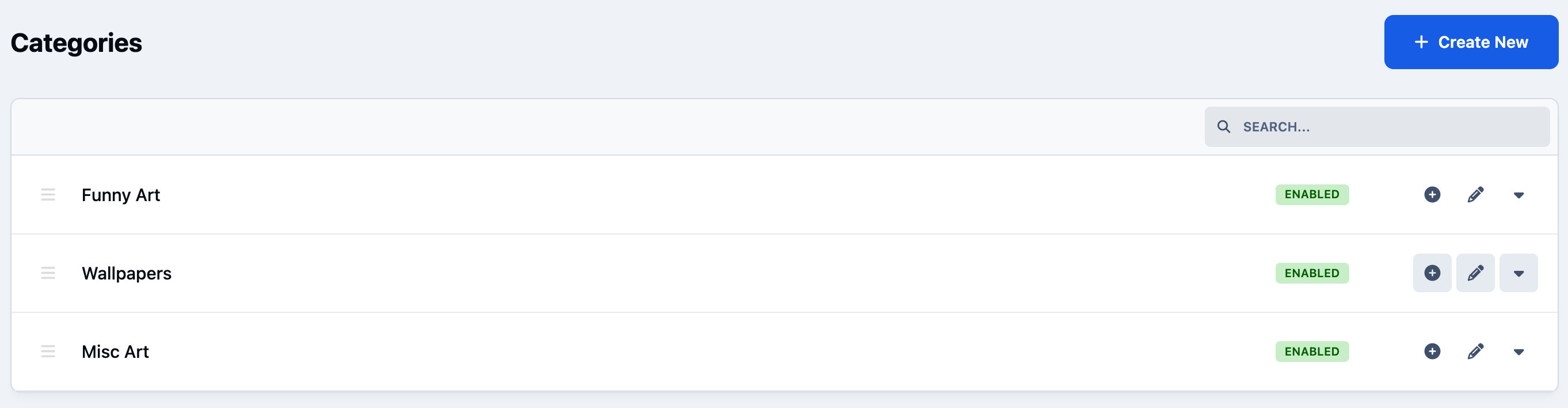
Once you navigate to this area, you’ll see a screen similar to the image below.
To create a new category, simply click the 'Create New' button. If you would like to create a sub-category, you can do so by selecting the “+” icon next to an existing category.
Category List
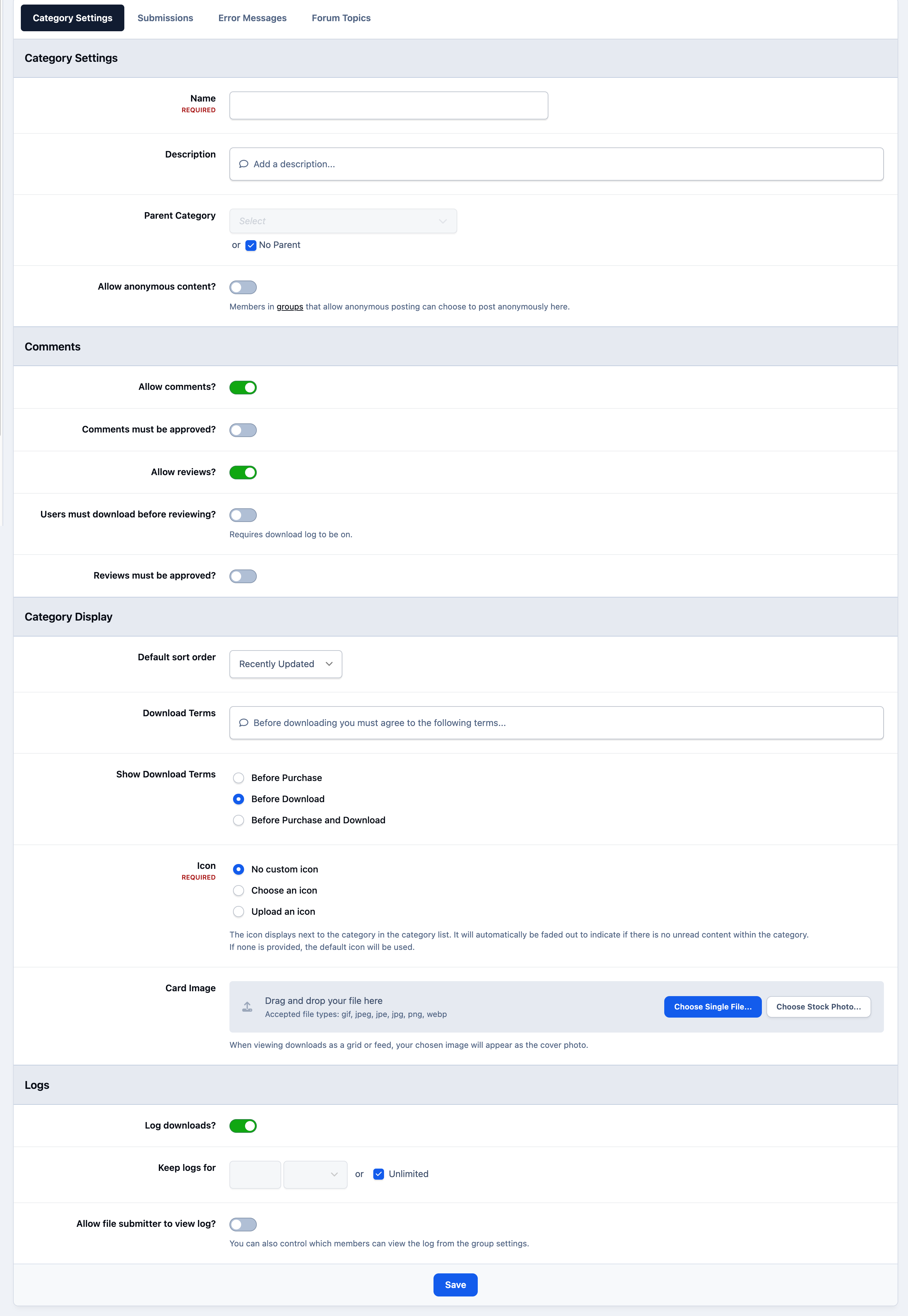
Once selected, you can assign a name to your new category and configure a range of available settings. These options can be adjusted to suit how you want the Downloads section to function on your site.
Category Creation Form
Submission Options
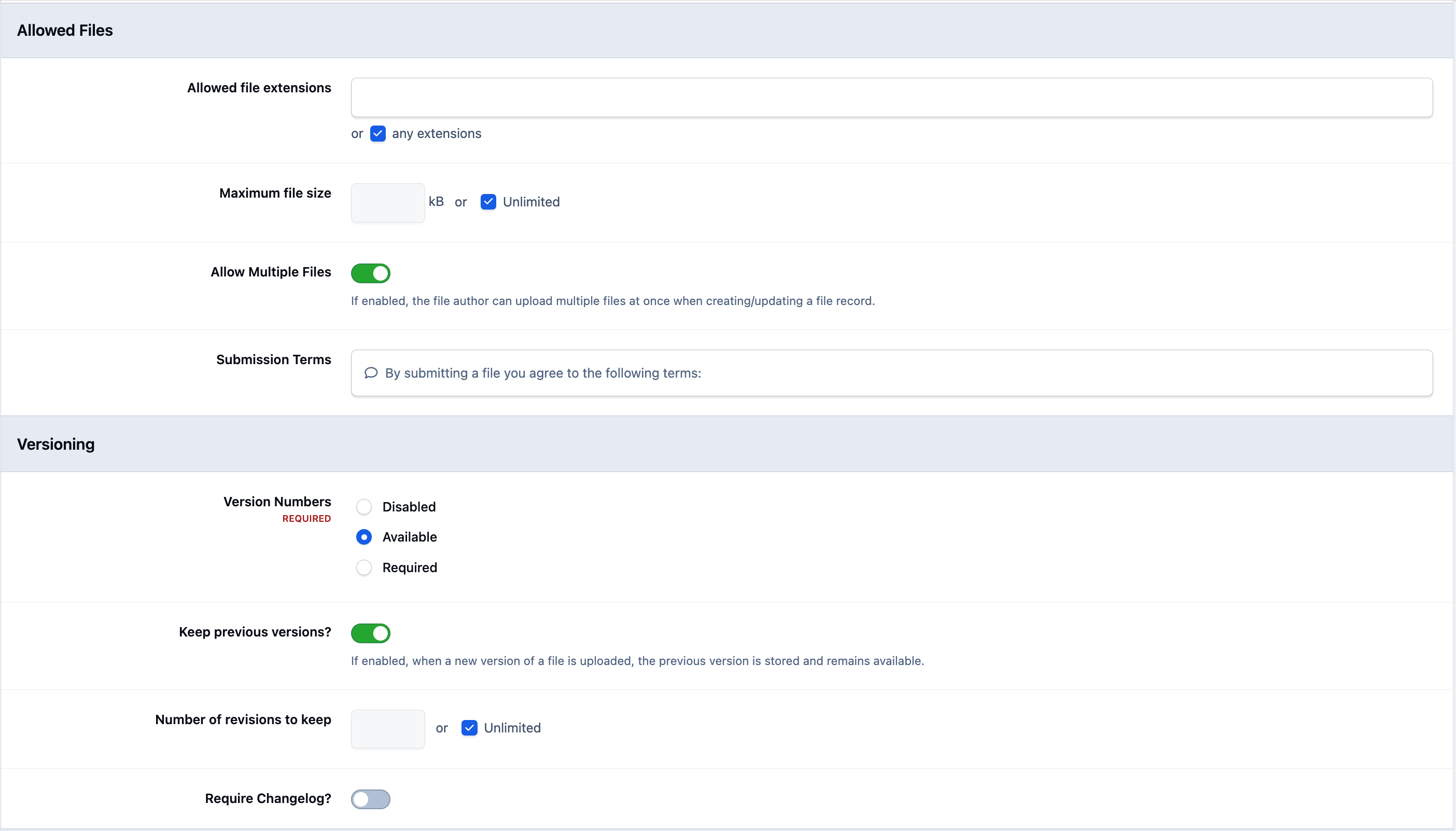
Within the Submissions tab, you can control what can be uploaded to the category. This includes setting restrictions on file types and file sizes, as well as enabling versioning for uploaded files.
Versioning allows authors to upload updated versions of a file while keeping the existing download listing intact.
Top Tip
Limiting the 'allowed file extensions' for a category can be very useful. For example, if you have a category dedicated to ebooks, you know that an ebook would not normally be an .exe file. Instead, you might restrict uploads to extensions such as .epub, .pdf, or similar formats.
Setting these limits helps with moderation by preventing inappropriate or incorrect file types from being submitted to the category in the first place.
Allowed Files and Versioning Submission Settings
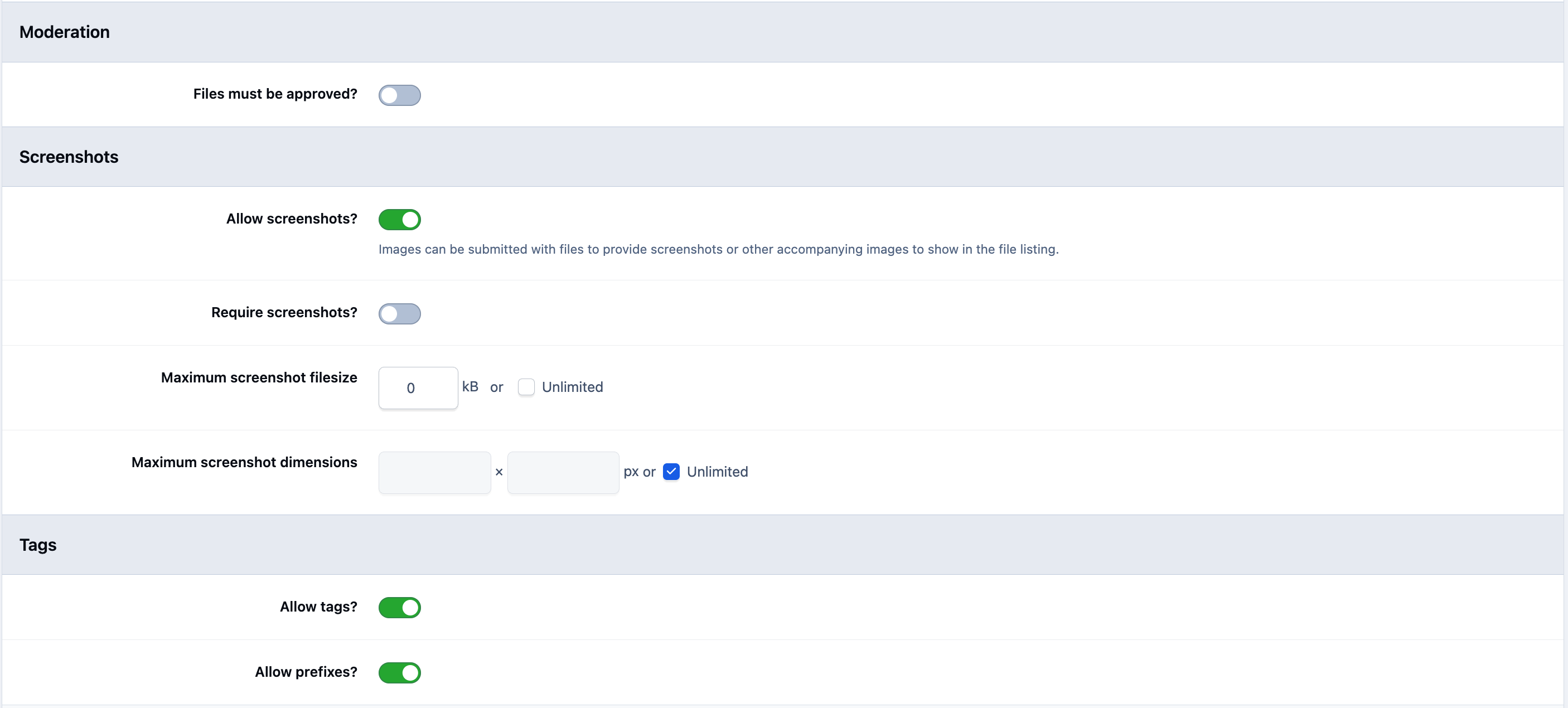
Within the same section, you can also configure additional submission controls. These include requiring file approval before publication, deciding whether screenshots are required or permitted, and setting other limits that govern how members submit files to the category.
Moderation, Screenshots, and Tag Submission Settings
Error Messages
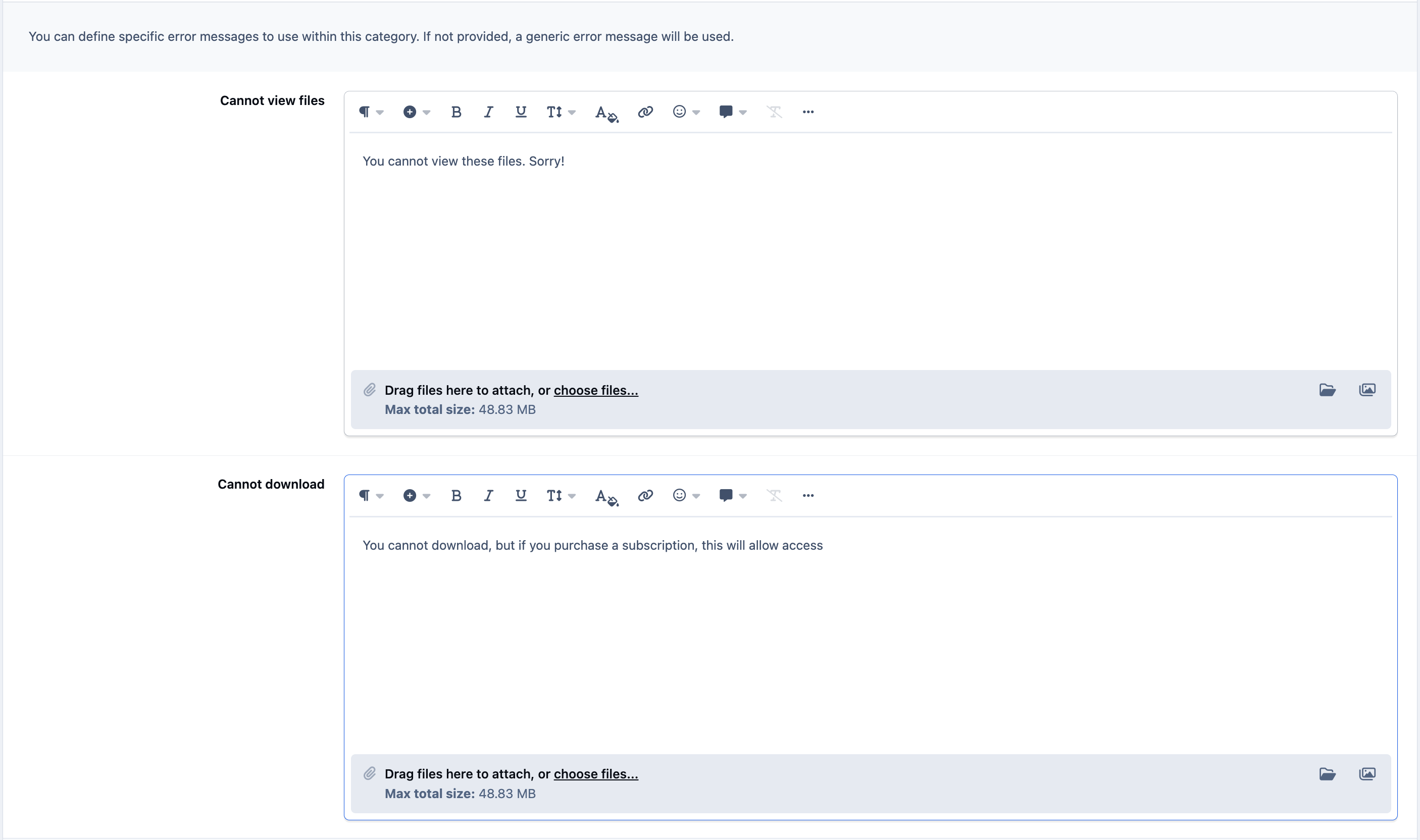
Within the Error Messages tab, you can customise the message shown to users who do not have permission to view or download files from that category.
Top Tip
Adding custom error messages can be especially useful if certain downloads require a subscription or special access.
In these cases, you can use the message to explain why the content is restricted and provide details on your subscription options, helping members understand how they can gain access to the files.
Custom Error Messages
Forum Submissions
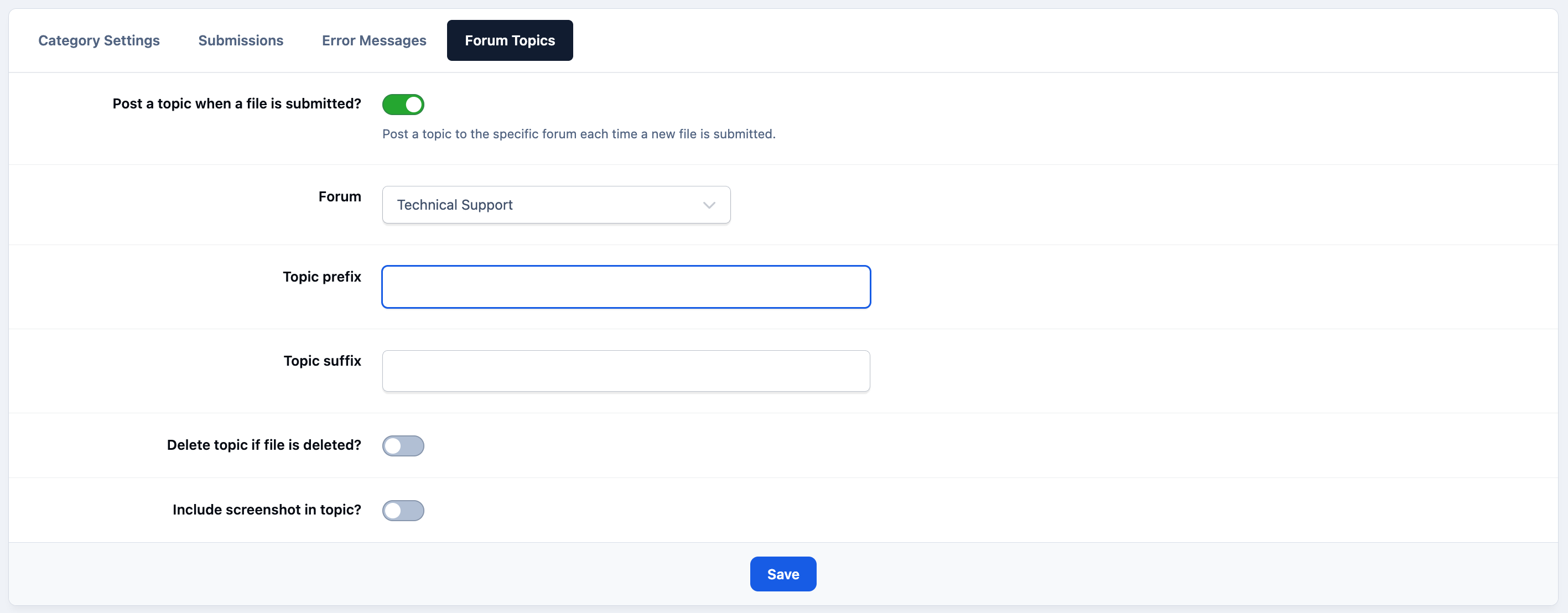
In addition to the other available settings, you can configure the system to automatically create a topic in a selected forum whenever a file is submitted.
This allows users to easily ask questions, report issues, or discuss the file directly within the community.
Submission to Forums
Permissions
After creating the categories you want to use in your Downloads section, the next step is to configure their permissions.
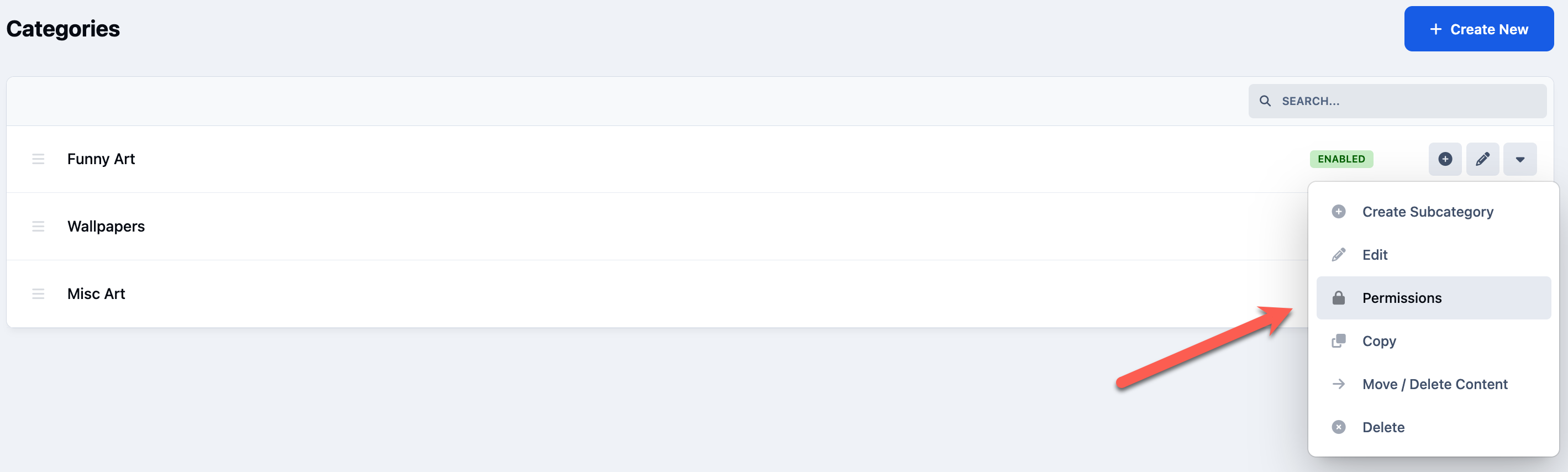
To do this, click the dropdown menu next to the relevant category and select Permissions. This will open the permissions screen for that category, where you can control which member groups are allowed to view, download, and submit files.
Permissions Button
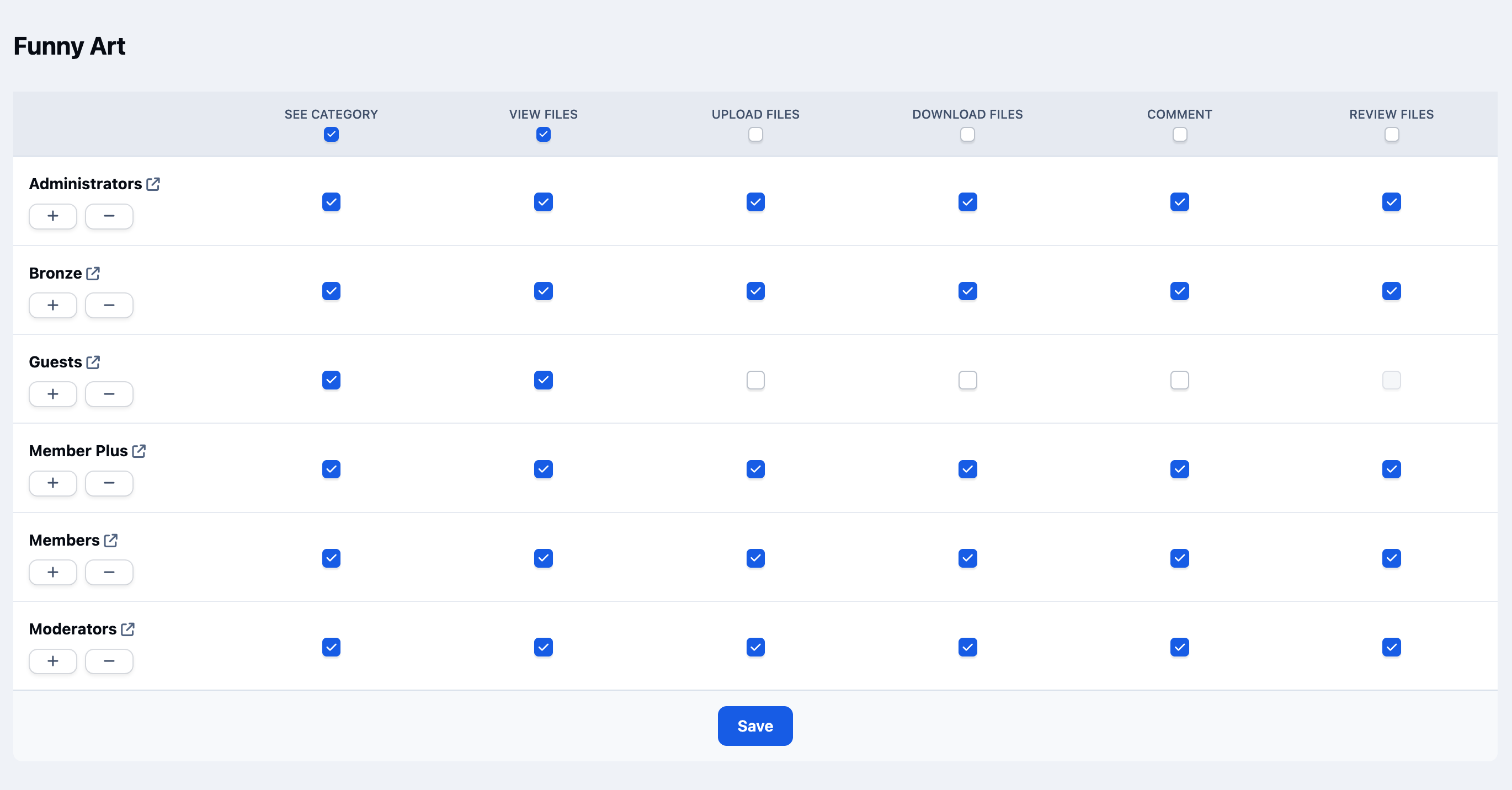
From here, you can configure the appropriate permissions for each of your member groups, controlling what actions they are allowed to perform within that category.
Permission Matrix
Recommended Comments