


Within the Downloads section of your site, you may want contributors to provide additional information when submitting their files. For example, in a category where members share their own applications, you might want them to include details such as co-authors, version numbers, or other relevant metadata.
The Downloads application makes this possible by allowing you to create custom fields. These fields can be configured and then applied to specific categories, ensuring that the information collected is relevant to the type of content being submitted.
Adding Extra Fields
To add extra fields, navigate to the following area in the AdminCP:
Community → Downloads → Extra Fields
Here, you’ll see a list of any extra fields that have already been created. To add a new one, simply click the 'Create New' button.
Extra Field List

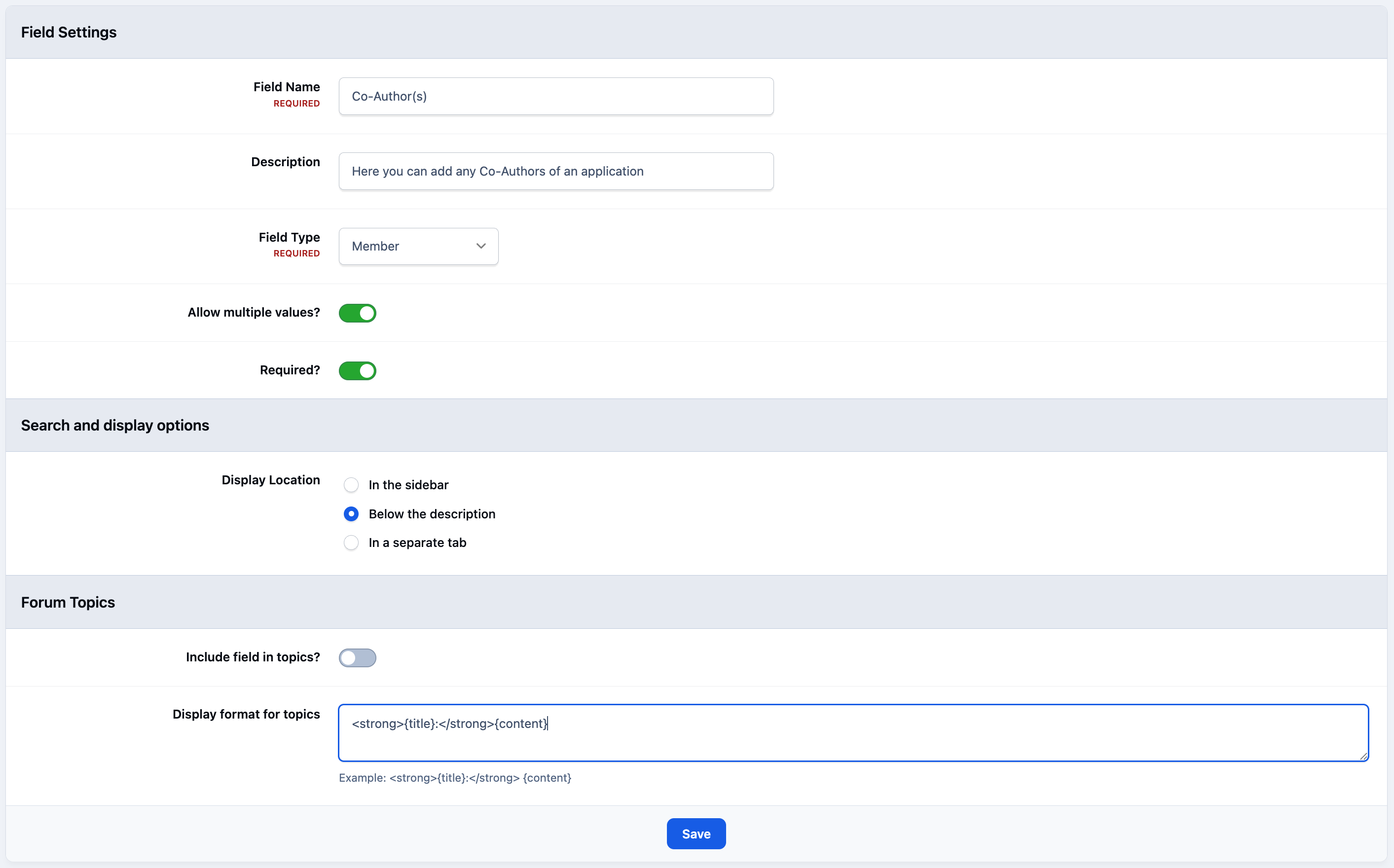
You can then enter the details for your new field, including selecting the field type that best suits the information you want to collect.
For example, in the image below a field of type 'Member' has been created. This allows the person submitting the file to select another member as a co-author of their application.
Adding a New Extra Field
Displaying Fields
During the setup process, you can also choose where the field will appear on the download page. Currently, you can display it in the sidebar, directly below the file description, or place it within a separate tab on the download item page.
If your downloads are configured to create support topics in a forum, you can also define how the field is displayed within those topics. The display format can be customised using HTML. For example, the following format would show the field name in bold, followed by a colon and the value entered by the user.
<strong>{title}:</strong> {content}Adding To a Category
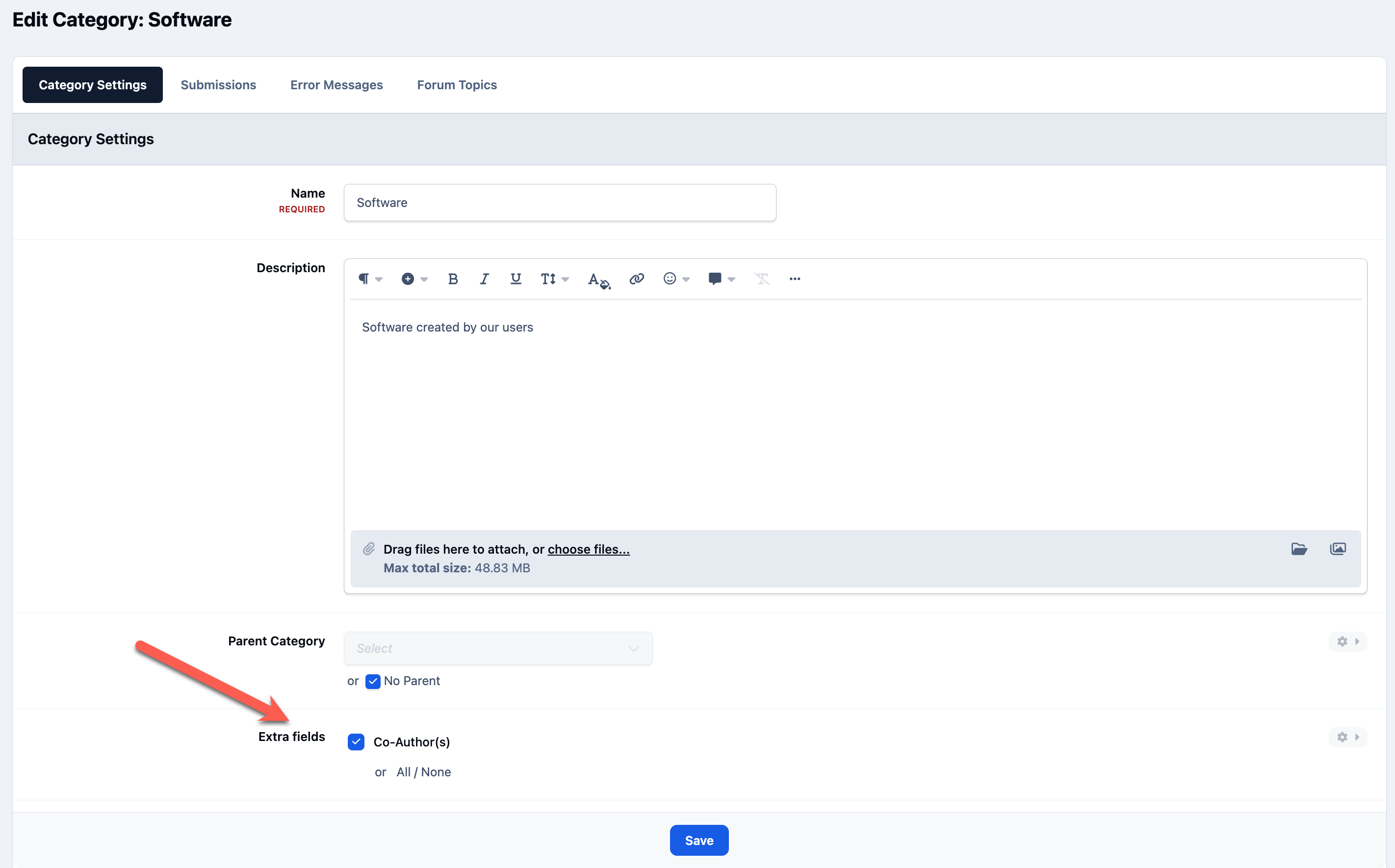
Once your extra fields have been created, you can choose which categories they should apply to.
This is done from the category settings page, where you can select which extra fields are available for submissions in that category. In the example below, the Co-Author field has been enabled for the 'Files' category, allowing users to add a co-author when submitting items there.
Adding a Field to a Category
Recommended Comments