Jump to content
View in the app

A better way to browse. Learn more.

Invision Community

A full-screen app on your home screen with push notifications, badges and more.

To install this app on iOS and iPadOS
  1. Tap the Share icon in Safari
  2. Scroll the menu and tap Add to Home Screen.
  3. Tap Add in the top-right corner.
To install this app on Android
  1. Tap the 3-dot menu (⋮) in the top-right corner of the browser.
  2. Tap Add to Home screen or Install app.
  3. Confirm by tapping Install.
Categories

Documentation

In this article..

In this article..

    Settings and permissions

    Before allowing members to begin creating blogs on your site, it’s worth reviewing a few settings to ensure everything behaves the way you want.

    Basic Settings


    You can configure several global blog settings from the following location in your AdminCP:

    Community → Blogs → Settings

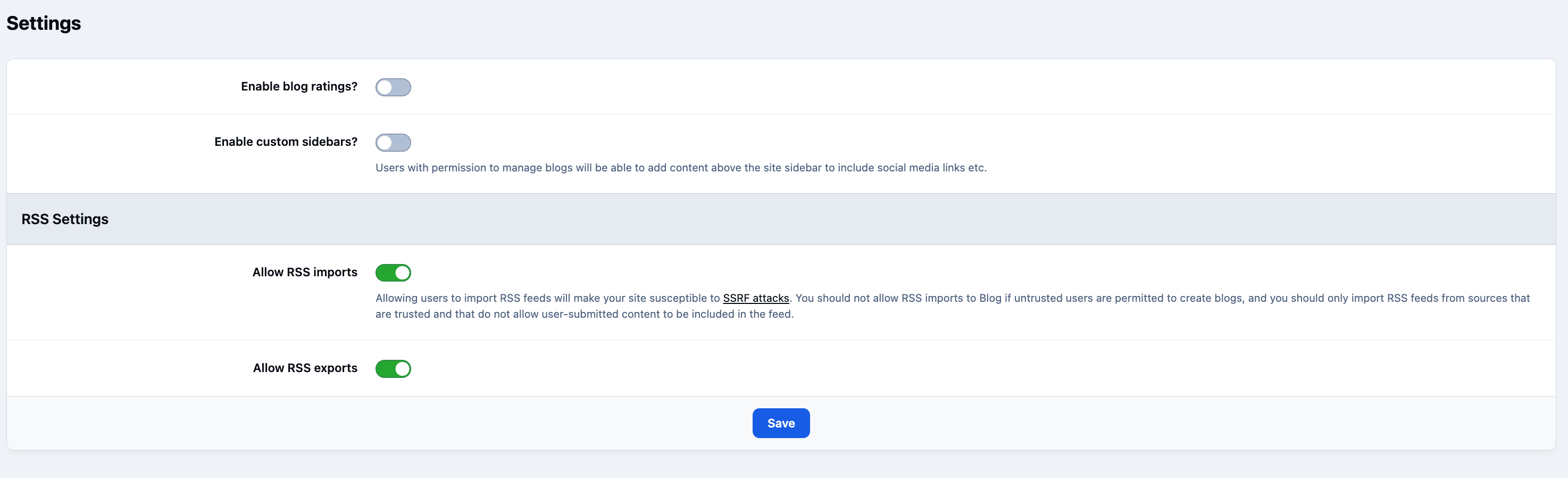
    Main Blog Settings
    blogs_settings.png

    From here, you can control options such as enabling or disabling RSS imports and exports, as well as globally turning blog ratings on or off.

    Group Settings

    After configuring the global settings, you can define permissions at the member group level. This allows different groups of users to have different levels of access and capabilities within the Blogs application.

    You can access the group settings from:

    Members → Members → Groups

    Further information about member groups can be found in the Groups guide within the Members & Groups section.

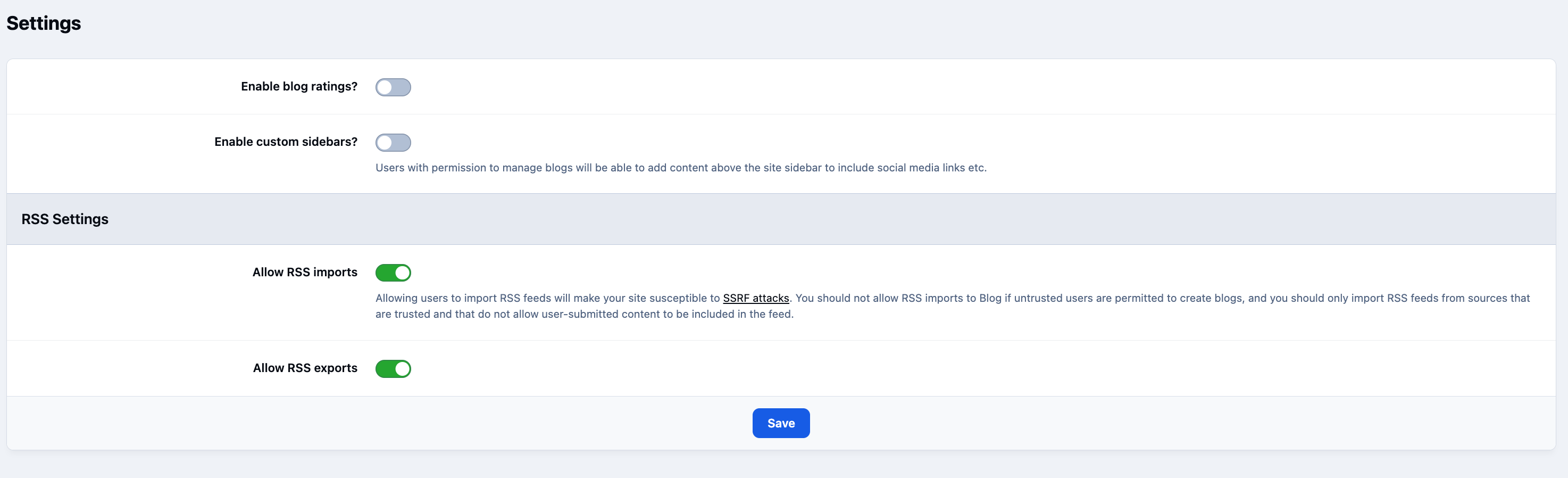
    When you open the Blogs tab within a group’s settings, you will see options similar to those shown below. These settings allow you to control what members of that group are permitted to do within the Blogs application.

    Group Blog Settings
    blogs_groupsettings.png

    User Feedback

    Recommended Comments

    There are no comments to display.

    Account

    Navigation

    Search

    Search

    Configure browser push notifications

    Chrome (Android)
    1. Tap the lock icon next to the address bar.
    2. Tap Permissions → Notifications.
    3. Adjust your preference.
    Chrome (Desktop)
    1. Click the padlock icon in the address bar.
    2. Select Site settings.
    3. Find Notifications and adjust your preference.