


Selling products within the Commerce platform requires very little setup to get started. However, you may wish to collect additional information from customers, either to help fulfil orders or to adjust pricing based on selected options.
Creating Fields
Creating fields can be done from the following area within the Admin CP:
Commerce->Store->Custom Fields
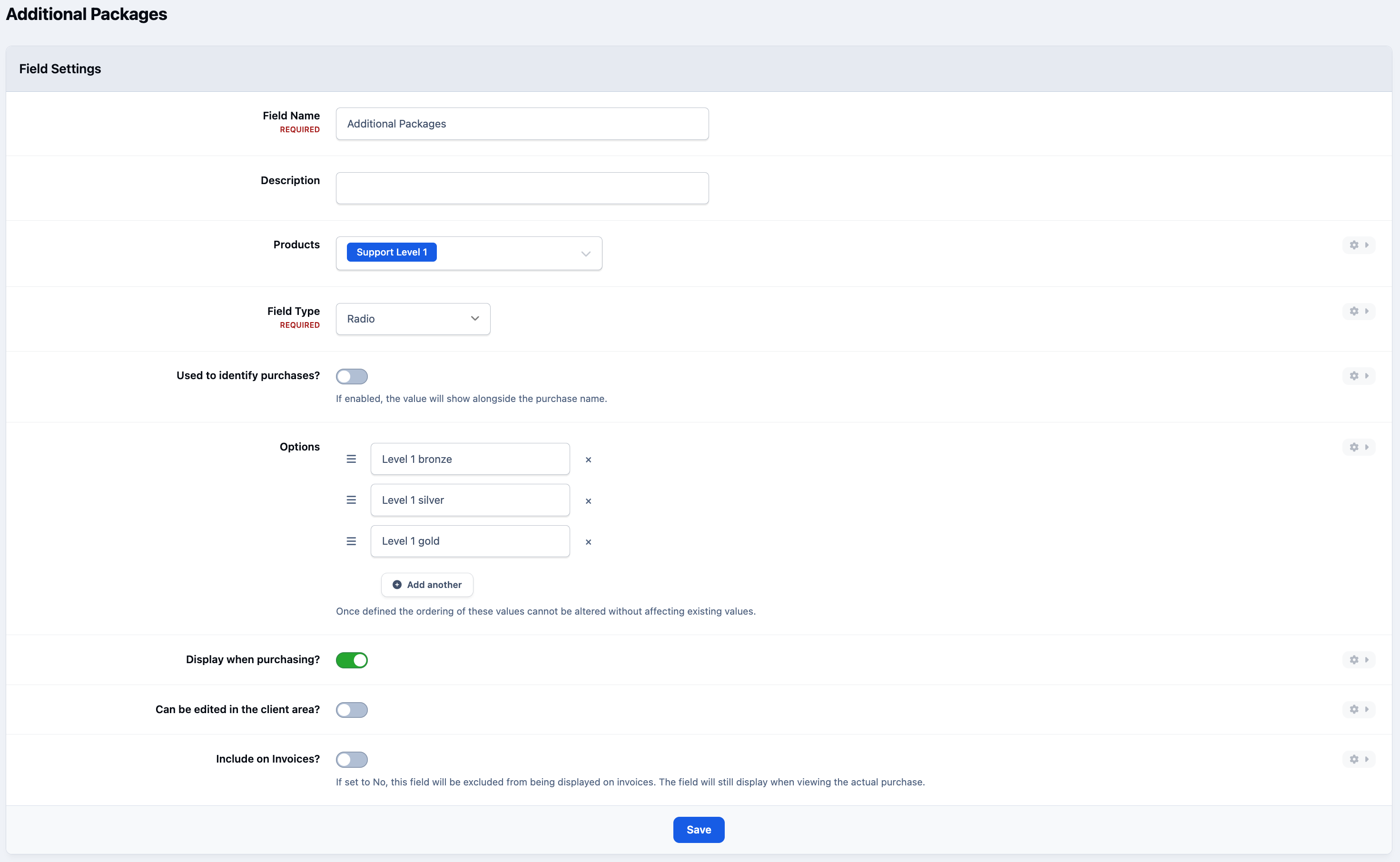
Select 'Create New', and fill in details as required for your own fields. This is shown below as an example where we are selling support levels
Creating a New Field
Adding to Products
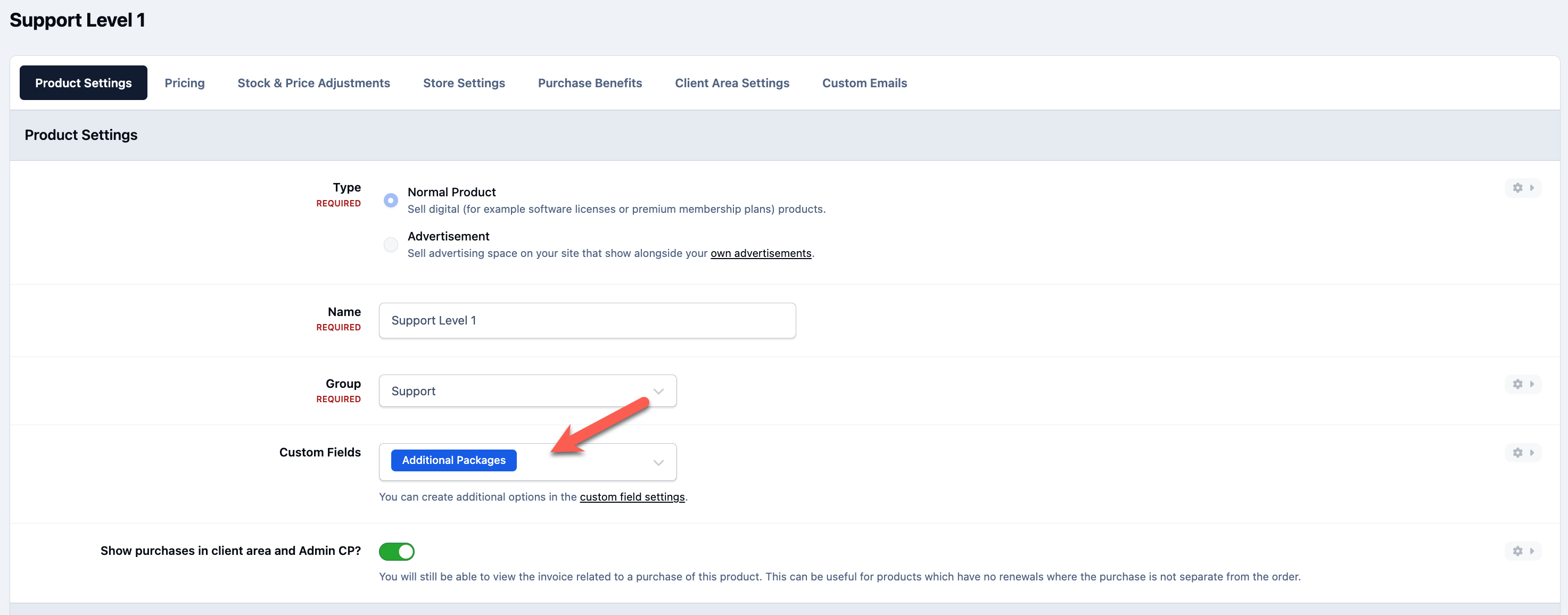
Extra fields are reusable items, so you can use them on either a single product, or multiple. To add these to your products, simply add these on the product settings page of your product. You can add more than one of your extra fields on a product.
Adding Fields to Products
Using for Pricing & Stock
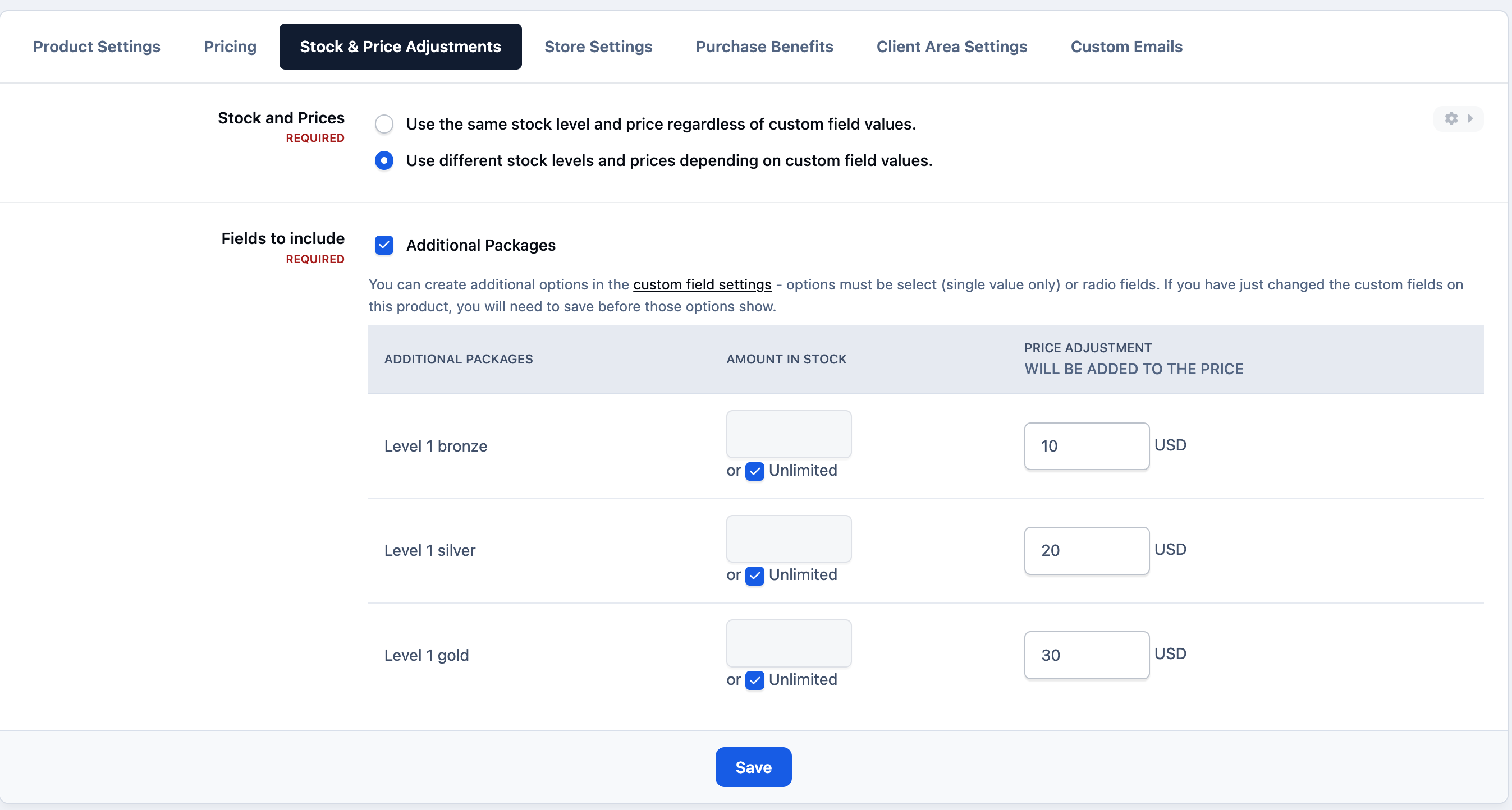
Within the 'Stock and Price Adjustments' tab of any product you add extra fields to, you can configure price and stock adjustments based on selections made in custom fields.
For example, in the screenshot below, an 'additional packages' field has been added for a product selling support levels. This allows the price to increase based on the selected additional packaged, without needing to create a separate product for each variation. It’s an efficient way to manage product options while keeping your store streamlined.
Adjusting Price for Product Fields
Recommended Comments