


Your customers have access to several areas related to their purchases and orders within Commerce, as well as sections where they can manage their personal details, such as addresses and alternative contact information.
By default, these areas are available under the Store tab, which is what will be shown in this step. Please note that these items may have been moved if you have customised your navigation using the Menu Manager.
Orders
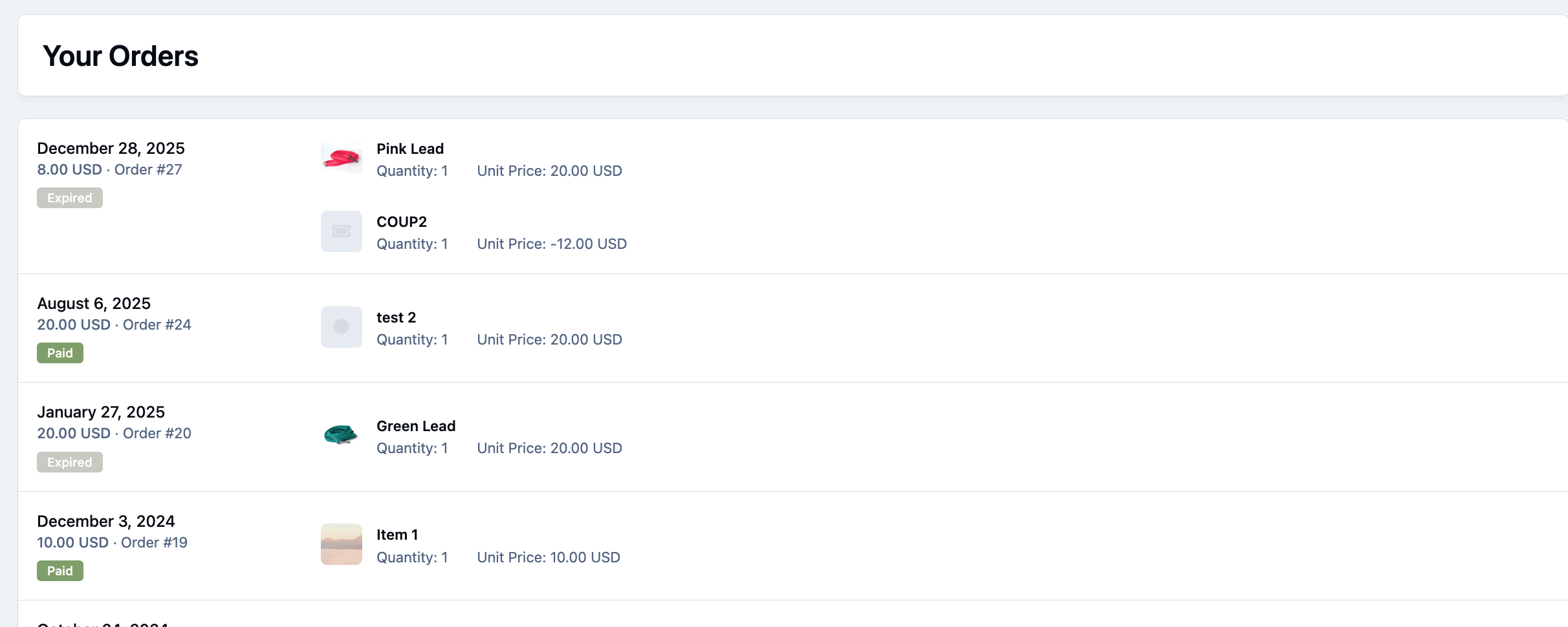
Under the 'Orders' tab, you will see any orders that are still awaiting action. This may include orders pending approval, awaiting payment, or those that require cancellation by the customer.
Orders
Purchases
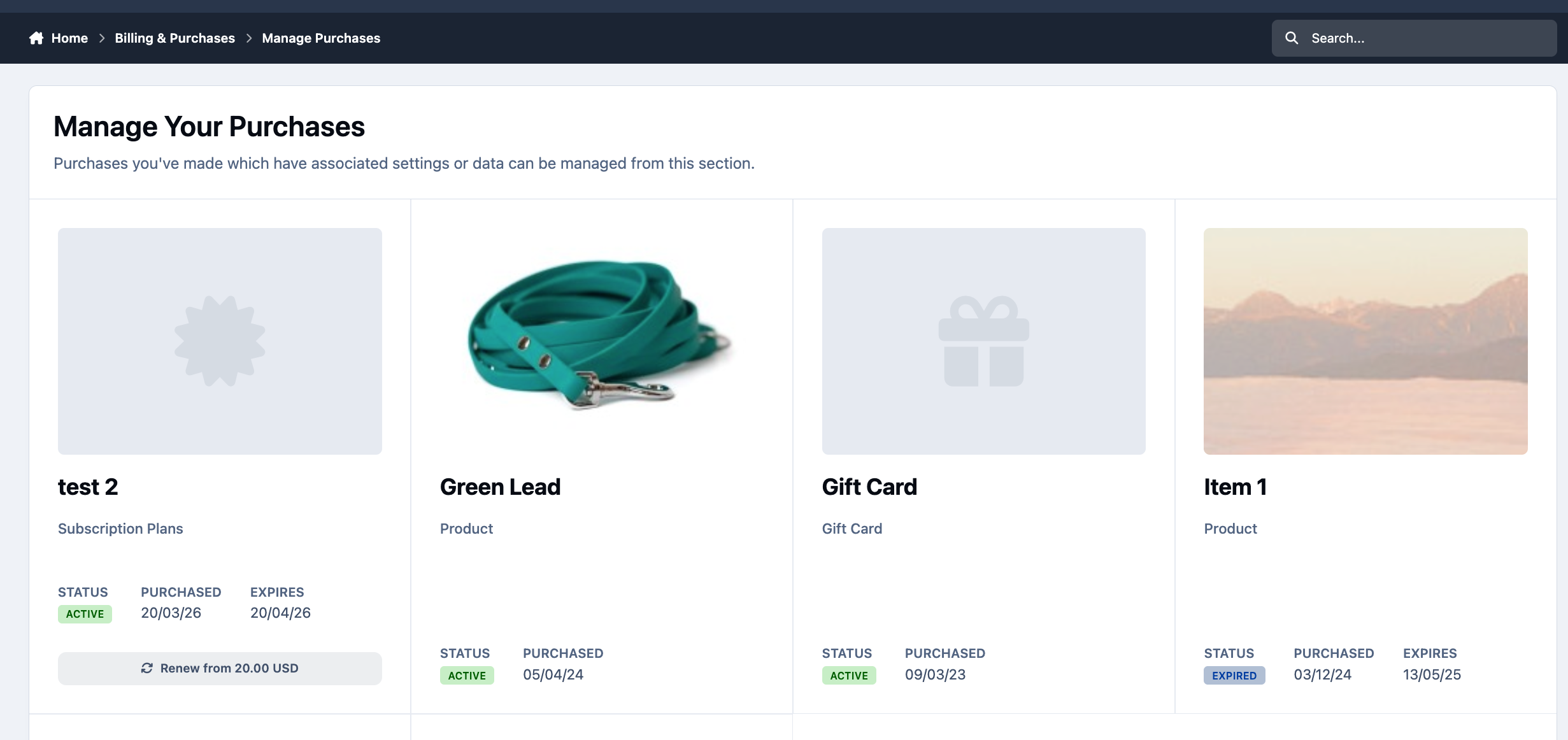
Under 'Manage Purchases', you can view all purchases you have made on the system. From here, you can cancel any recurring items if needed, as well as access additional details such as downloadable products.
Managing Purchases
Personal Information & Addresses
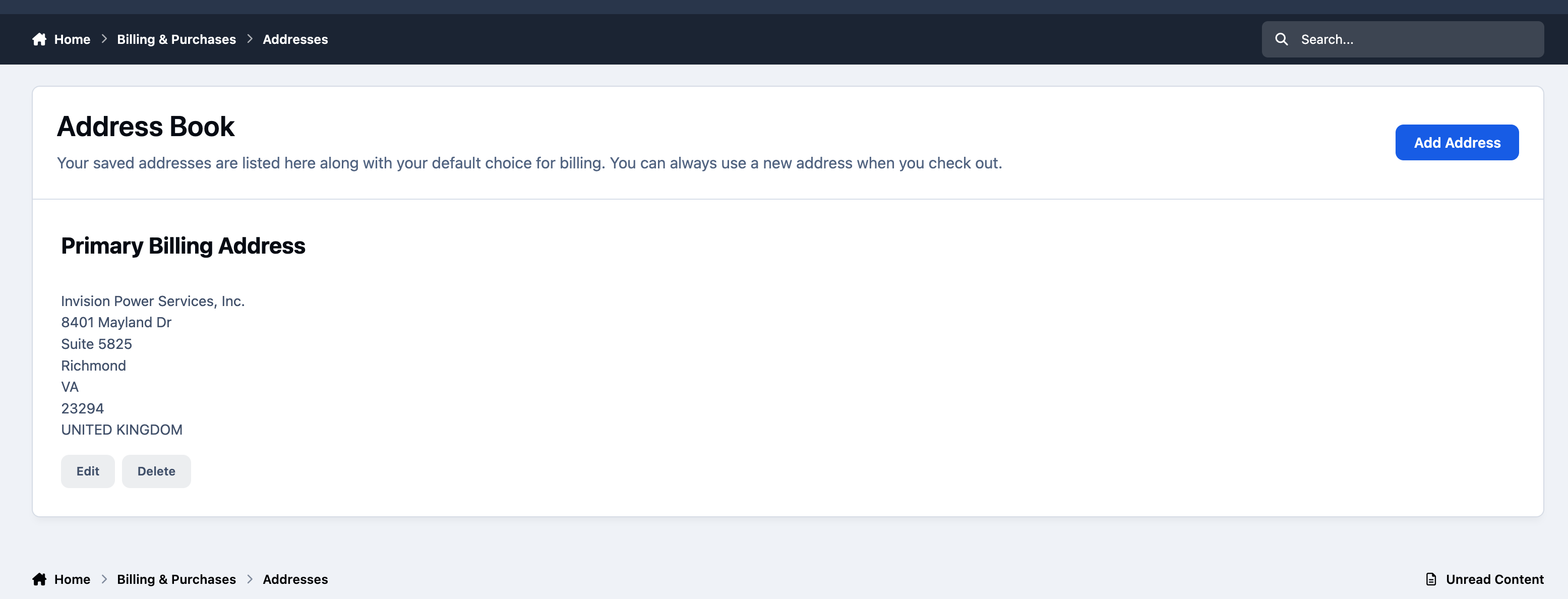
The personal information section will allow you to set your name, and telephone number within your account. From the addresses section, you can view and manage your saved addresses. You can add, edit, or remove both personal and business addresses as needed. Keeping these details up to date helps ensure your information is accurate for billing and any future orders.
Address Book
Alternative Contacts
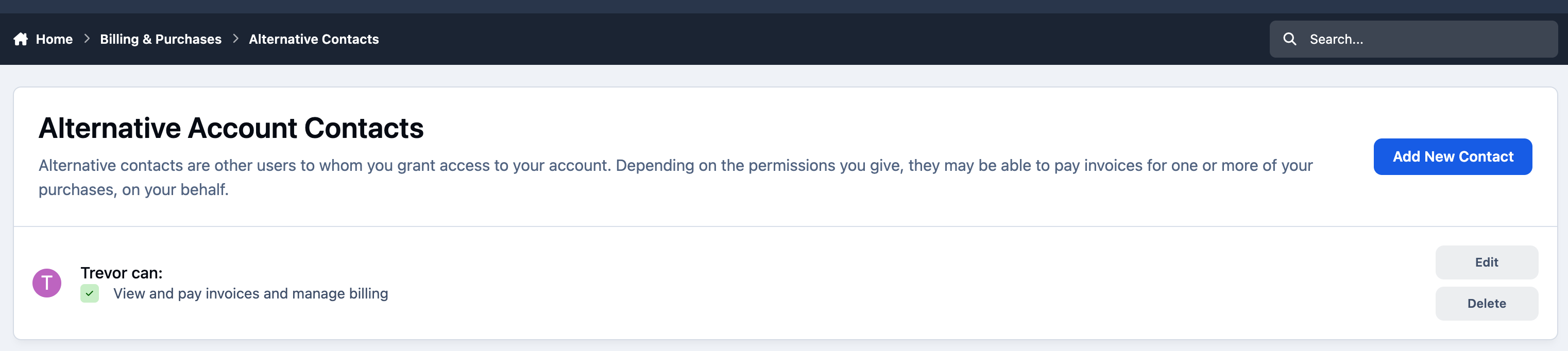
From here, you can view any alternative contacts set up on your account. These users will be able to see all the invoices on your account and pay any pending ones. When a new invoice is generated, they will be sent a copy. They will also be able to manage the billing for the purchases selected above (for example generating a new renewal invoice or cancelling renewals).
Alternative Contacts
Recommended Comments