


Introducing Quests
Quests is a tailored gamification system that allows you to reward members for completing specific actions within your community. This could include posting topics, interacting with profiles, or engaging with key areas of your site.
You can also extend this beyond your community itself, encouraging real-world engagement such as visiting an exhibit at a conference or participating in brand-related activities, helping to create a more immersive and rewarding experience for your members.
Use Cases Across Industries
Events & Conferences – Reward check-ins, session feedback, or networking interactions
Musicians & Artists – Include Quest QR codes at shows to link attendees to specific events and continue the community vibe post-tour
Sports Teams – Gamify game-day experiences with rewards tied to attending the game or visiting fan zones
Creators & Educators – Create challenges for students or community learners to track progress and celebrate milestones
Brands & Retailers – Incentivize in-store visits or product demonstrations with instant online recognition
But Quests go far beyond event activations. They’re also a powerful in-community gamification tool, enabling you to create achievement-driven experiences that encourage members to take action, engage more meaningfully, and keep returning to your community over time.
Setting Up
You can set up a new quest by visiting the following location within your Admin CP:
Members → Achievements → Quests
Quests List
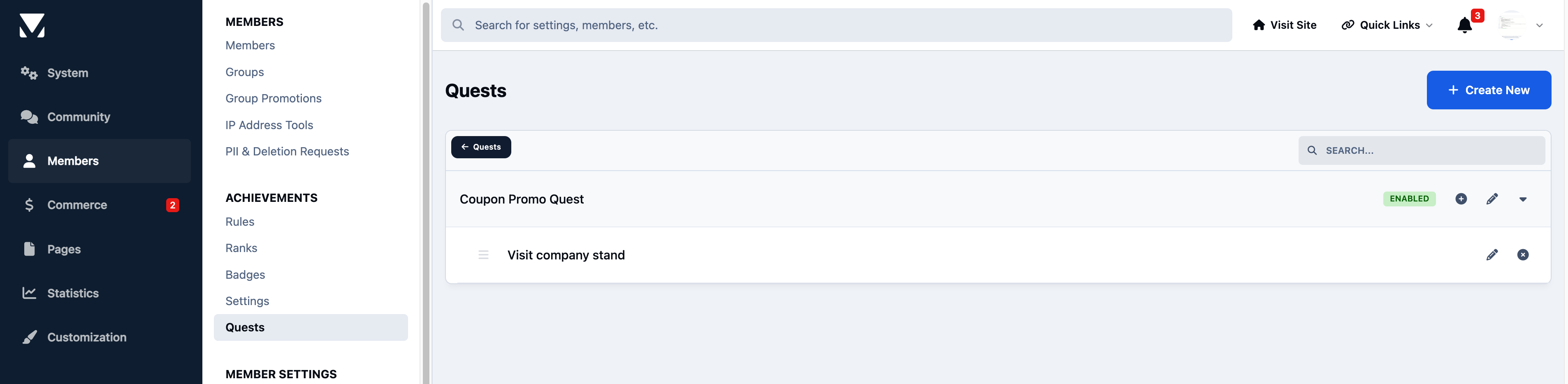
If you already have quests set up, they will be listed on this screen. To create a new one, click Create New.
In this example, we’ll create a quest that rewards members with a coupon code once they have both posted on the community and visited your exhibition stand. We’ll start by configuring the main details of the quest.
For this setup, we’re keeping things simple by requiring the member to complete each task before receiving their reward. Once all steps are completed, the coupon code will be issued automatically. You can see an example of this configuration in the screenshot below.
Quest Creation Screen
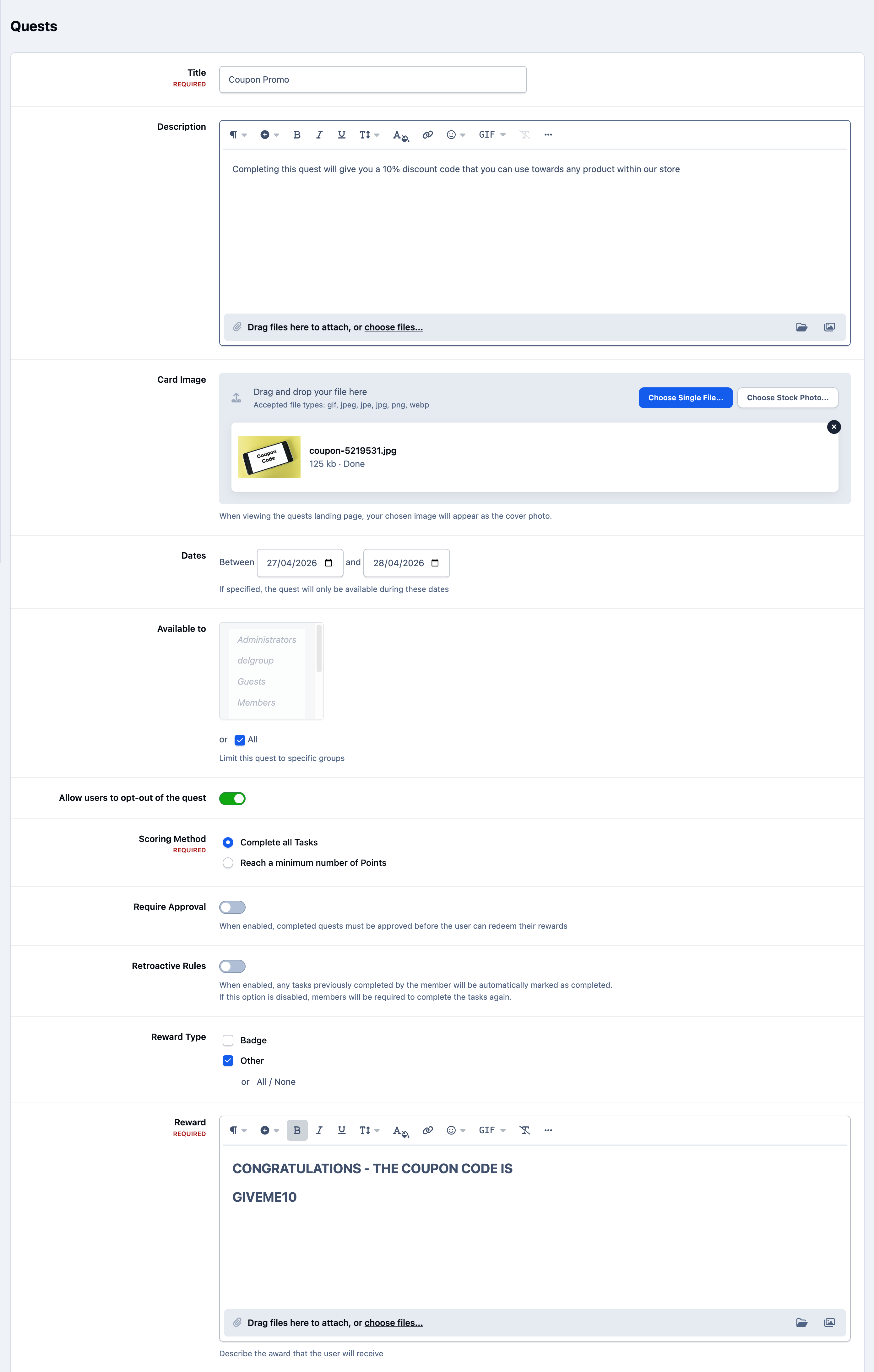
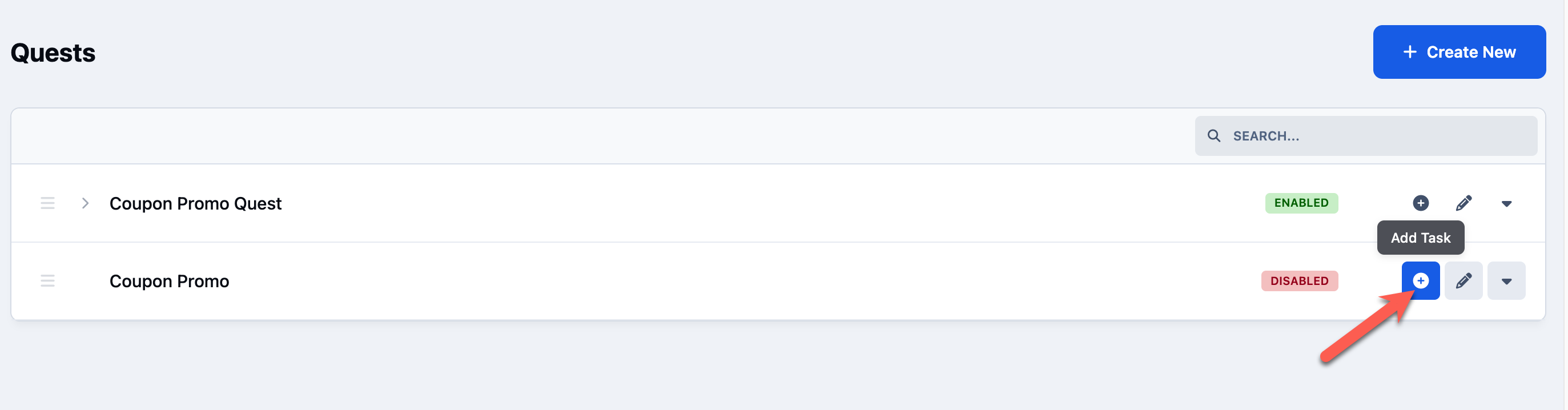
Once you have saved your quest, you can begin adding tasks using the Add Task option. This allows you to define the individual actions members must complete.
Click Add Task to get started, and we’ll begin by creating a task that requires the user to post a new topic within your community.
Adding a New Task
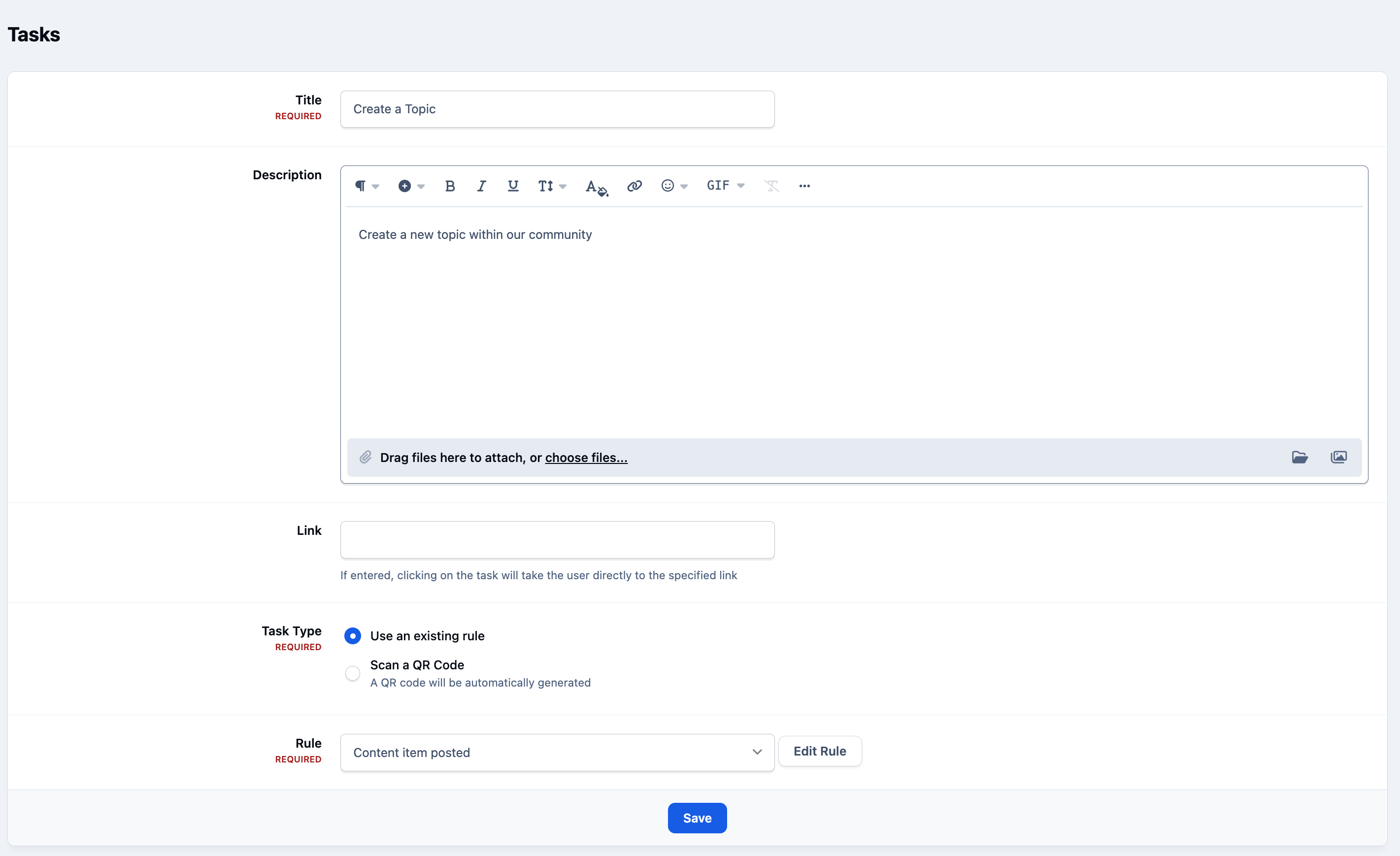
For the task where users are asked to create a new topic, you can add a clear title and description, which will be shown to the member completing the quest.
You would then select the appropriate achievement rule from the list. You’ll also notice that you can edit these rules directly from this area if needed, giving you flexibility without needing to leave the screen.
New Topic Task
Achievement Rules
Rules for Quests, are based on the achievements system. This is discussed more in our guide on achievements, which you can find at the following location
Next, we want users to visit a physical location in order to complete a task. This can be achieved by enabling the QR code option, allowing members to scan a code when they arrive at a location of your choosing.
In this case, we’ve selected that option and assigned just 1 point, as points are not being used to determine completion of the quest. Instead, we’re simply requiring that the task itself is completed.
New QR Scan Task
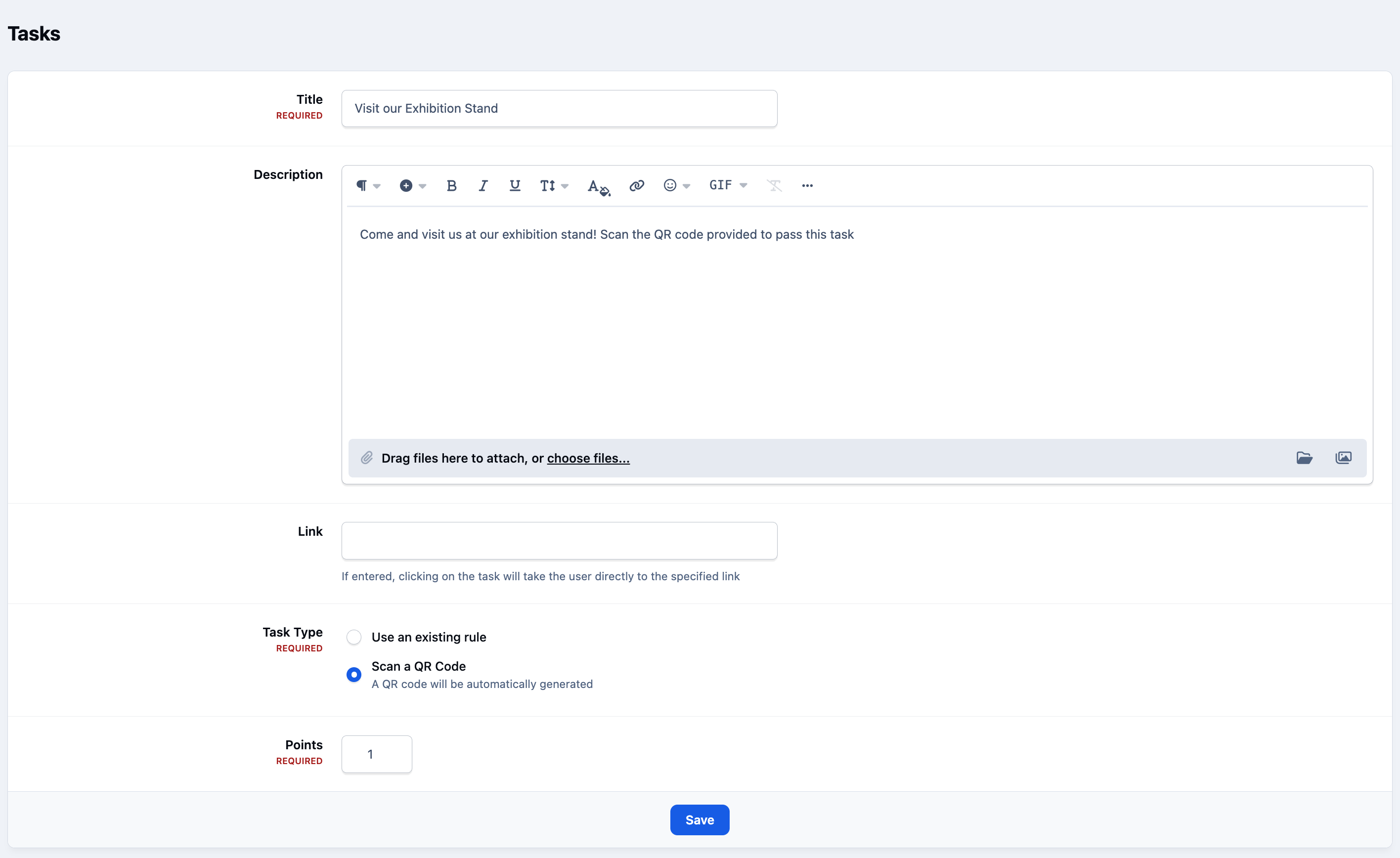
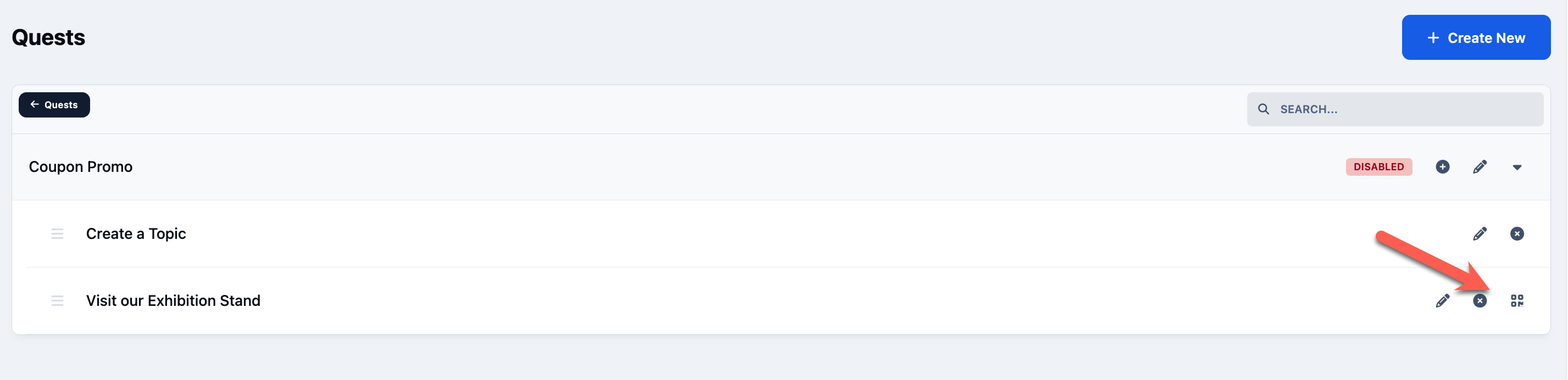
When saving a task that involves scanning a QR code, you will see an option to download the QR code. This can then be added to your marketing materials, printed for use at your exhibition stand, or used in any other way you choose.
Once a member scans this code, the task will be marked as complete for that user.
Getting the QR Code
Completing Quests
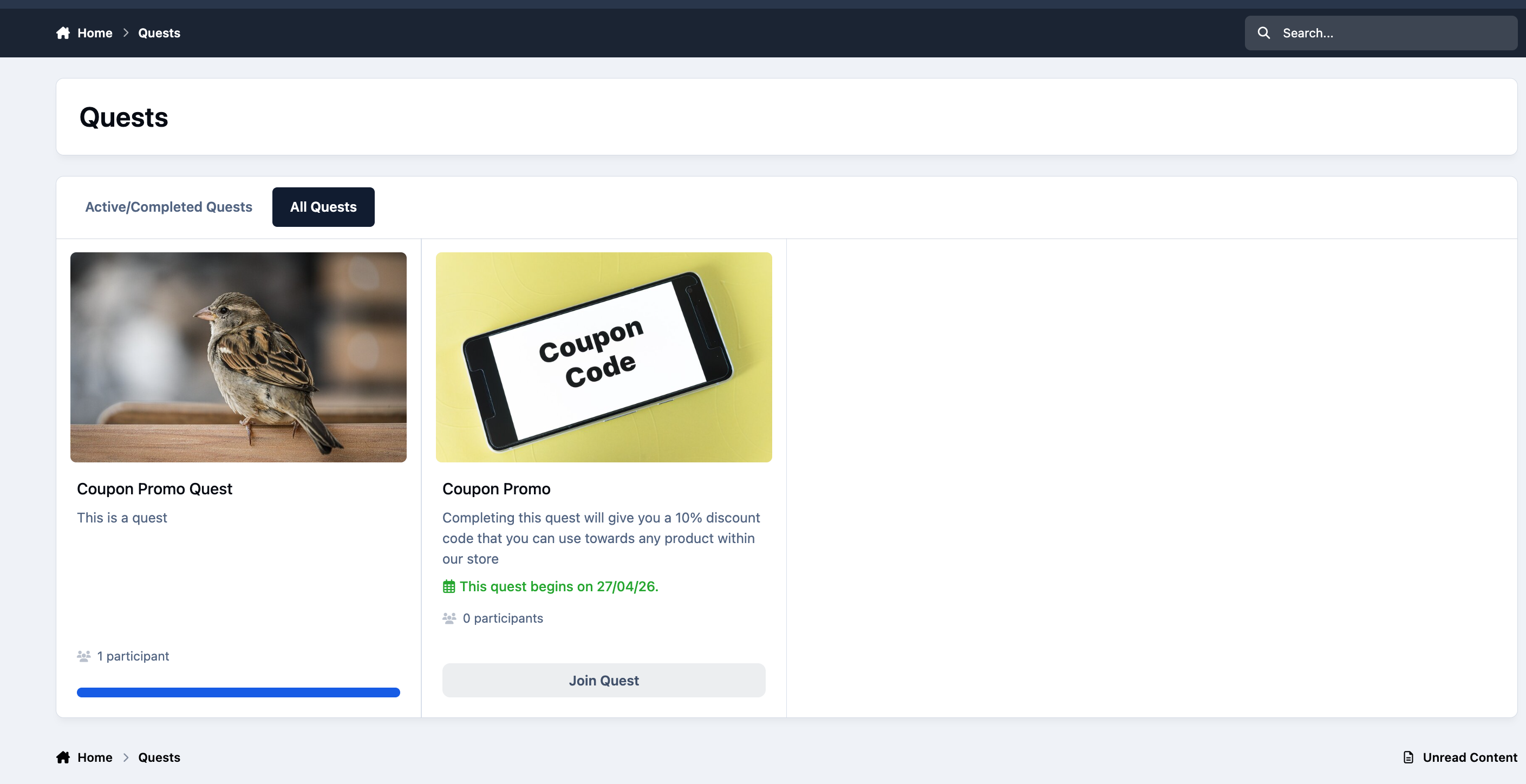
You can add quests to your navigation bar using the menu manager. For more information on how to use the menu manager, please refer to the guide here.
When viewing the Quests area, members can see any quests available to join, along with those they have already joined or are currently participating in.
Front End Quests
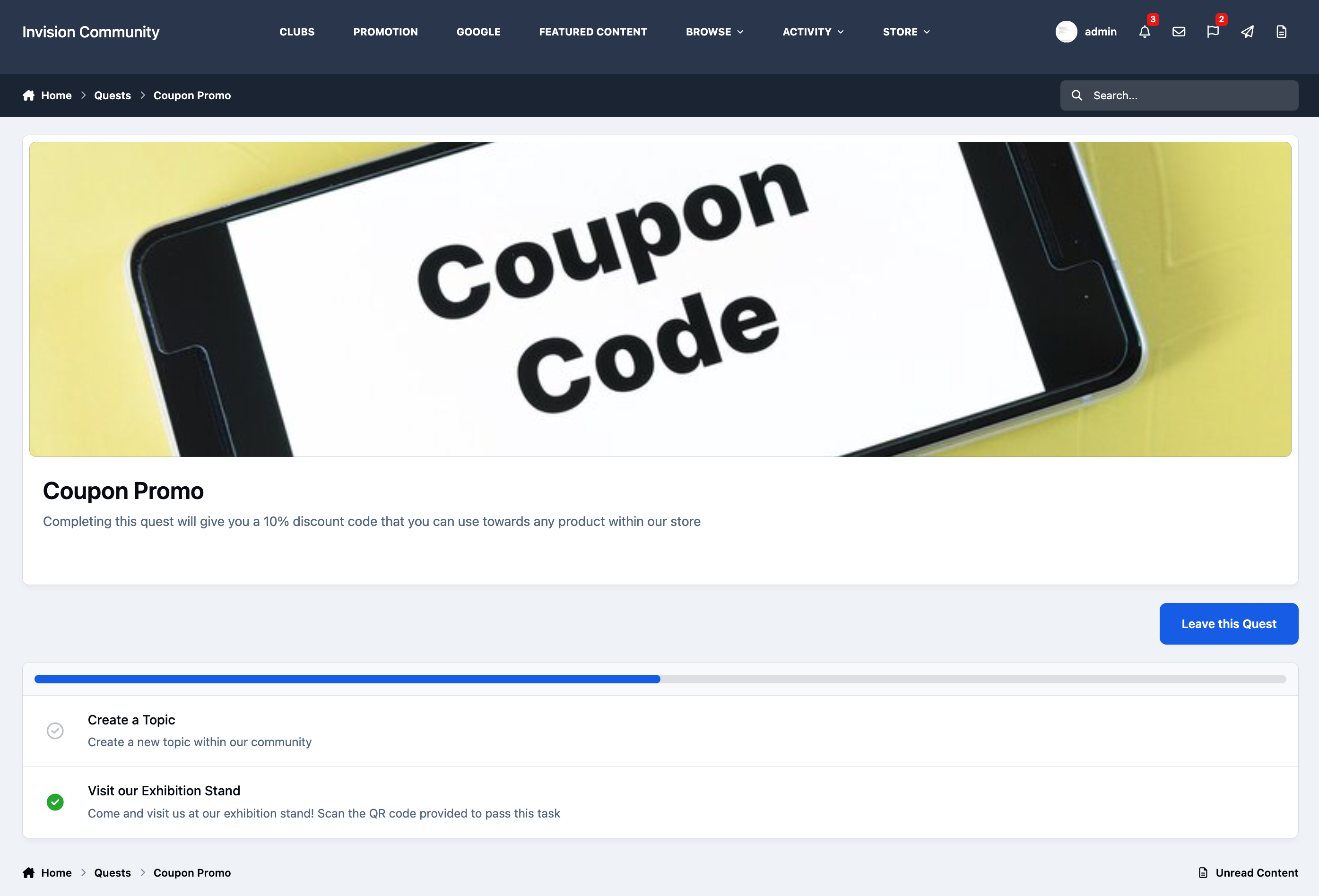
Each task is then displayed to the user, clearly outlining what needs to be completed. In this example, you can see the exhibition stand has been visited and the QR code scanned, however the task to create a new topic has not yet been completed.
Showing an Incomplete Quest
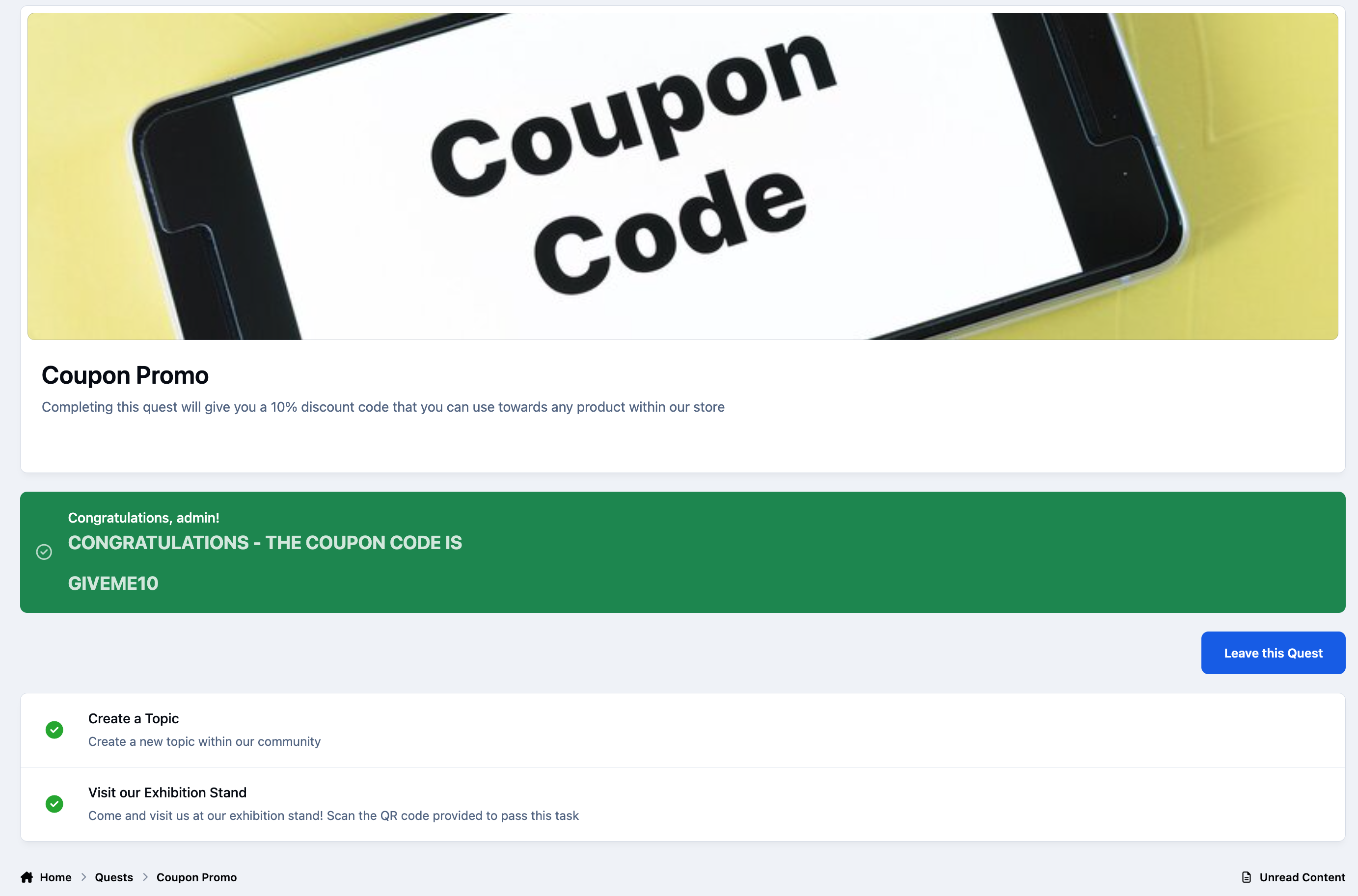
Once all tasks have been completed, the reward will be shown to the user. In this case, the 10% coupon code is displayed upon completion of the quest.
Completed Quest
Recommended Comments