


One of the more important configuration areas of your Suite is the Posting & Editor section, as this affects almost all areas. You can find this within the Admin CP in the following location:
System → Settings → Posting & Editor,
These settings control how members post content across your community. While individual applications may override certain options depending on their specific features, these are your global defaults. It’s well worth spending some time here to decide how you want content to look and function across your site.
General
Attachments - From here you can set the allowable file types that people can upload to your site. You can do this either explicitly, or by using one of the easy selections for images, videos etc.
Dimensions - These control the maximum dimensions (width × height), that images can display at within posts. It is important to note this setting does not limit file size — it limits display dimensions.
Posting - Controls things like the maximum title length, when posts are merged, and flood control. You can also set whether or not people can post before registering. {link here}
Edit Log - Dictates whether or not edits on your site are logged, and how they are logged.
Content - Various settings related to how content is treated on your site
Word Expansion
A simple but useful feature that allows you to define acronyms which display a tooltip explanation when hovered over.
For example:
Typing ACP could automatically show “Admin CP” when hovered over.
This is helpful for communities that frequently use technical or internal shorthand.
Polls
Some applications allow members to create polls. This section defines global poll behavior across your Suite.
Example Poll
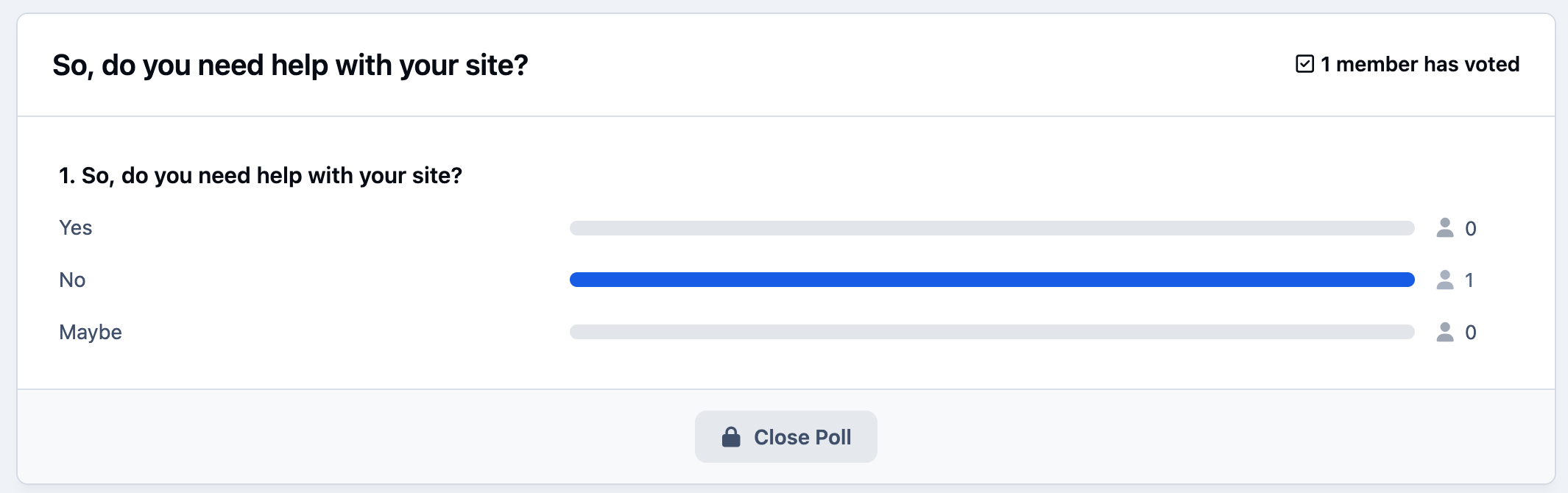
Important options include:
Whether members can see who voted for what
Whether voting is required before seeing results
Whether members can change their vote
Depending on how your community uses polls (casual voting vs. formal surveys), these settings can significantly affect user experience.
Word Filters
Profanity filters allow you to automatically replace specific words across your site.
While commonly used to block inappropriate language, they can also be used creatively, such as:
Correcting common misspellings
Replacing competitor names
Automatically formatting brand terms
As with many features in Invision Community, this tool can be adapted to suit your specific moderation needs.
Links & Email Addresses
Members frequently post links to external sites. In this section, you can control how URLs are handled and whether restrictions should apply.
Options include:
Controlling how links are displayed
Applying restrictions to specific domains
Managing link behavior for security or moderation purposes
This is especially useful for communities that need tighter control over external linking, and the displaying of email addresses.
Embeds
This setting allows you to create your own custom embeds by permitting iframe content from specific URLs that you define.
Embed Setup
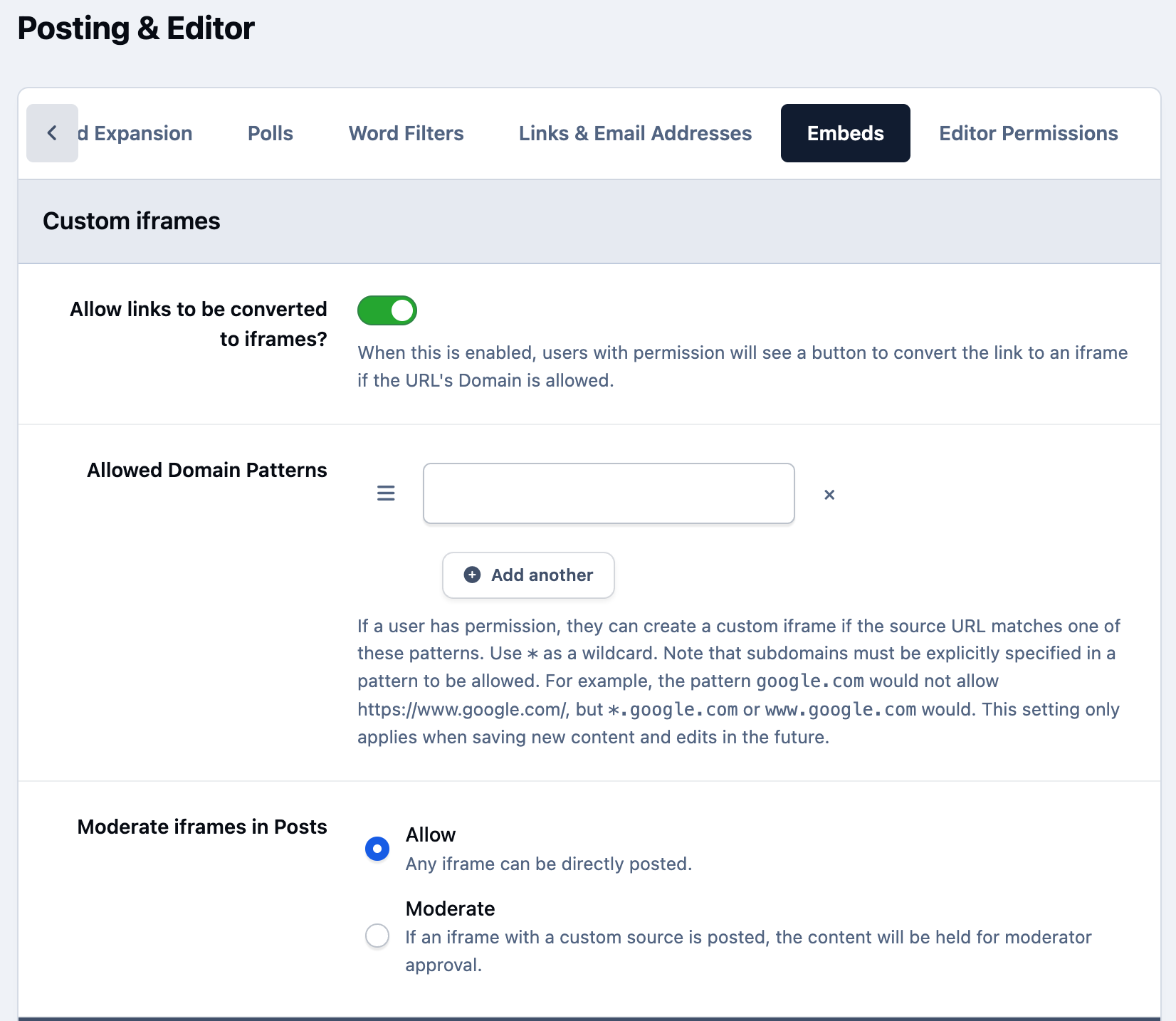
Because embedding iframes can introduce security risks, it’s important to use strong controls to prevent abuse. For this reason, the editor will only convert links into embedded iframes if the domain has been explicitly whitelisted in this section.
Editor Permissions
Within invision community, there are a lot of new tools in the editor, including header tags, boxes and positioning tools. These are useful features, but perhaps you do not want your members changing the semantic structure of the page by adding H1 tags. Or maybe you don't want them being able to add custom boxes with colors. Based on this feedback, we have introduced a permission levels system.
At the heart of the system lies three editor permission levels: Minimal, Standard and Advanced.
Specific editor features are assigned to one or more levels. For example, you may only want header tags and content boxes to be for the 'advanced' permission level which only administrators can use.
Editor Permission Sets
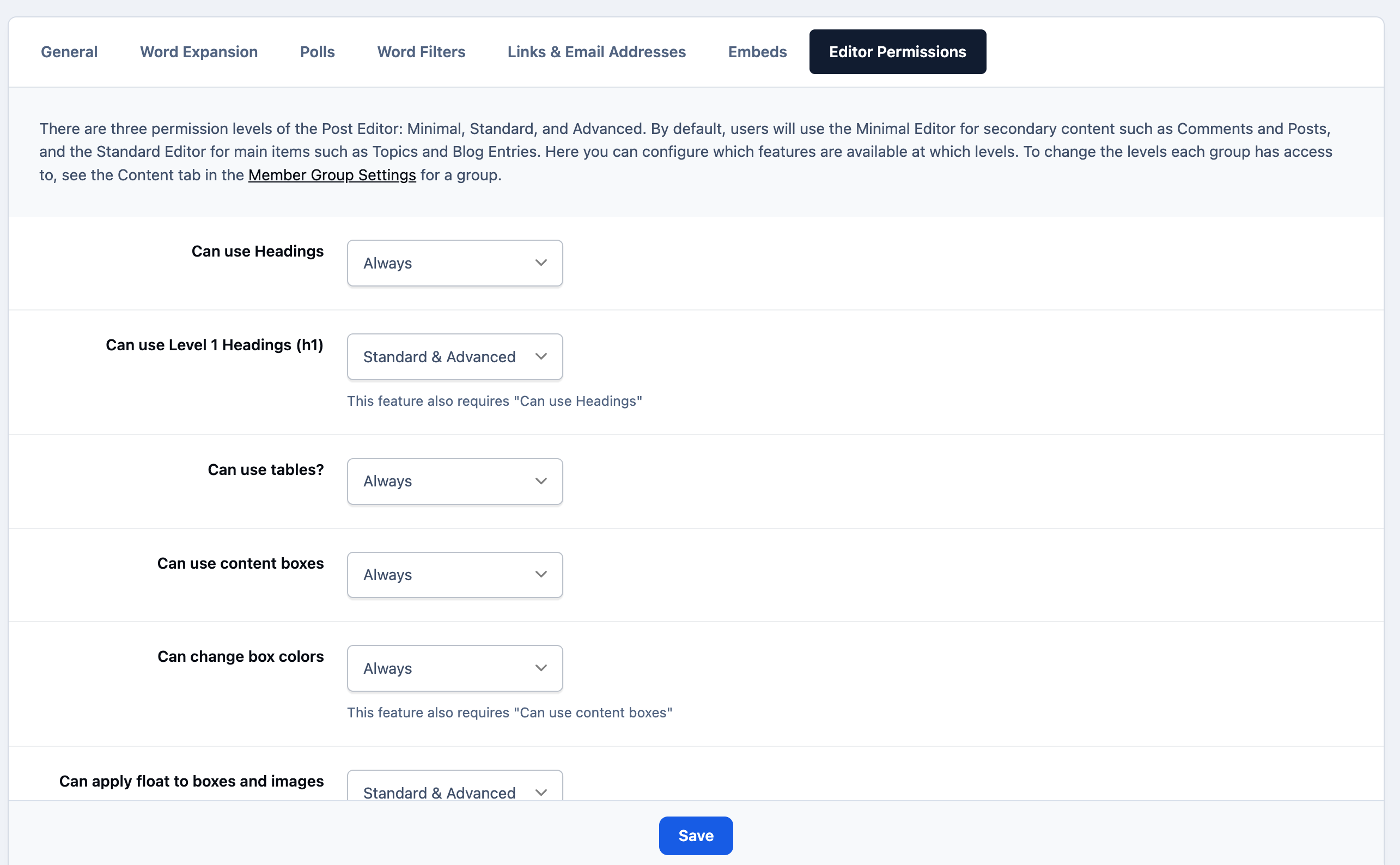
These permissions are then applied to member groups. We do this by simplying heading over to the Member Groups section of the Admin CP. In the "Content" section of that form, there are two options:
Default Editor Restriction Level - This is the restriction level the group uses by default, for example in Forum Topics and Blog Posts.
Editor Restriction Level for Comments - This is the level used for Comments (including Topic Replies) throughout the Community.
Recommended Comments