


Profiles are an important part of your community experience. Every member has their own profile page, which can be viewed by others (depending on permission settings) and personalised to reflect their preferences.
A member’s profile brings together their content and activity in one place, making it easy to see topics they’ve started, posts they’ve made, achievements they’ve earned, and other key information related to their account. This helps foster engagement, identity, and connection within your community.
About Profiles
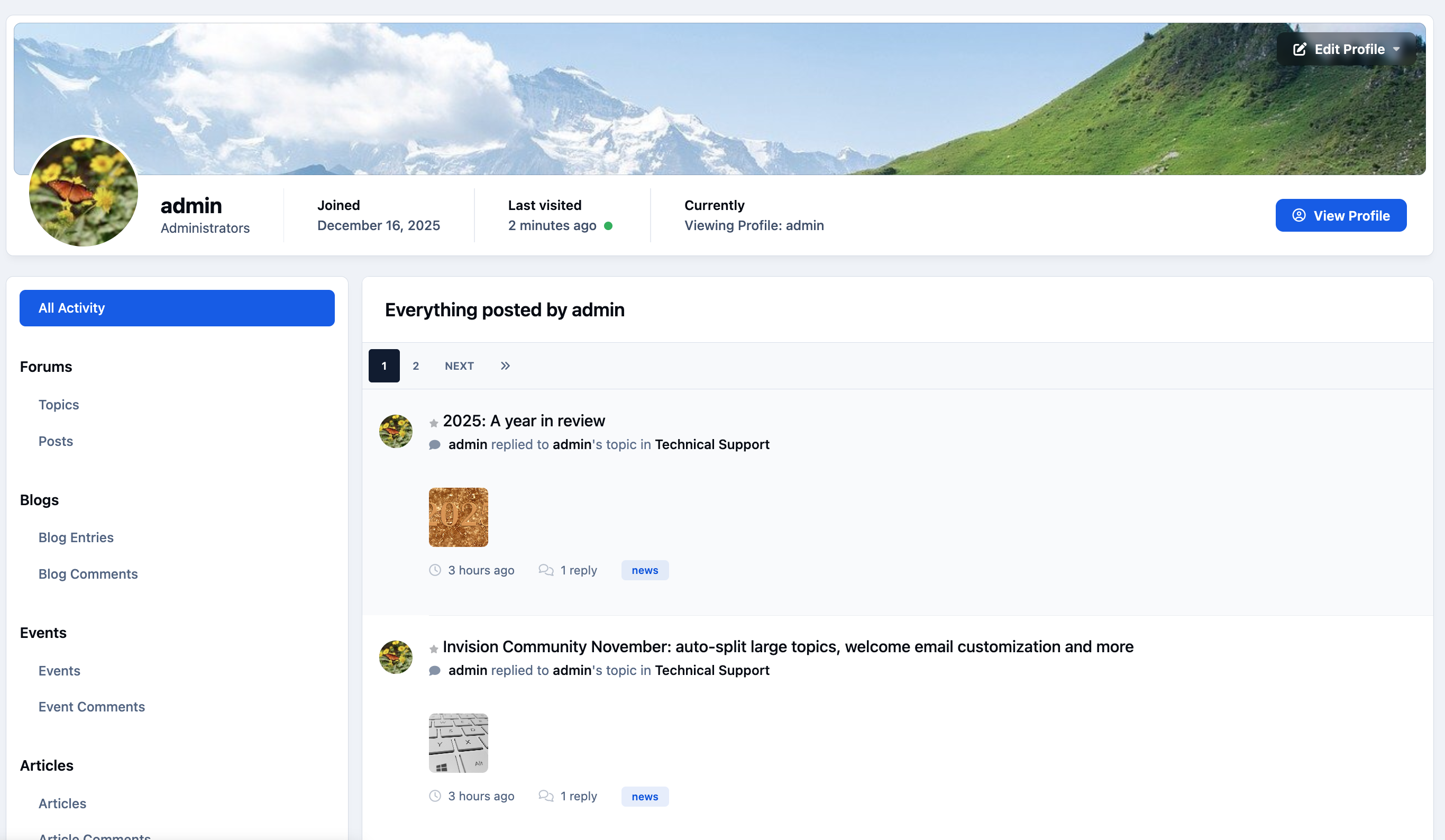
You can access your profile by clicking your name and selecting “Profile.” It can also be opened by clicking your profile photo anywhere on the site.
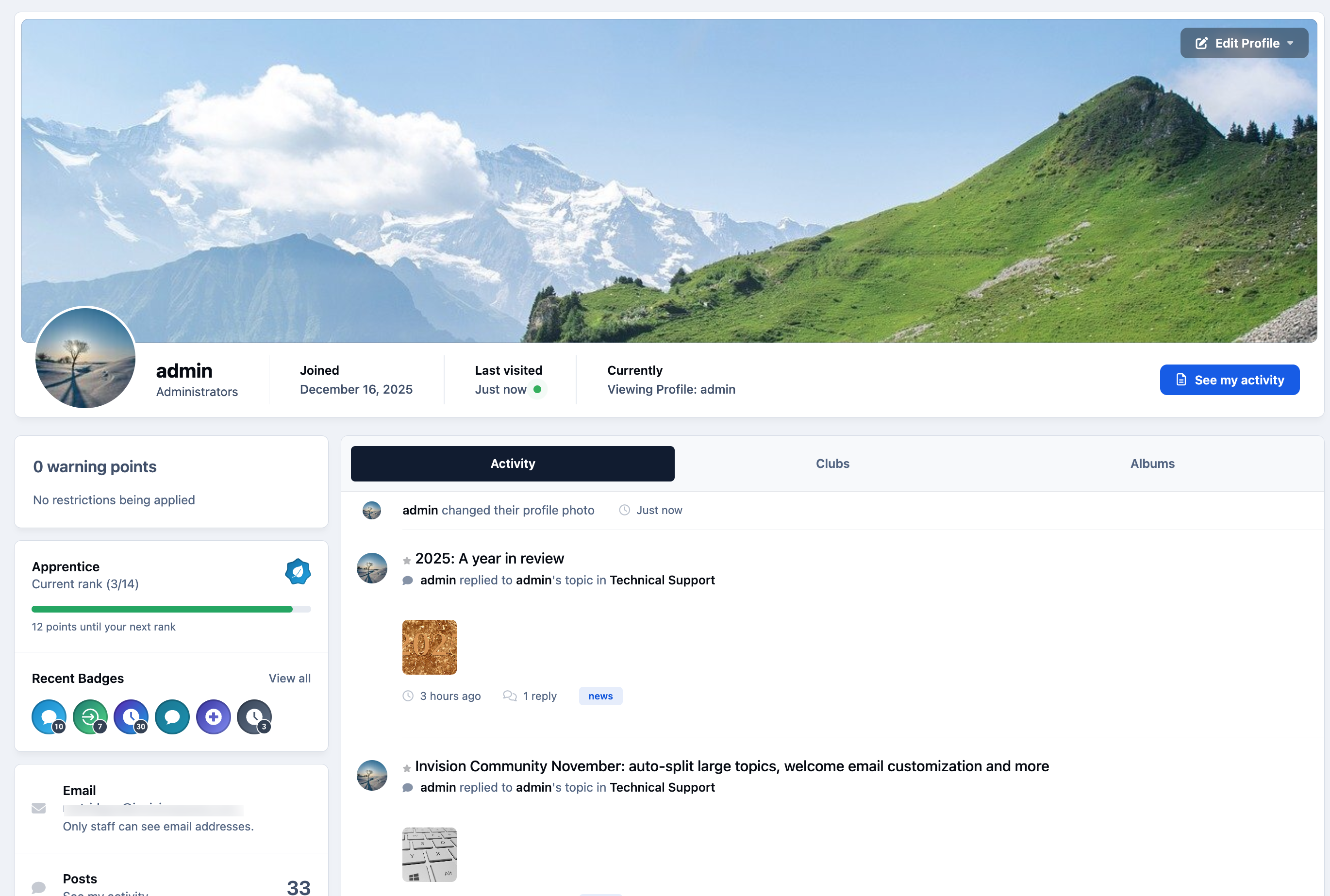
Your profile displays an overview of your activity, achievements, join date, statistics, and other relevant information. The details shown may vary depending on who is viewing the profile. For example, staff members may see additional information such as warnings or registered email addresses that are not visible to regular members.
Main Profile Page
Editing Profiles
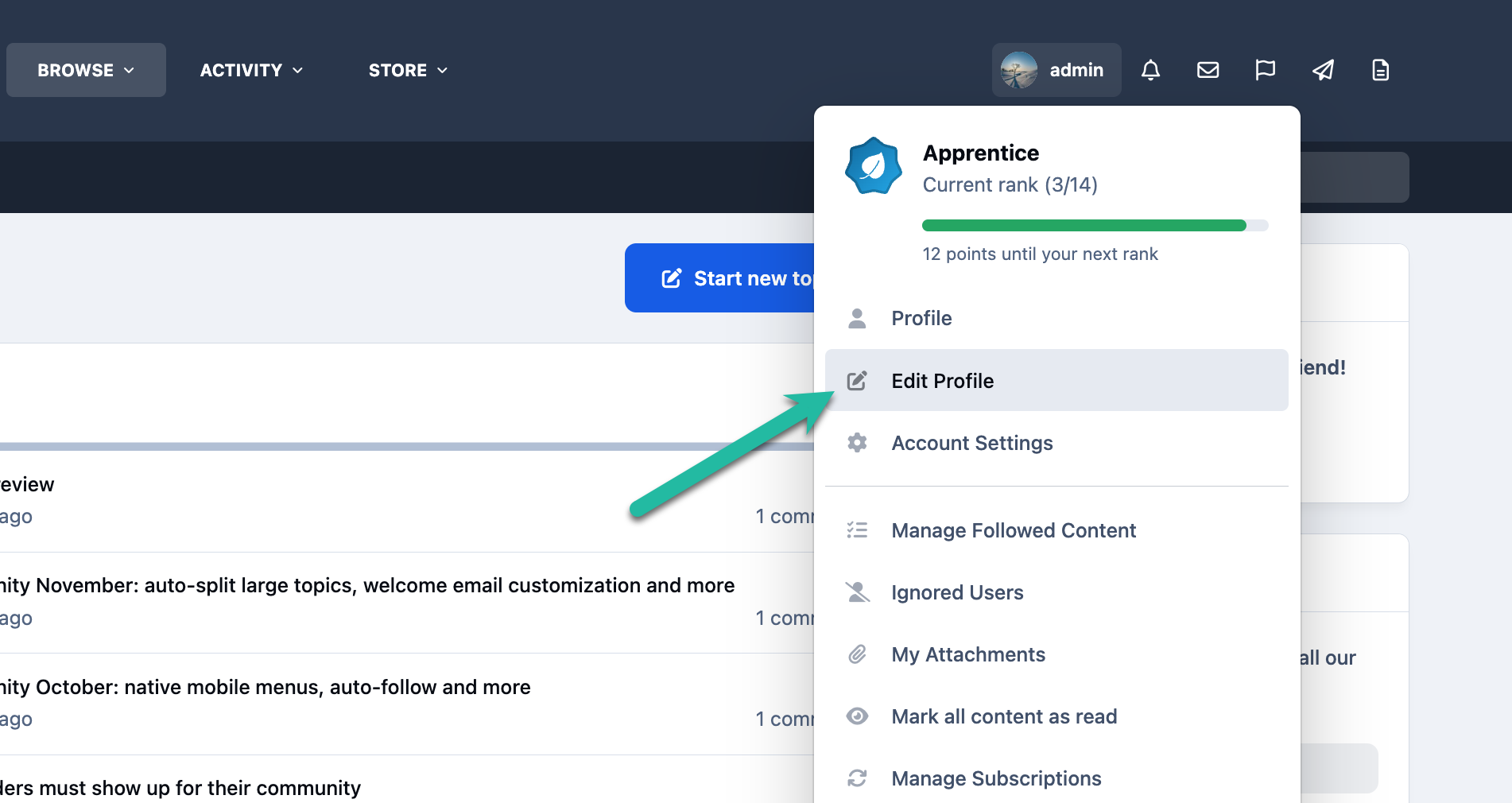
To access your profile, click on your name at the top of the page and select 'Edit Profile', as shown in the image below.
Edit Profile Link
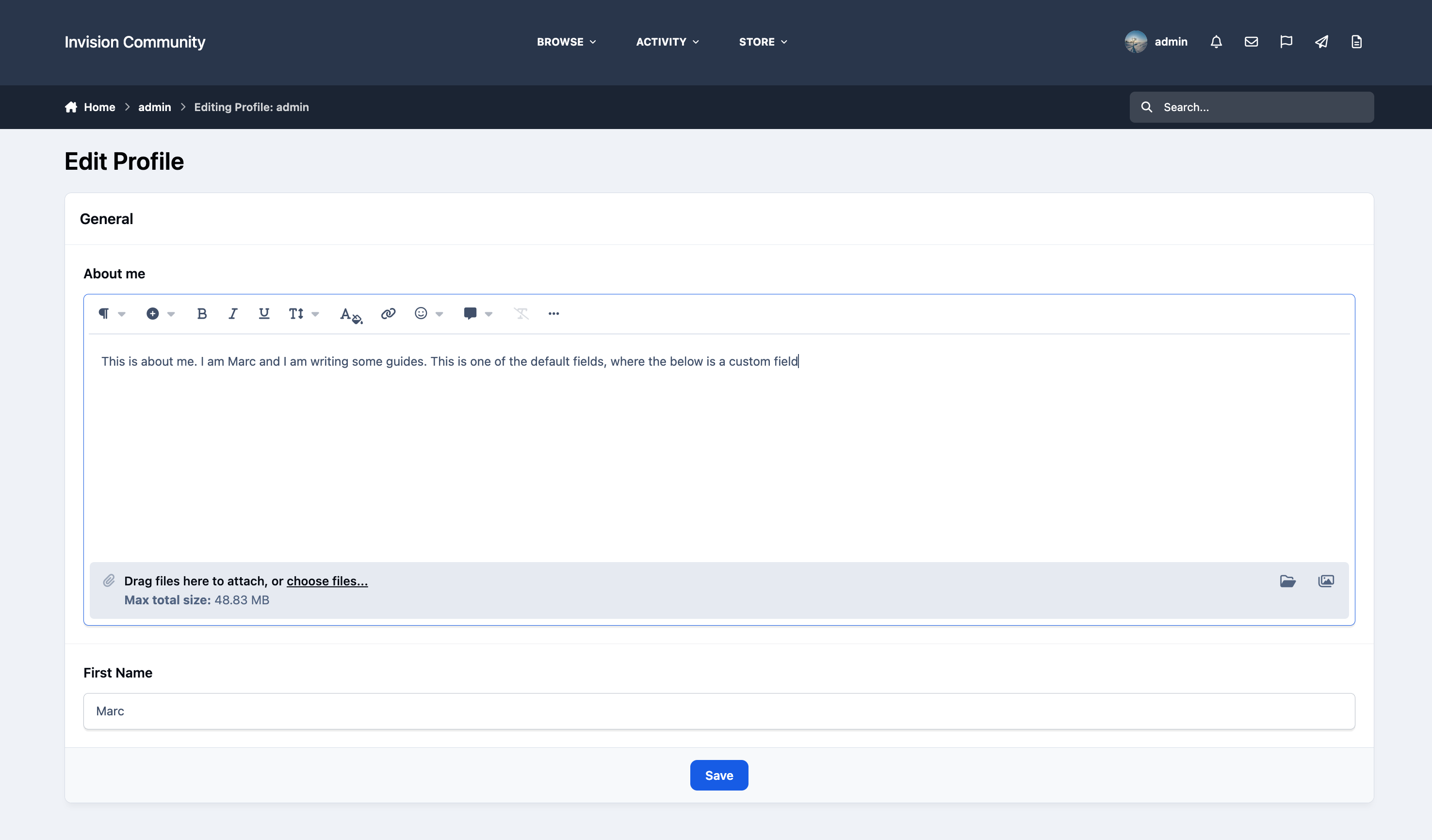
From this page, you can update various details on your profile, including your “About Me” section and any custom profile fields that have been configured by the administrator within the AdminCP.
Edit Profile Page With Custom Field
Profile and Cover Photos
You can change both your cover photo and profile photo from your profile page by selecting 'Edit Profile.'
Profile photos appear on your profile page and throughout the community as your avatar alongside posts and other content.
You can upload an image from your device or provide a URL from the internet. Once added, you’ll be able to crop, resize, and reposition the image to ensure it displays correctly across the site.
You can update your own cover photo (subject to permission settings) by selecting the 'Upload Cover Photo' option within the same profile editing area.
Adding a Profile Photo & Cover Photo
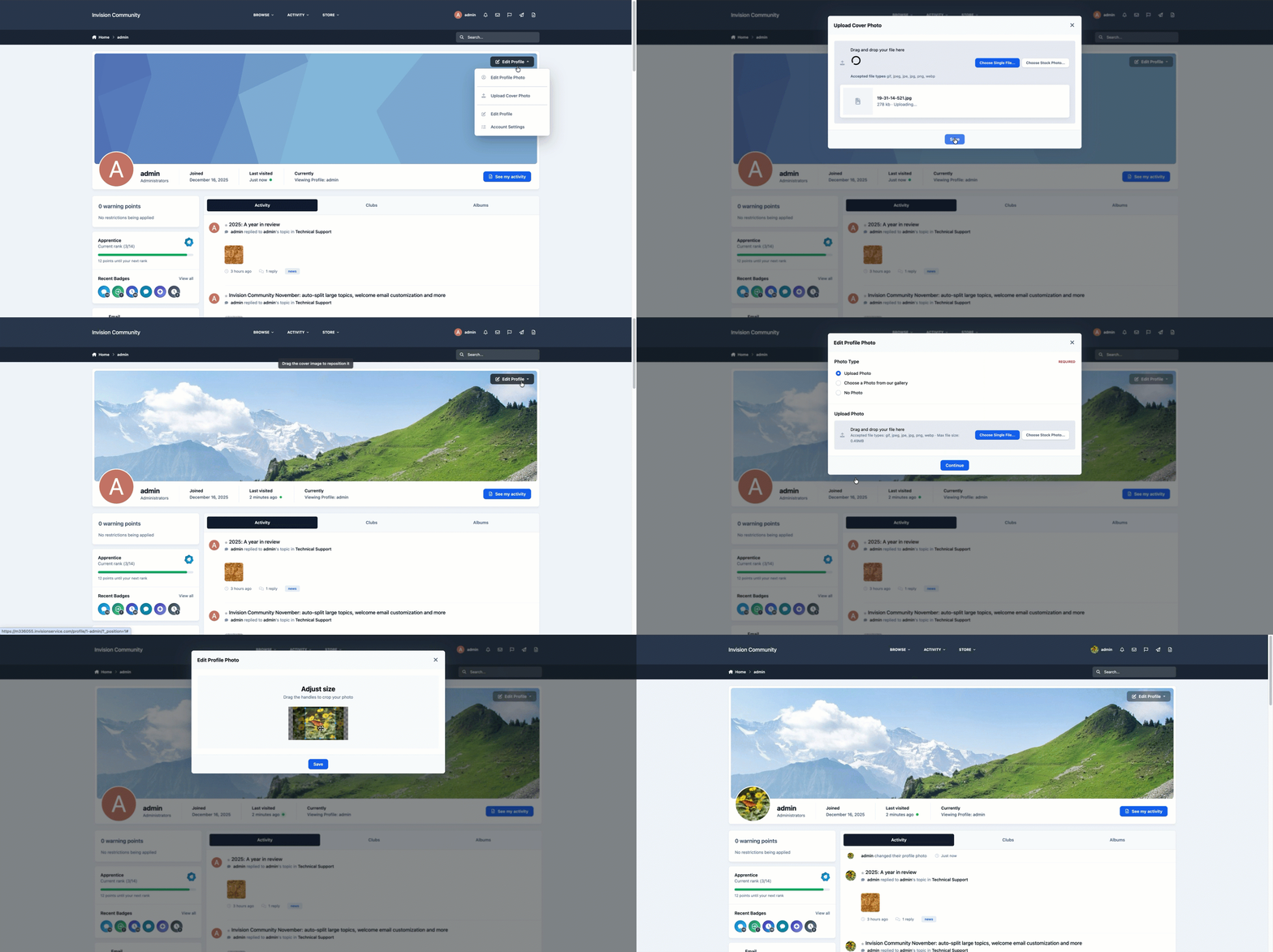
If a cover photo is already uploaded, you’ll see options to either reposition the existing image or remove it entirely, rather than upload a new one straight away.
Viewing Content
From any member’s profile, you can view their activity by clicking the 'See My Activity' button in the top-right corner.
This will display a filterable list of content the member has contributed to across the community, making it easy to review their posts, topics, and other interactions.
Users Content
Profile Privacy
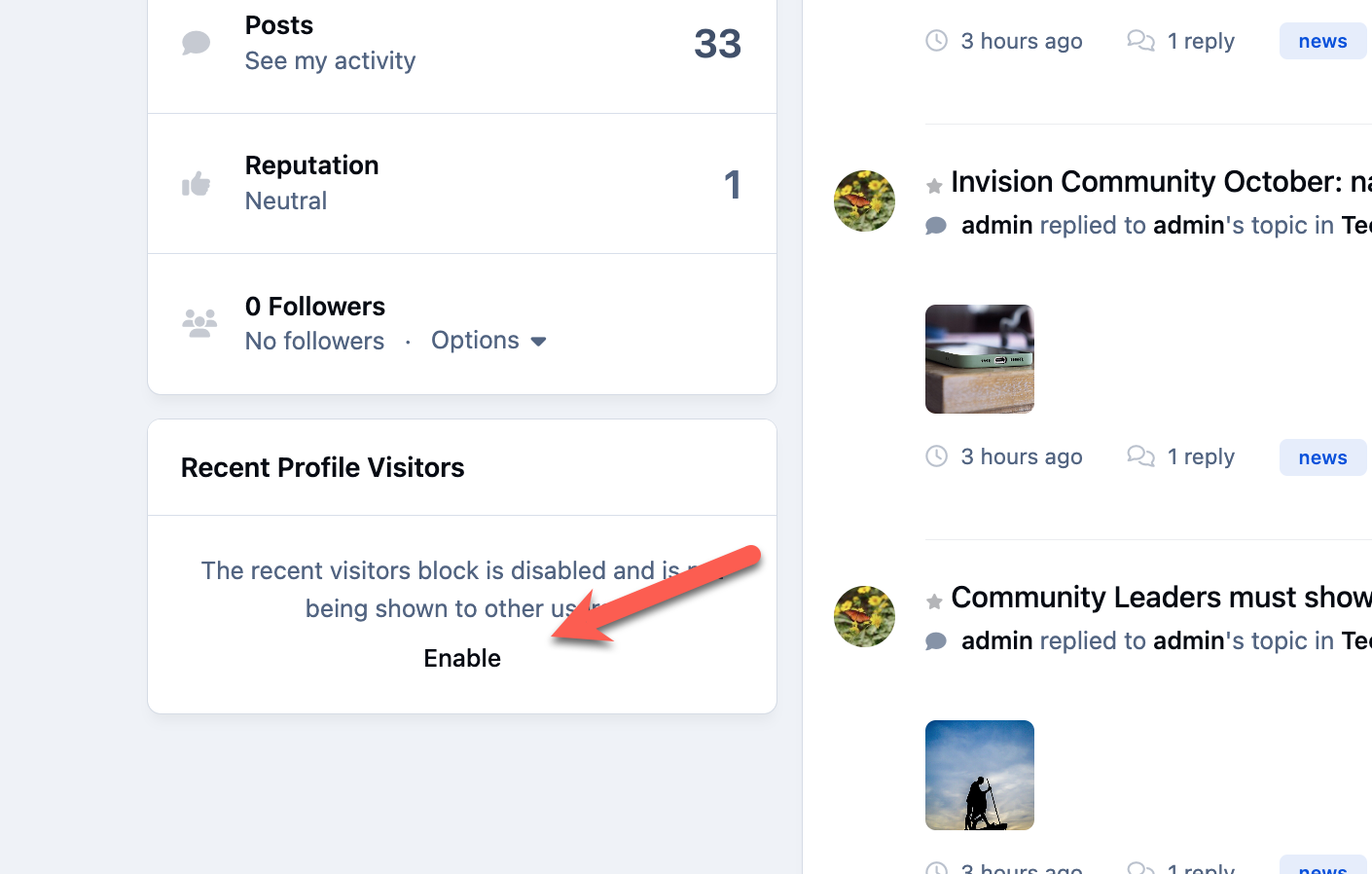
You can choose not to display your recent profile visitors by disabling that block from being visible to others.
To do this, click the link provided within the 'Recent Profile Visitors' block on the left-hand side of your profile page.
Enabling Profile Visitor Blocks
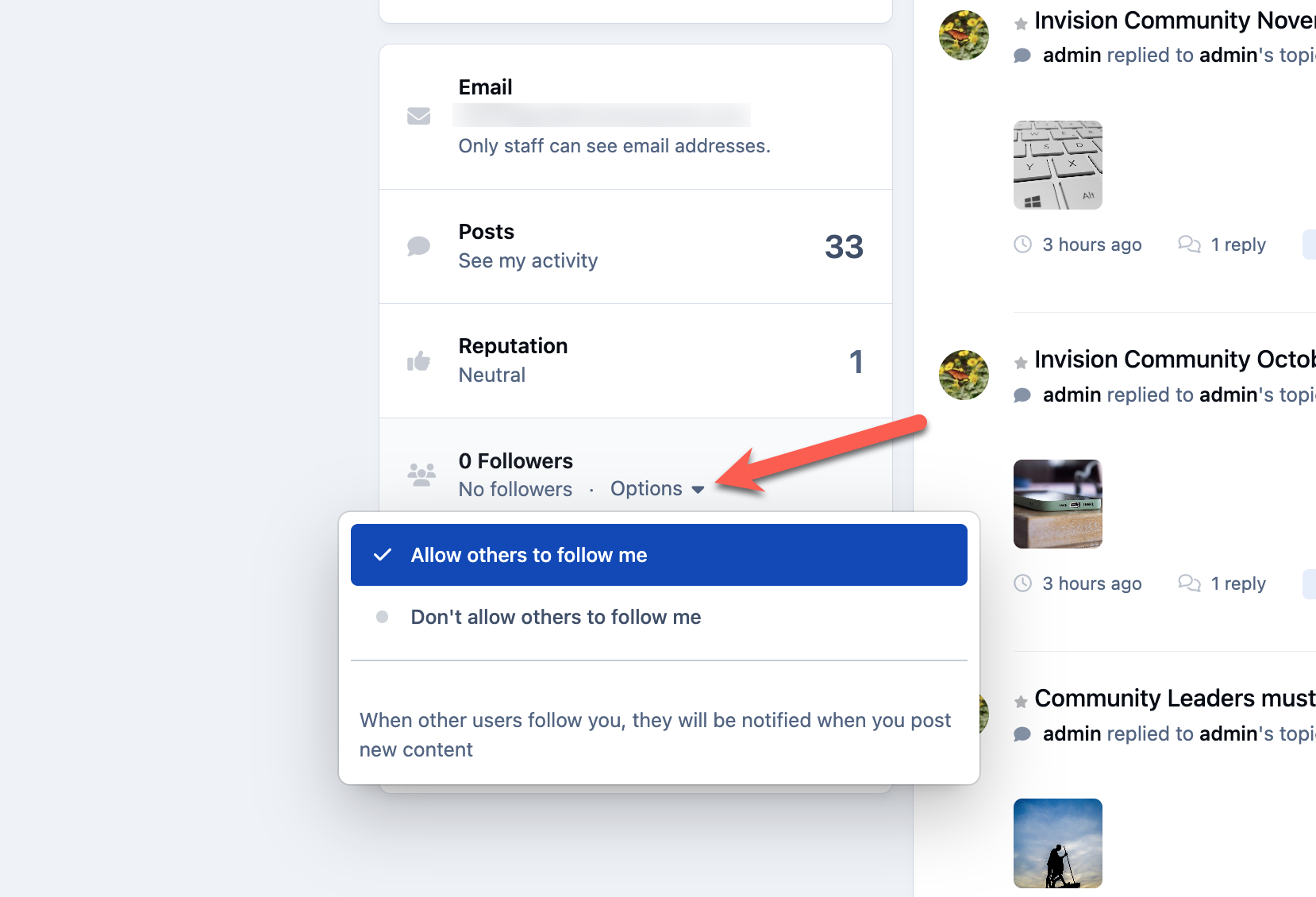
You can also disable the option for other members to follow you if you prefer.
This can be managed directly from the Followers block on your profile page, where you can adjust the settings as shown in the image below.
Allowing Members to Follow
Recommended Comments