


If you’re here, you’re likely looking to learn more about Courses and what it offers within the Invision platform.
Courses is a lightweight learning system designed to provide a straightforward and engaging educational experience for your members. It enables you to deliver structured training content, share important information, and assess knowledge retention through integrated quizzes.
Creation & Settings
Courses and their global settings can be managed from the AdminCP at:
Community → Courses
Within this section, you’ll find three main submenus:
Courses – Create new courses and view or manage existing ones.
Settings – Configure display options, quiz settings, and enable paid courses if required.
Enrollments – View which members are enrolled in each course across your site.
To create a course, navigate to the Courses section and click “Create New.”
In this guide, we’ll walk through creating a simple example course based on the rules of our fictional school.
Setting Up a New Course
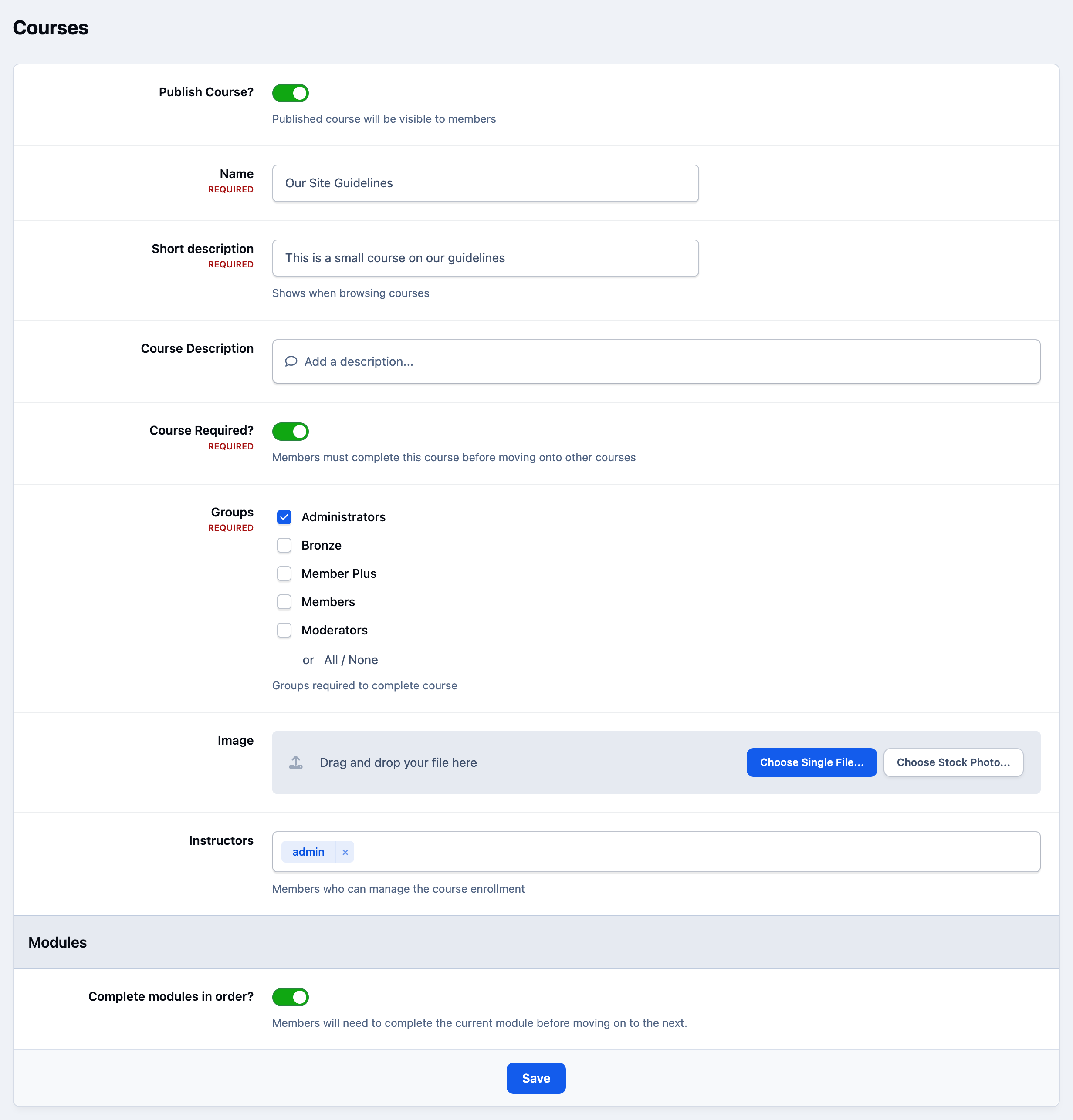
You’ll notice that this course has been marked as Required. Setting a course as required means that members must complete it before they’re able to progress to other courses.
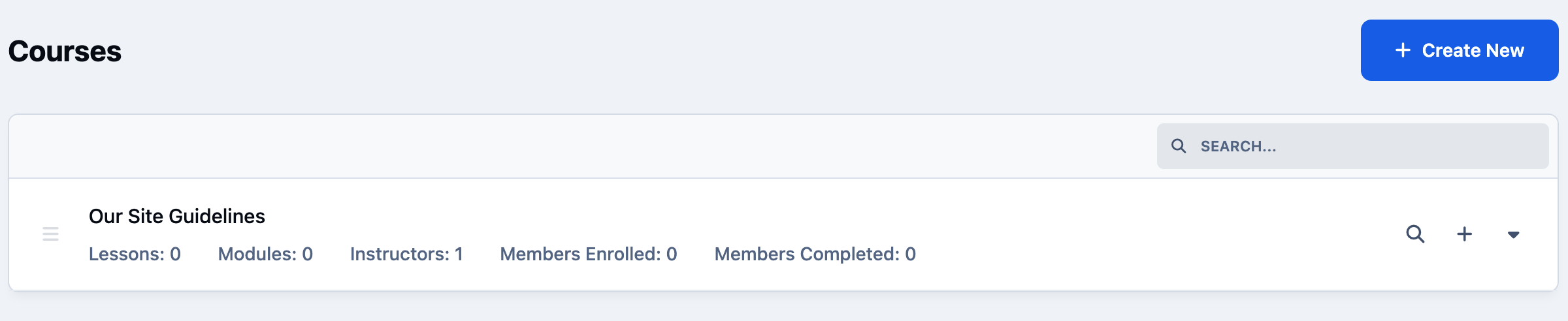
Once the course has been created, you’ll be returned to the main course list. From here, you can click into the course itself and manually enroll members if needed.
Course Listing
Modules, Lessons & Quizzes
Once your course has been created, you can move to the front end of your site to begin adding modules and lessons. If needed, you can use the View icon in the AdminCP to jump directly to the course page.
At the bottom of the course page, select 'Course Manager' to add new modules and arrange them in the desired order.
How to Add a New Module
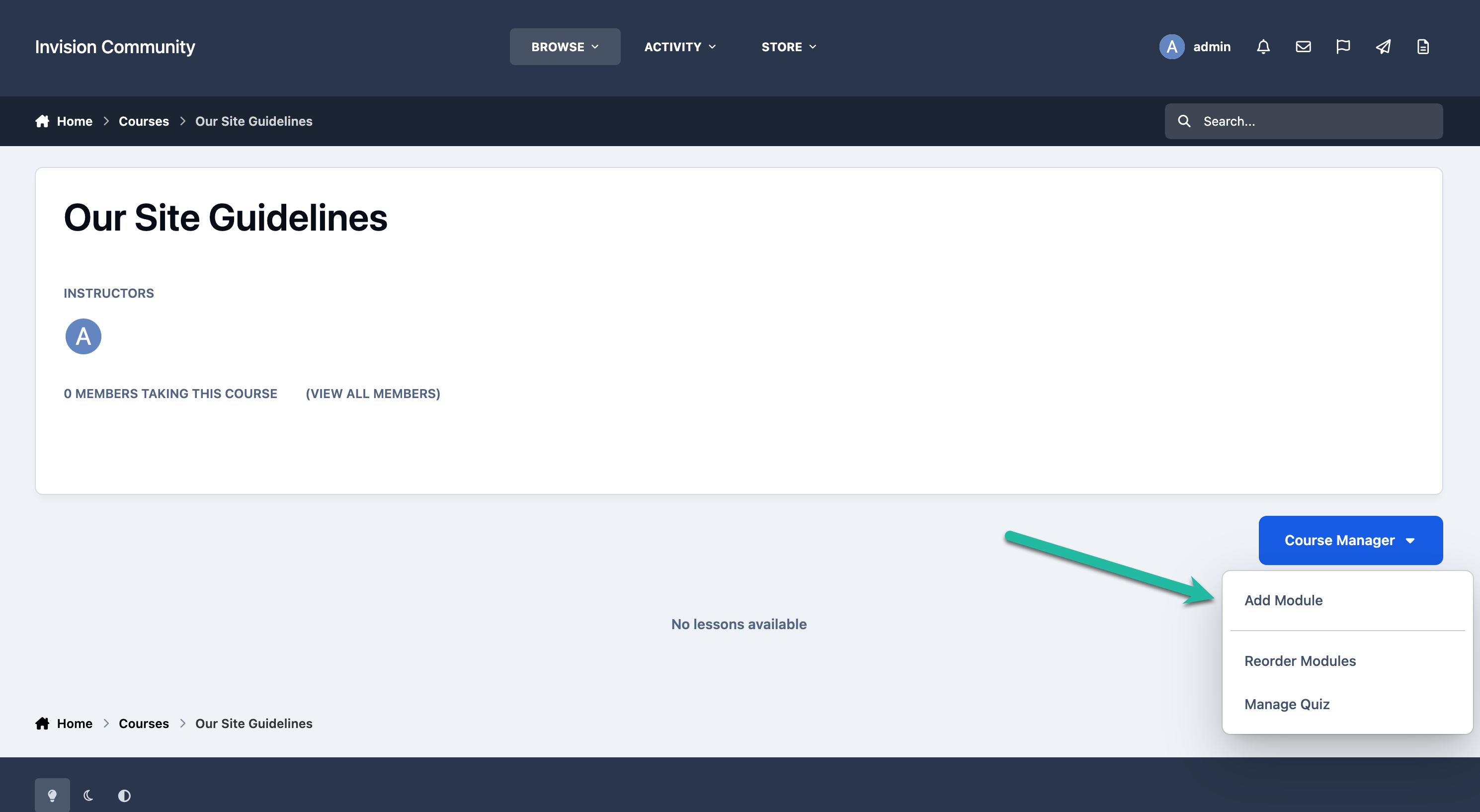
After adding the required modules, open a module to begin creating lessons within it.
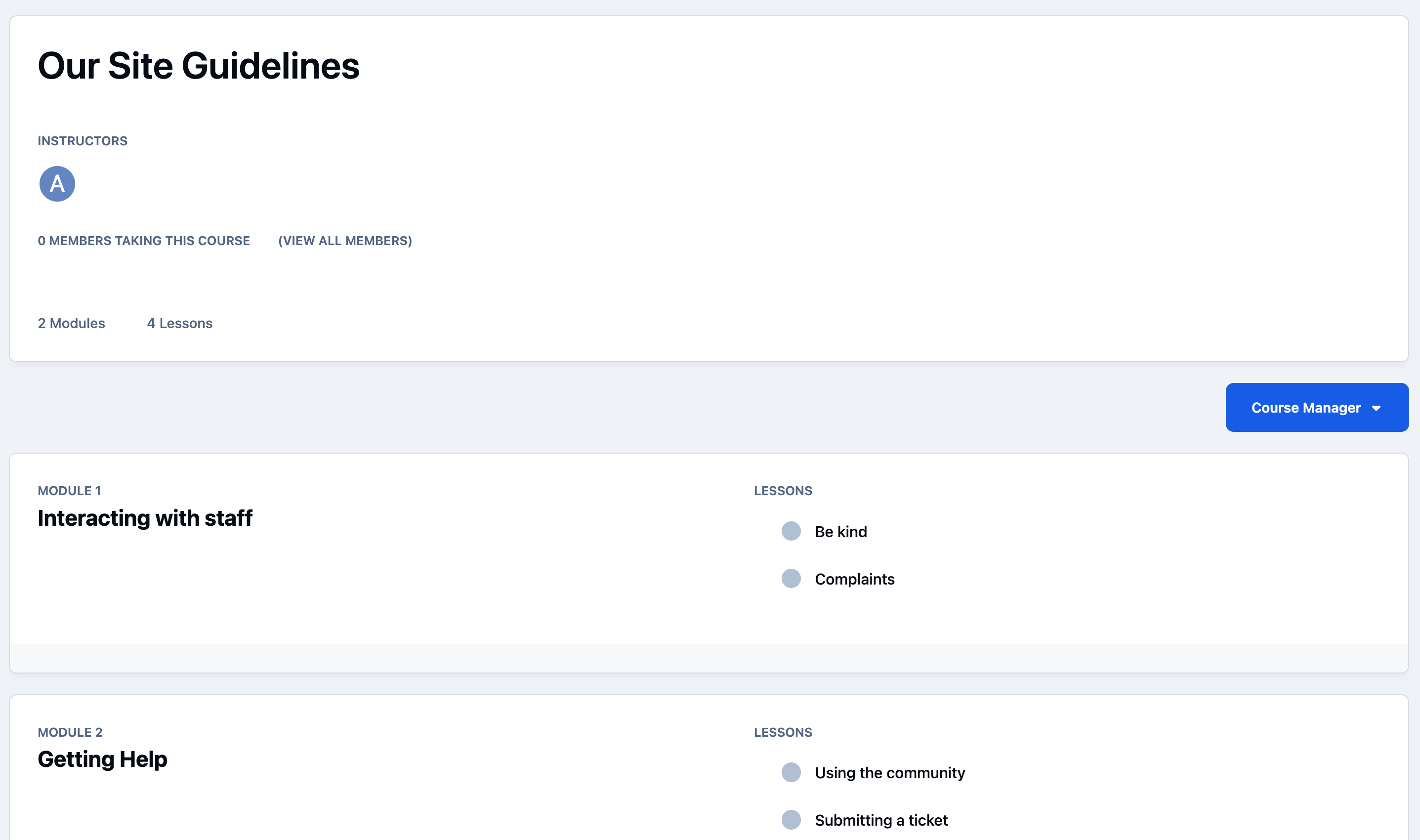
Adding a lesson is as straightforward as creating a topic in your community. You can include a wide range of content, such as text, images, videos, and other media, allowing you to structure the material in whatever way best suits your course. You will start to build up a full course, similar to the image below
Example Course Set Up
You’ll notice that within each module, there is an option to add a Quiz using the dedicated button provided.
Quizzes can be used to assess a member’s understanding of the material covered in that module. This allows you to reinforce key points, validate knowledge retention, and ensure learners have engaged with the content before progressing further.
Depending on your setup, quizzes can be used as optional knowledge checks or as required components that must be successfully completed in order to move on to the next module or finish the course.
Creating a Quiz
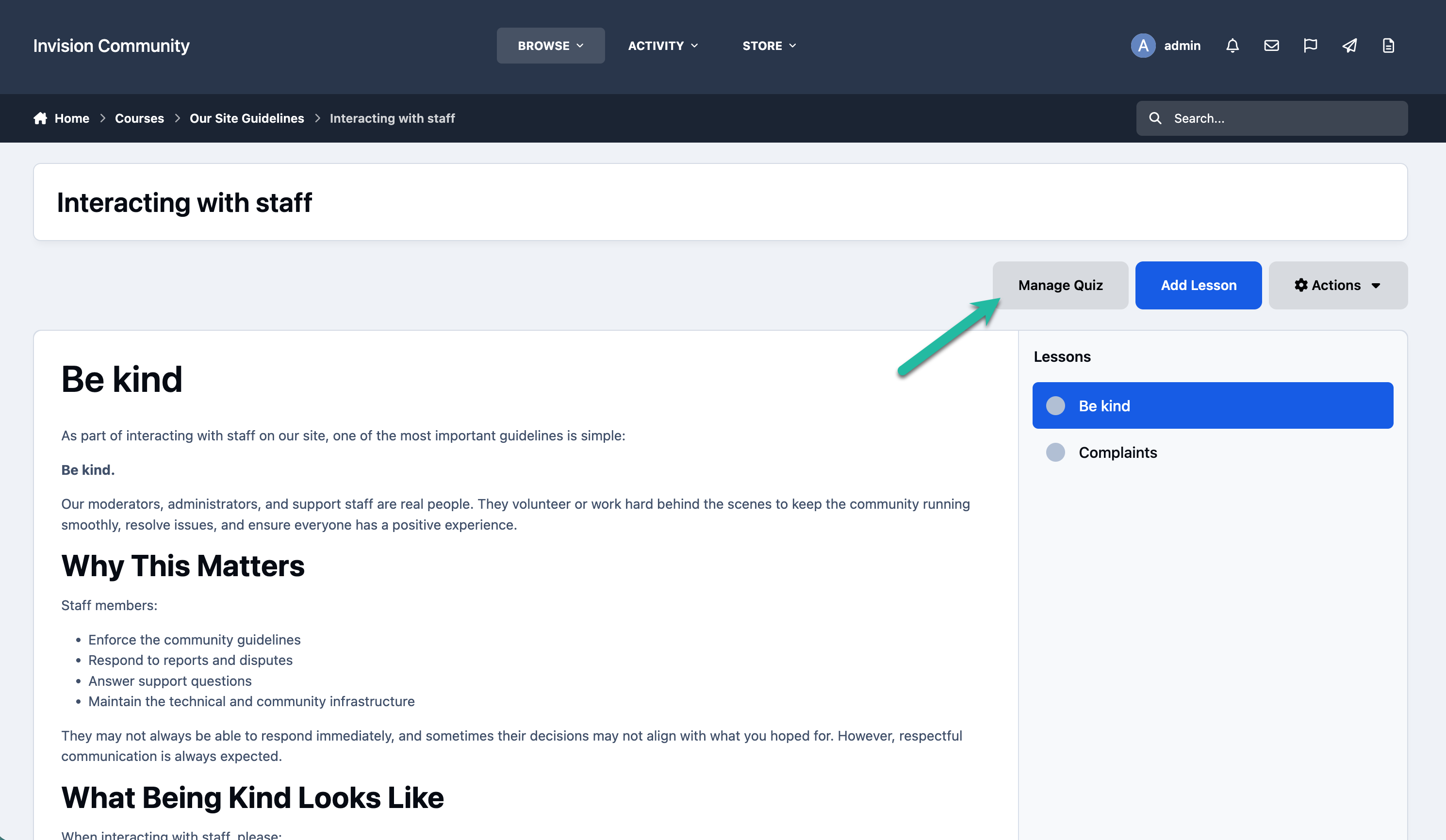
Managing the quiz allows you to build the assessment that members will complete after working through the course content.
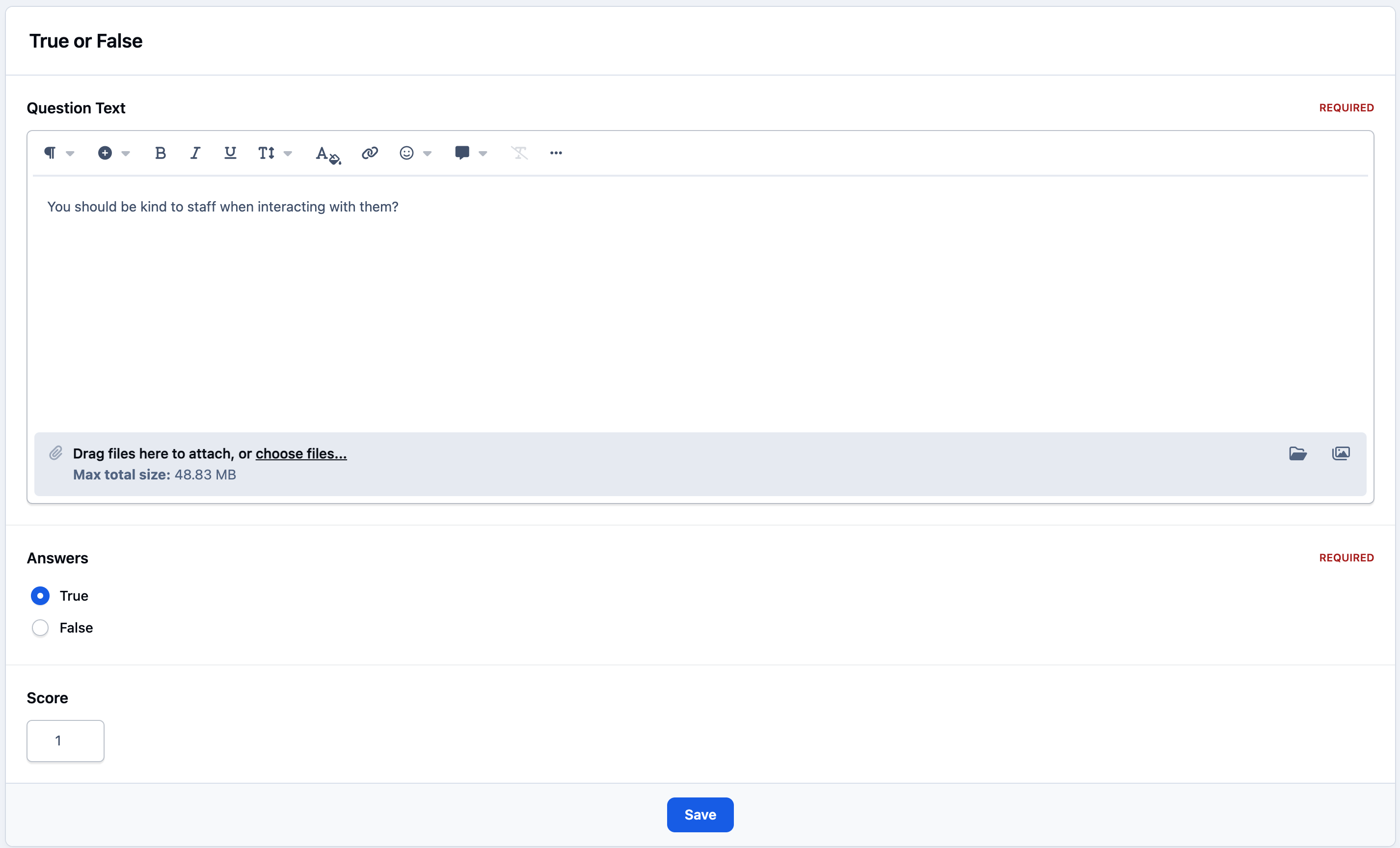
You can add multiple choice questions or true/false questions, giving you flexibility in how you test understanding. This makes it easy to reinforce key learning points and confirm that members have absorbed the material before progressing or completing the course.
Example Quiz Question
Enrollment
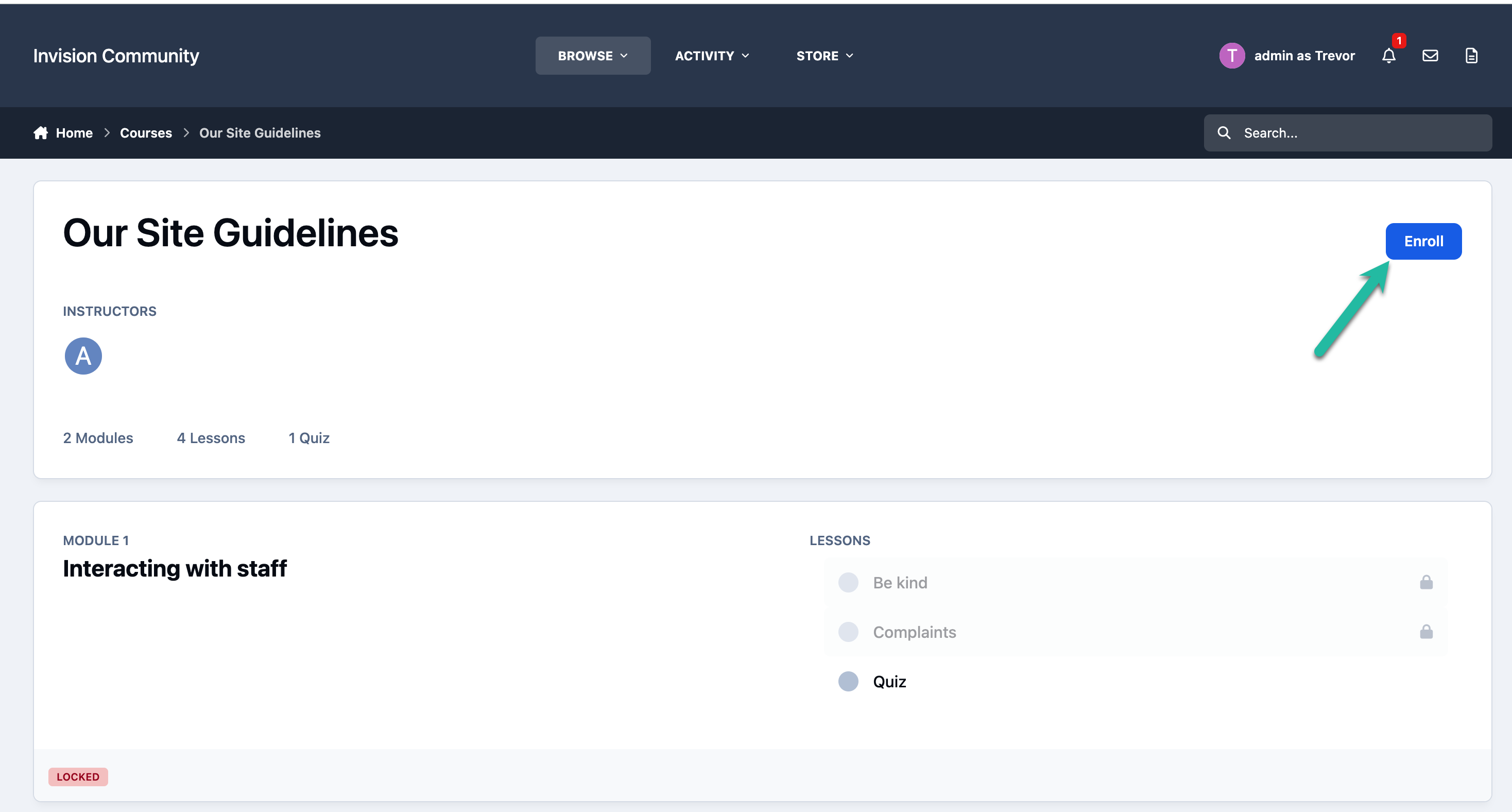
Enrolling in a course is straightforward. If your permissions allow, simply click the Enroll button located in the top-right corner of the course page to get started.
How a Member Enrolls
If you have configured permissions so that members cannot enroll themselves, you can manually enroll them from the AdminCP.
To do this, navigate to:
Community → Courses → Enrollments
From here, you can add members to specific courses and manage existing enrollments as needed.
Recommended Comments