


Invision Community includes support for mobile push notifications, allowing members to receive alerts on their phones even when their browser isn’t open. This ensures they’re notified about new activity on followed content and other important interactions in real time.
Mobile push notifications help deliver a native app–like experience. Features such as the Manifest Editor allow you to customise elements including your site’s icons, colours, and launch URL when members add your community to their device’s home screen.
Below, we’ll walk through how to configure this feature so your members can take full advantage of the enhanced mobile experience.
The Manifest
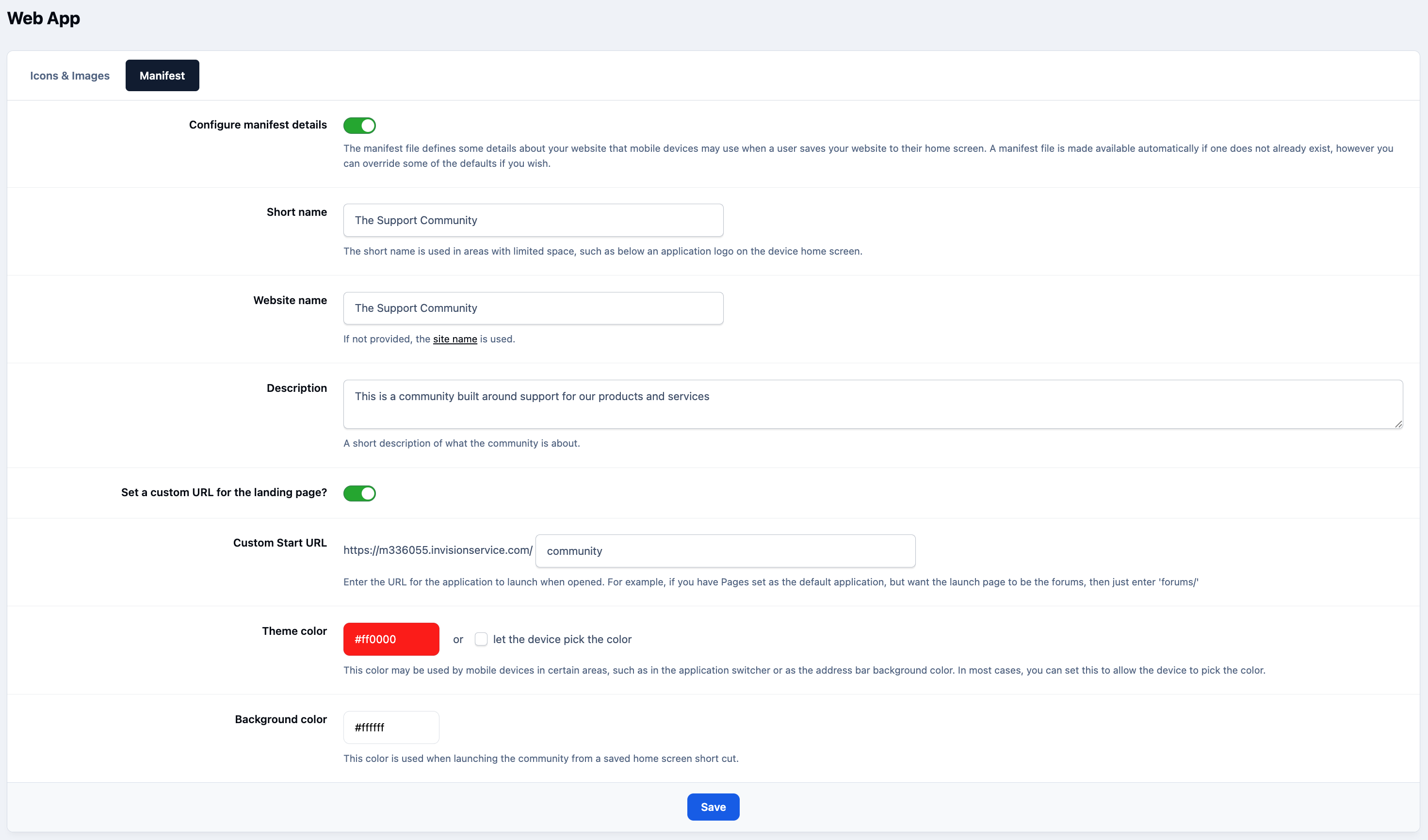
To get started, you’ll first need to configure the Web App Manifest. This controls how your community appears when members add it to their device’s home screen, including the name, description, and theme colours.
You can also define a custom start URL if you’d like users to land on a specific page when launching the app from their home screen.
These settings can be configured from the 'Manifest' tab in the AdminCP at:
System → Settings → Web App
Manifest Screen - Admin CP
Logos & Images
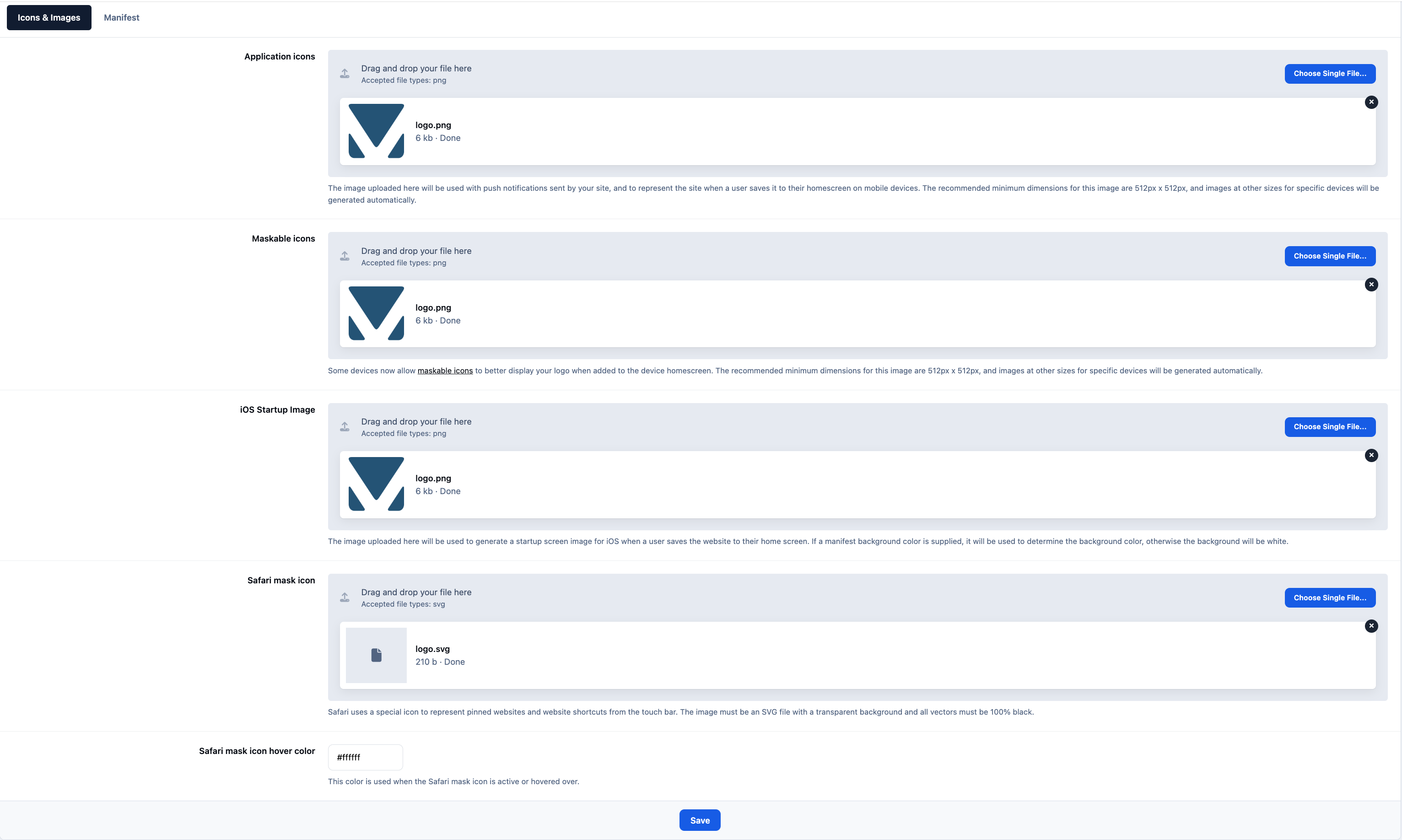
Within the 'Icons & Images' tab, you can upload the various icons required for different device types.
Some icons are platform-specific — such as those used by iOS — while others, like Application Icons and Maskable Icons, are used by devices such as Android and desktop environments. The user’s device will automatically determine which icon is displayed.
Logos & Images Screen - Admin CP
Front End Usage
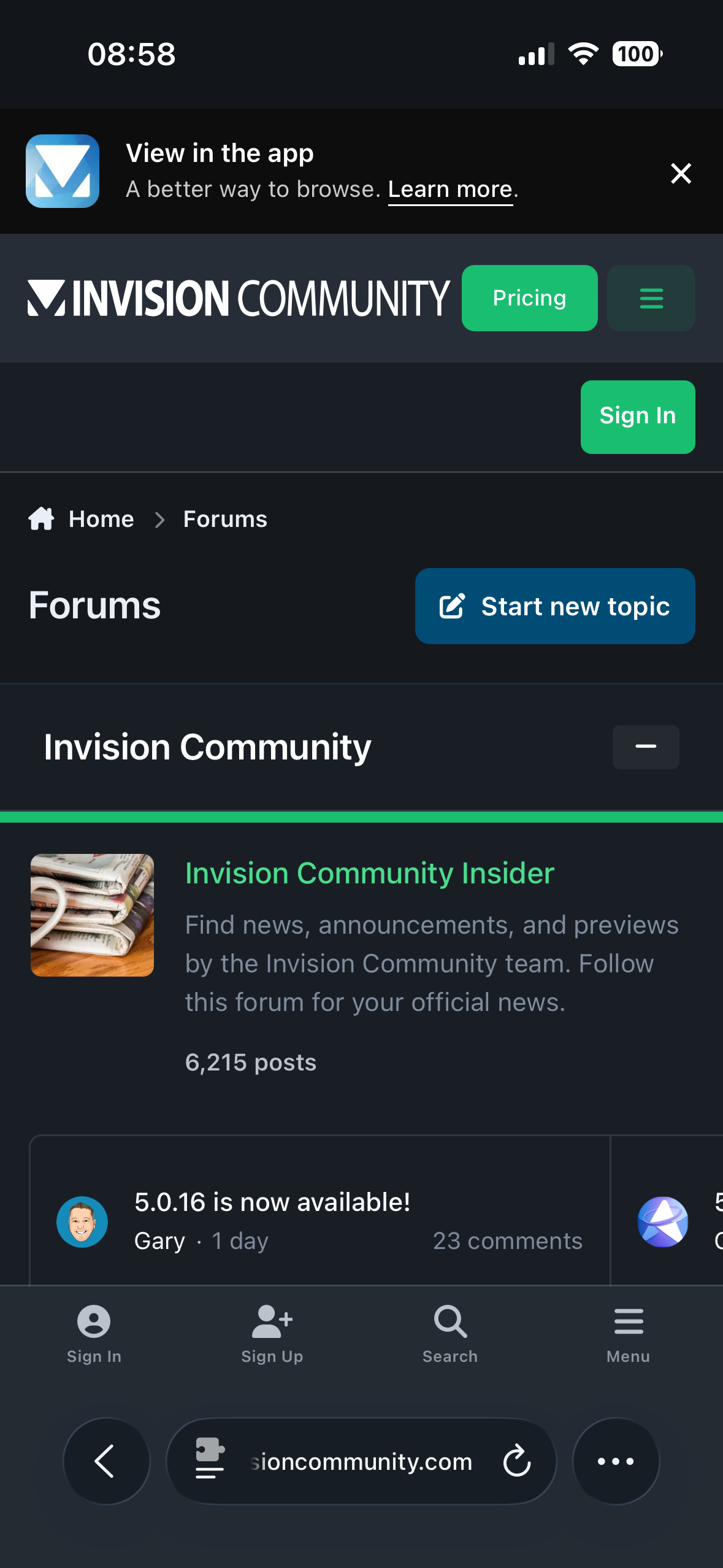
When a user accesses your site from a compatible device, they may see a prompt offering the option to “View in the App.”
The appearance and wording of this prompt can vary depending on the device and operating system being used.
Showing View In The App
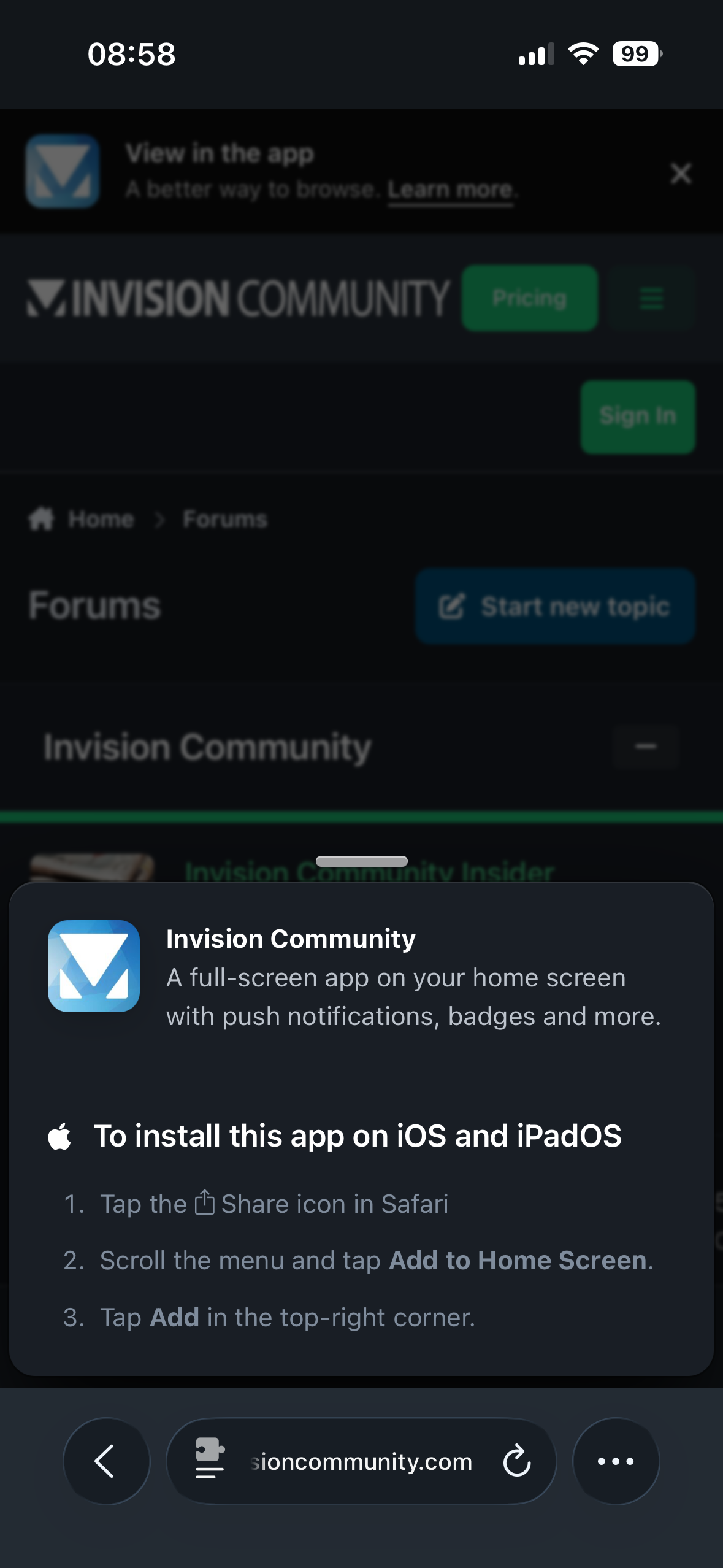
When selected, the user will be presented with step-by-step instructions explaining how to add your community to their device’s home screen, as shown below.
Installation Instructions on iOS
Once a user has added your community to their home screen, they’ll have quick and convenient access via the web app experience.
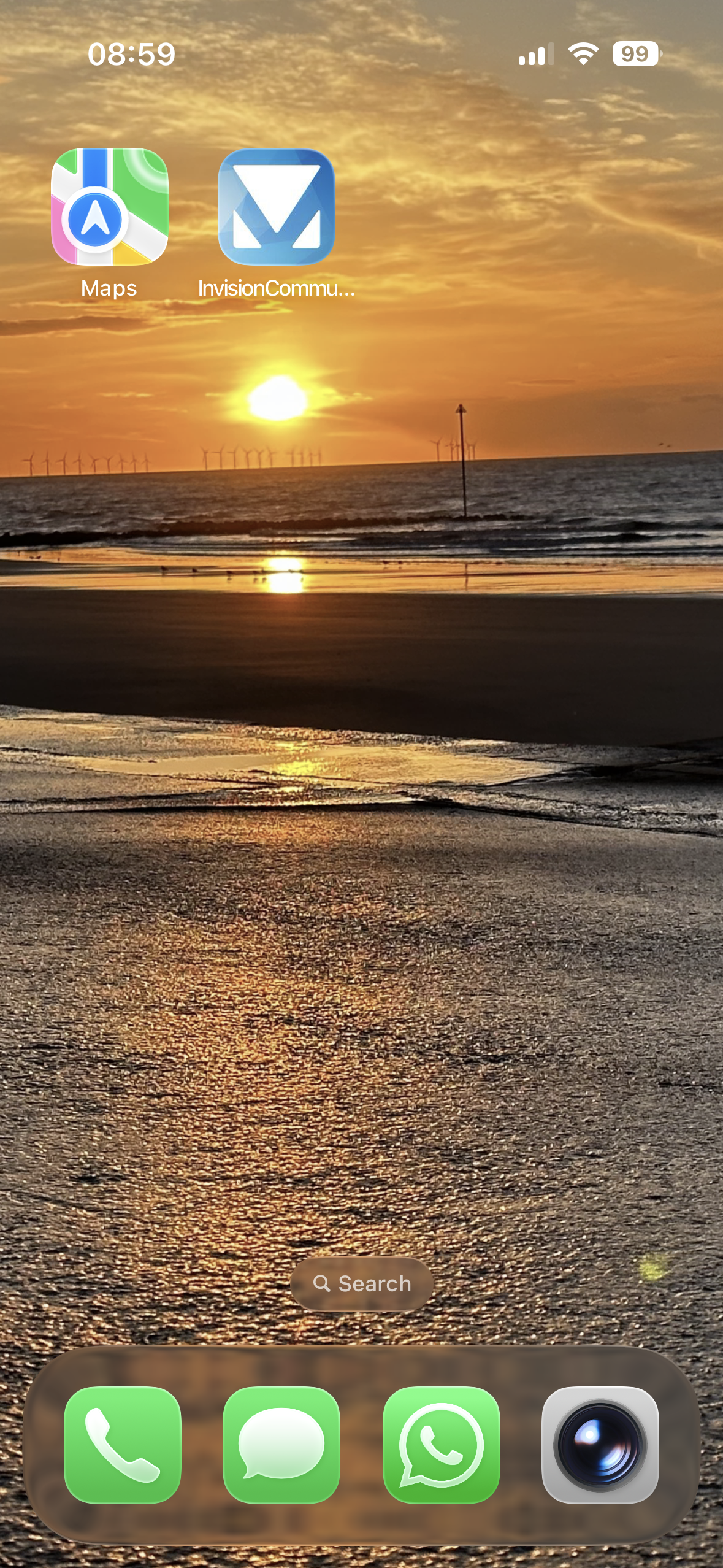
Below is an example of how this appears when added to an iPhone home screen.
Example of Item Added to Home
Recommended Comments