


Notifications are an excellent way to keep your members informed about activity within your community.
For example, users can receive notifications when they are quoted, mentioned in a post, or when someone comments on their photo — along with many other types of interaction across the site.
Notification Icon Marker
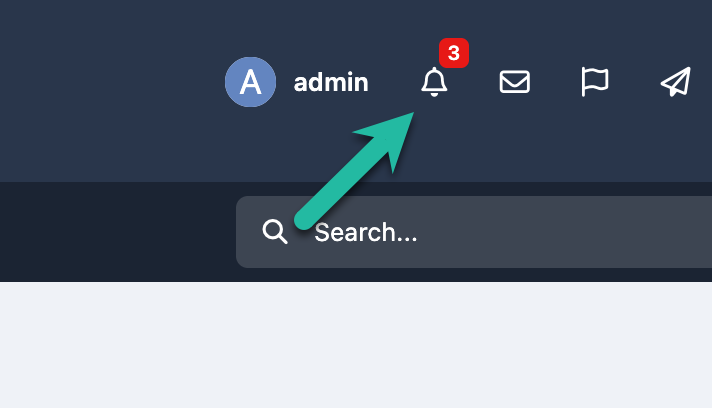
Default Settings
When a member registers on your community, their notification preferences are set according to the defaults you have configured in the AdminCP, at the following location
Members → Member Settings → Notifications
Here you will see the screen shown below, where these default preferences can be managed and adjusted.
Notification Types List - Admin CP
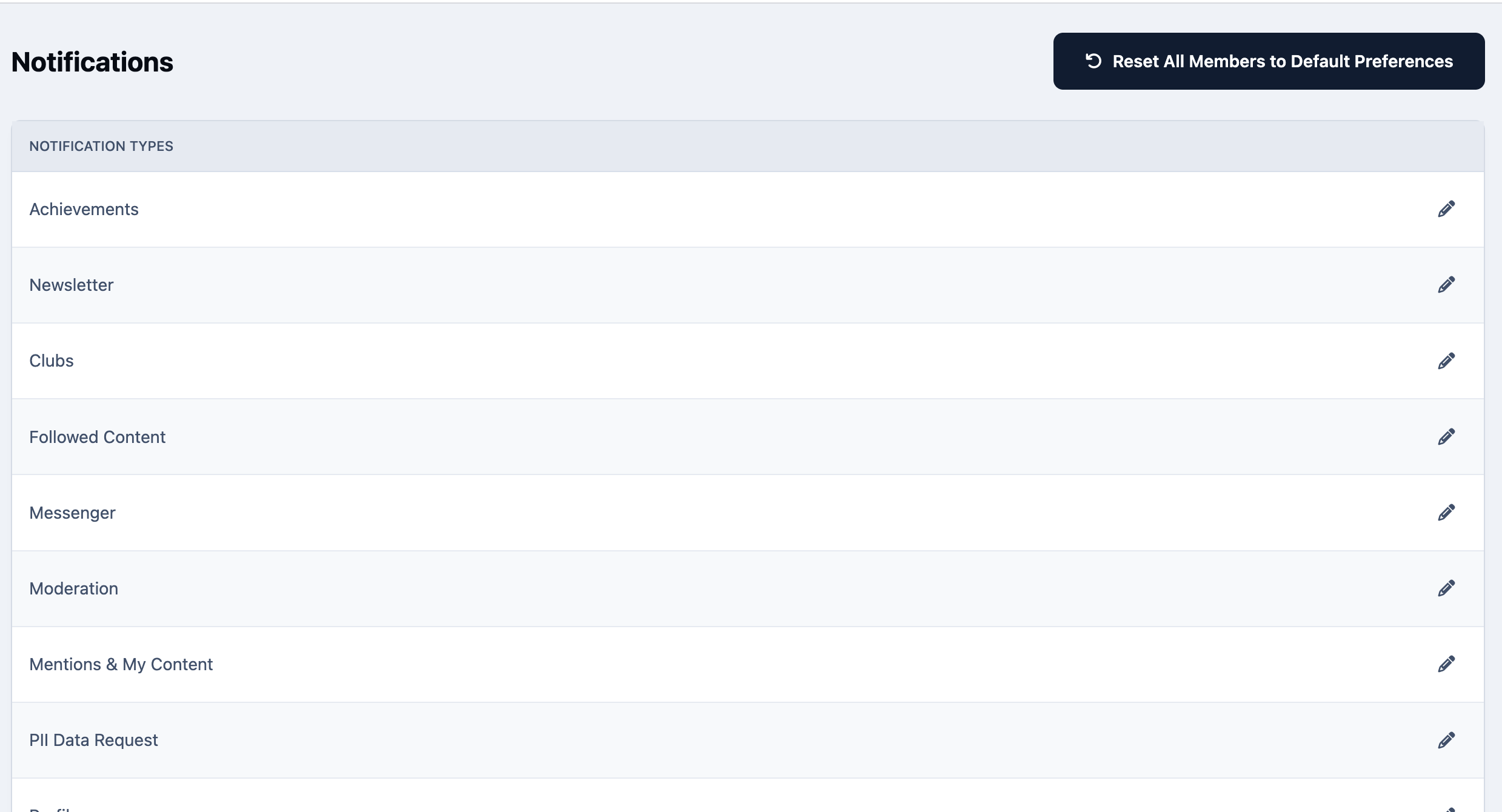
From this area, you can configure the default notification preferences that apply when a new member registers.
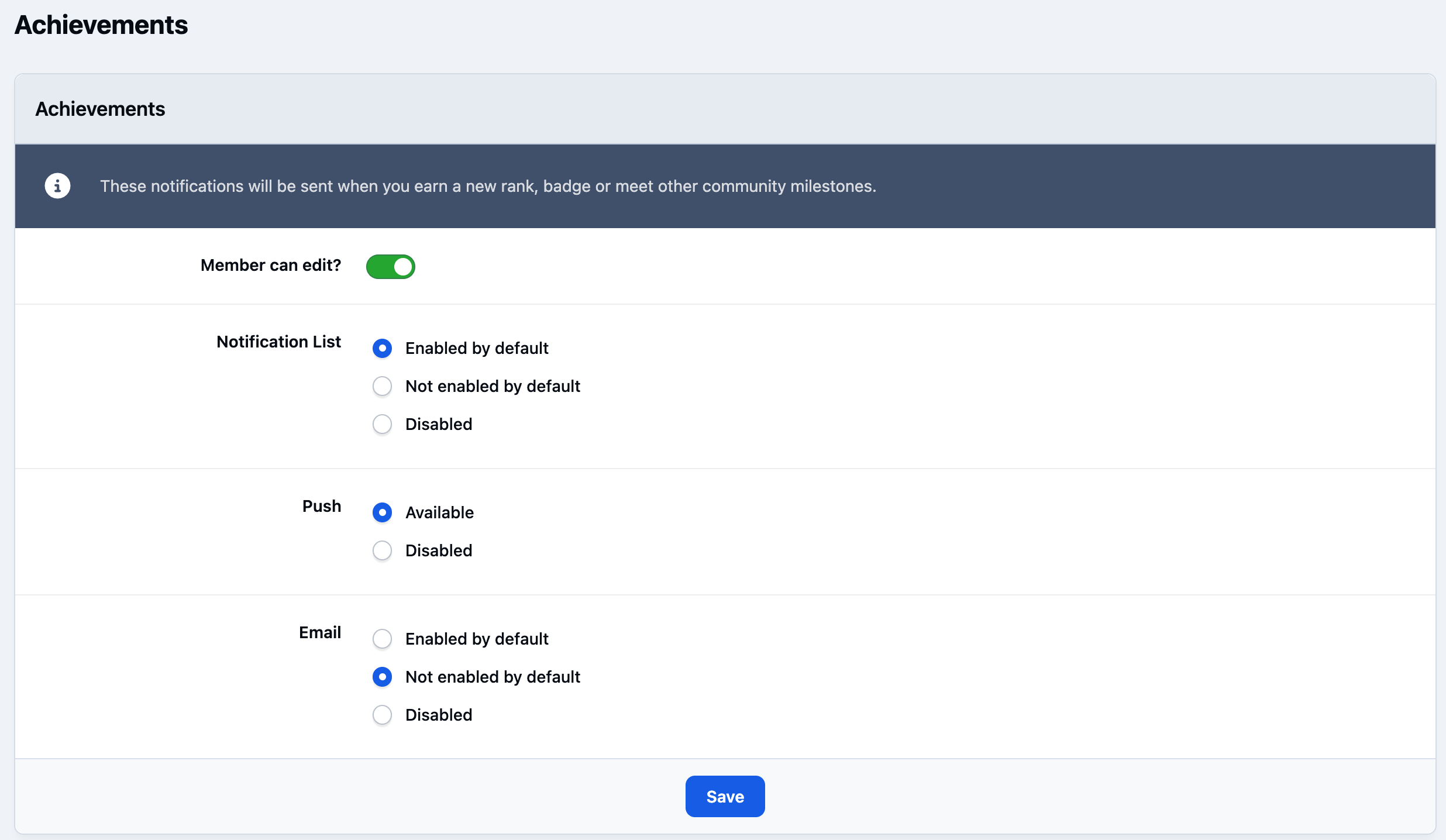
You can edit each notification type individually, choosing how members will be notified (for example, via on-site notification or email) and whether they are allowed to change that preference themselves from the front end.
Admin Notification Default Setting
By selecting the 'Prune Settings' button at the top of the page, you can define how long notifications are retained before being automatically removed. You can also configure the system to automatically remove content follows after a specified period.
For larger communities in particular, these settings can help prevent unnecessary notifications from accumulating and reduce the overall volume of outbound alerts.
Members and Settings
On the front end, members will receive notifications based on your configured defaults or any preferences they have chosen themselves.
When they click the notification icon, a list of recent notifications will be displayed, similar to the example shown below.
Navigation Notification Panel
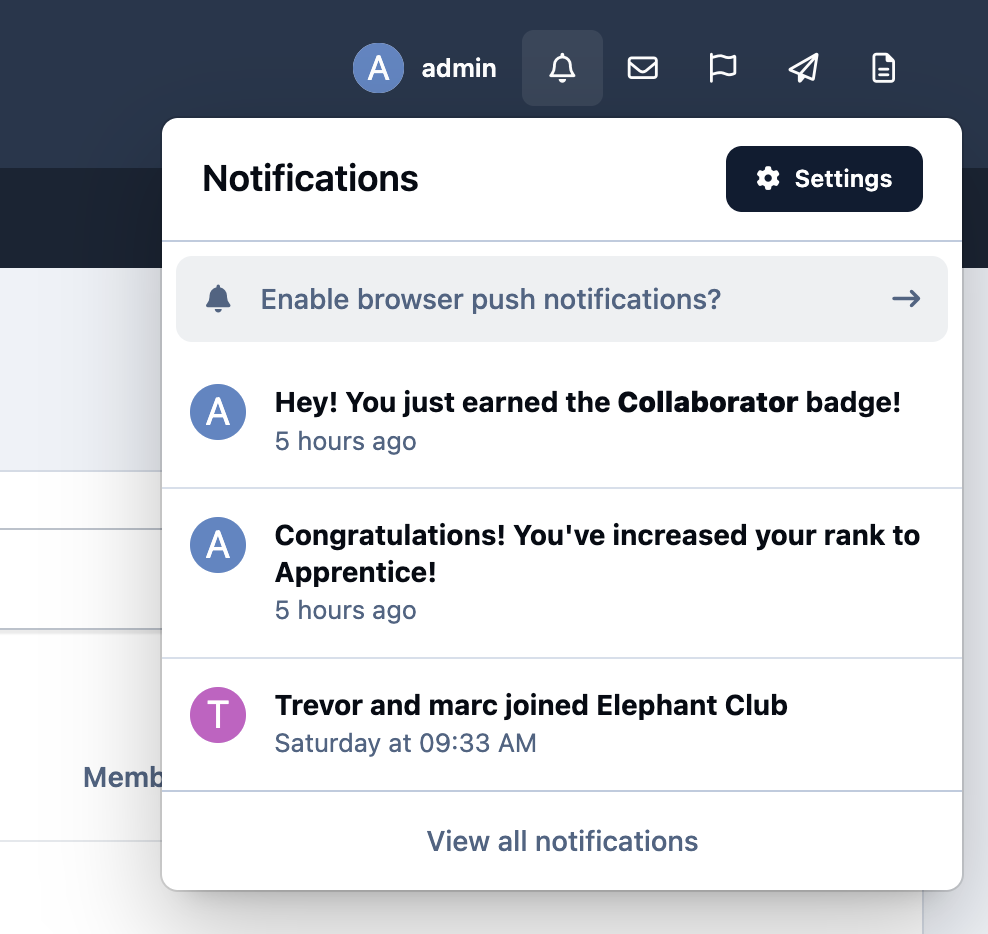
From this menu, members can view all of their notifications, adjust their notification preferences, and, if desired, subscribe to them via the provided RSS feed
Main Notification List
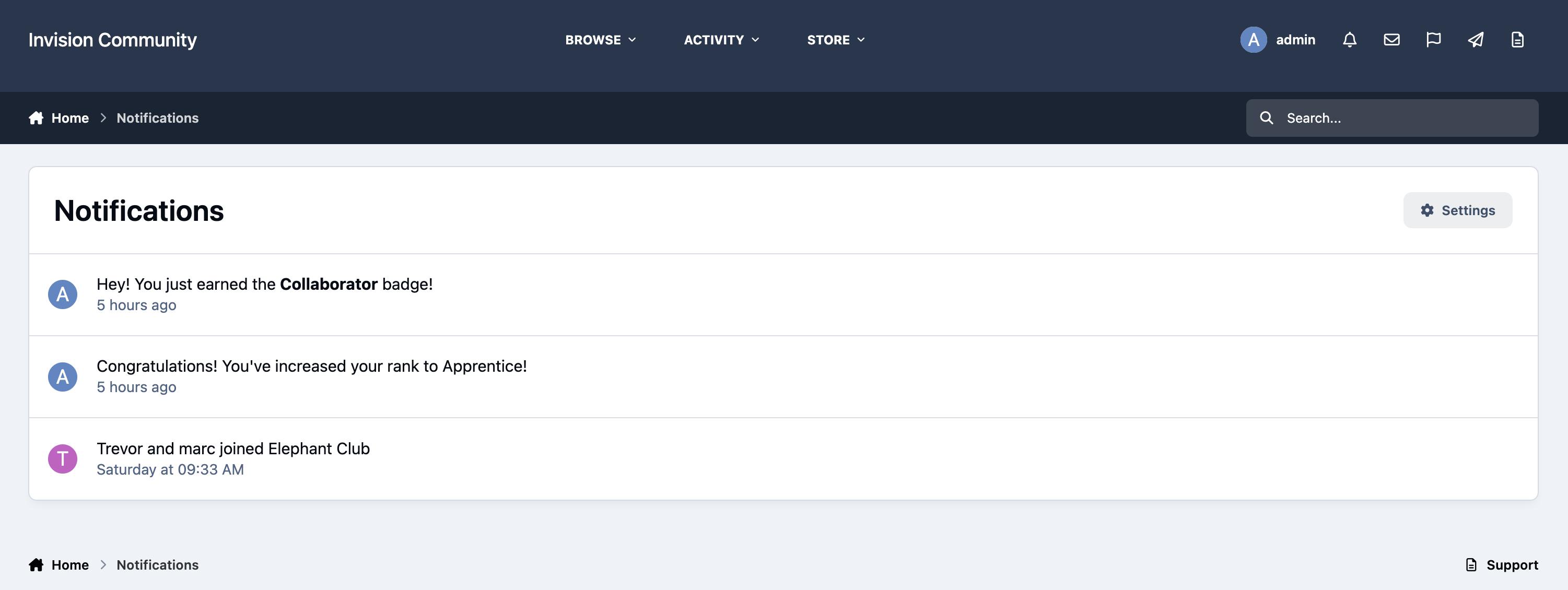
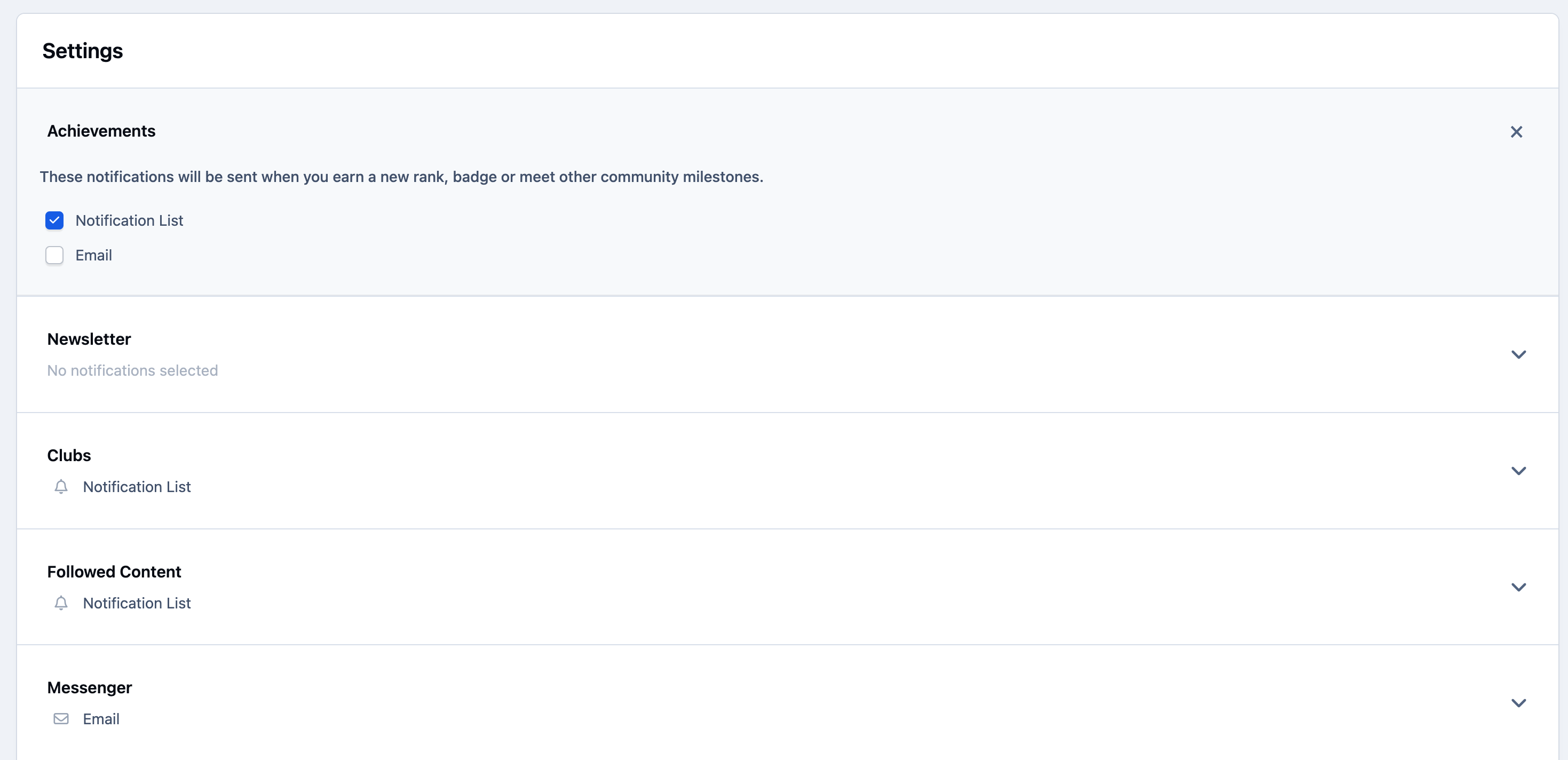
Selecting Notification Settings allows members to customise what they receive notifications for.
Any options that are locked by the administrator will appear greyed out and cannot be changed. All other settings can be updated by simply clicking on the relevant option and adjusting it as needed.
Notification Settings
If you need to review a member’s current notification preferences, you can do so by editing their account within the AdminCP.
From their profile, select any of the notification types to view the settings they currently have configured.
Member Notifications
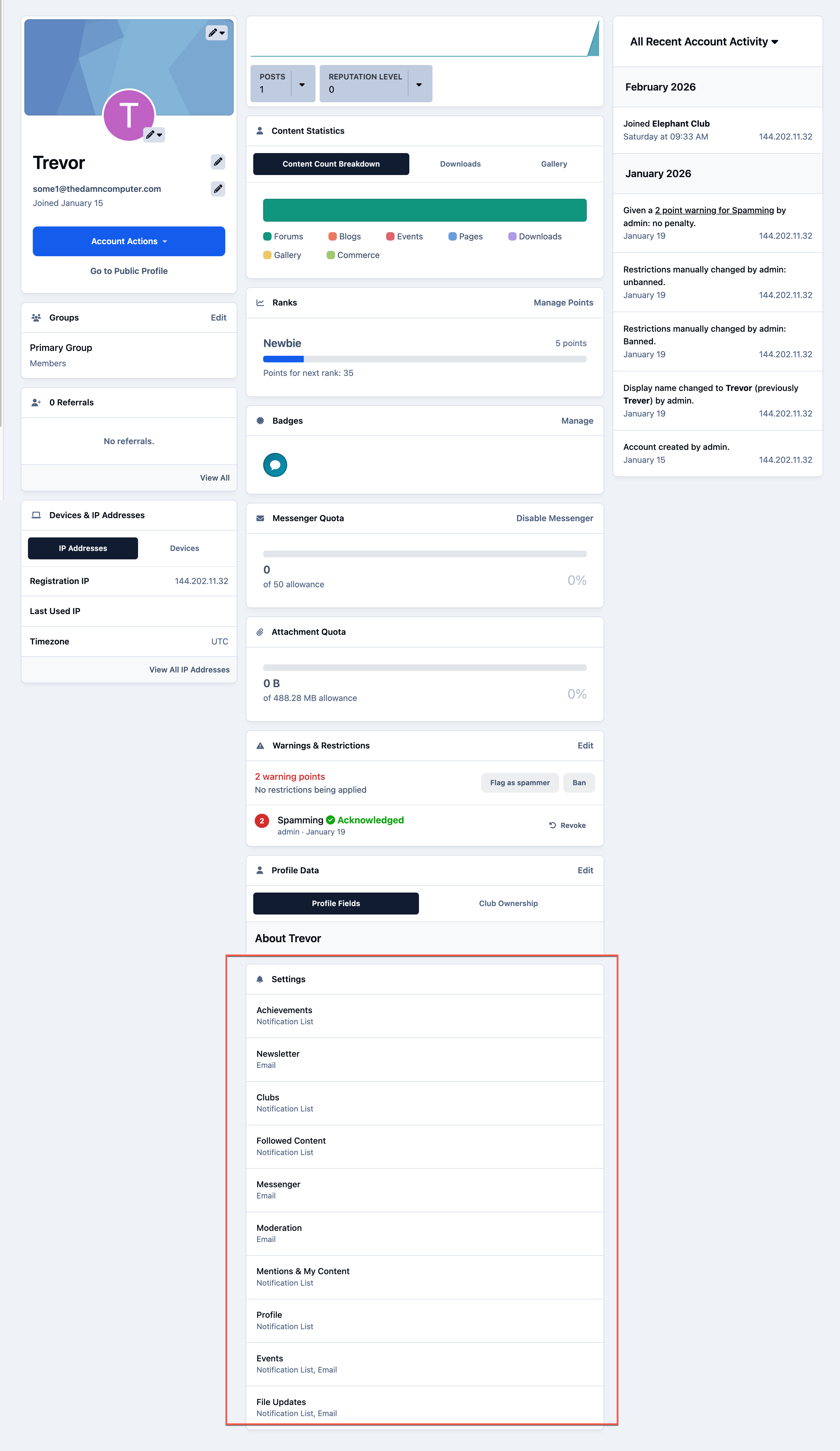
This is useful if a member is querying about receiving notification emails.
Browser Notifications
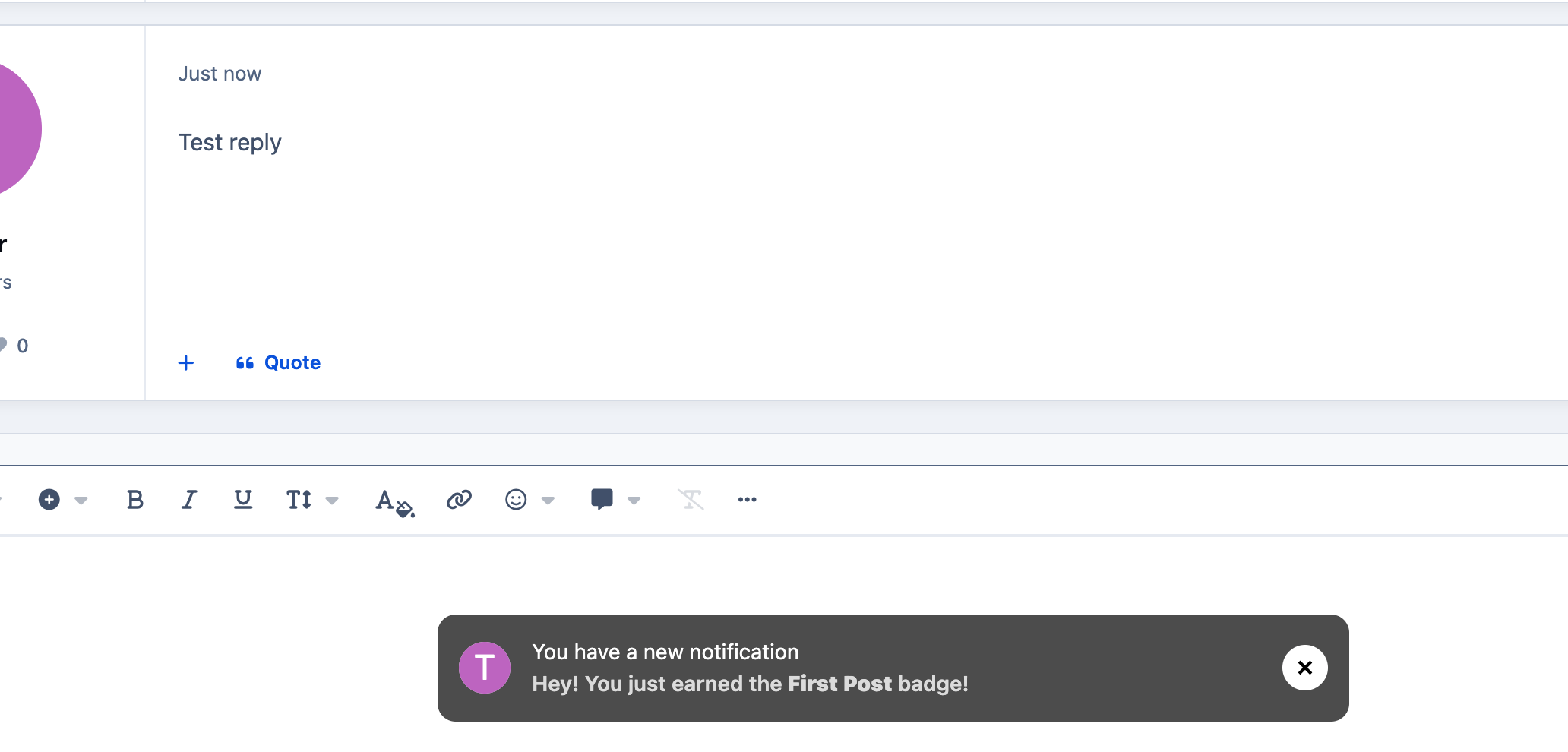
Browser notifications are alerts that appear directly within a user’s web browser when certain actions take place on the site.
For example, a member may receive a browser notification when they get a new personal message, or when someone replies to a topic they’re currently viewing — even if they haven’t refreshed or changed the page. In some cases, such as with notification sounds, alerts can trigger while they remain on the same tab.
Example of a Browser Notification
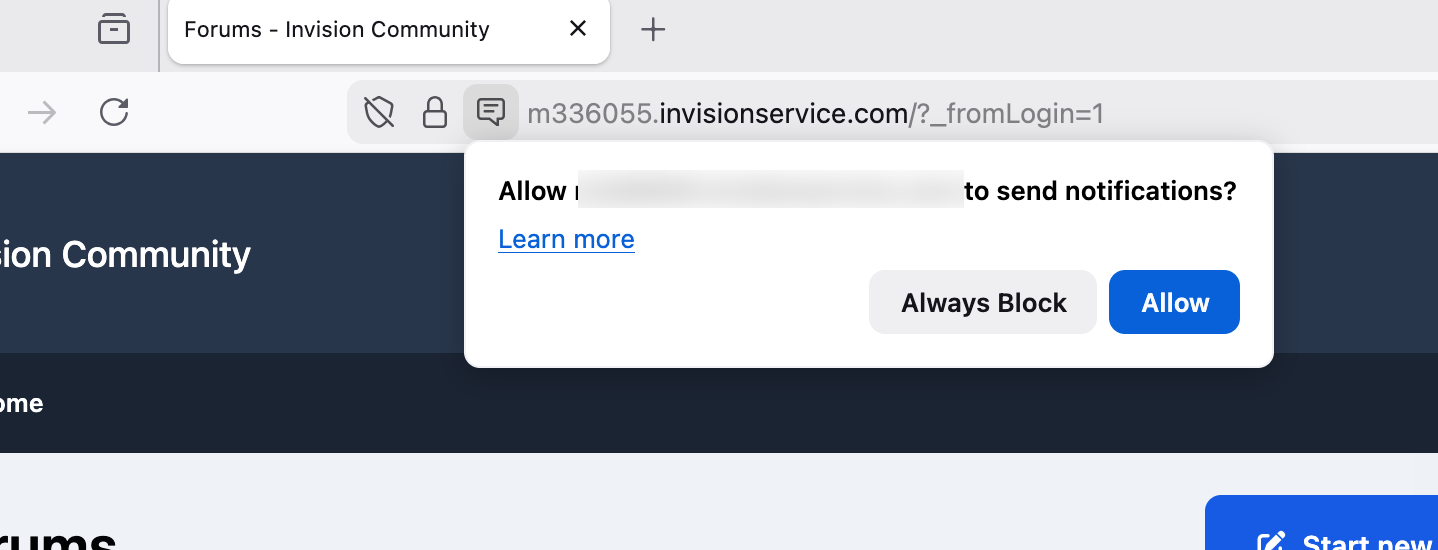
When a member first logs into your site, their browser will typically prompt them to allow browser notifications.
If they choose not to allow them, browser notifications will not be displayed.
Allowing Browser Notifications
Tip
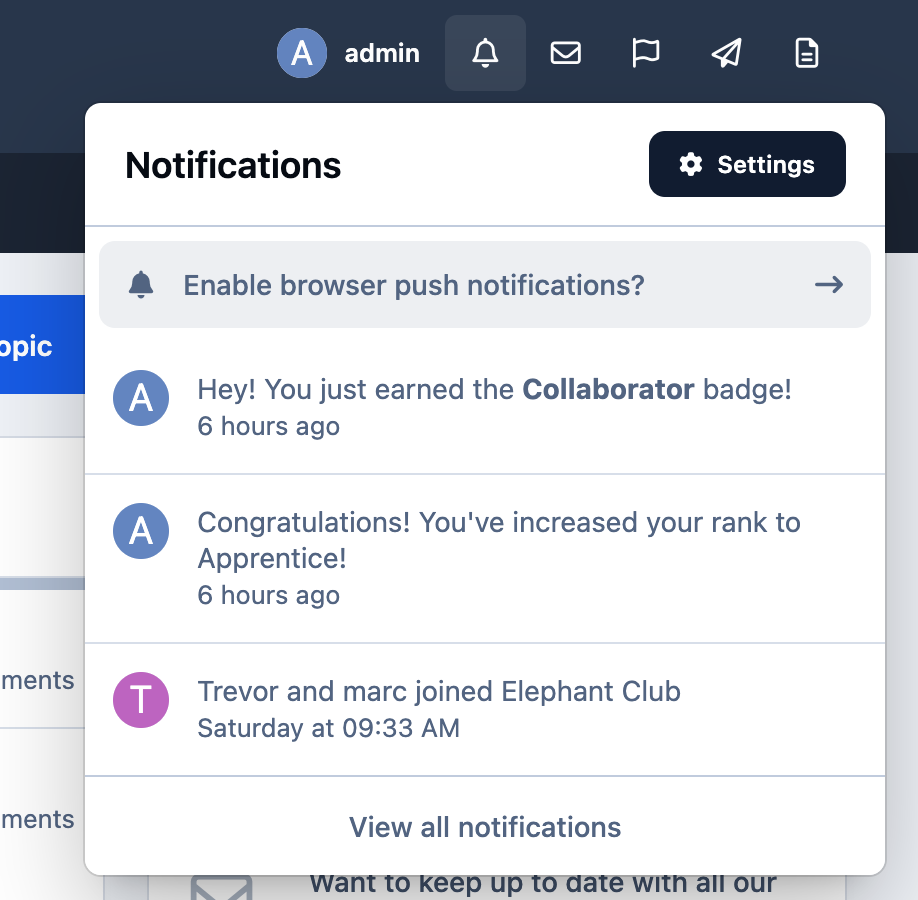
If a member chooses to block browser notifications, this will be indicated within their notification area on the site, where they can easily choose to switch them back of if they would like to do so.
Recommended Comments