


When you create content or come across something you’re particularly interested in, it’s important to be able to keep track of ongoing interactions.
Invision Community allows members to follow content either automatically, based on your interaction, or manually by clicking to follow a specific item/area. This ensures you stay informed about new replies, updates, and activity related to the content that matters most to you.
Following Content
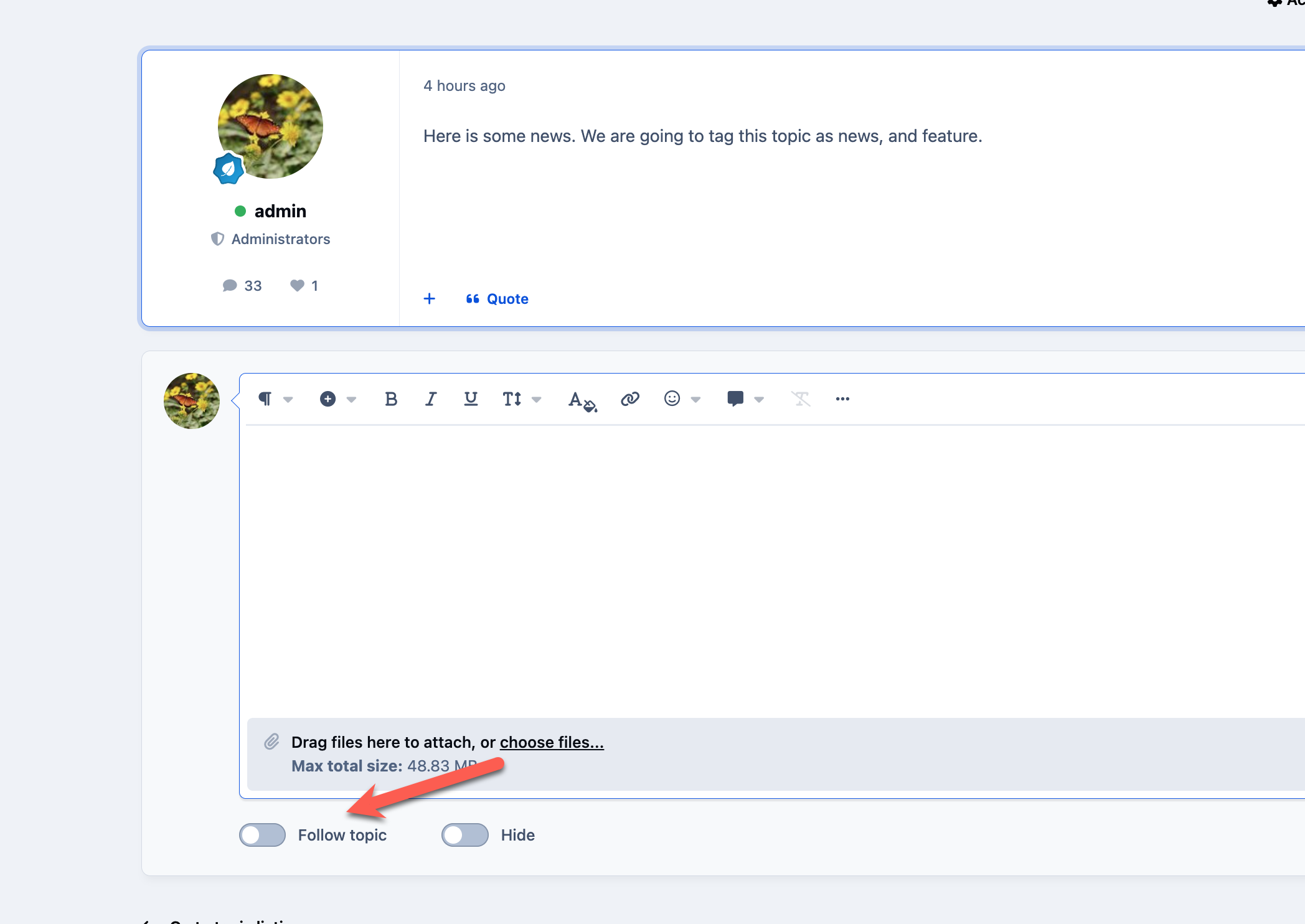
One way to follow content is at the point of creation or reply. When you create a new topic or respond to existing content, you can choose to follow that item by selecting the provided checkbox.
Depending on your notification preferences, this option may already be enabled or disabled by default. You can review and adjust these defaults in your notification settings, as outlined in the Notifications guide.
Following a Content Item After Reply
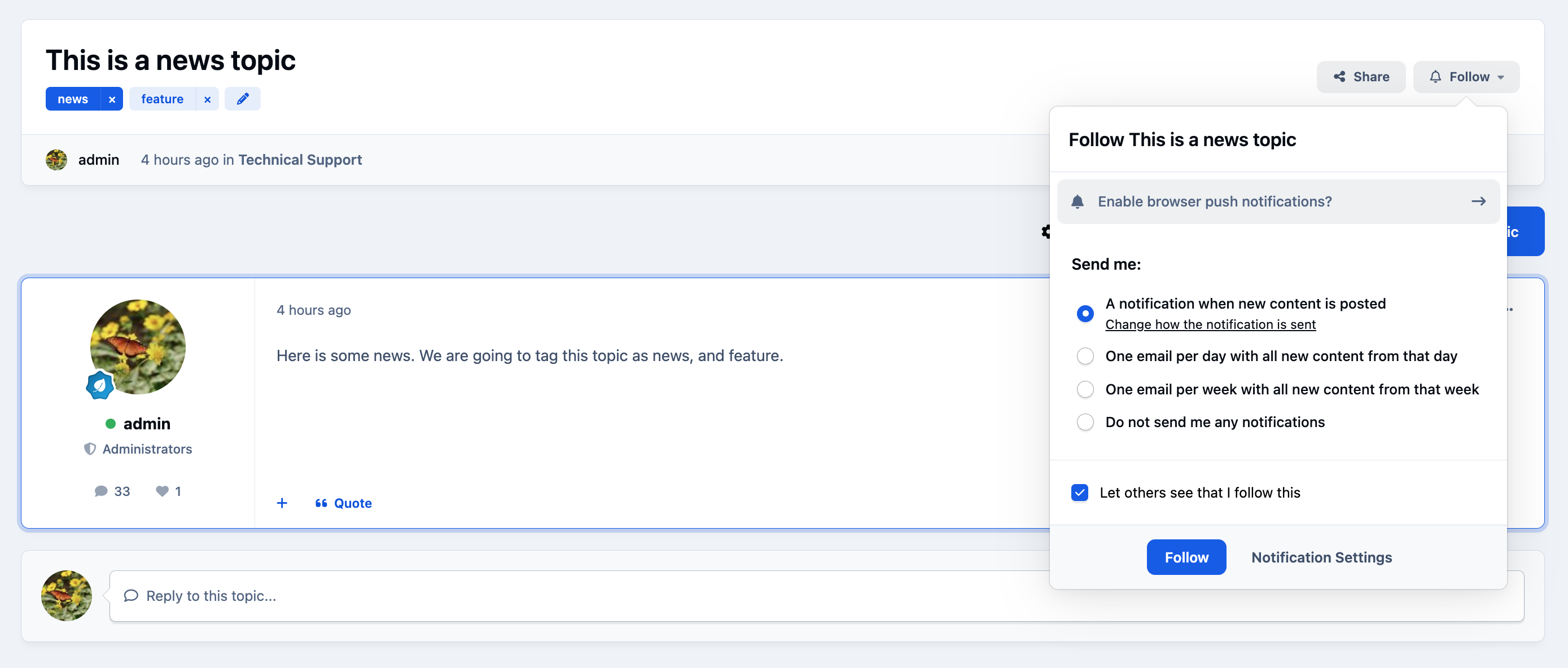
On most content pages, whether you’re viewing a specific topic, a gallery image, or even an entire forum,you can choose to follow that item by selecting 'Follow'.
Doing so ensures you receive notifications about new activity within that specific area or item, helping you stay up to date with the discussions and content that interest you.
Following a Content Item
Important
If you follow a forum or category, you’ll receive notifications when new items are created within that area.
However, you will not receive notifications for replies or comments made to those individual items. To be notified about ongoing discussion within a specific topic or content item, you’ll need to follow that item directly.
Managing Follows
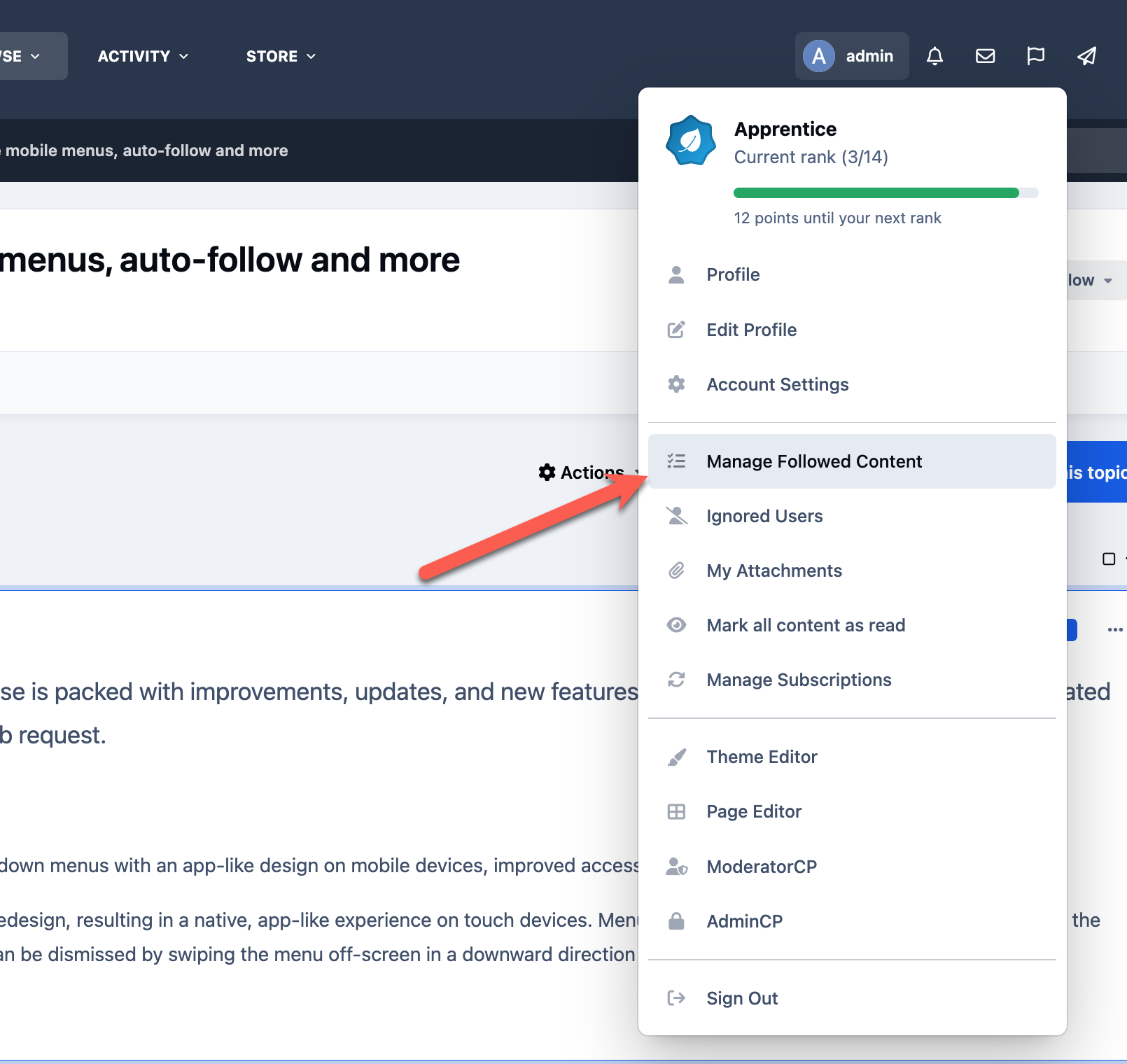
You can manage all of your followed content by clicking your name in the top-right corner of the site and selecting 'Manage Followed Content'.
From there, you’ll be able to review, adjust, or unfollow any items you’re currently following.
Managing Followed Content
When you select this option, you’ll be taken to the management screen for your followed content.
From here, you can use the menu on the left-hand side to filter by different content types, making it easy to organise and review exactly what you’re following across the community.
Followed Content List
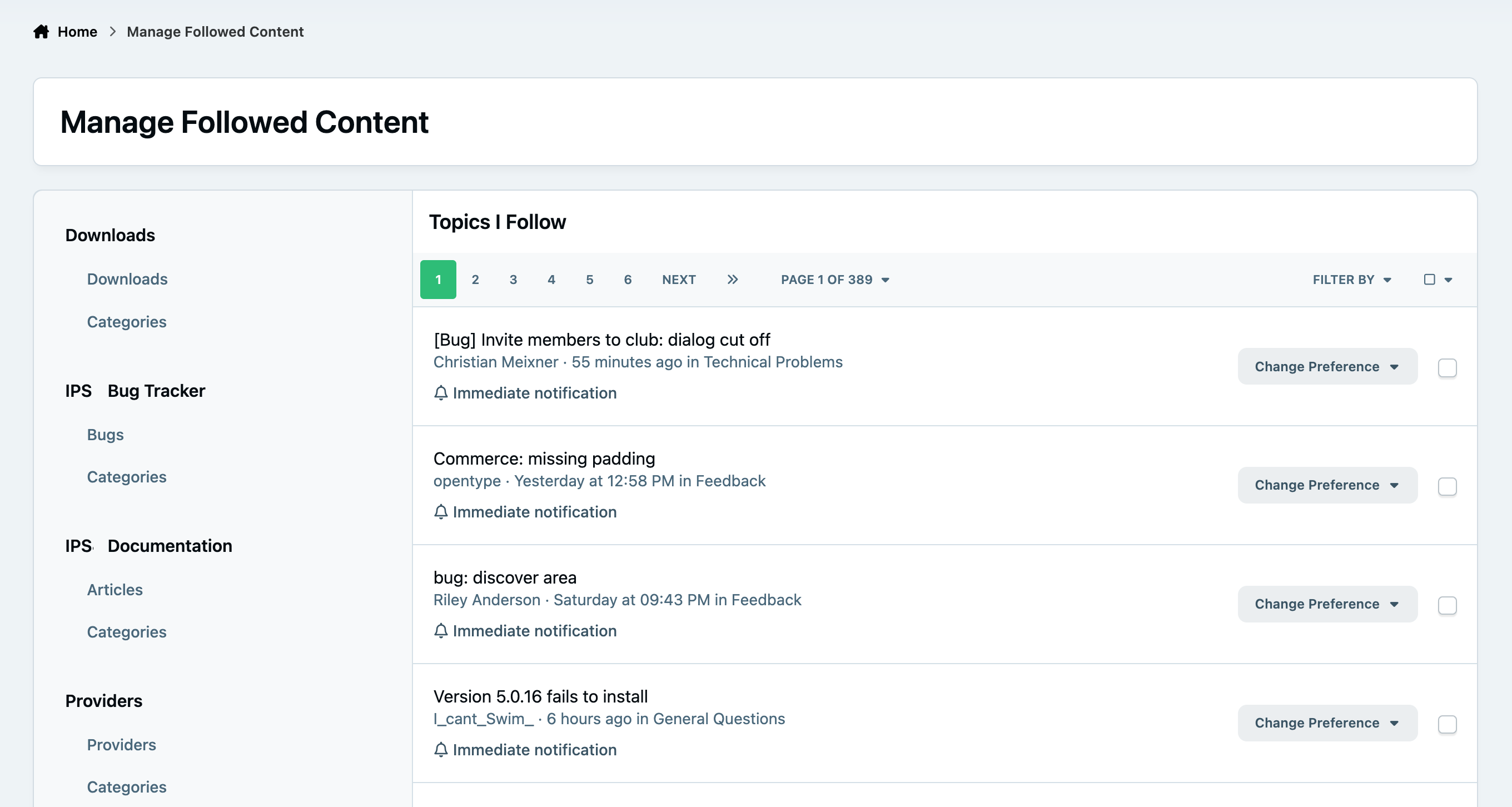
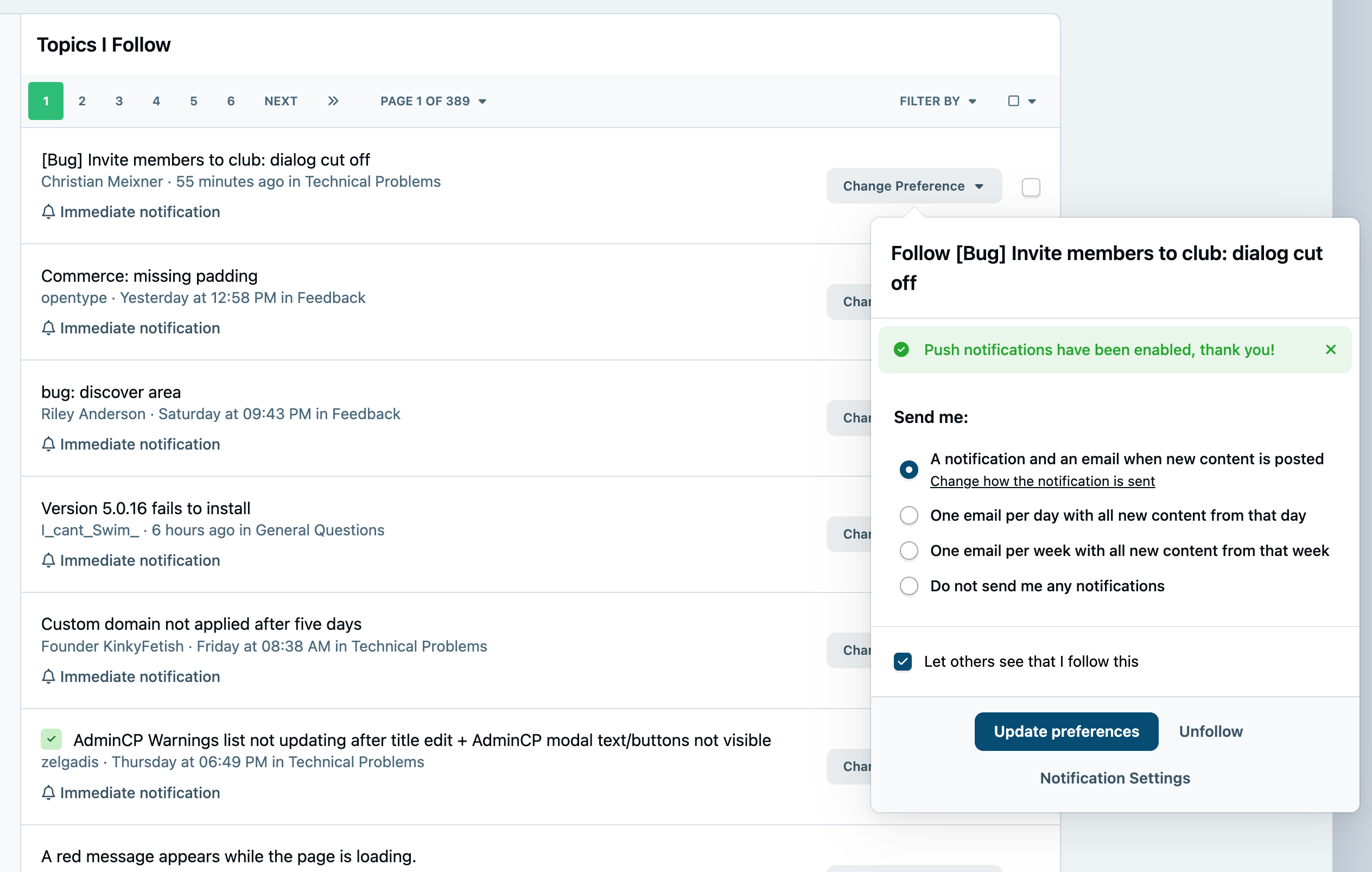
To adjust how you’re following an item, or to unfollow it entirely, click the 'Change Preference' button next to the relevant entry.
This will display the available notification options, allowing you to update how you’re notified or remove the follow completely if no longer needed.
Changing Follow Type
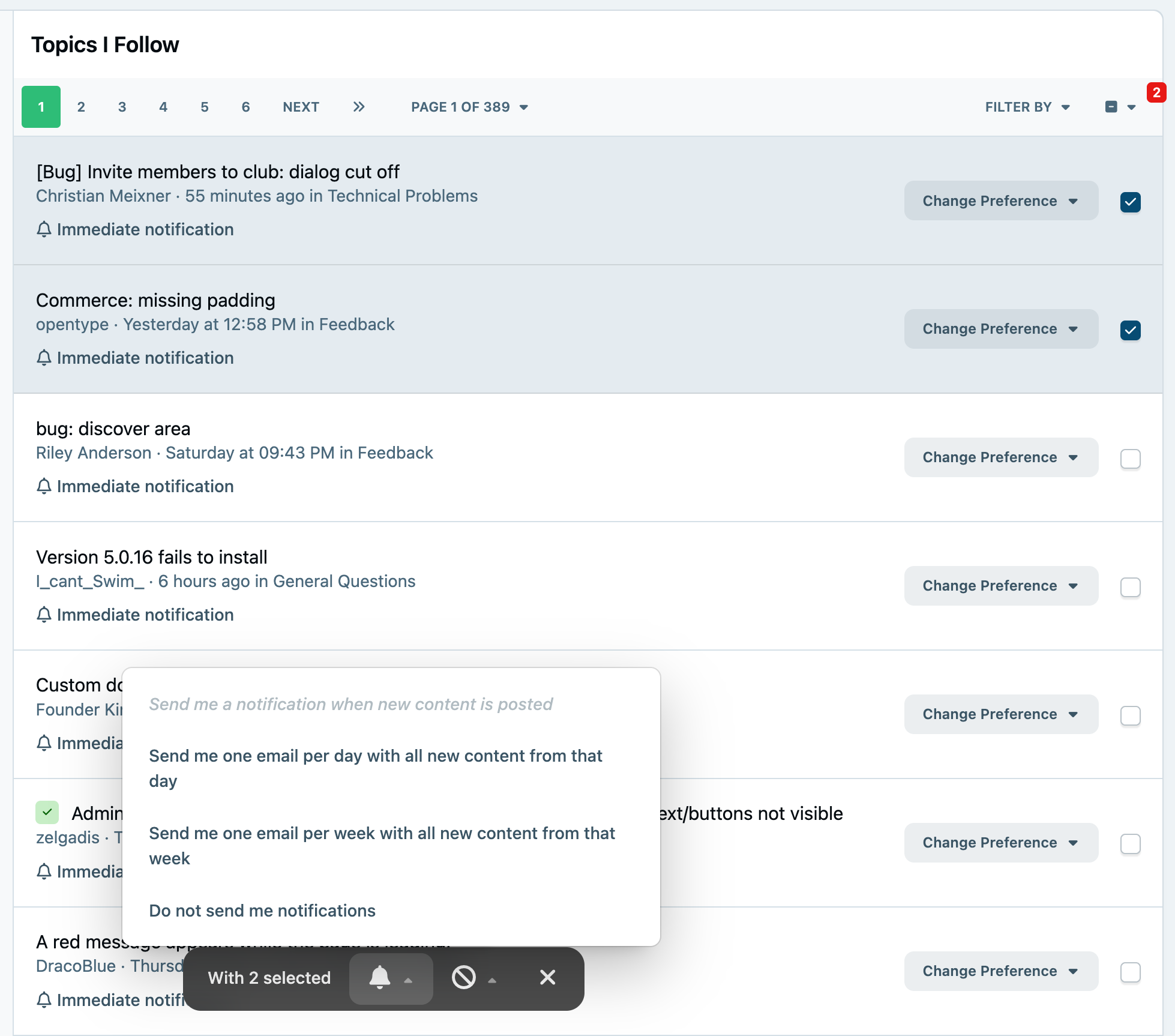
In addition to updating items individually, you can also manage multiple followed items at once.
Simply select the checkboxes next to each item you wish to modify. Once one or more items are selected, a menu will appear at the bottom of the screen, allowing you to update notification preferences or unfollow them in bulk, as shown in the screenshot below.
Mass Follow Management
Recommended Comments