


Tagging and prefixing content provides a simple and effective way to organise and highlight topics across your site.
By applying relevant tags or prefixes, you make it easier for members to identify the subject of a post at a glance. Users can also click on tags or filter by prefixes to quickly find related content within the same category.
Tag Setup
The configuration options for tags and prefixes can be found in the AdminCP at:
System → Content Discovery → Tags
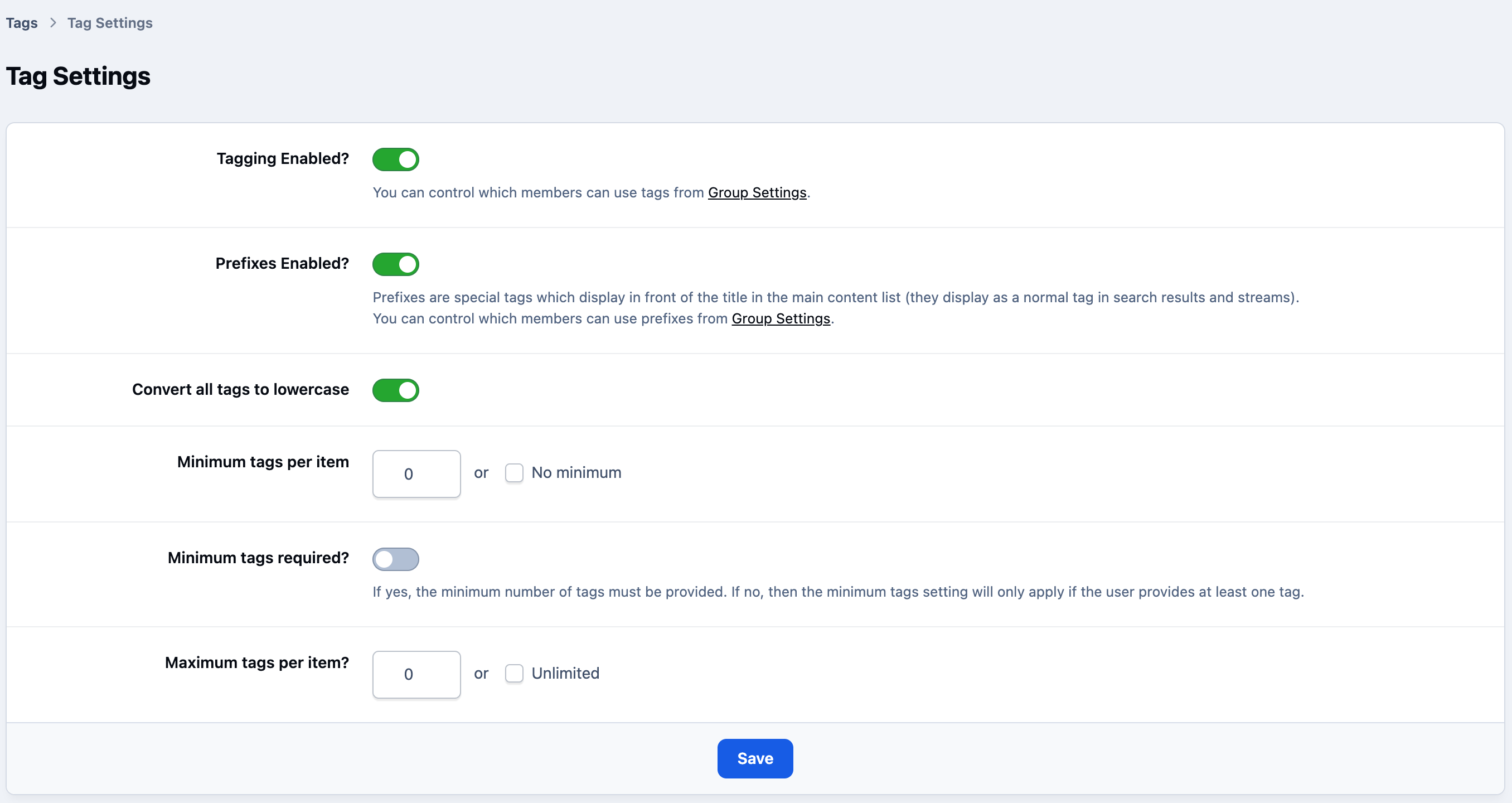
Clicking on the tag settings button at t he top, you’ll find a range of settings that allow you to control how tags and prefixes are used. This includes allowing prefixing, requiring tags, setting minimum and maximum tag lengths, and applying other limits to ensure consistency across your site.
Tag Settings - Admin CP
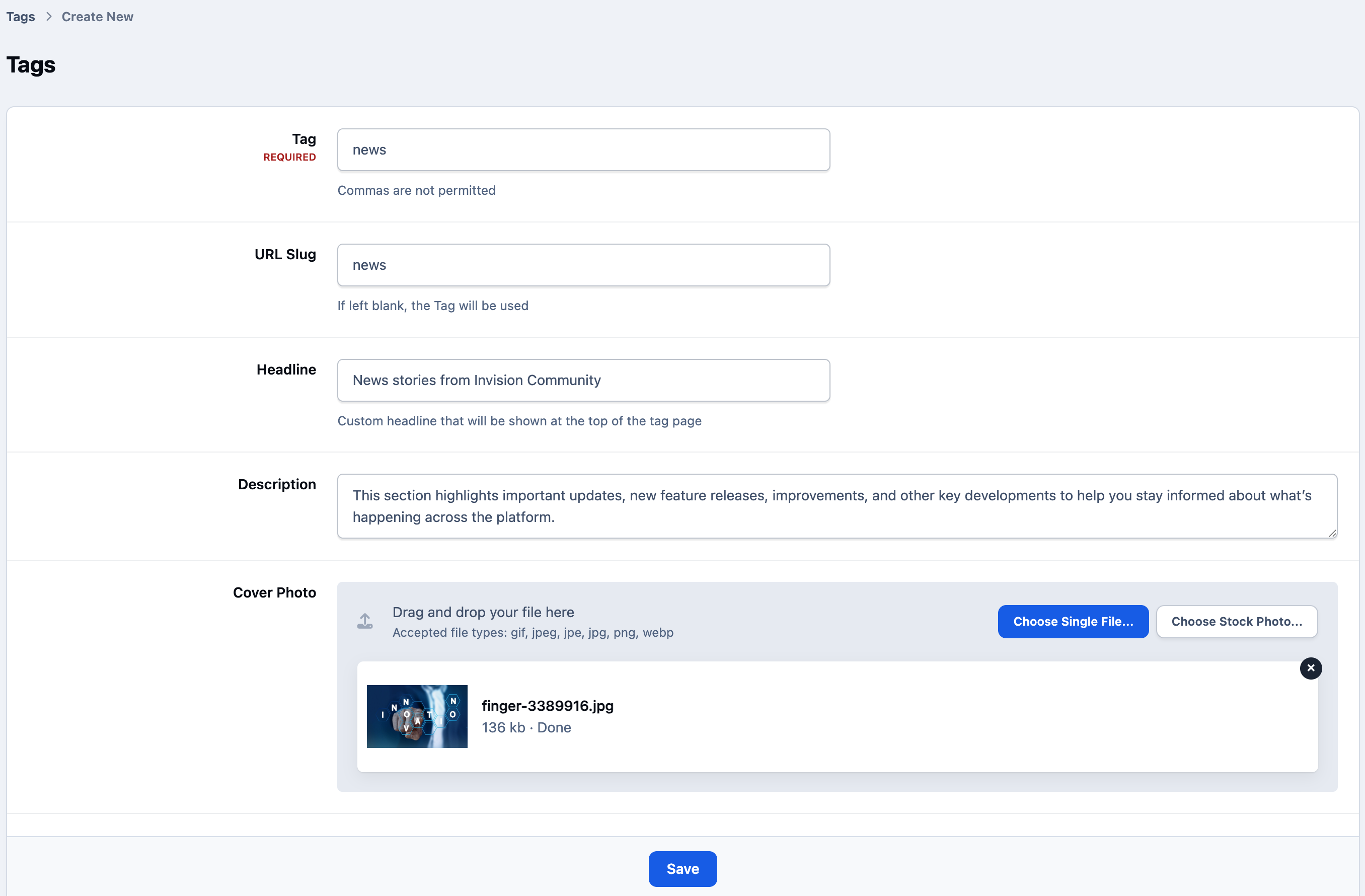
By clicking 'Create New', you can set up a new tag and configure the details associated with it.
This includes defining how the tag appears and what information is displayed on its dedicated tag page, allowing you to better organise and present related content across your site.
Creating New Tags
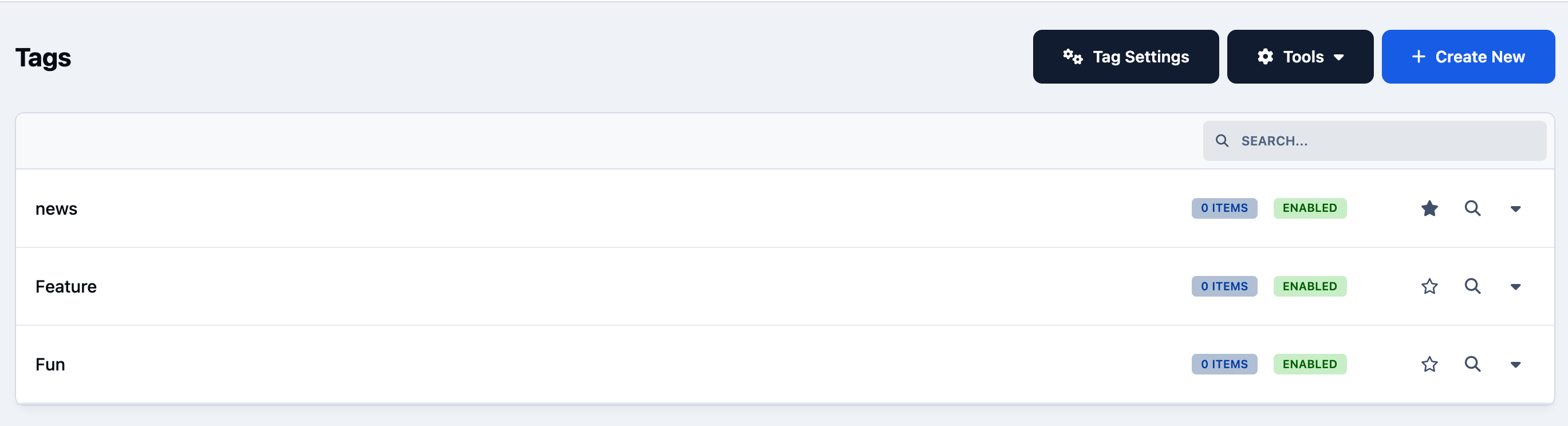
Returning to the main list of tags, you can click the star icon next to a tag to mark it as recommended.
Recommended tags are prioritised and displayed at the top of the list, making them more visible and encouraging consistent usage across your community.
Tag List - Admin CP
Restricting Use
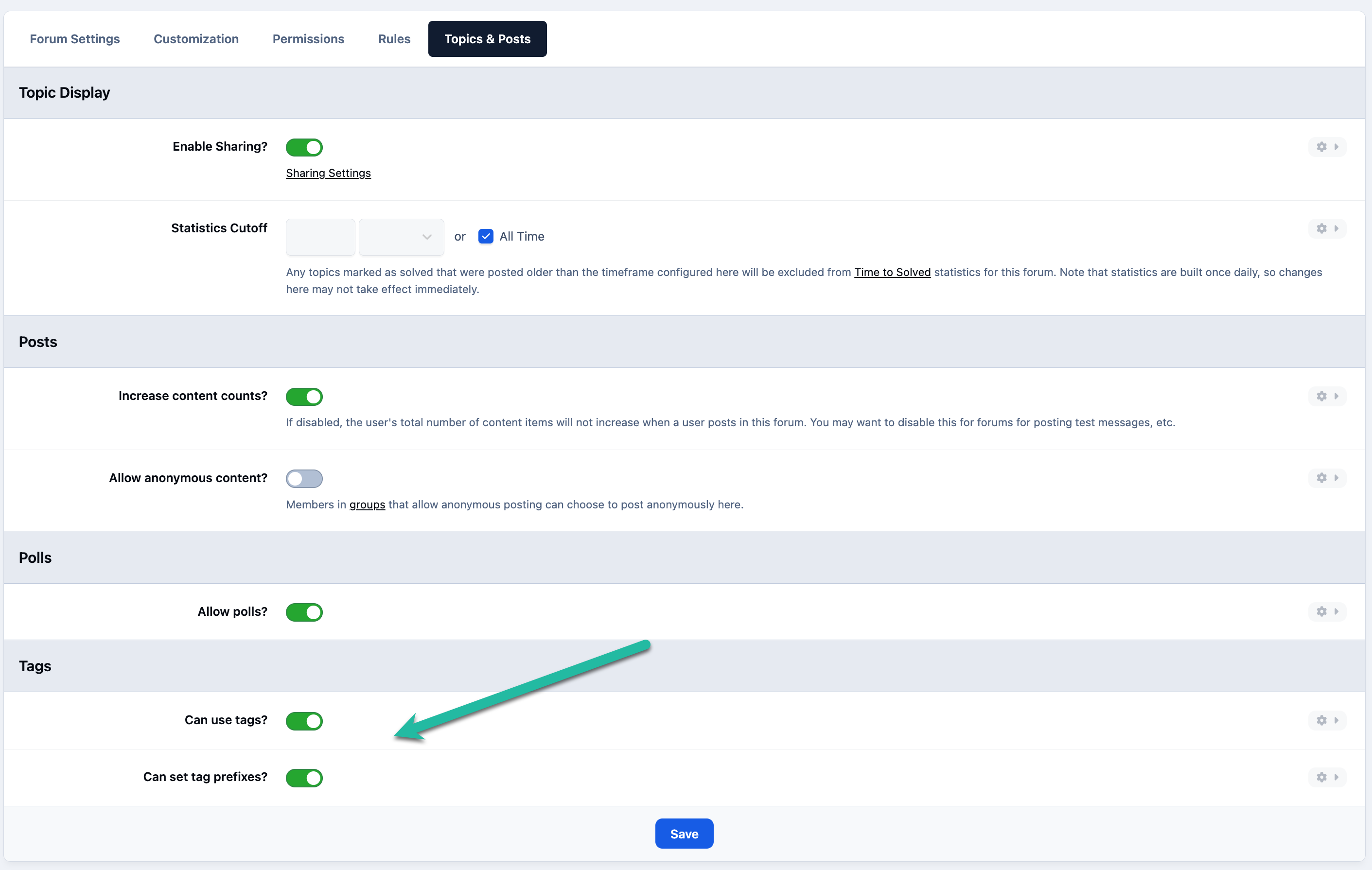
You can also control whether tags and prefixes are available within specific forums or to particular member groups.
This can be managed by editing the relevant forum settings or member group permissions, allowing you to restrict or enable tagging and prefixing where appropriate.
Restricting Use on a Forum
Tagging Content
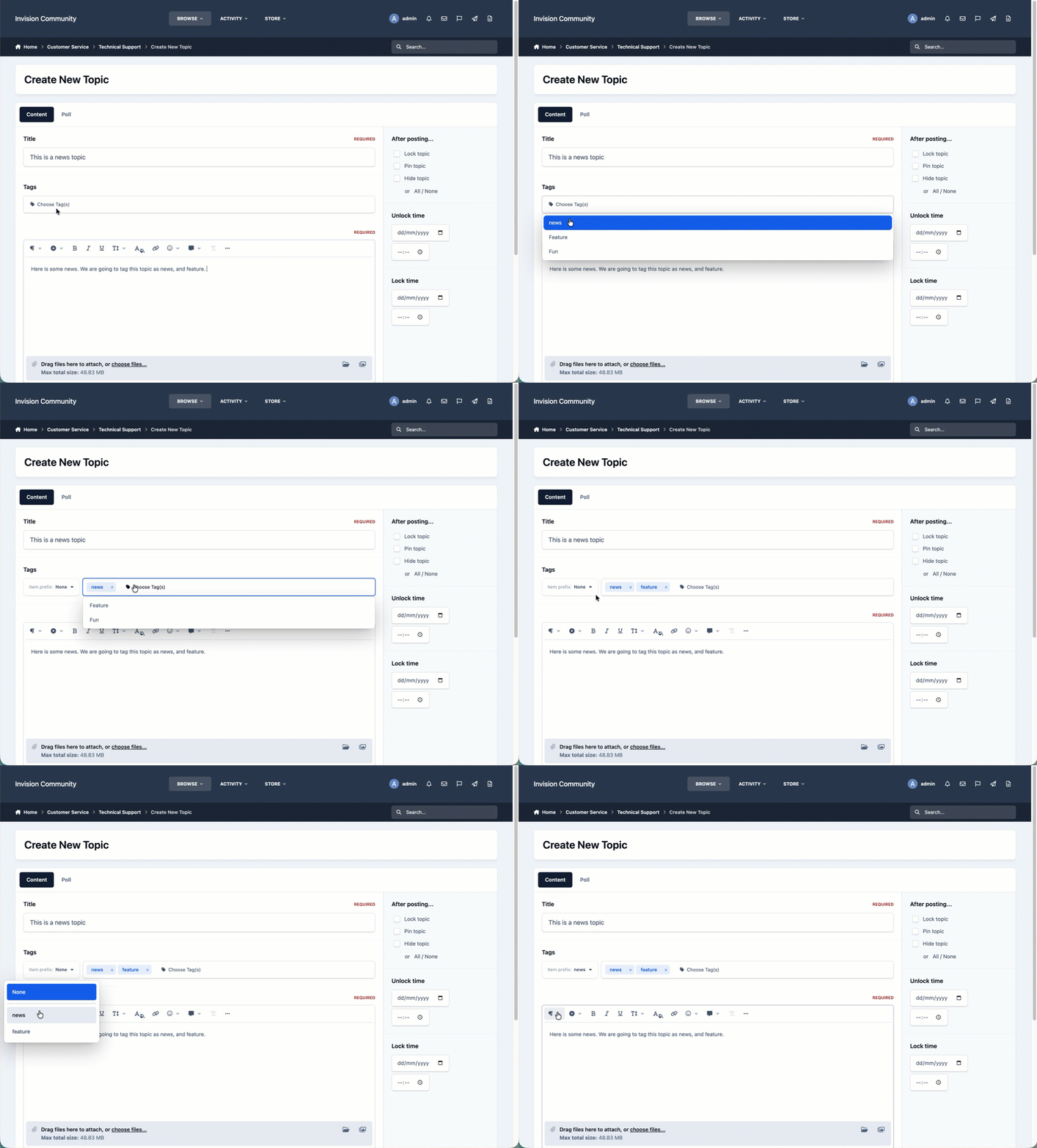
When creating content, tags can be added by clicking the 'Choose tag(s)' link provided. Any tags you’ve marked as featured will appear at the top of the selection list for quick access.
After adding your tags, you can optionally select one to be used as a title prefix, allowing it to appear prominently before the content title, as shown below.
Using Tags Within a Topic
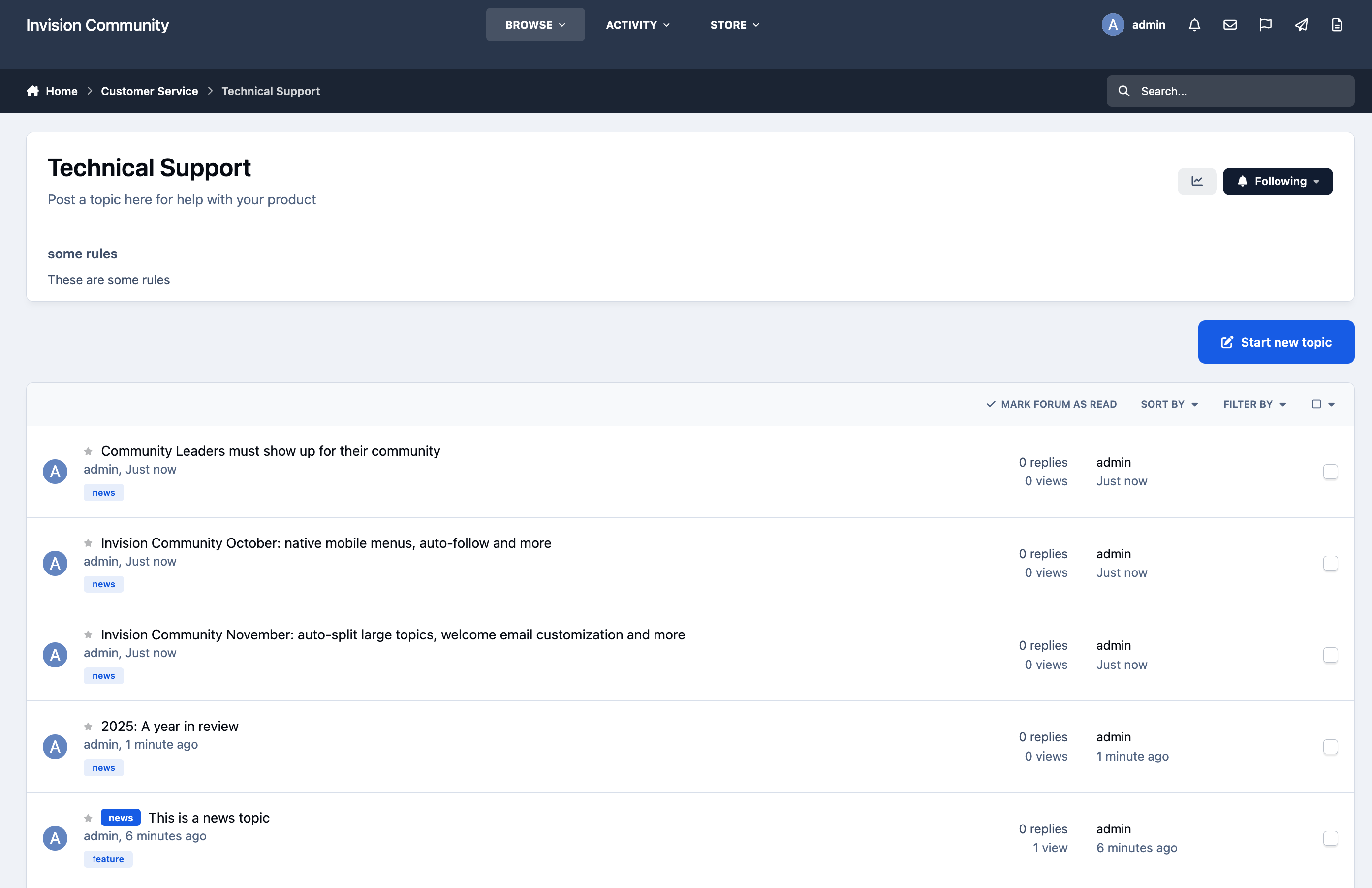
Once created, tags will be visible within topic or category listings and on the content item itself.
Forum List Showing Tags
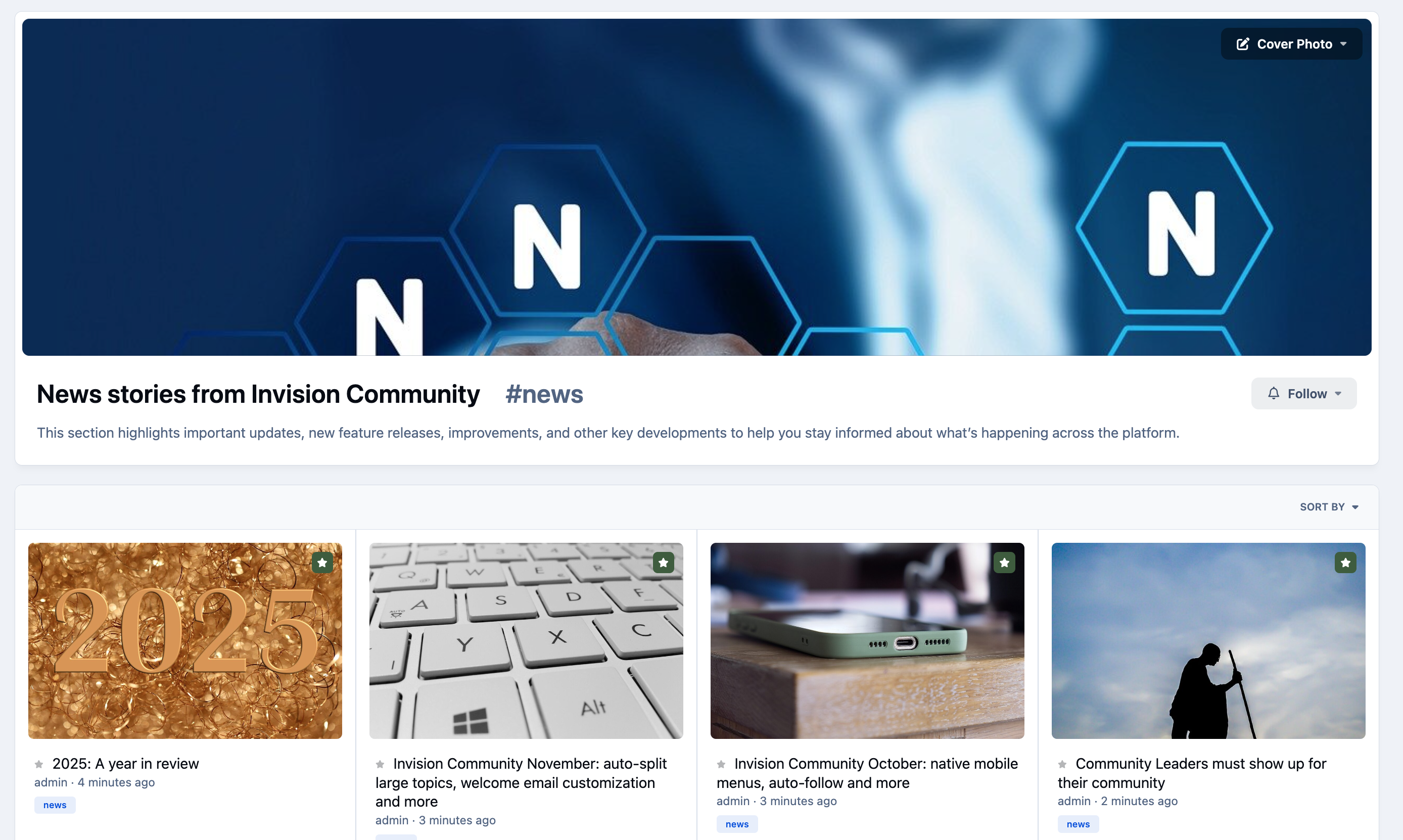
Clicking on a tag or prefix will show the tag page for that tag, making it easy for members to discover related discussions.
Example Tag Page
Top Tip
Tag pages can be added directly to your site’s navigation using the Menu Manager.
For detailed instructions on how to do this, please refer to the Menu Manager guide available in the menu on the left.
Recommended Comments