


In addition to the site’s standard search functionality, there may be times when you want quick access to specific types of content without having to run an advanced search each time. Examples of this include views such as 'Unread Content' or 'Content I Started.'
This is where Activity Streams come in. Activity Streams allow you to create dynamic lists of content based on defined criteria — either preconfigured by you or customized by individual users — making it easy to access relevant content at any time.
All Activity Stream
The 'All Activity' stream, available by default in the Activity menu, provides a complete overview of all activity across your site.
Unlike custom streams, this view will actively notify you of new content since you last loaded the page, making it ideal for keeping up to date in real time.
You can choose to display this stream in either a condensed view, which shows one line per item, or the standard expanded view, as shown in the screenshot below.
All Activity
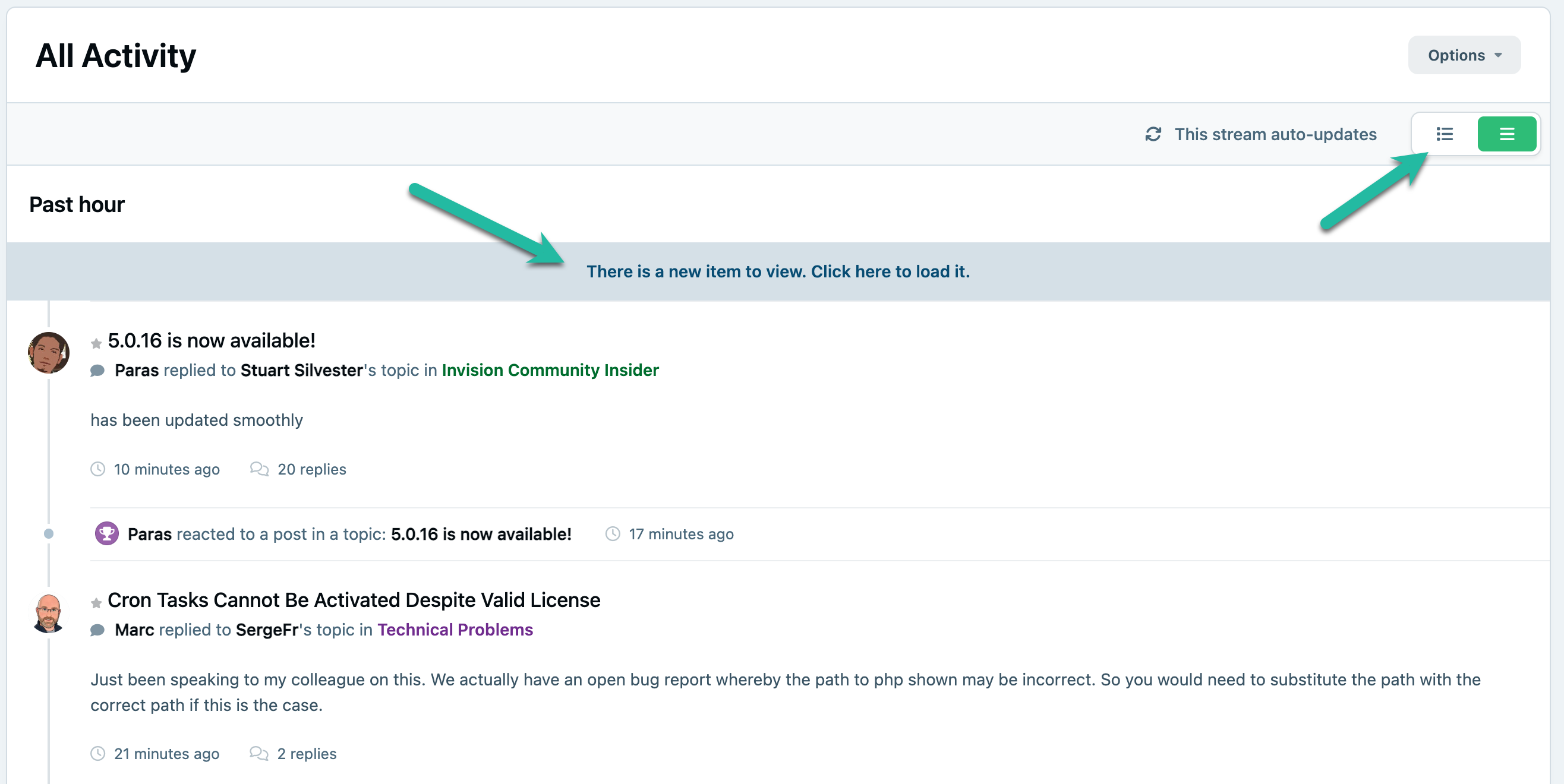
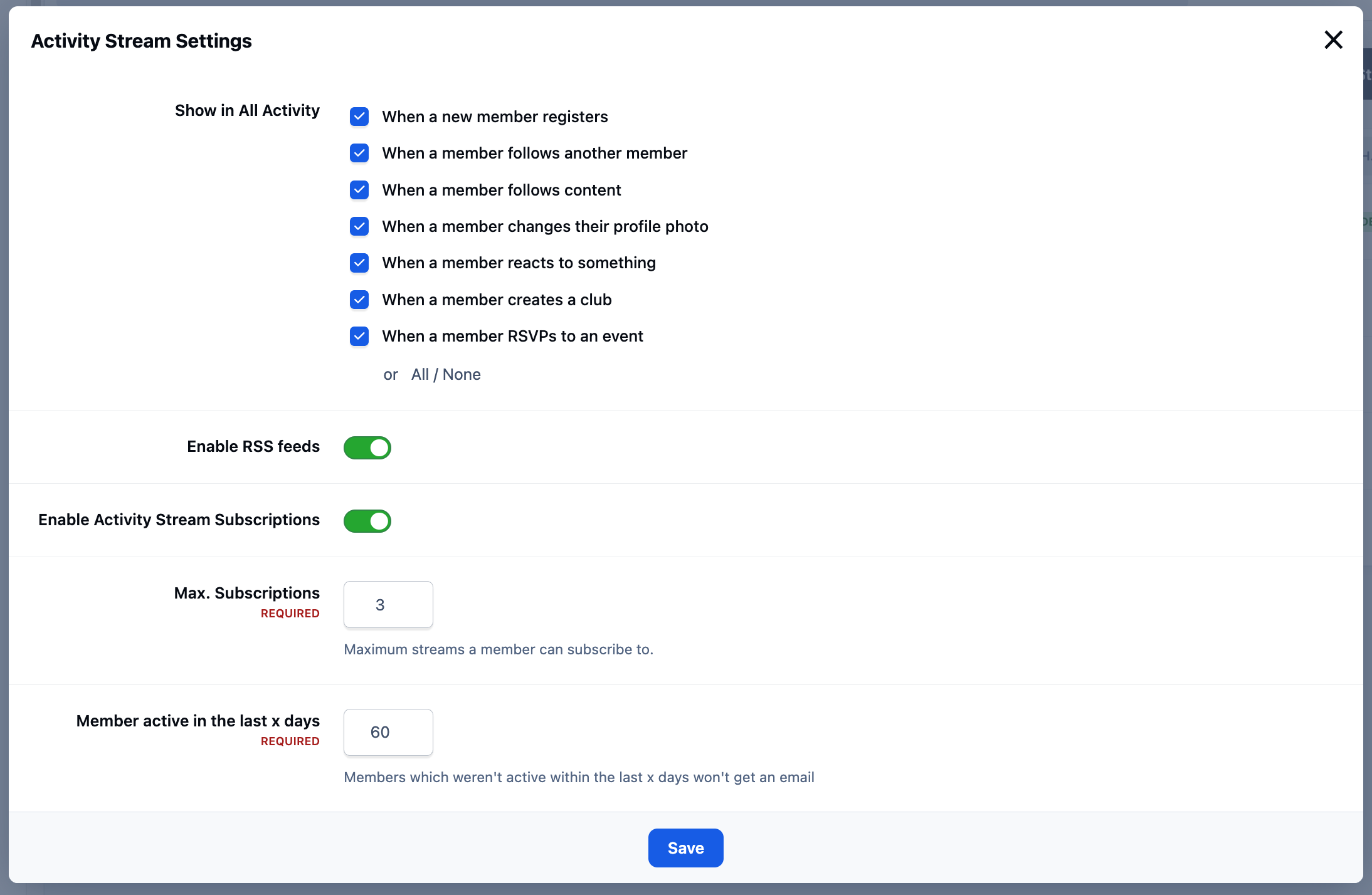
If you would like to prevent certain items from appearing in the 'All Activity' stream, such as notifications when new members register, you can adjust this within the AdminCP.
Navigate to:
System → Content Discovery → Streams → Activity Stream Settings
From there, you can control which types of activity are included or excluded from the stream. Along with other items such as whether or not people can subscribe to streams, see RSS feed links and more.
All Activity Stream Settings
User Defined Streams
New Streams
Within the default menu structure, under the 'Activity' menu item, you’ll find the 'My Activity Streams' option.
Here, users can view any activity streams defined by the administrator, as well as create their own custom streams. These user-created streams are personal and apply only to the individual who created them.
Creating a New Stream - Link Location
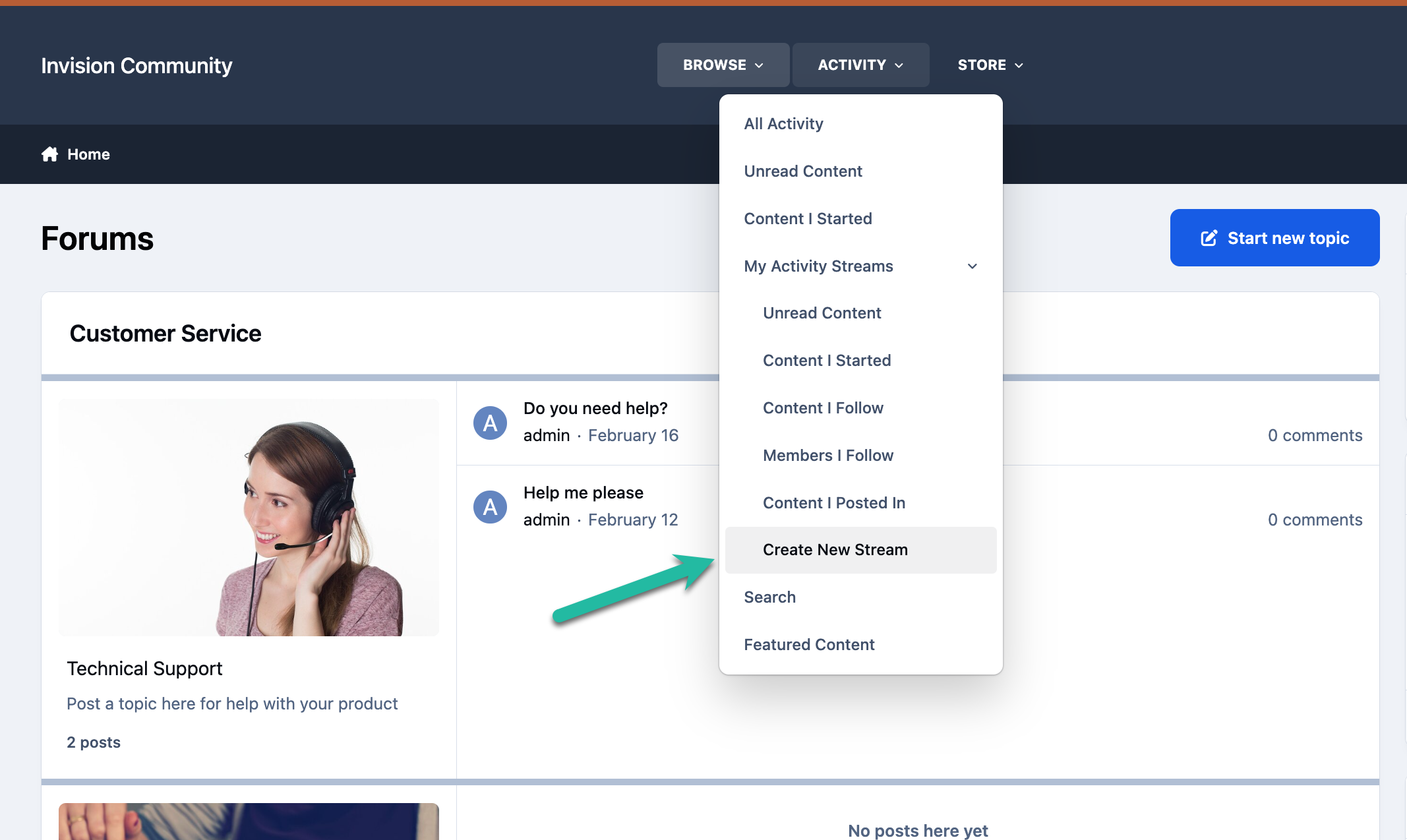
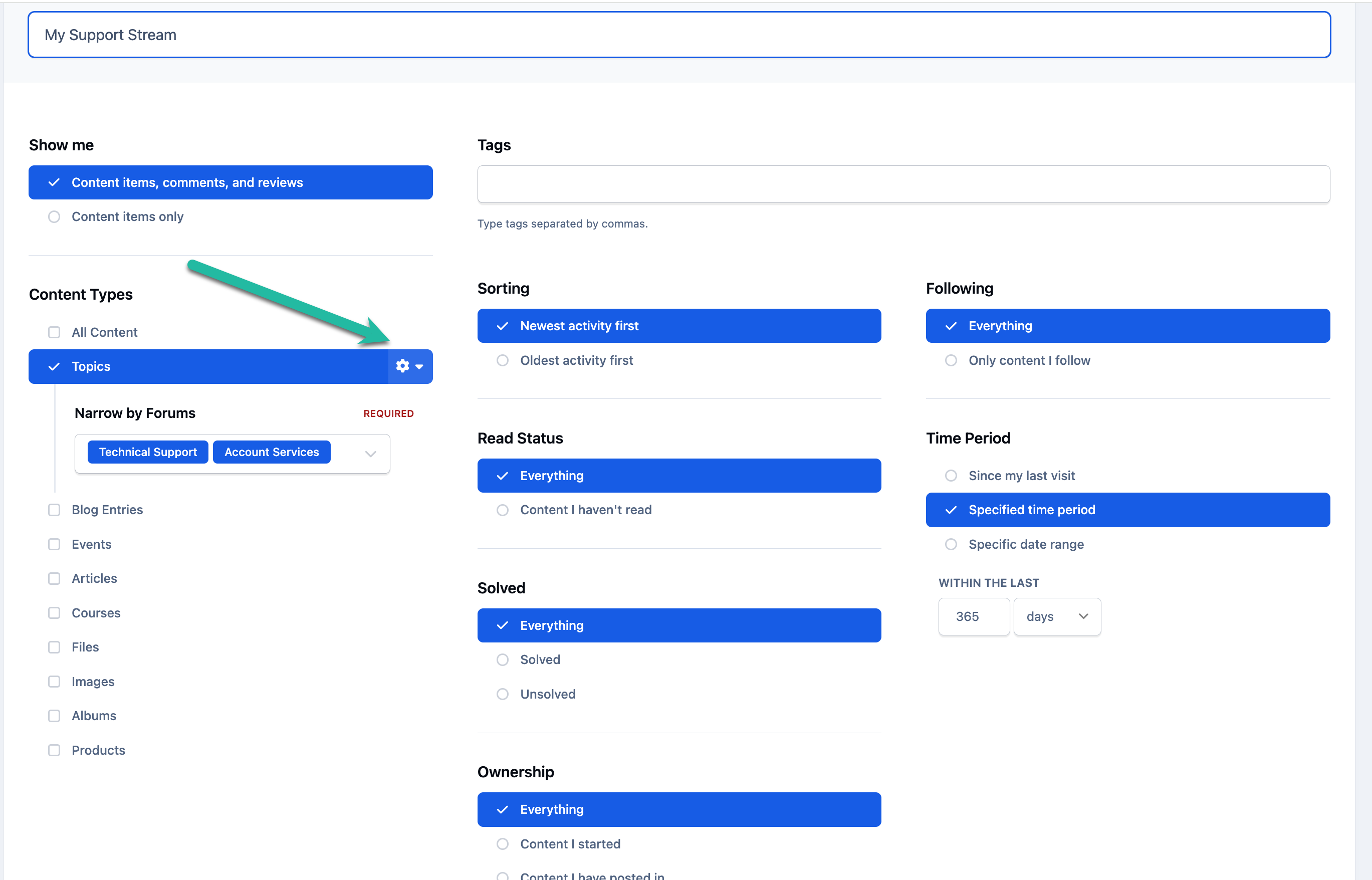
When choosing to create a new stream, you’ll be presented with a range of filters that can be used to define the content it will display.
In this example, a stream has been created specifically for a News forum. You can refine your selections further by clicking the cog icon next to any content type, which allows you to choose specific items within that type — such as selecting an individual forum rather than all forums.
Creating a New Stream
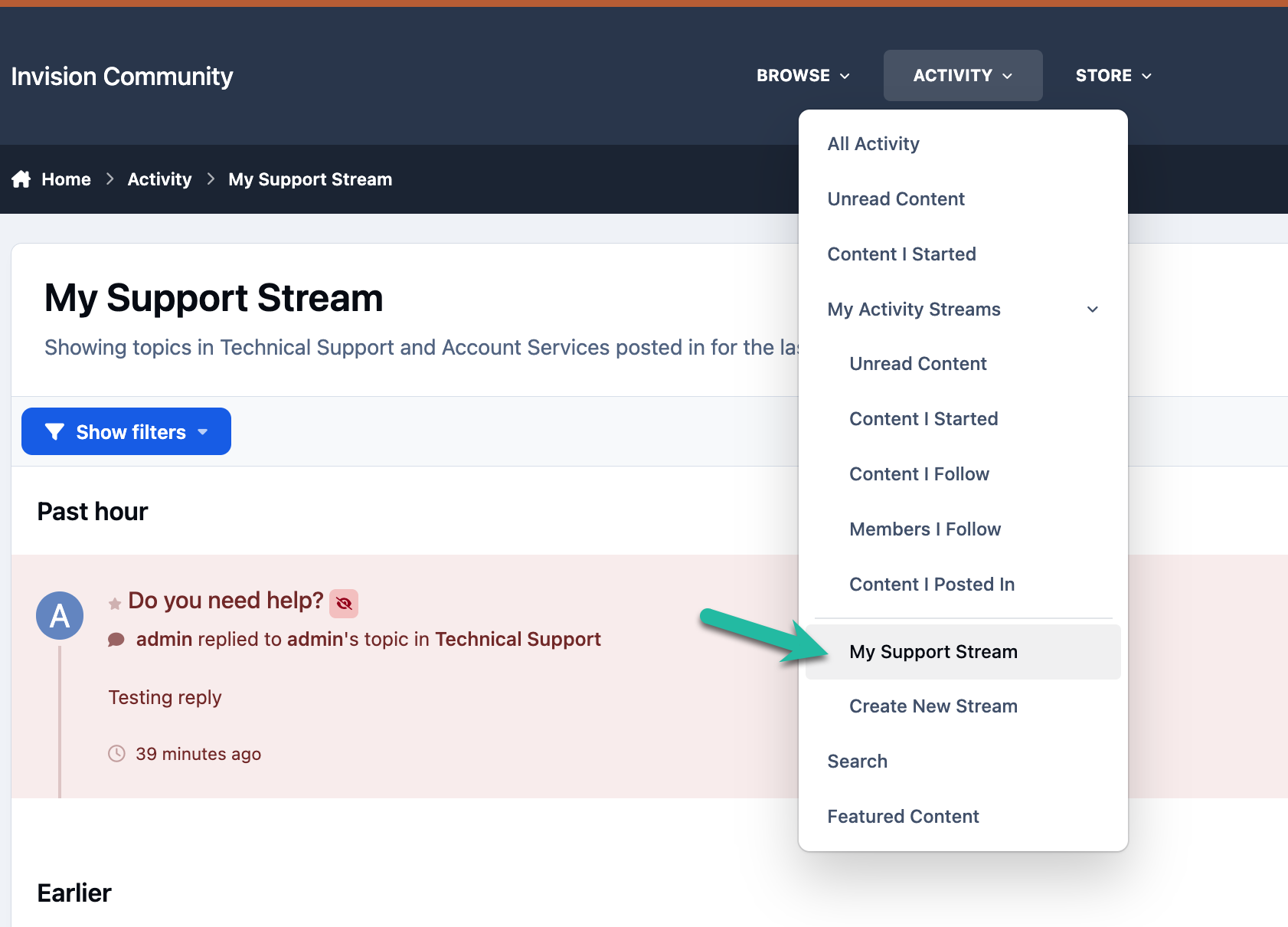
Any streams you create will automatically appear under the 'My Activity Streams' menu, listed beneath the default set of activity streams.
Location of Custom Streams
Editing Existing Streams
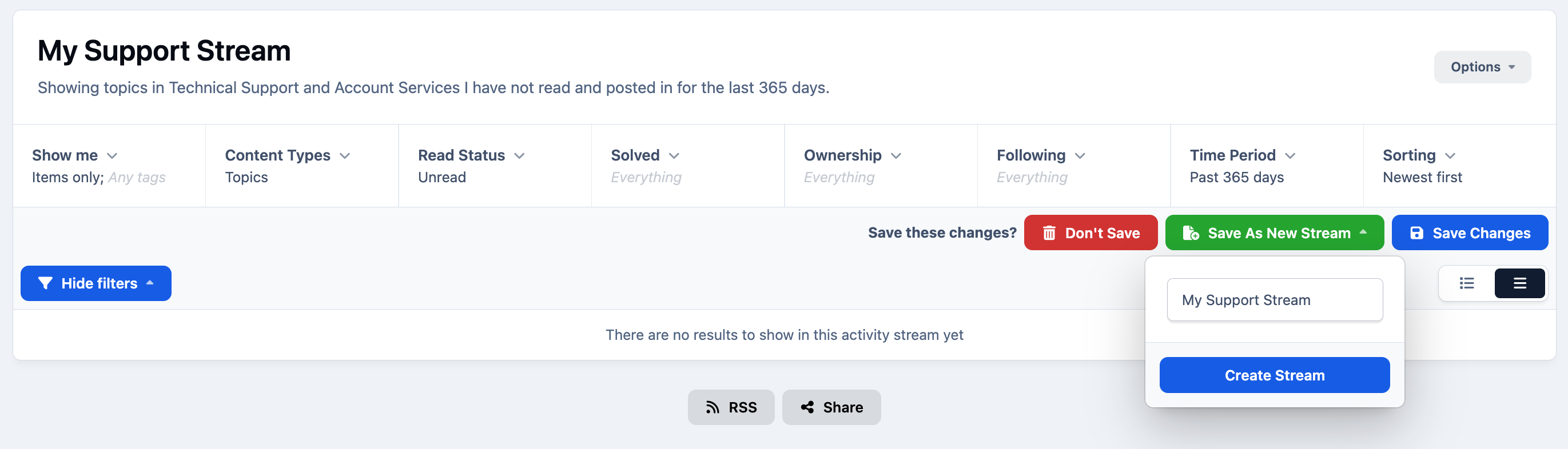
When viewing any existing stream, click on 'show filters' and you’ll see a set of filters displayed at the top of the page. These can be adjusted at any time to refine the content being shown, with updates reflected immediately in real time.
If you make changes to the filters and decide you’d like to keep them, there’s no need to create a new stream from scratch. After modifying the filters, a Save button will appear, allowing you to create a new activity stream based on your updated criteria.
Editing My Support Stream
Admin Defined Streams
Creation
Within the Activity menu, you’ll notice several streams that are provided by default within the system. These default streams can be edited, removed, or expanded upon from the AdminCP at the following location:
System → Content Discovery → Streams → Activity Stream Settings
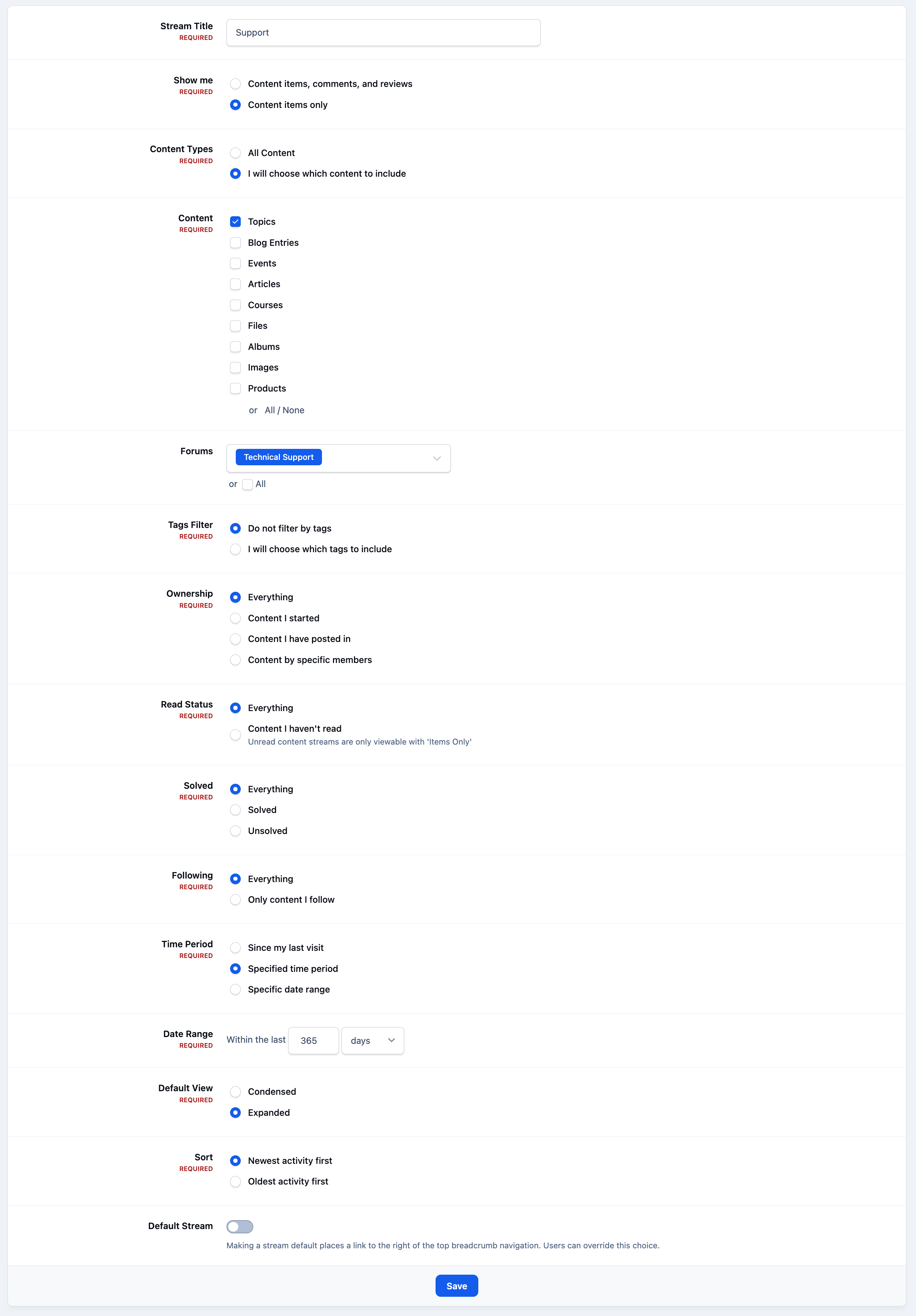
From here, you can create new streams or modify existing ones, with the ability to filter content from across all areas of your site.
Creating a New Stream
Default Stream
At the bottom of each stream’s settings, you’ll see a 'Default' selection option. Only one stream can be set as the default at any given time. By default, this is the 'Unread' stream.
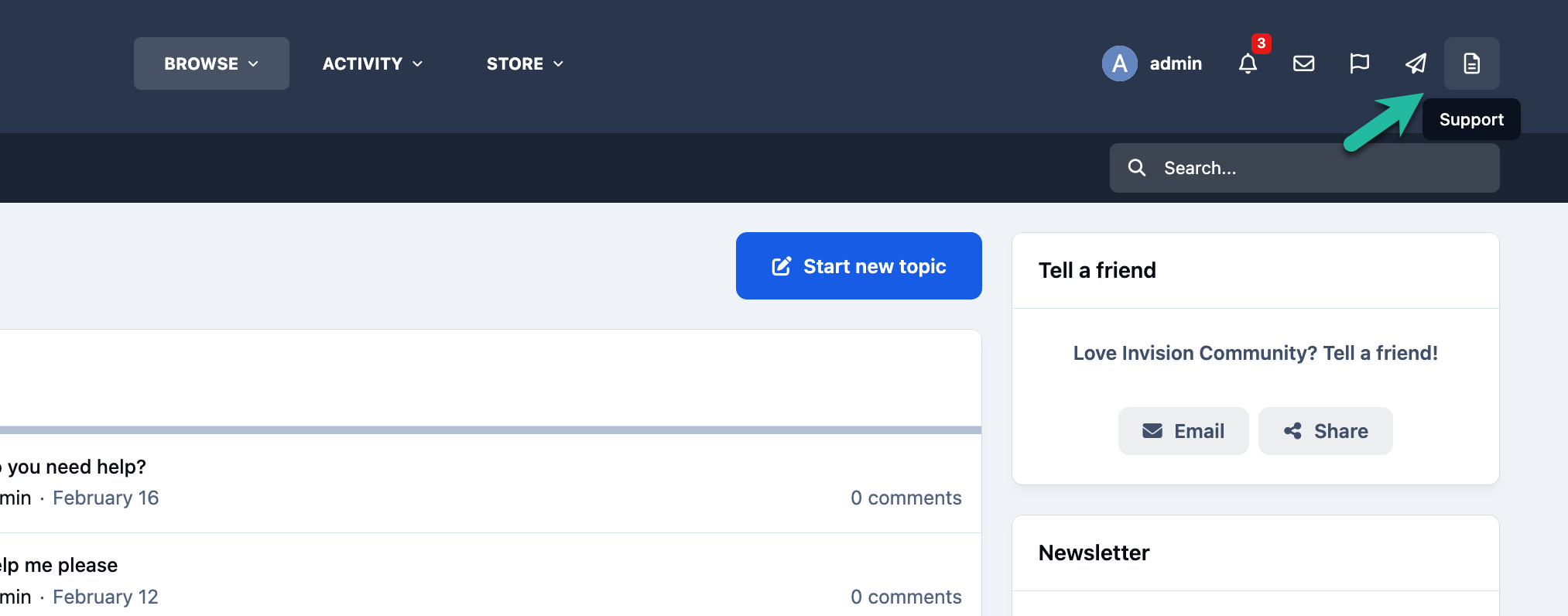
If you choose a different stream as the default, the link on the front end of your site will instead direct users to your newly selected stream. In the example shown below, this has been changed to the 'Support' stream.
Modified Default Stream
Recommended Comments