


There will be times when it’s important to understand exactly how or why something happened on your site. This could relate to an action taken by a user, a change made within the AdminCP, or an issue that requires further investigation.
Within the Invision Community suite, there are several logging tools available to help you track this activity. The different areas where these logs can be accessed are outlined below.
Moderator/Admin Logs
Front End Moderation Log
For most content items, you can view any moderation actions that have been taken by accessing the Moderator Log.
This can be found by opening the 'Moderator Tools' menu and selecting the 'Moderator History' option, as shown below.
Moderator History Location
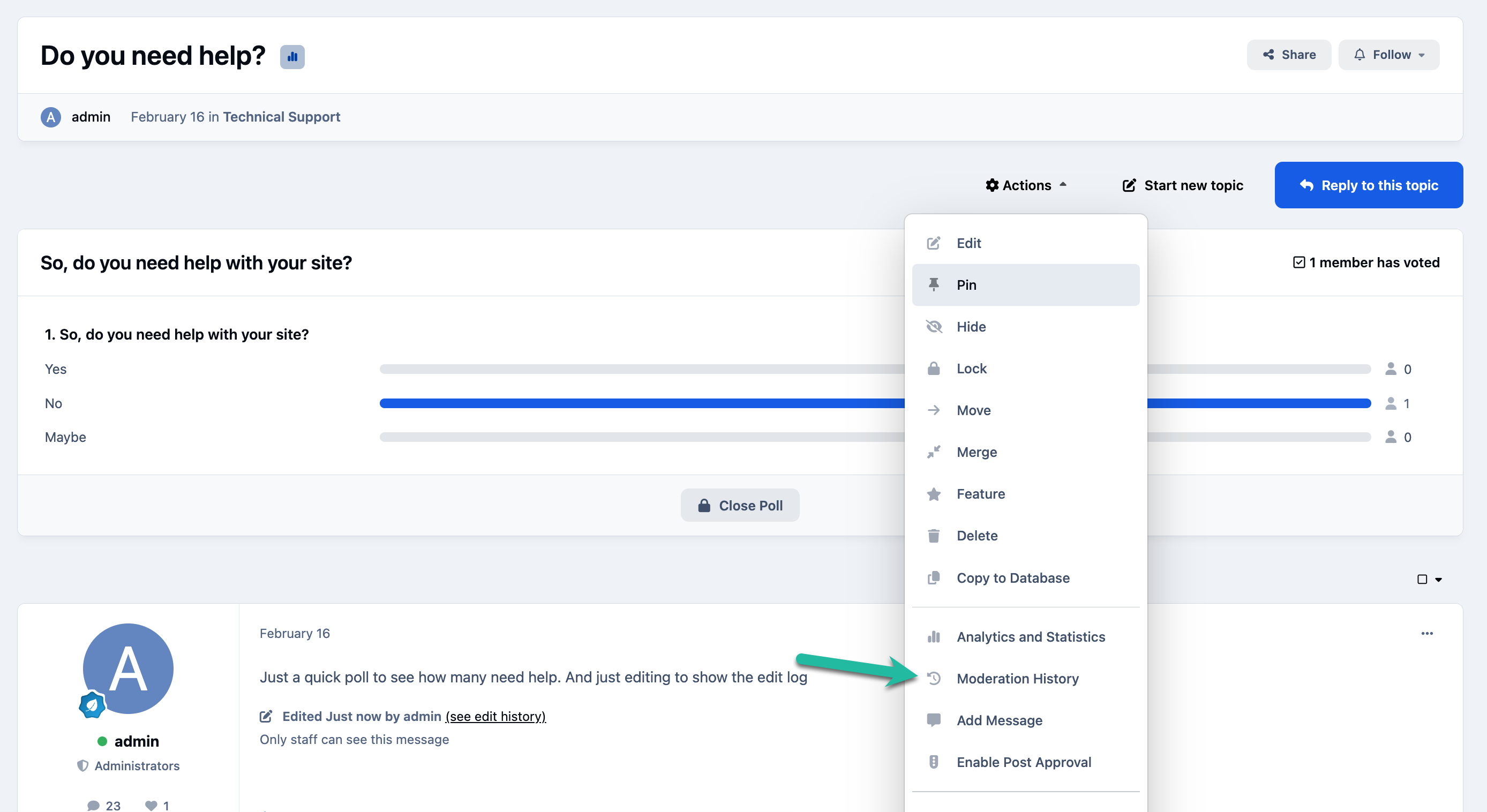
Selecting this option will display a complete history of all moderator actions taken on that specific content item, allowing you to see exactly what changes have been made and by whom.
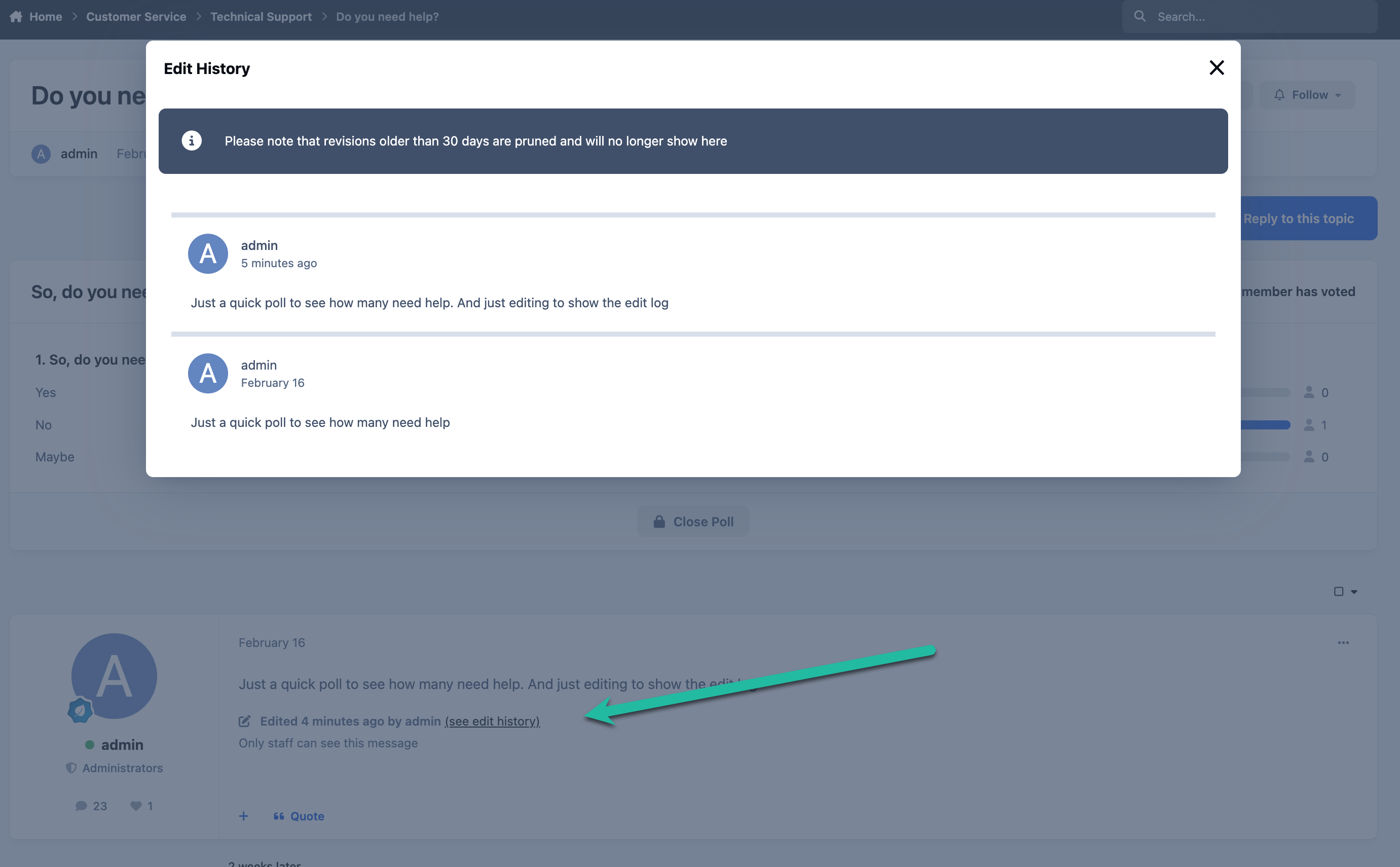
If full edit history is enabled, you can view a detailed record of edits made to a content item, including what was changed and the previous version of the content.
To make this available, ensure the following setting is enabled in the AdminCP:
System → Settings → Posting & Editor → Edit Log → “Log all edits made to content and what was changed.”
Edit Log
Admin CP Moderation & Admin Log
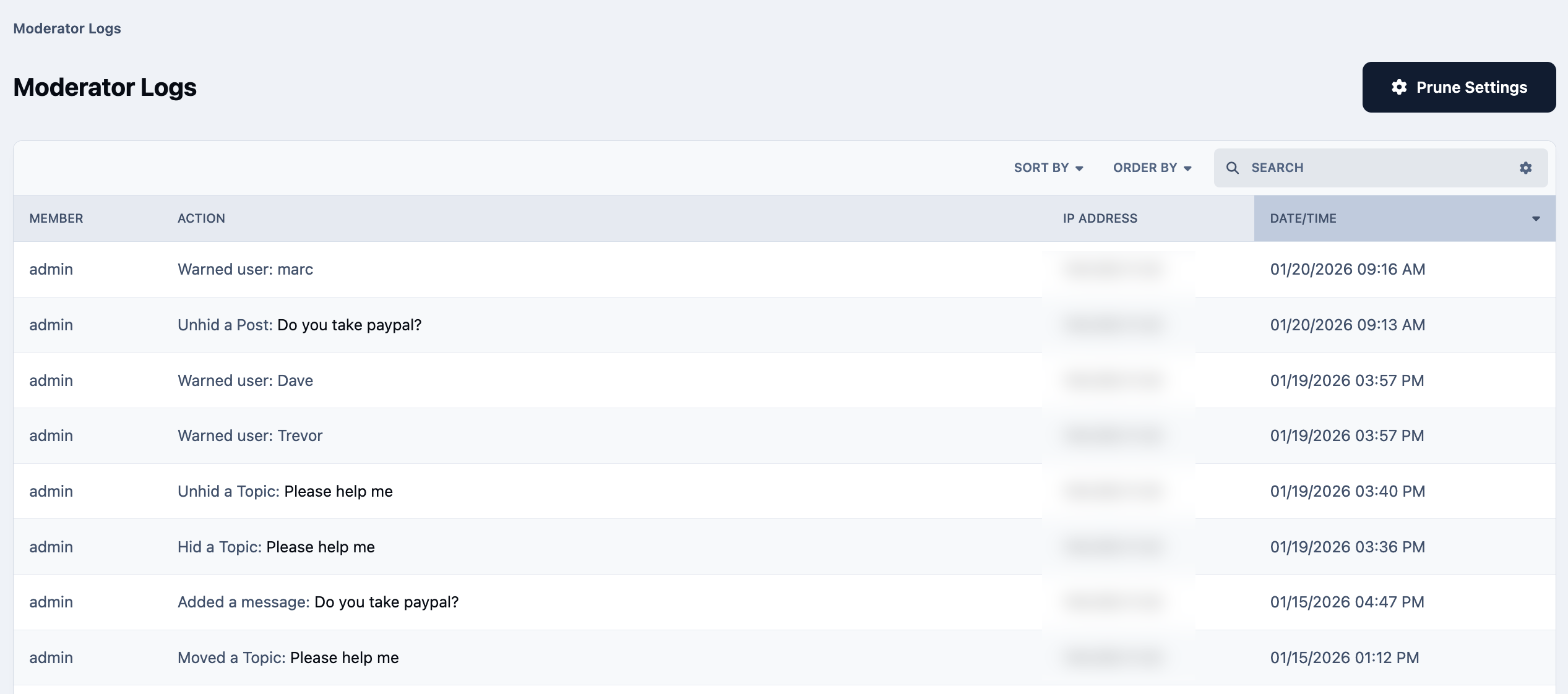
For a broader overview of moderator and administrator activity, you can access dedicated logs within the AdminCP at the following locations:
Members → Staff → Moderators → Moderator Logs
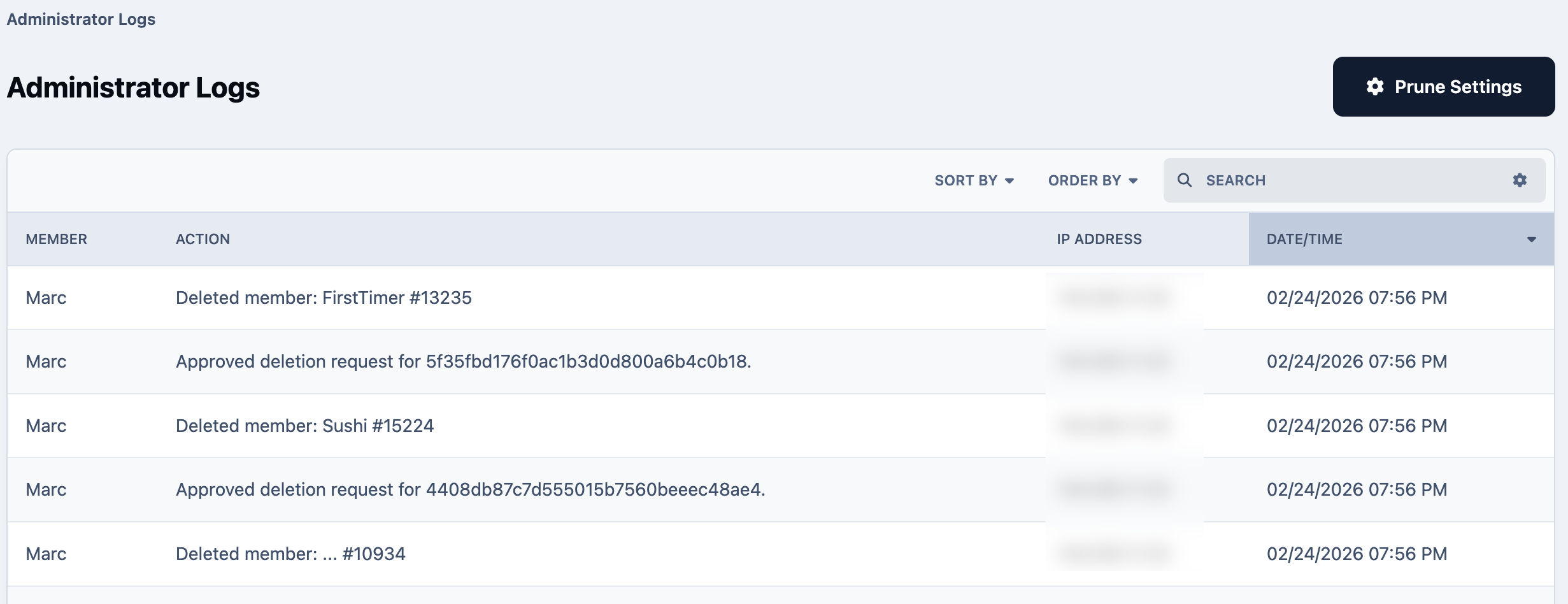
Members → Staff → Administrators → Administrator Logs
At the top of these pages, you’ll see a Prune Settings option. This allows you to configure how long log entries are retained before being automatically removed from the system, should you choose to limit their storage duration.
Moderator Logs - Admin CP
Administrator logs focus on actions taken within the Admin CP itself.
This includes changes such as updating system settings, creating or modifying user groups, adjusting configurations, and other administrative actions performed behind the scenes.
Administrator Log - Admin CP
Admin CP Login Logs
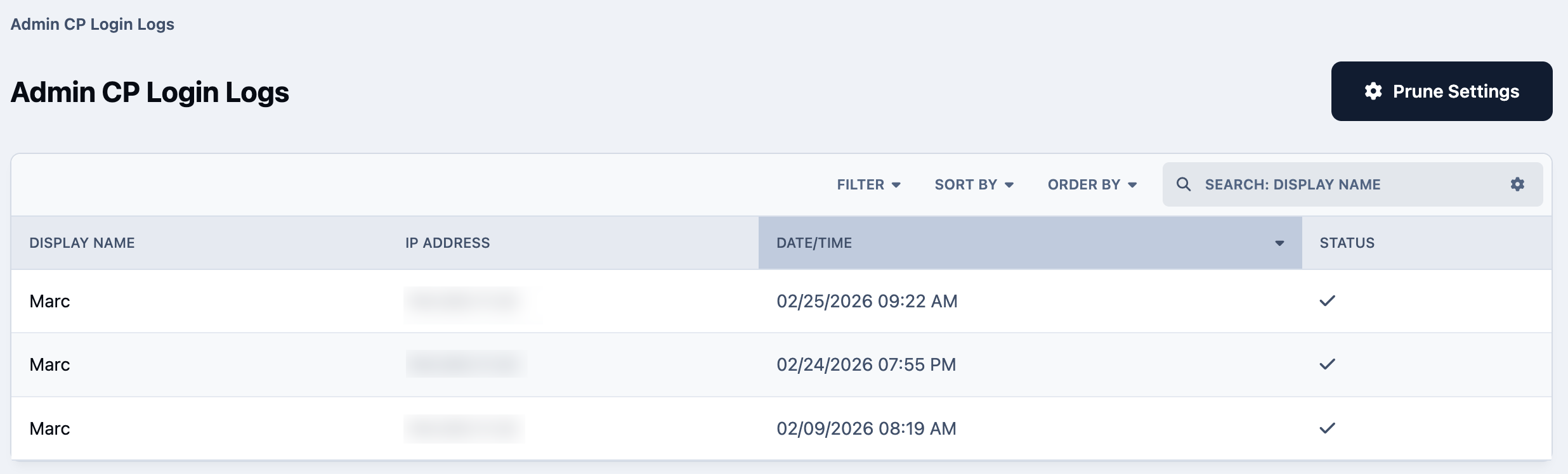
Within the AdminCP, you can view detailed login records for the Admin Control Panel at the following location:
Members → Staff → Administrators → Admin CP Login Logs
These logs can be particularly useful if you suspect unauthorized access attempts or believe someone may have logged in with malicious intent. You’ll be able to see a full history of login activity, including both successful and failed attempts.
Admin Logs - Admin CP
Member Logs
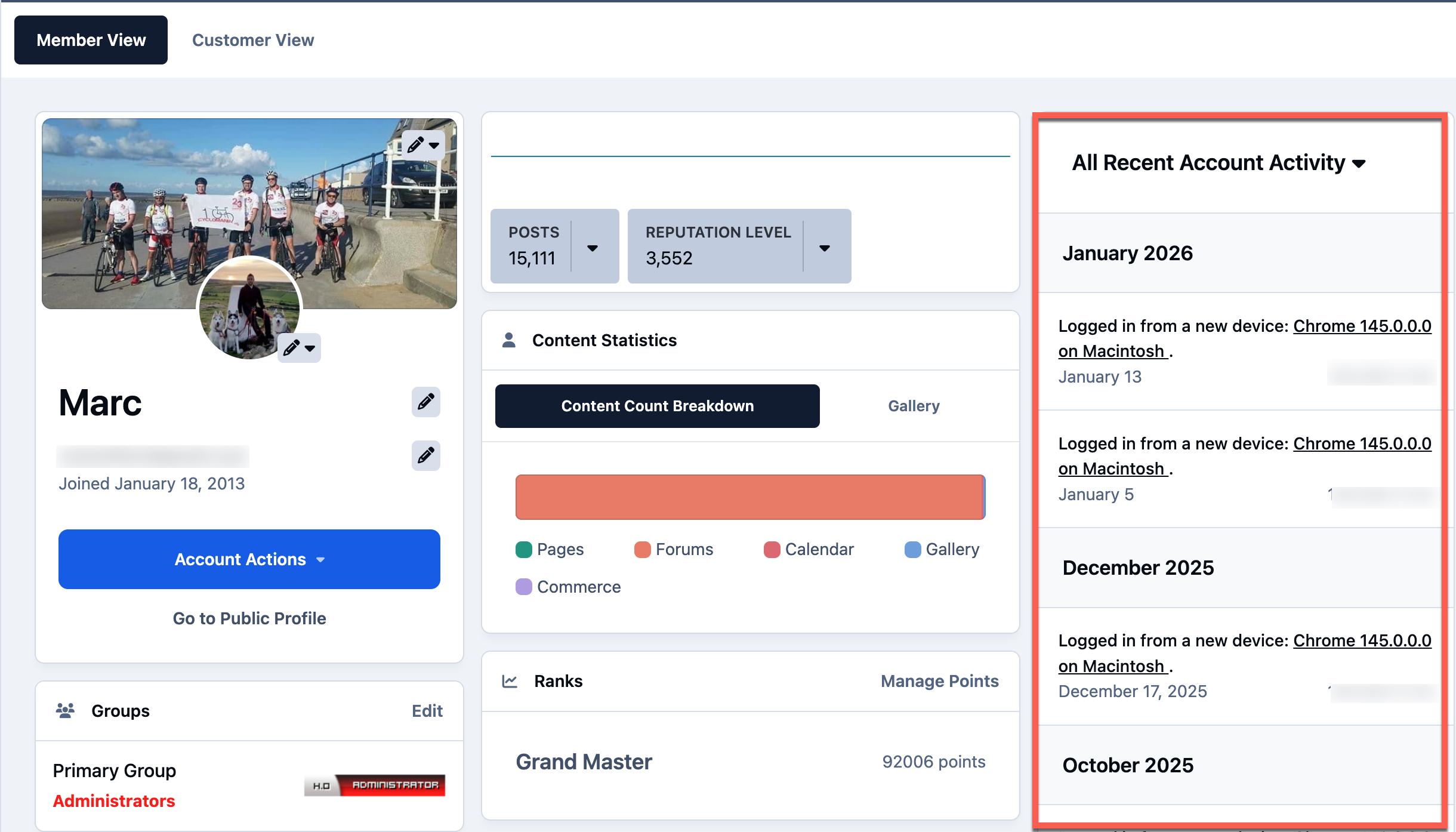
There are many situations where you may need to review activity related to a specific member account. For example, a member may believe they have made a purchase, or you may want to check which devices they have used to log in.
You can access this information directly from the member’s profile within the AdminCP by navigating to:
Members → Members
From there, select the relevant member to view detailed account activity and related information.
Member Activity Log
System/Error Logs
While using the software, there will inevitably be occasions where you or your members encounter an issue. This could stem from a server problem, a third-party application or plugin, or a variety of other causes. In many cases, the information provided by members may be limited, which can make troubleshooting more challenging.
To help with this, the system provides easy access to logged error and system messages that users may have encountered.
There are two different types of logs available for this purpose.
Error Logs
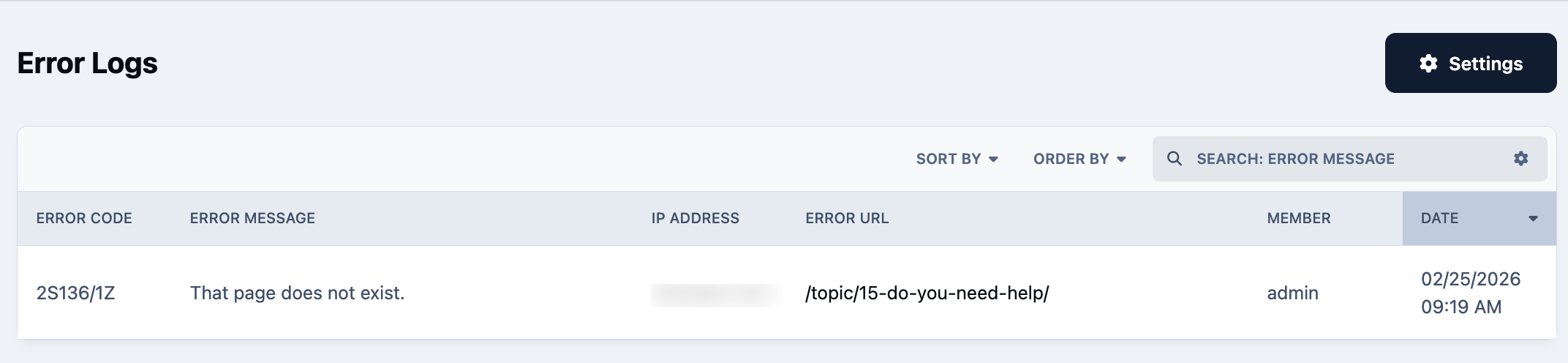
These logs relate to expected errors that are displayed to users during normal use of the site. For example, a member attempting to access an area they don’t have permission to view would receive a permission error — and this would be recorded here.
You can access these logs within the AdminCP at:
System → Support → Support → Error Logs
Error Logs - Admin CP
Errors that exceed a certain severity level can trigger email notifications to alert you.
By clicking the Settings button, you can configure which error levels you would like to receive notifications for, as well as choose which types of errors should be logged at all.
System Logs
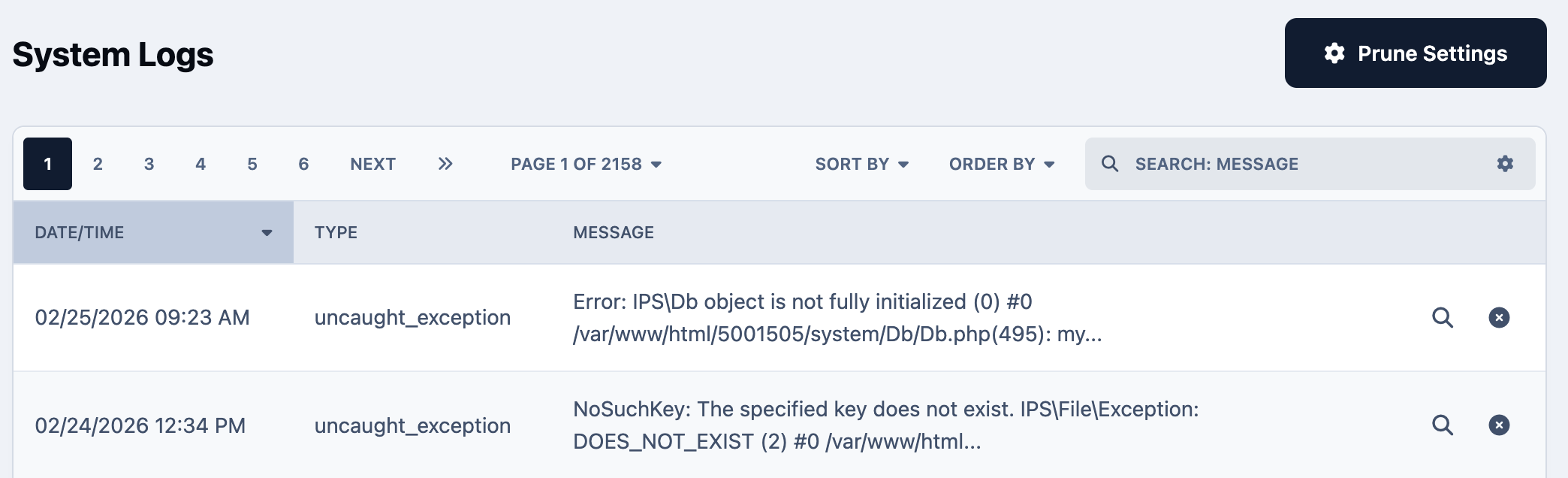
System logs relate to the internal operation of the platform itself. For example, if a third-party application or plugin crashes and generates an error on the front end, this is typically where you would find the corresponding log entry.
You can access these logs in the Admin CP at:
System → Support → Get Support → System Logs
Ideally, this area should be clear or contain minimal entries. If you notice items appearing here, it usually indicates something that requires attention or further investigation.
System Logs - Admin CP
Email Error Logs
Email error logs can be found in the AdminCP at the following location:
System → Settings → Email Settings
If you’re experiencing issues with outgoing email, this should be the first place you check. Most email-related problems are typically caused by incorrect configuration details or an issue with your mail server.
If the error message does not clearly indicate what needs to be corrected, you should forward the full error details to your email provider so they can assist further.
Email Error Logs - Admin CP
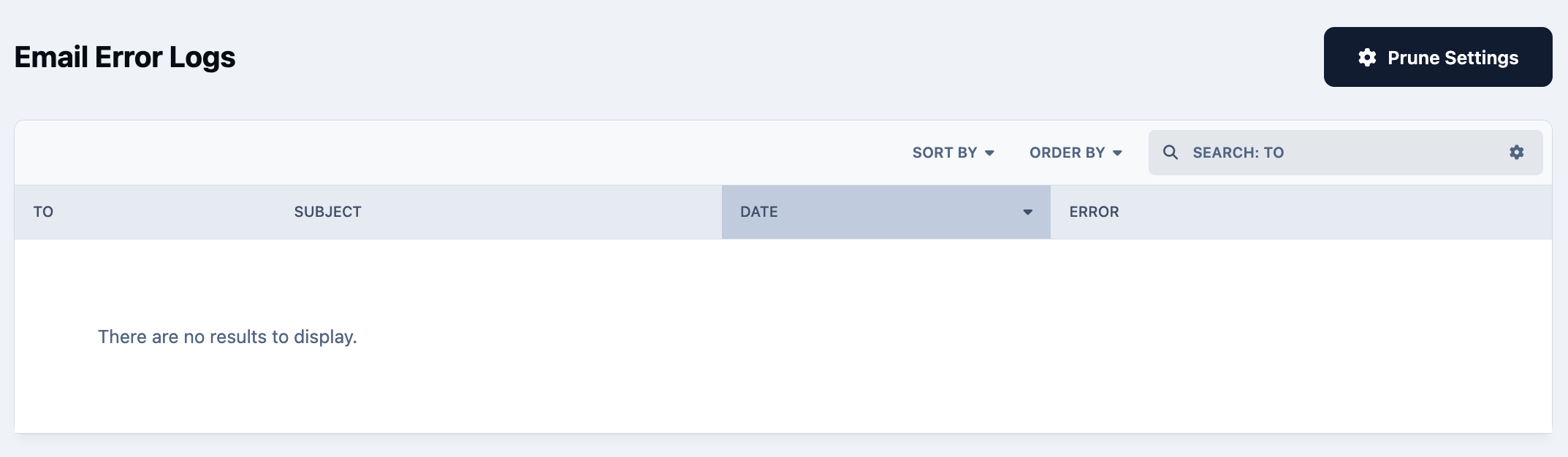
Once any issues have been resolved, you can attempt to resend the email directly from this screen by using the Resend button displayed on the right-hand side of each entry.
Recommended Comments