Jump to content
View in the app

A better way to browse. Learn more.

Invision Community

A full-screen app on your home screen with push notifications, badges and more.

To install this app on iOS and iPadOS
  1. Tap the Share icon in Safari
  2. Scroll the menu and tap Add to Home Screen.
  3. Tap Add in the top-right corner.
To install this app on Android
  1. Tap the 3-dot menu (⋮) in the top-right corner of the browser.
  2. Tap Add to Home screen or Install app.
  3. Confirm by tapping Install.
Documentation categories

Documentation

In this article..

In this article..

    Pixabay

    What is Pixabay?

    Pixabay is a stock image platform with over a million images that require no attribution and are free from typical copyright restrictions. This has been integrated via their API into multiple areas of the suite, allowing you to easily add images with just a few clicks

    Where can I use this?

    Pixabay integration can be used anywhere you have permission to upload content, based on your group settings. This includes (but is not limited to) the following:

    • Within content items such as posts/topics

    • As cover images for profiles and blogs

    • Selecting logos or header within forum setup screens in the ACP

    These can be used wherever you see this symbol

    Button to use Pixabay
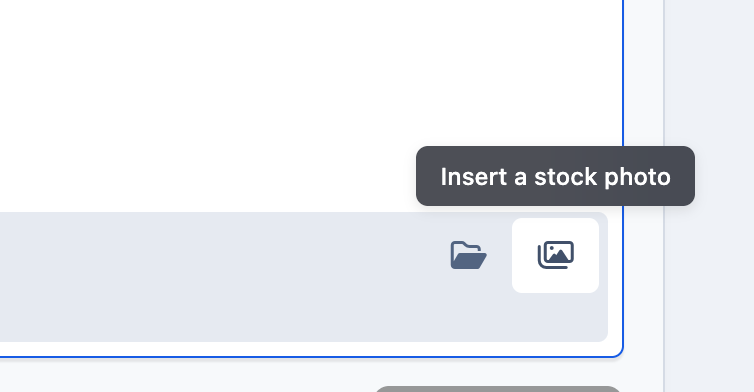
    integrations_pixabaybutton.png

    You can then search and select a photo to use

    Selecting an Image
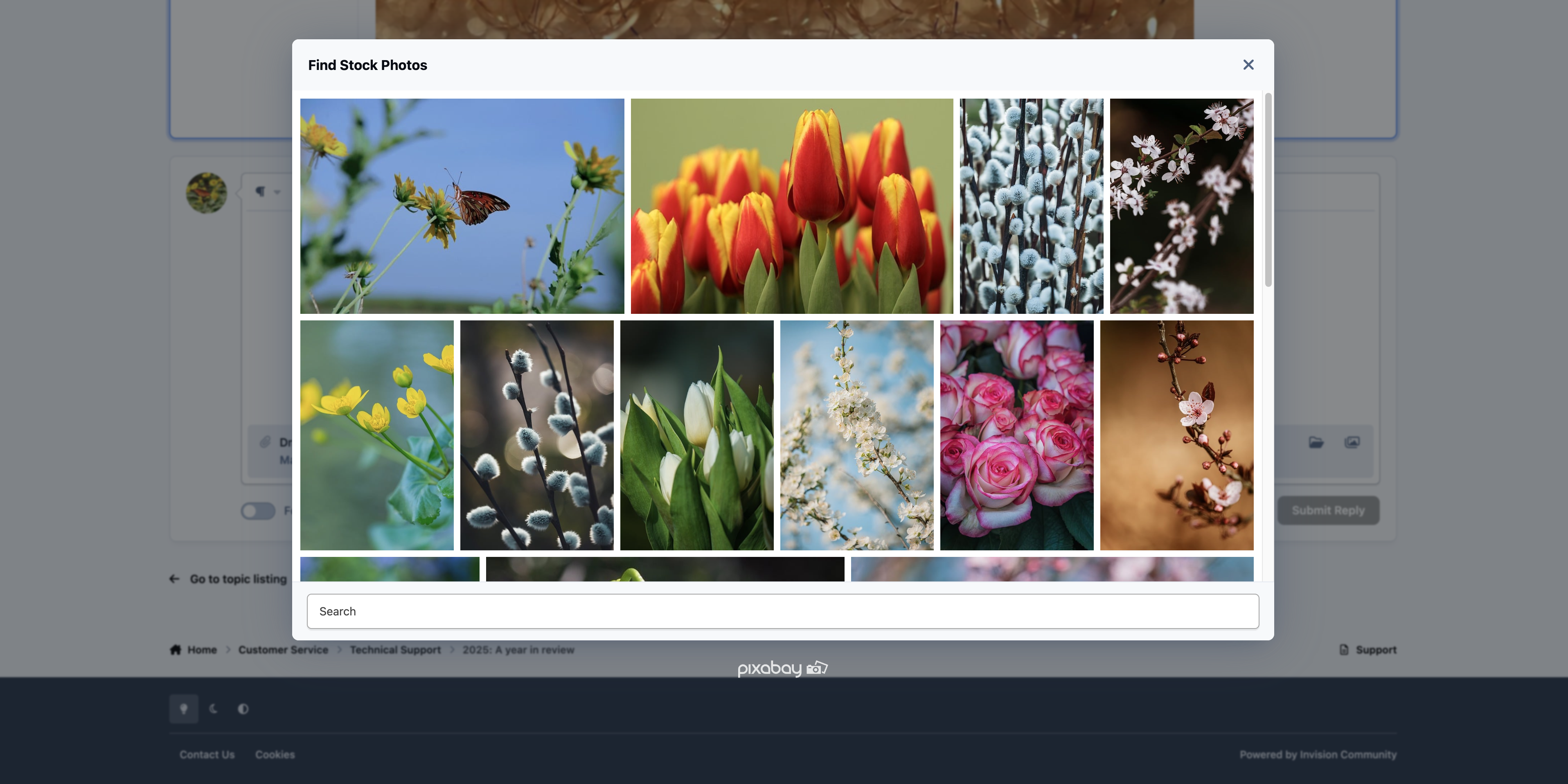
    integrations_pixabayselect.png

    Setting Up

    In order to set up Pixabay, you must first obtain an API key from Pixabay at the following location.

    create a new key

    Note

    For further assistance with the creation of a pixabay key, please refer to pixabays API documentation

    Once you have your API key, enable the Pixabay integration in the following location:

    System → Site Features → Integrations

    Enter your key, then configure the editor permissions and Safe Search options to suit your needs.

    Admin CP Setup
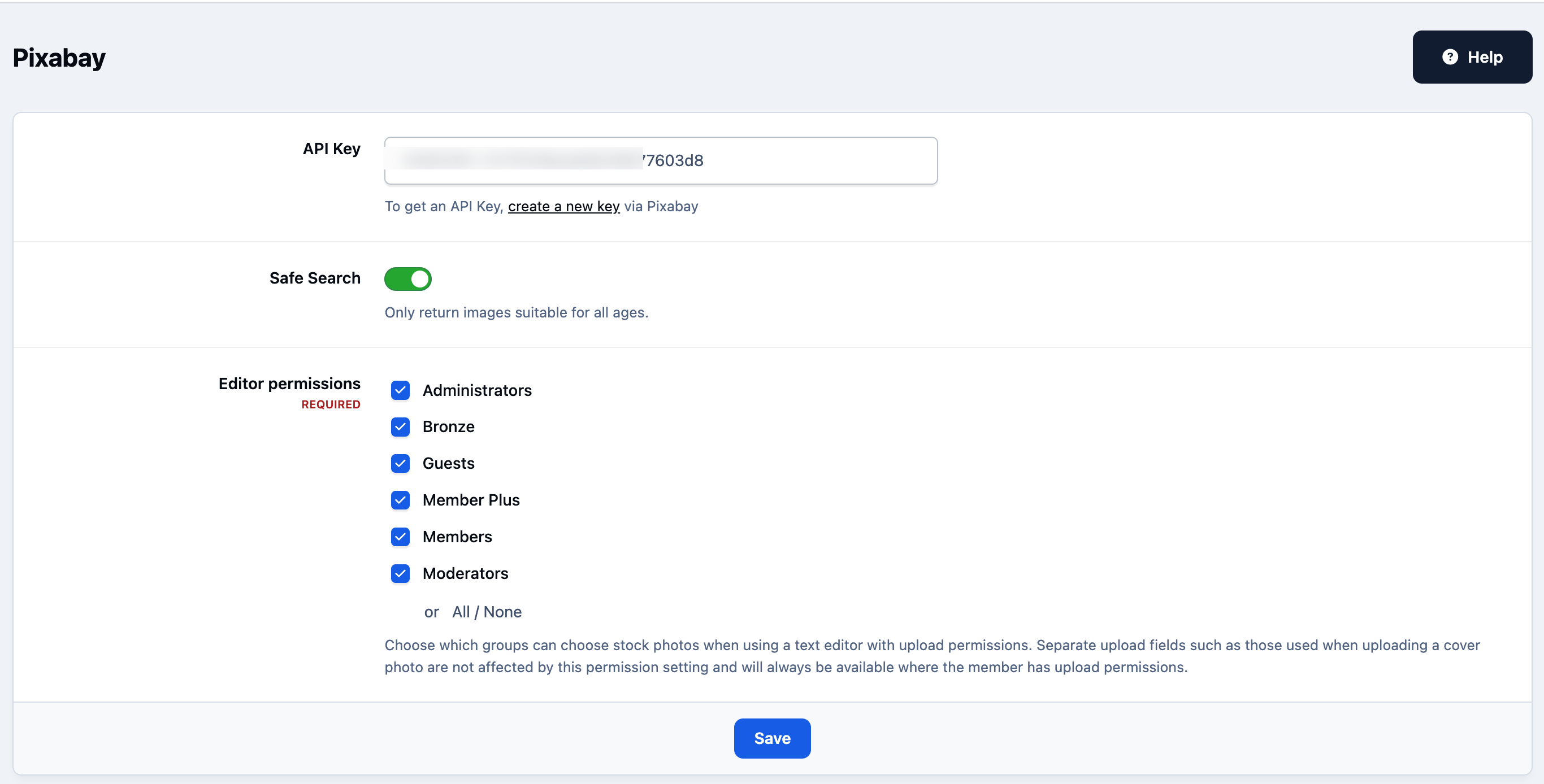
    integrations_pixabaysetup.png

    User Feedback

    Recommended Comments

    There are no comments to display.

    Account

    Navigation

    Search

    Search

    Configure browser push notifications

    Chrome (Android)
    1. Tap the lock icon next to the address bar.
    2. Tap Permissions → Notifications.
    3. Adjust your preference.
    Chrome (Desktop)
    1. Click the padlock icon in the address bar.
    2. Select Site settings.
    3. Find Notifications and adjust your preference.