Jump to content
View in the app

A better way to browse. Learn more.

Invision Community

A full-screen app on your home screen with push notifications, badges and more.

To install this app on iOS and iPadOS
  1. Tap the Share icon in Safari
  2. Scroll the menu and tap Add to Home Screen.
  3. Tap Add in the top-right corner.
To install this app on Android
  1. Tap the 3-dot menu (⋮) in the top-right corner of the browser.
  2. Tap Add to Home screen or Install app.
  3. Confirm by tapping Install.
Documentation categories

Documentation

In this article..

In this article..

    Meta Pixel

    What is Meta Pixel?

    The Meta Pixel is used to report conversions, optimise advert delivery, build audiences, and provide detailed insights into how people are using your website.

    It works by placing a small piece of tracking code on your site, which records the actions visitors take—such as viewing pages, signing up, or making purchases. This data is then sent back to your Meta Ads account, allowing you to measure how effective your advertising is.

    Using this information, you can improve how your adverts are delivered, target the right audiences more effectively, and gain a clearer understanding of how users interact with your site.

    How do I set it up?

    In order to set up Pixel, you first need to get a pixel ID from Metas site.

    Get a Pixel ID

    Note

    If you are unsure on how to set this up, please refer to Metas documentation for further information.

    Once you have your Pixel ID, navigate to the following location in your AdminCP and enable Meta Pixel, then enter the required details:

    System → Site Features → Integrations

    After saving, data will begin flowing through to your Meta account.

    Meta Pixel Setup
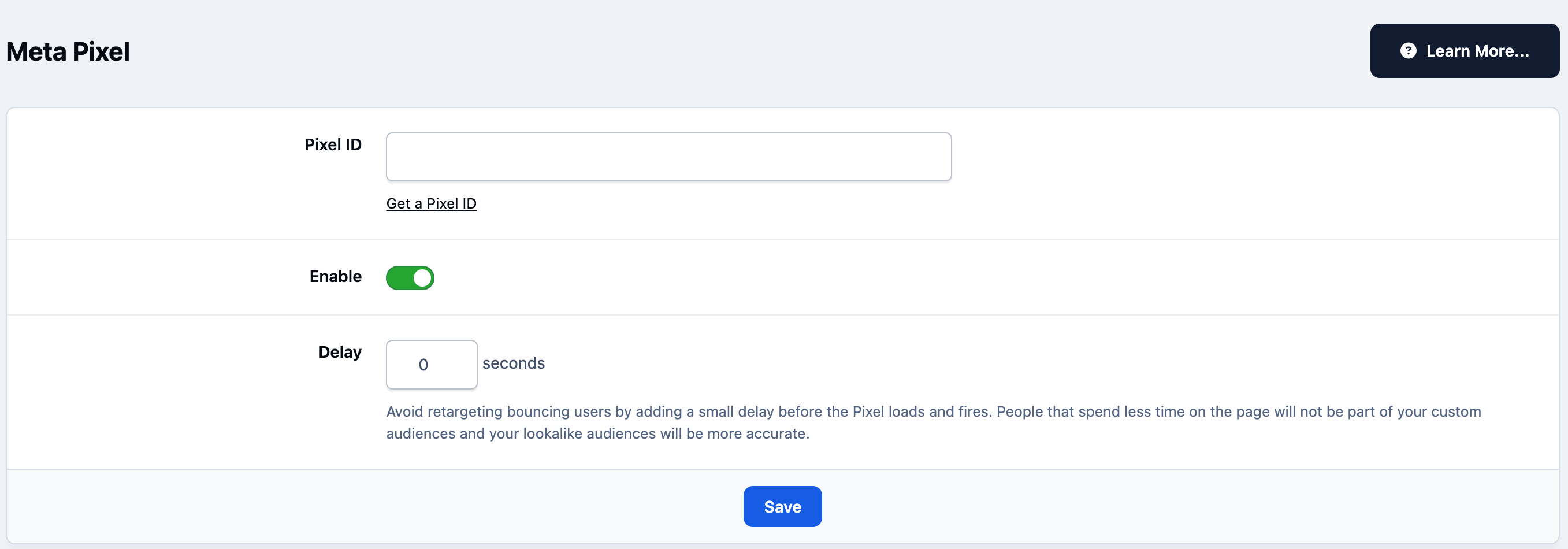
    integrations_pixel.png

    User Feedback

    Recommended Comments

    There are no comments to display.

    Account

    Navigation

    Search

    Search

    Configure browser push notifications

    Chrome (Android)
    1. Tap the lock icon next to the address bar.
    2. Tap Permissions → Notifications.
    3. Adjust your preference.
    Chrome (Desktop)
    1. Click the padlock icon in the address bar.
    2. Select Site settings.
    3. Find Notifications and adjust your preference.