


What is Google Maps Integration?
Google Maps integration enhances your community by adding auto-complete functionality to address fields, helping users quickly and accurately enter location data. It also enables map-based displays across the platform, such as in IP address lookup tools, making geographic information easier to visualise, and within Events, allowing users to better show where events are taking place.
Setting Up
Setup at Google
In order to set up Google Maps integration, you will first need to log into the Google API Console and create a project for your community. You can do this at the following location.
Once here, you will need to ensure the following mapping APIs are enabled, in order to ensure all integrated services work correctly.
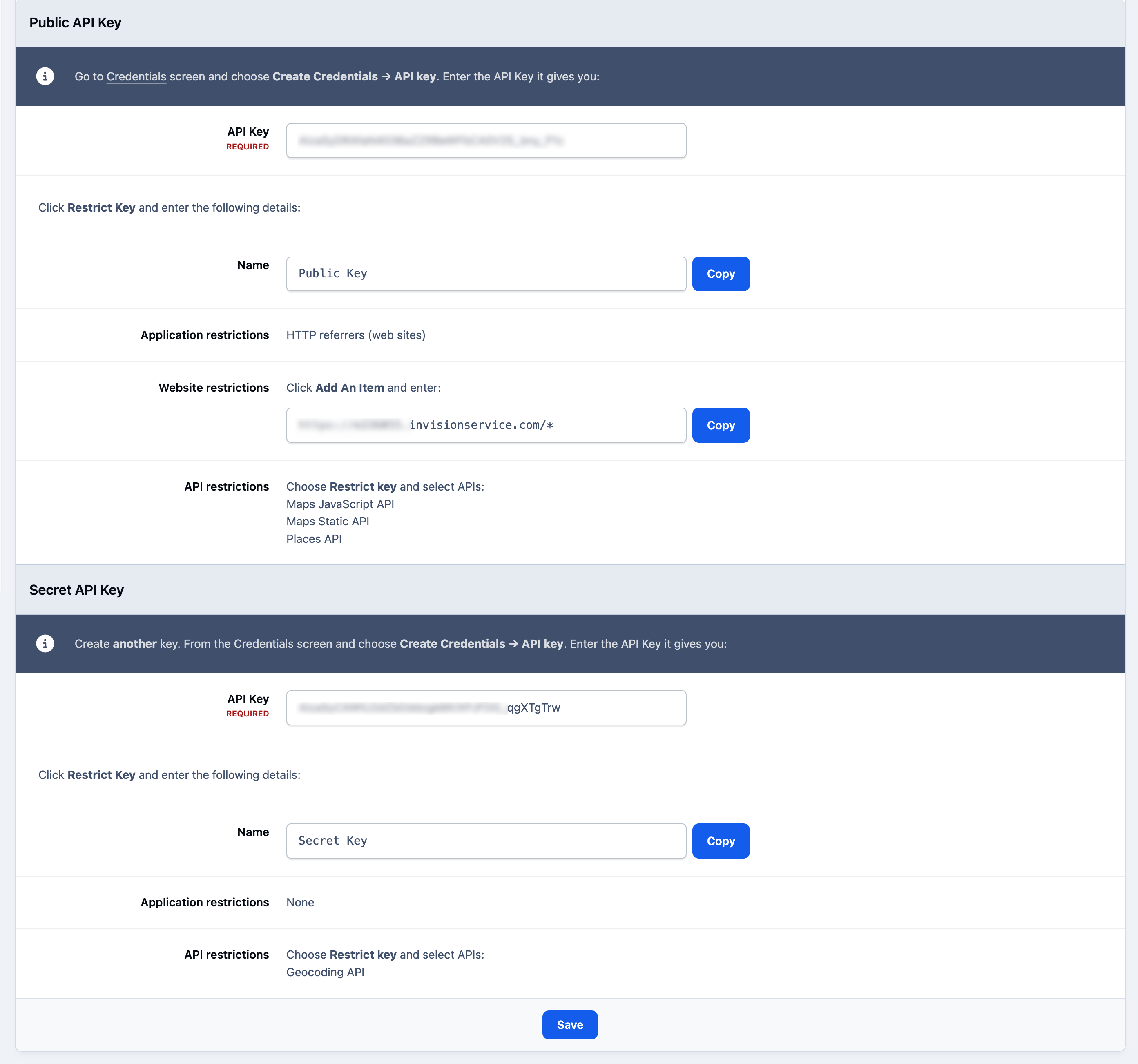
Once done, you will need to create some credentials which is usually located at Create Credentials → API Key , naming this Public Key, and then restricting as follows:
Choose Restrict key and select APIs:
Maps JavaScript API
Maps Static API
Places API
Restrict application to HTTP referrers (web sites), and restrict to your website address, with an asterisks at the end to allow all URLS on your site. For example https://yoursite.com/*
Copy this key. This is your Public Key
You will now need to create a second key, which will be your private key. Create a new key from the same location, choose to restrict the key, and enter Secret Key as the name. Then select API restrictions and limit it to the following.
Geocoding API
Admin CP Setup
On the admin CP sode, you can now set up integration with google maps from the following location, by selecting Enable on google maps
System → Site Features → Integrations
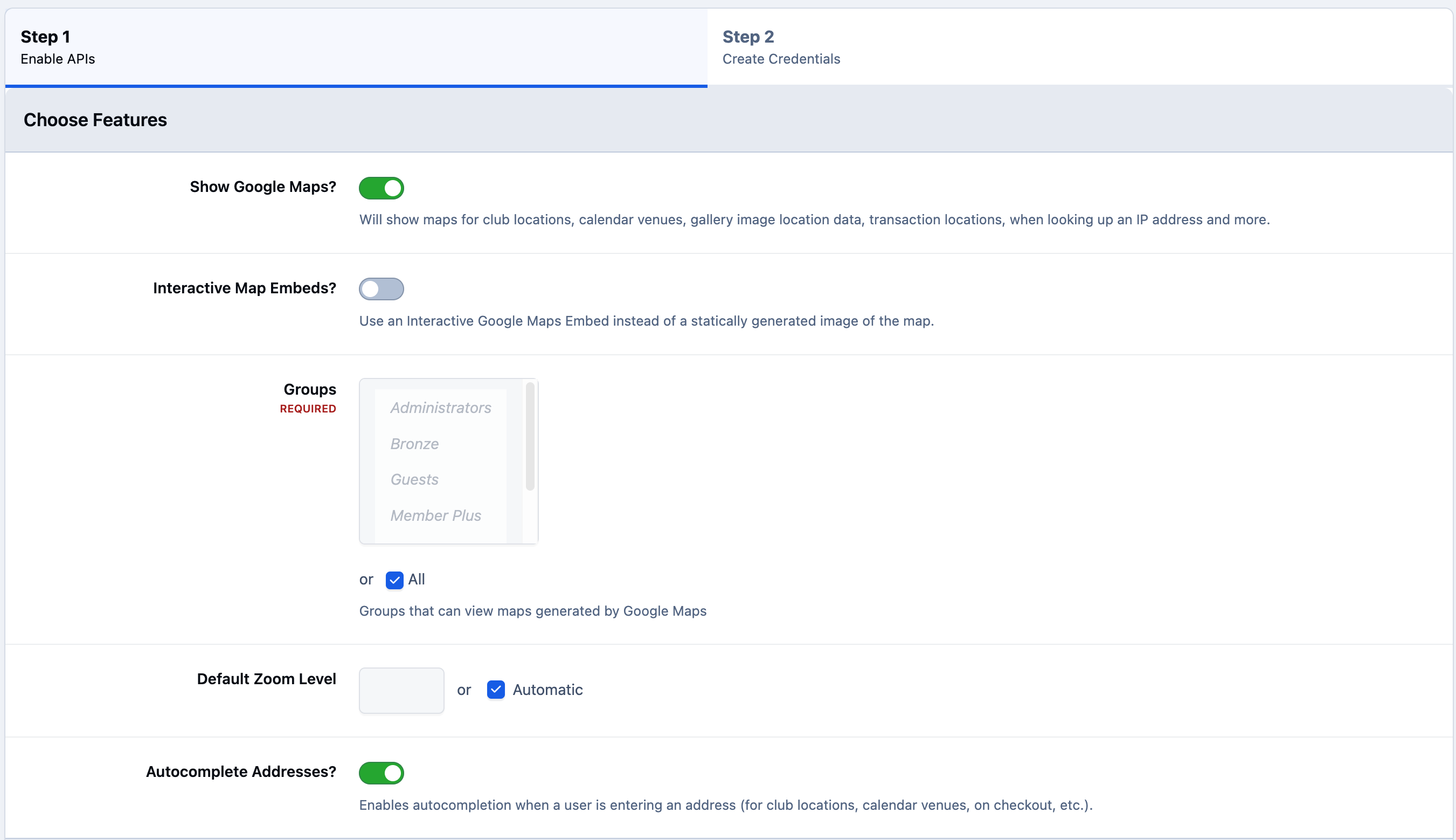
On the first tab, you can select the options you wish to use for your maps integration. You can also choose which groups can view these, along with other settings to enable.
Step 1 - Choosing Features
Once these are selected, you would add the API keys obtained from googles developer pages. You can also see the information on how to obtain these again from that page if needed
Step 2 - Entering Keys
Recommended Comments