Jump to content
View in the app

A better way to browse. Learn more.

Invision Community

A full-screen app on your home screen with push notifications, badges and more.

To install this app on iOS and iPadOS
  1. Tap the Share icon in Safari
  2. Scroll the menu and tap Add to Home Screen.
  3. Tap Add in the top-right corner.
To install this app on Android
  1. Tap the 3-dot menu (⋮) in the top-right corner of the browser.
  2. Tap Add to Home screen or Install app.
  3. Confirm by tapping Install.
Documentation categories

Documentation

In this article..

In this article..

    GIPHY

    What is GIPHY integration?

    GIPHY integration allows your users to easily search for and insert GIF images directly from the editor. This pulls content from the popular GIPHY platform, making it simple for users to express themselves using short, animated media.

    The Invision Community platform makes setting up GIPHY integration straightforward. All you need to do is add your GIPHY API key within the platform. No coding knowledge is required.

    Adding GIPHY Integration

    You can enable GIPHY integration by visiting the following location in your AdminCP:

    System → Site Features → Integrations

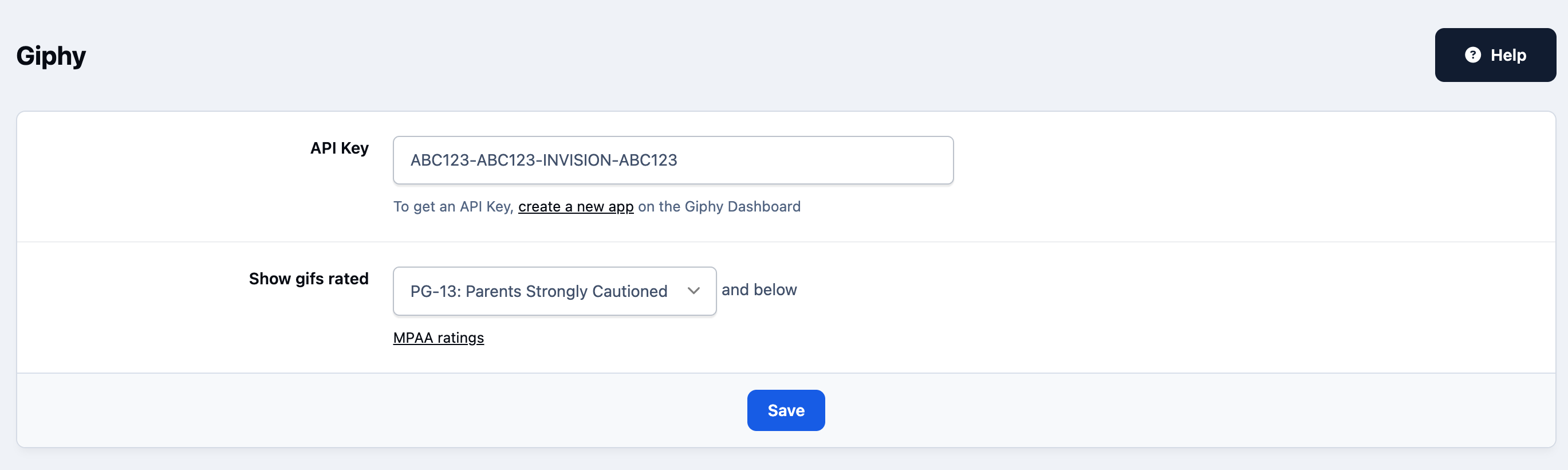
    Locate the GIPHY option and select Enable. You can also choose the content rating of GIFs that your users are allowed to view.

    If you prefer not to use the default API key provided, you can enter your own GIPHY API key using the available option.

    GIPHY Admin CP set up
    integration_giphyacp.png

    Using GIPHY

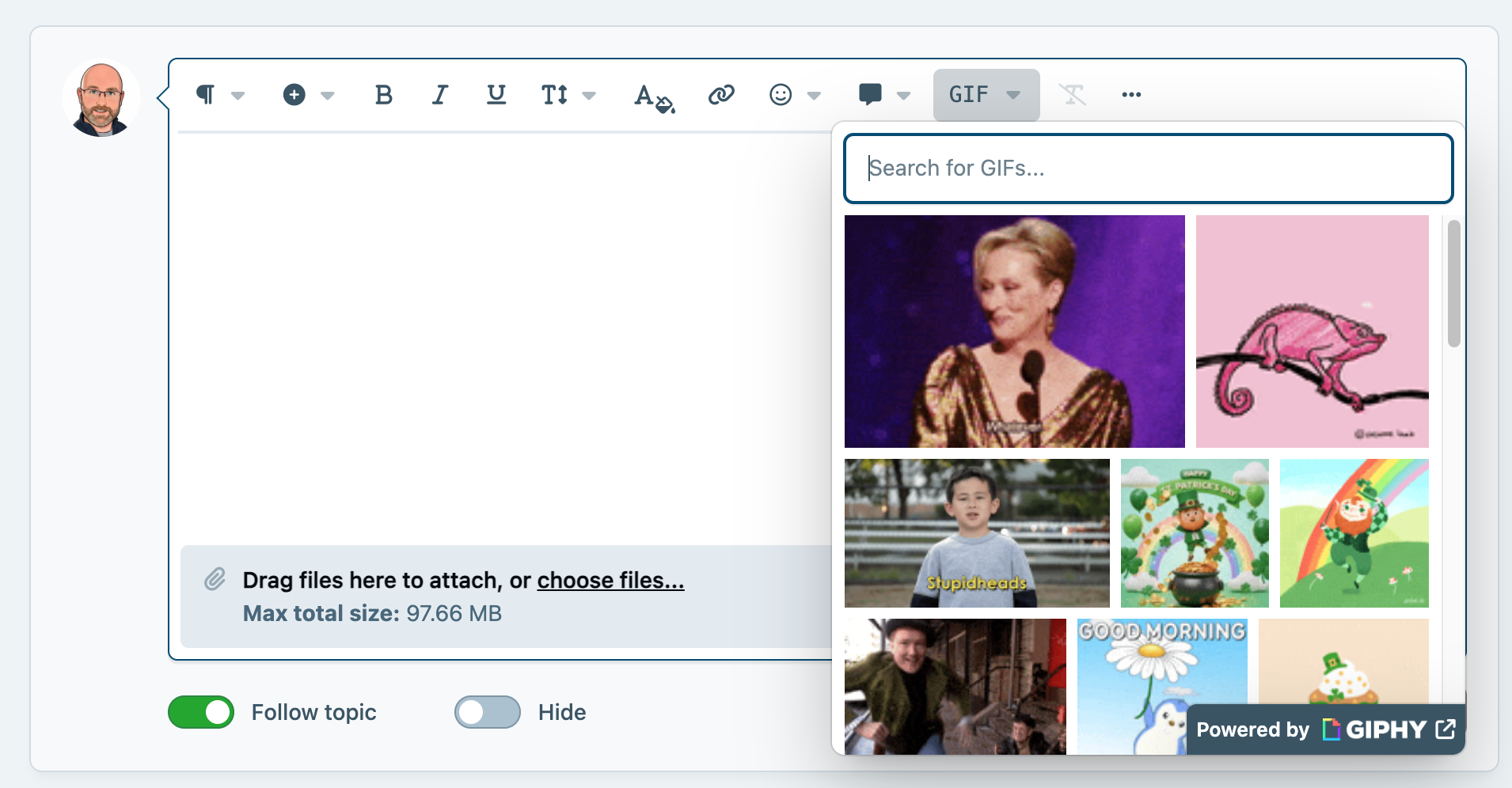
    Once you have completed the steps above, you will see a new button in your editor toolbar. This can be used to search for and add GIFs directly to your content, as shown below.

    Selecting a GIF
    integration_giphyfront.png

    User Feedback

    Recommended Comments

    There are no comments to display.

    Account

    Navigation

    Search

    Search

    Configure browser push notifications

    Chrome (Android)
    1. Tap the lock icon next to the address bar.
    2. Tap Permissions → Notifications.
    3. Adjust your preference.
    Chrome (Desktop)
    1. Click the padlock icon in the address bar.
    2. Select Site settings.
    3. Find Notifications and adjust your preference.