Jump to content
View in the app

A better way to browse. Learn more.

Invision Community

A full-screen app on your home screen with push notifications, badges and more.

To install this app on iOS and iPadOS
  1. Tap the Share icon in Safari
  2. Scroll the menu and tap Add to Home Screen.
  3. Tap Add in the top-right corner.
To install this app on Android
  1. Tap the 3-dot menu (⋮) in the top-right corner of the browser.
  2. Tap Add to Home screen or Install app.
  3. Confirm by tapping Install.
Solutions

Boost employee efficiency.

Our modern approach to company-wide collaboration.

  • 30-day free trial
  • No commitments

Your team's homebase

  • Keep staff up-to-date

    A homebase for staff to stay in the loop about company-wide announcements and policy changes.

  • Publicly recognize employees

    Show visible love to your superstar staff for their contributions and stellar work.

  • Create team and employee profiles

    Create brand transparency with your customers by utilizing visual cues and profile photos.

  • Self-help

    Employees help themselves by asking questions and finding answers.

  • Increased security and privacy

    Password protect parts of the employee community and grant access to only those who need it.

  • Your team's community on the go

    Employees can check in anytime, anywhere.

  • Reduce email volume

    Staff can ask questions and inform one another, freeing up administrative support.

  • Share files and resources

    Upload and share images, PDFs, videos and more into the employee community.

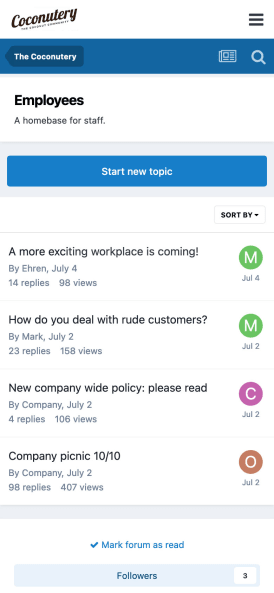
A list of topics

Notifications

Employees won't skip a beat with our community-wide notifcation system.
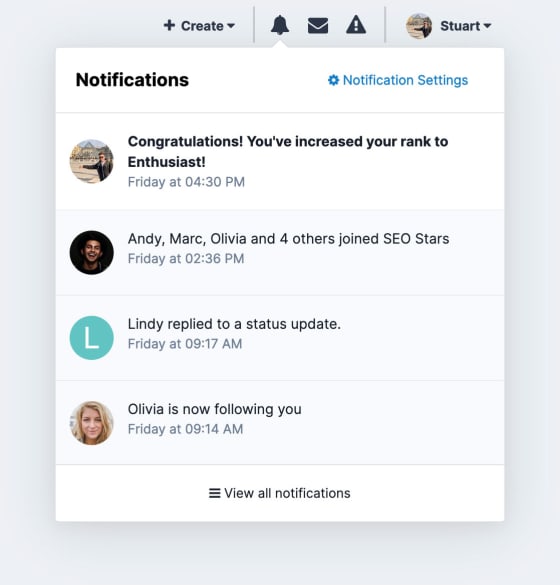
The notifications menu

Clubs

Elevate employee engagement and company culture with open and closed Clubs. Allow open access for all or grant permissions to specific groups.
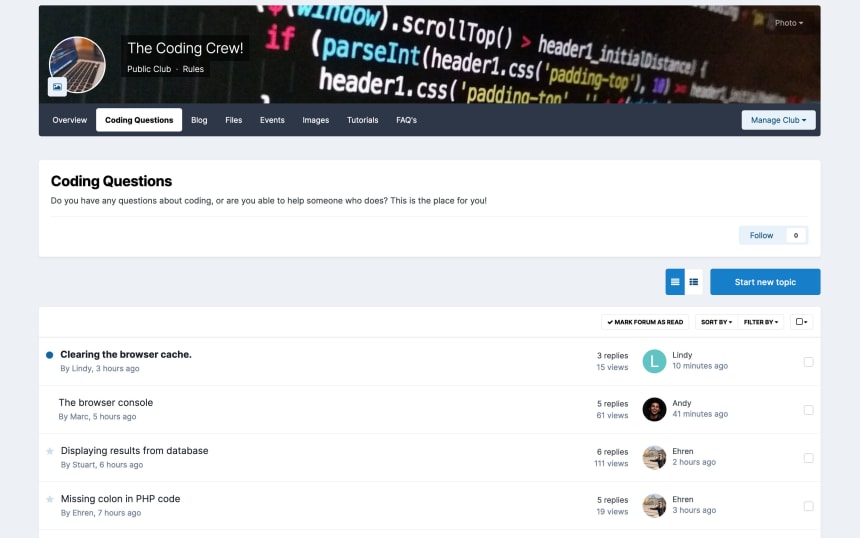
A screenshot of Clubs

Achievements

Reward staff for answering questions and taking initiative.
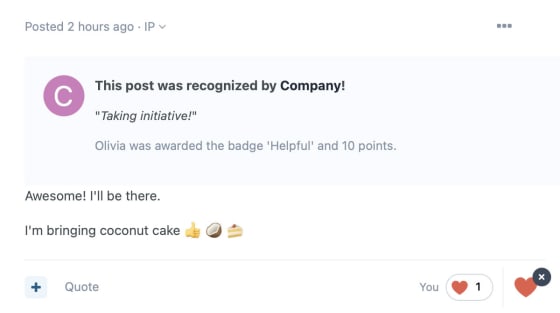
A badge being awarded

Q&A Forums

Employees help themselves by asking questions and finding answers
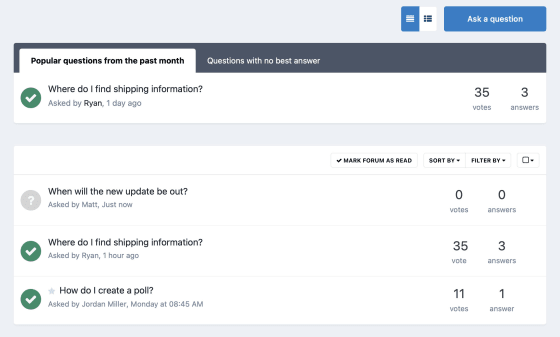
A list of questions

Activity Streams

Create custom feeds tailored to the individual employee.
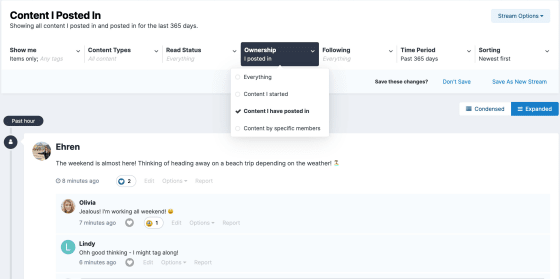
The Activity Stream

Group Permissions

Assign roles to your teams and departments.
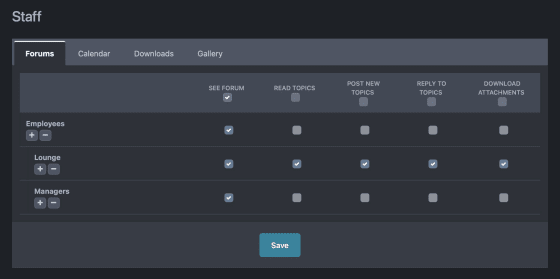
Customizing group permissions

Give your employees a digital presence

They are not just another number.

  • 30-day free trial
  • No commitments

Account

Navigation

Search

Search

Configure browser push notifications

Chrome (Android)
  1. Tap the lock icon next to the address bar.
  2. Tap Permissions → Notifications.
  3. Adjust your preference.
Chrome (Desktop)
  1. Click the padlock icon in the address bar.
  2. Select Site settings.
  3. Find Notifications and adjust your preference.