Jump to content
View in the app

A better way to browse. Learn more.

Invision Community

A full-screen app on your home screen with push notifications, badges and more.

To install this app on iOS and iPadOS
  1. Tap the Share icon in Safari
  2. Scroll the menu and tap Add to Home Screen.
  3. Tap Add in the top-right corner.
To install this app on Android
  1. Tap the 3-dot menu (⋮) in the top-right corner of the browser.
  2. Tap Add to Home screen or Install app.
  3. Confirm by tapping Install.
Innovate

Reward and empower your members.

Boost engagement and nudge your community with achievements.

Badges

Reward your members with manually awarded badges

These are exclusive, one-off badges rewarded to individuals on a case-by-case basis for their exceptional contribution to the community.

Additionally, create an arsenal of pre-defined badges a member automatically earns after completing specific actions like commenting for the first time, visiting for 30 days or receiving Reactions.
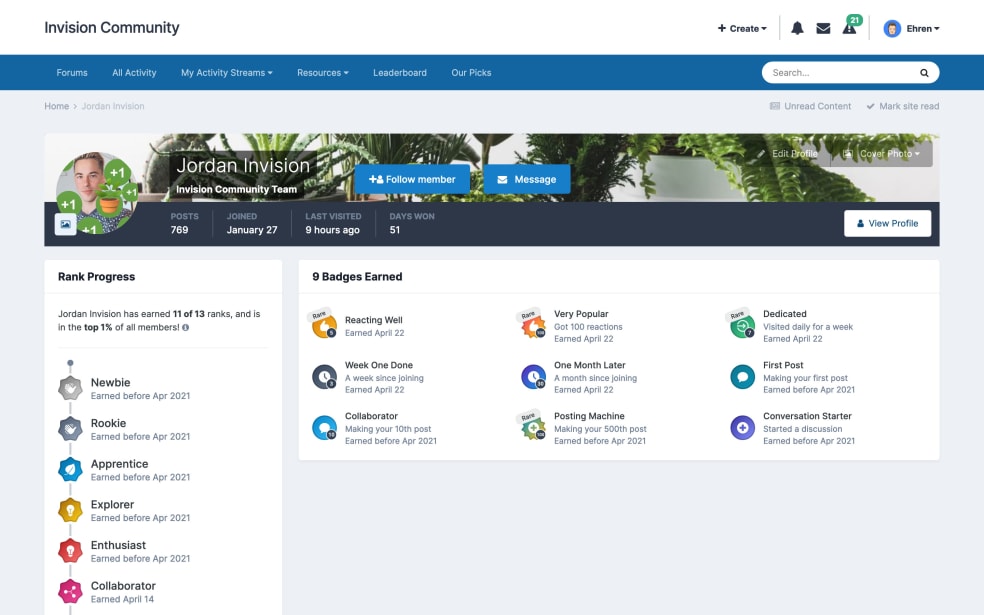
Screenshot of profile with badges

Award and earn badges by contributing. The possibilties are endless.

  • Followed

    A member is followed by 10 members.

  • Content item

    A member posted 20 topics.

  • Best answer

    A member answered/solved 30 questions.

  • Comments

    A member commented 40 times.

Points

Our Achievements Points system keeps a running tally of points. Members may earn points in a multitude of ways.

  • Member joins a club
  • Reaction is given
  • New poll is created
  • User follows a content item
  • Review is posted
  • Member logs in for the first time that day
  • New club is created
  • Content item/comment is promoted or featured
  • Comment/reply is posted
  • User follows a forum, blog, gallery, category etc
  • User votes on a poll
  • User is followed
  • New content item is posted
  • Post is marked as best answer
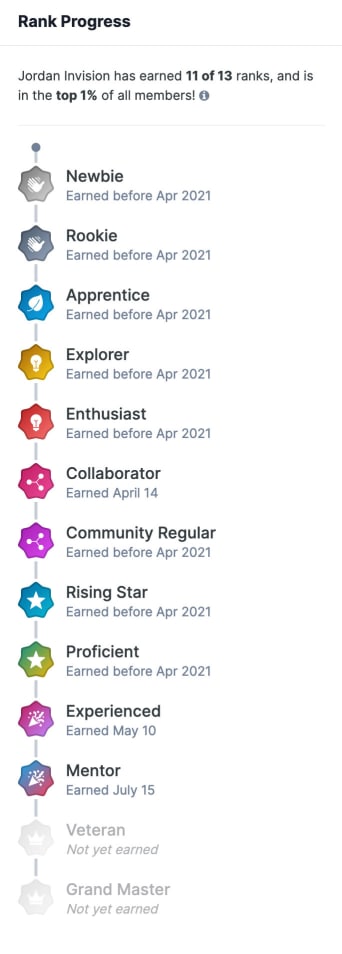
Screenshot of Rank Progress
Badges

Actionable Rules

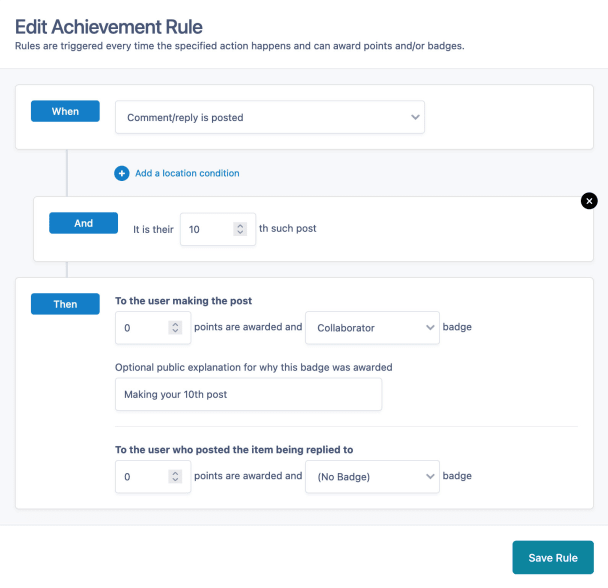
Specific Rules decide what actions earn badges automatically or manually. When this action happens, then this subsequent action happens.

For example:
  • 20 visits badge

    A member receives a badge for visiting your community 20 times.

  • Most helpful member

    Reward a superstar member for their contibutions.

  • Moderator Badges

    Manually award badges to individual members for their outstanding achievements.

Screenshot of editing Achievement Rules
Sharing is caring

Ranks

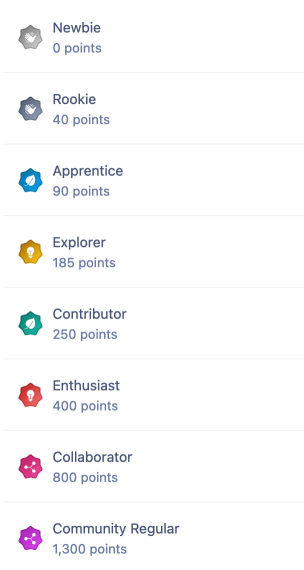
A members’ perceived value based on the accumulation of points. The higher a members’ Rank, the greater their influence.
  • Points

    Define a member's Rank by the amount of points they've earned.

  • Badges

    Rank-specific badges are prominently displayed in a member's profile.

  • Automate

    When members reach a specified points threshold, they'll be automatically ushered into the next Rank.

Screenshot of Ranks List
Reactions

Community Reputation

Members react to other members' topics and comments using our Reactions feature.

For example:
  • Positive and negative Reactions

    Determine how many +1 or -1 Reaction points a member receives. The more engaging and high quality the content is, the more positive Reaction points they'll earn. On the flip side, the community can adversely react to a comment by issuing a -1 point.

  • Custom Reactions

    Add your own custom Reactions outside of the default scope, like a peace sign or a gold star.

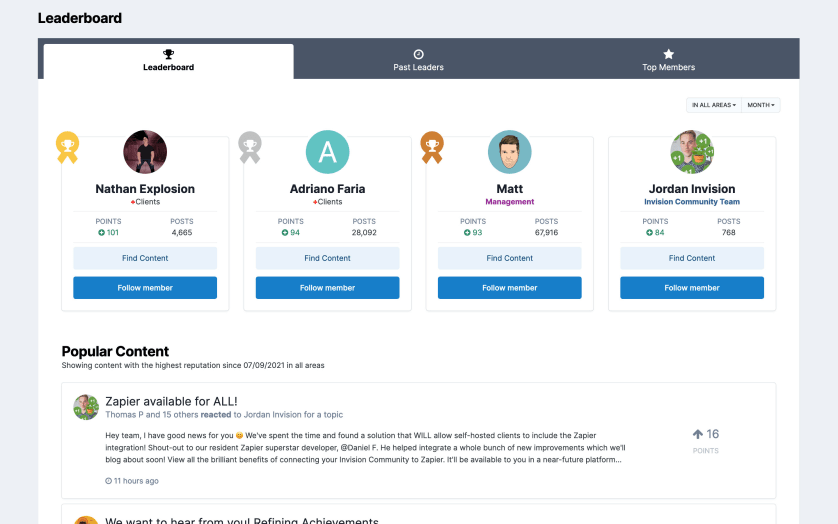
  • Leaderboard

    Members with the most Reactions earn what's called a Reputation score. They'll show up in the community's Leaderboard.

Screenshot of Leaderboard

#Winning

Reap the rewards of increased engagement.

  • 30-day free trial
  • No commitments

Account

Navigation

Search

Search

Configure browser push notifications

Chrome (Android)
  1. Tap the lock icon next to the address bar.
  2. Tap Permissions → Notifications.
  3. Adjust your preference.
Chrome (Desktop)
  1. Click the padlock icon in the address bar.
  2. Select Site settings.
  3. Find Notifications and adjust your preference.