


Mike Stoltz
Clients
-
Joined
-
Last visited
-
Hi Marc, any update?
-
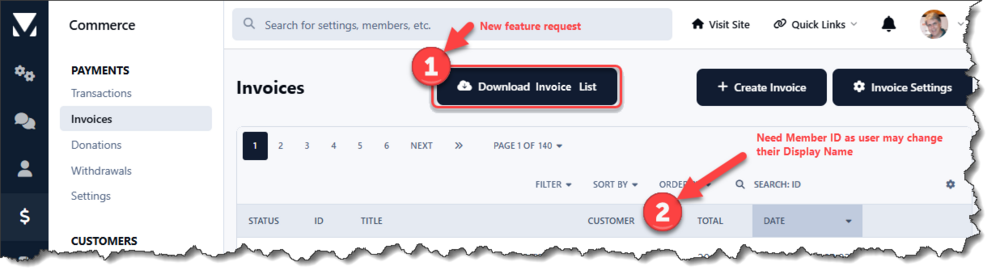
Thanks for the suggestion Marc; however, the Statistics/Sales/Sales and the Statistics/Sales/Income reports only provide the date and # of subscriptions on that date and have no reference to the member/customer. Would it be difficult to add a Download feature to the Commerce/Payments/Invoices and take advantage of the "Download Member List" feature code. On the Commerce/Payments/Invoices view, could you add the member/customer ID to the view so that the invoice can be associated to the member ID when copied/pasted from the view itself. The member can change their Display Name over time.
-
We charge a minimal annual fee to register on our site forum. To manage subscription payments (mostly for individuals who don't consistently sign up year over year), I need to get a listing of past, historical invoices and associated data. I wnat to look at whether they were paid or not and look at payment trends year over year. Is there a widget available that I could use to get invoice history (member ID, invoice ID, invoice date, invoice amount, payment status, payment date) onto a custom page Or, is there a way to get this historical invoice data exported Or, is there an API call I can make to retrieve this information? Or, other ideas without having to scan the invoice history page by page? Thanks for your input.

